> For the complete documentation index, see [llms.txt](https://docs.patchmypc.com/llms.txt). Markdown versions of documentation pages are available by appending `.md` to page URLs; this page is available as [Markdown](https://docs.patchmypc.com/patch-my-pc-cloud/technical-references/triggering-a-reinstall-when-configuration-changes-but-the-software-version-does-not.md).
# Triggering a Reinstall When Configuration Changes but the Software Version Does Not
*Applies to: Patch My PC Cloud*
### Summary
Patch My PC detection logic is version-based. If an application is already installed at a given version, **changes to configuration alone** (for example: command-line switches, pre/post scripts, or license configuration) will **not** trigger a reinstall on existing devices with the same software version installed.
This article describes a workaround in **Patch My PC Cloud with Microsoft Intune** to force a reinstall when the software version remains unchanged but the configuration needs to change.
This approach relies on creating a *second deployment*, using **custom detection logic**, and optionally using **Intune supersedence** to force an uninstall and reinstall (if necessary).
{% hint style="warning" %}
This is a workaround, not native behavior. It requires careful testing.
{% endhint %}
The guidance offered in this article is for Patch My PC Cloud. While it's possible to achieve this with the Patch My PC Publisher (OnPrem), the guidance can be more nuanced. If you need support with this using the OnPrem Publisher, please open a [technical support case](https://patchmypc.com/technical-support/).
### When do you need this?
You may need this process if all of the below are true:
* The application version has not changed
* The app installed successfully on devices
* You later discover the configuration was incorrect or incomplete, such as:
* Incorrect command-line switches
* Updated pre- or post-install scripts
* A different license key or configuration file
{% hint style="info" %}
If you are unable to create a new deployment for the same version because a new version has been added to our catalogue, then you have two choices:
1. Implement your new configuration on your existing deployment and deploy the update - there is no need to follow the guidance in this article.
2. However, if you are unable to use the new version, then you can create a [Custom App](https://docs.patchmypc.com/patch-my-pc-cloud/custom-apps) for the same version because today it is not possible to publish old versions with Patch My PC.
{% endhint %}
If this is a recurring need, consider upvoting or tracking the related feature request:
* [Reinstall Apps with New Customization | Patch My PC Ideas & Feedback](https://ideas.patchmypc.com/ideas/PATCHMYPC-I-4757)
### High-level approach
At a high level, the process looks like this:
1. Create a **new Patch My PC deployment** with the updated configuration
1. Also, implement a post-script to apply a configuration marker on the device to uniquely identify the new configuration on the device
2. Pause automatic updates to avoid version drift during rollout
3. Modify detection logic to include the configuration marker so Intune can identify the *new configuration*
4. (Optional) Use **supersedence** to force a reinstall
Patch My PC-generated detection logic is version-based and **does not evaluate configuration state**. If the required version is already installed, Intune considers the app compliant and will not rerun the installer.
To work around this, the new deployment must apply a **configuration marker** to the device and include this marker in the detection logic.
Examples of configuration markers include:
* A registry value
* A file written to disk
* A specific configuration file value
**Example:**
* Registry path: `HKLM:\SOFTWARE\Contoso\ChromeConfig`
* Registry value: `ConfigVersion`
* Registry data: `2`
Each step is detailed below.
### Step 1: Create a new deployment with the updated configuration
In this step we will create a new deployment for the same application and version, with updated configuration applied.
Start by [creating a new deployment](https://docs.patchmypc.com/patch-my-pc-cloud/cloud-deployments/deploy-an-app-using-cloud) for the same application and version in Patch My PC Cloud:
1. Apply your **newly desired configuration** (e.g. updated command line parameters, revised pre or post install scripts, or additional custom actions)
2. Add a custom configuration marker as a [post install script to the deployment](https://docs.patchmypc.com/patch-my-pc-cloud/cloud-deployments/deploy-an-app-using-cloud/cloud-configurations-deployment-tab/cloud-scripts-deployments), for example:
```powershell
Set-ADTRegistryKey -LiteralPath 'HKEY_LOCAL_MACHINE\SOFTWARE\Contoso\ChromeConfig' -Name 'ConfigVersion' -Type 'DWord' -Value '2'
```
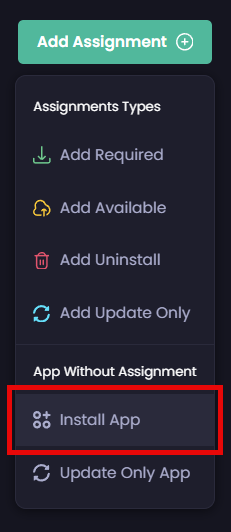
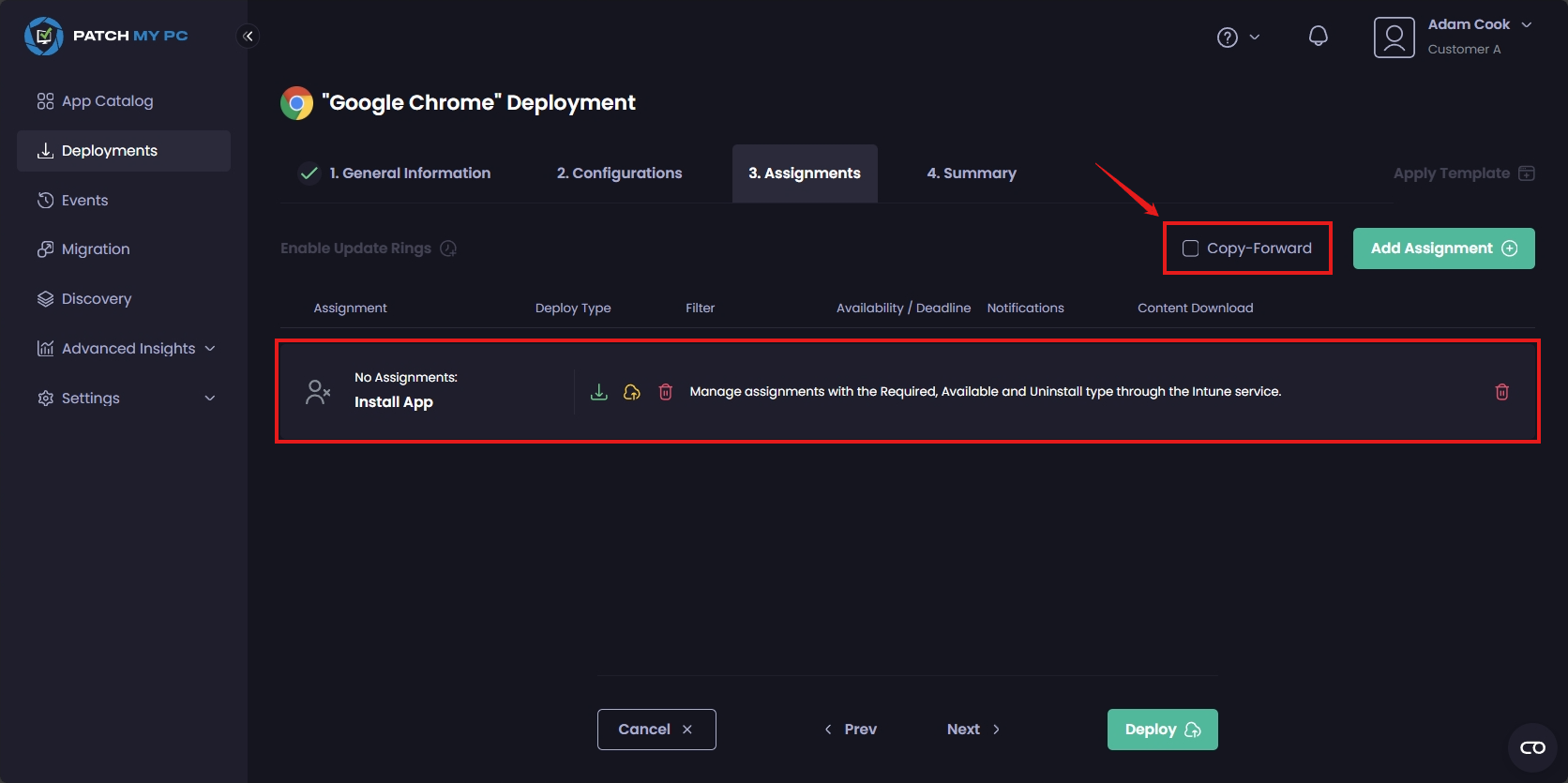
3. For assignments, we recommend choosing the **Install App** under [App Without Assignment](https://docs.patchmypc.com/patch-my-pc-cloud/cloud-deployments/create-a-cloud-deployment-without-assignments) - we will manage the assignments in Intune for this roll out.
4. Uncheck the box to "**Copy-Forward**" - this prevents assignments being immediately copied forward to the next version if you decide not to pause the deployments (this is the next step)
{% hint style="danger" %}
**Do not delete or modify the original deployment yet.** You may need the original application/package later when configuring supersedence.
{% endhint %}
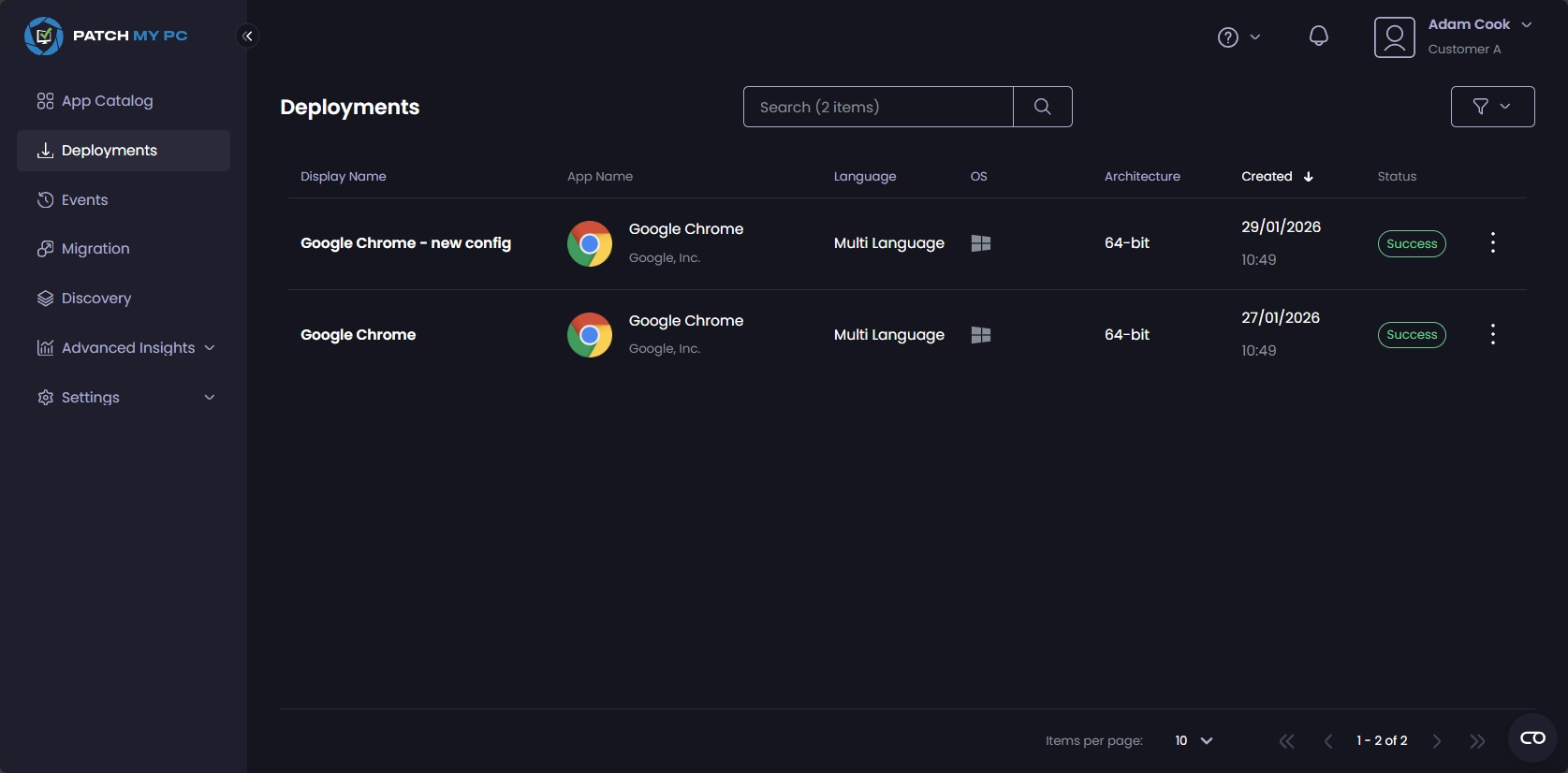
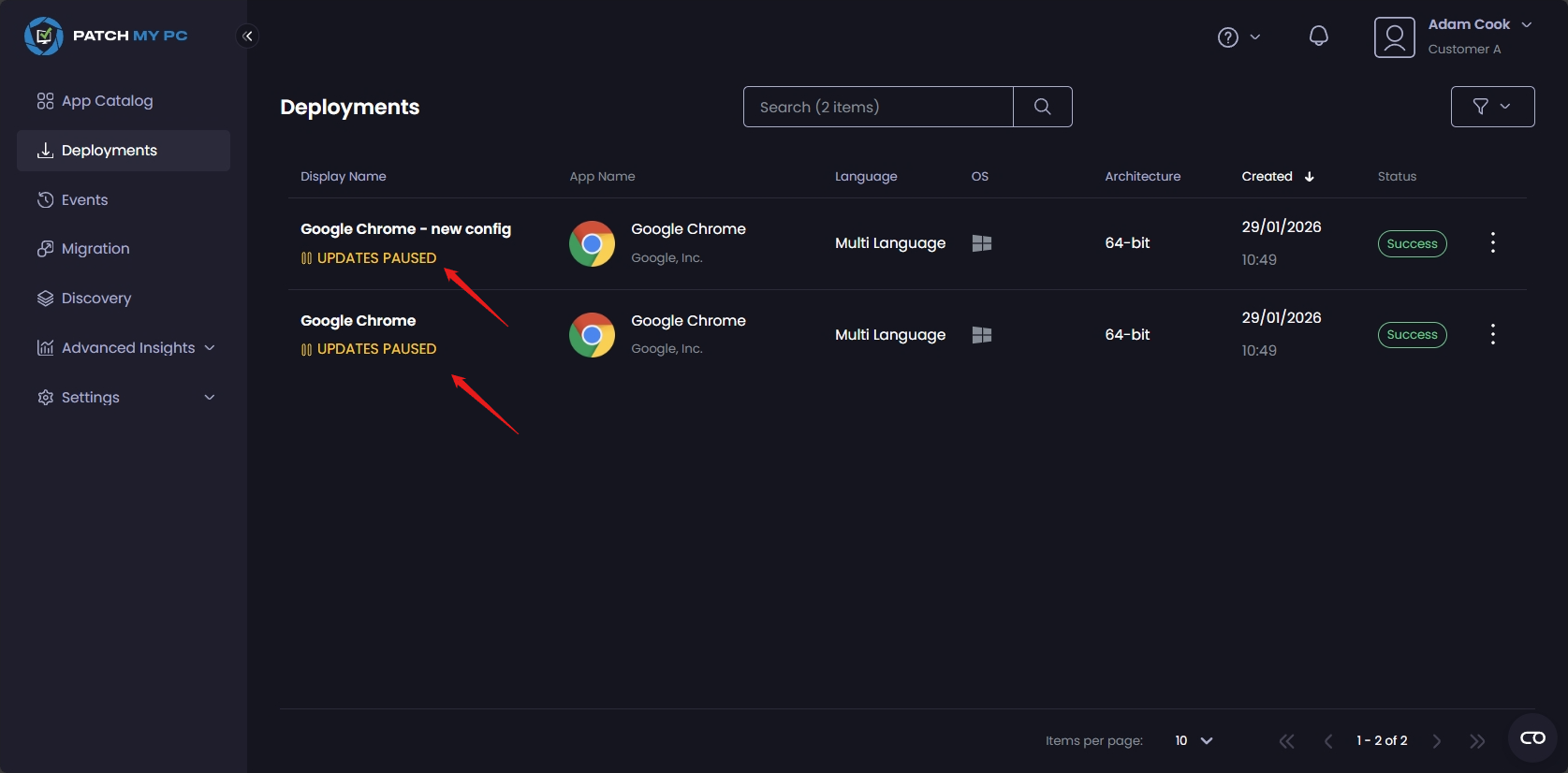
At this point, you should have both the original deployment and the new deployment with your new configuration:
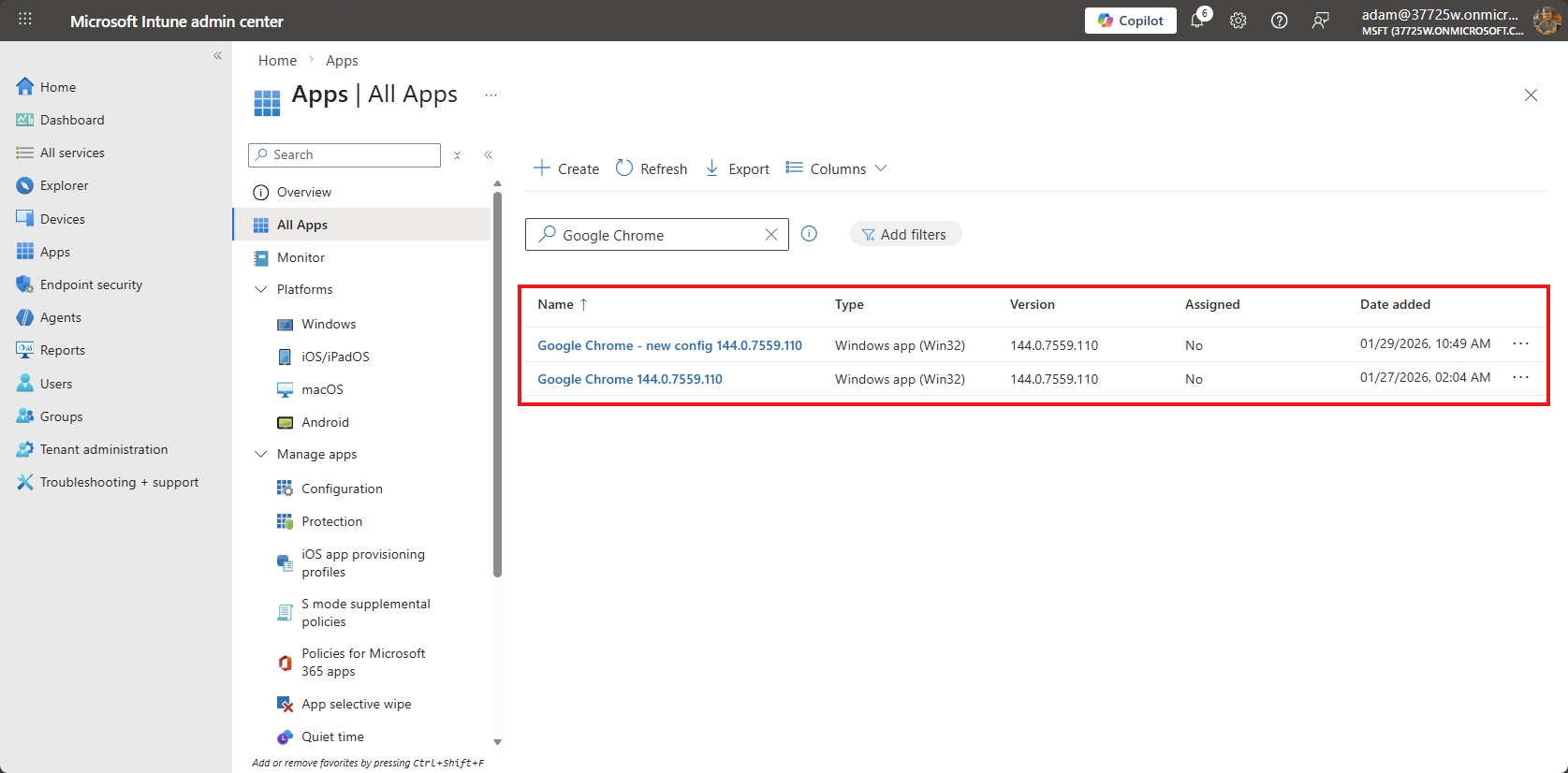
Both packages should also be visible in Intune, too:
### Step 2: Pause both deployments
Before continuing, it is recommended to [pause](https://docs.patchmypc.com/patch-my-pc-cloud/cloud-deployments/manage-updates-in-cloud/pause-cloud-updates) the **original deployment** and the **new deployment** - this prevents unexpected changes if Patch My PC publishes a new version mid-rollout. This is an easy way to prevent muddying the waters; keeping both deployments paused ensures you are only managing *configuration changes*, not version changes.
You will un-pause one deployment and delete the other when you have completed your roll-out of your new configuration changes.
### Step 3: Update detection logic to reflect the new configuration
This is the most critical (and most error-prone) step.
Why is this needed?
As previously mentioned, Patch My PC-generated detection logic is version-based and as a result it **does not detect configuration state**. If the version is already installed, Intune considers the app compliant. Therefore we need to update the detection logic to include our new configuration marker applied from the new deployment.
Instead of modifying the Patch My PC-generated detection script (*not recommended*), create **your own custom detection logic** in Intune that checks:
* The installed software version **AND**
* the unique configuration marker
{% hint style="info" icon="pen" %}
The reason why we don't recommend you edit the Patch My PC detection script is because it's a heavily condensed script purposefully written to be as concise as possible, to [avoid Intune policy capacity limits](https://patchmypc.com/blog/powershell-scripts-not-executing-maxjsonlength/).
As a result, the guidance to correctly modify the script to suit your needs would be non-trivial. It's simpler to use Intune's native detection rules for this one-off purpose.
{% endhint %}
On the **new package only**, remove the Patch My PC–generated detection script and replace it with your custom detection logic.
{% hint style="info" icon="lightbulb" %}
When comparing version numbers, use the **Greater than or equal to** operator. This can help prevent future detection issues if a newer version is released while older packages remain assigned.
{% endhint %}
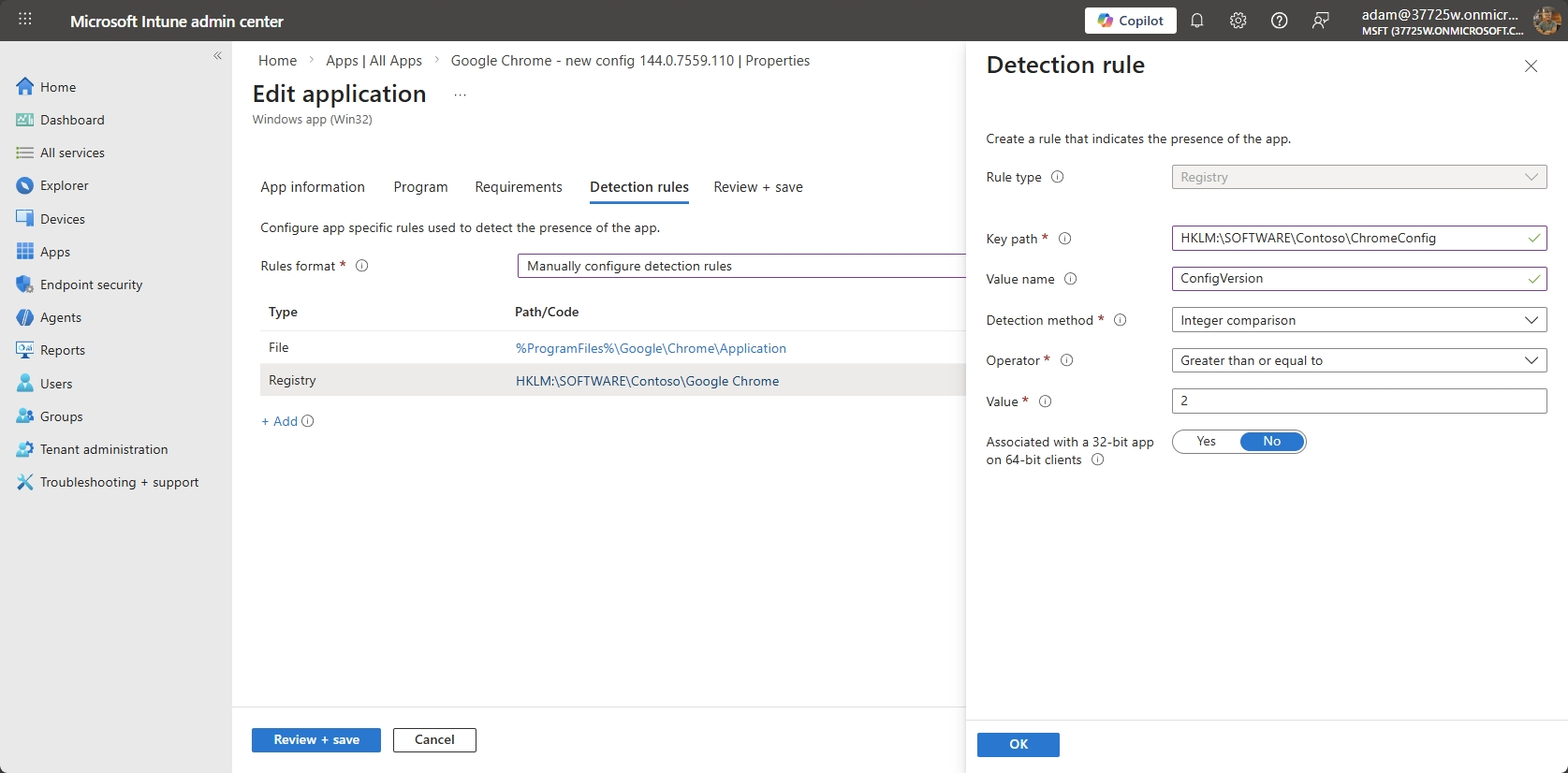
**Example:**
* Rule type: `Registry`
* Registry path: `HKLM:\SOFTWARE\Contoso\ChromeConfig`
* Registry value: `ConfigVersion`
* Detection method: `Integer comparison`
* Operator: `Greater than or equal to`
* Value: `2`
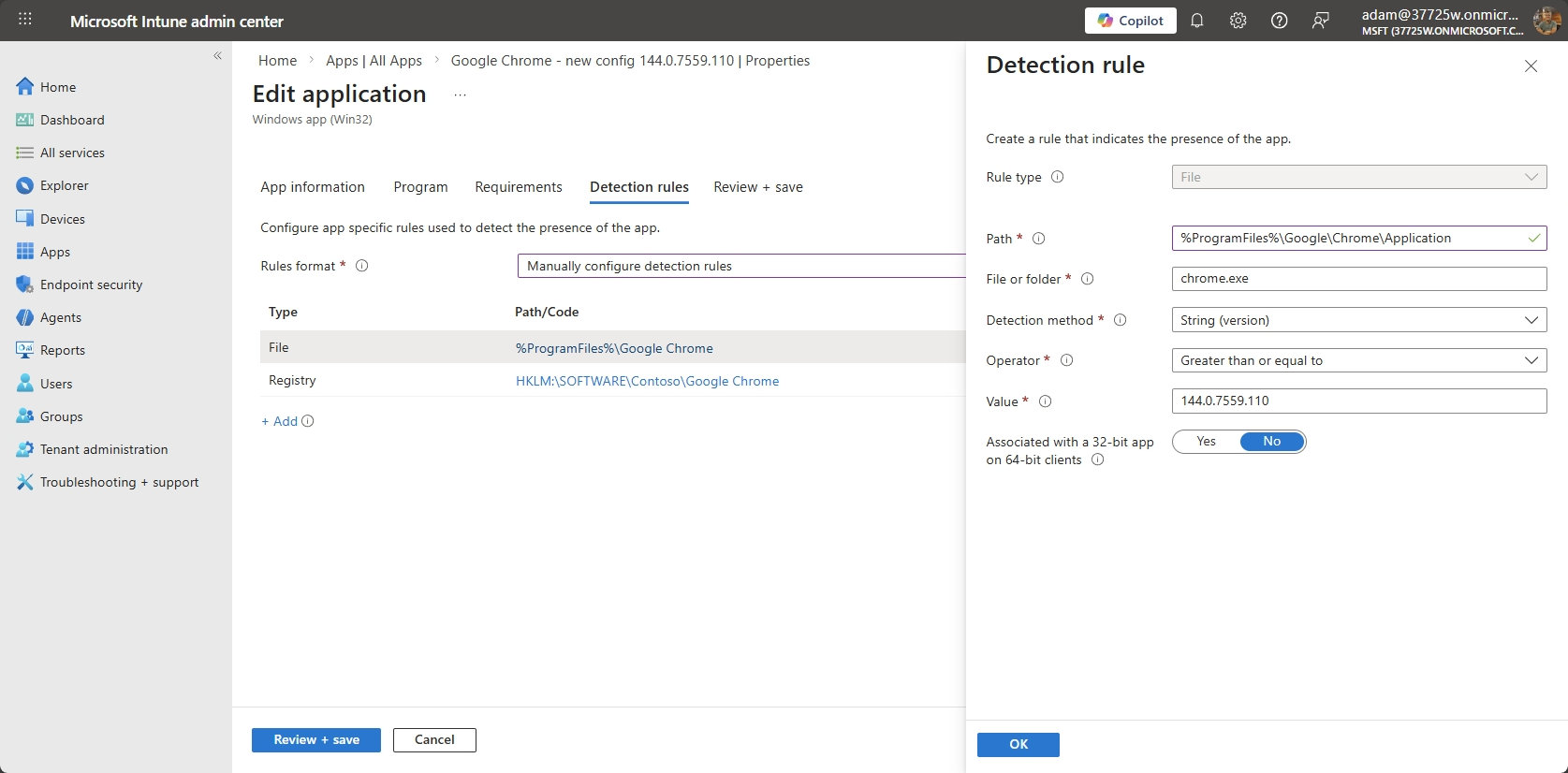
In this particular case where I'm using Google Chrome 144.0.7559.110 as an example, I added a secondary detection rule - adapt yours accordingly.
* Rule type: `File`
* Path: `%ProgramFiles%\Google\Chrome\Application`
* File or folder: `chrome.exe`
* Detection method: `String (version)`
* Operator: `Greater than or equal to`
* Value: `144.0.7559.110`
Only when *both* conditions are met, Intune will evaluate the new app as installed.
{% hint style="warning" %}
Customers are responsible for authoring, validating, and maintaining custom detection logic. Extensive testing is strongly recommended.
{% endhint %}
### Step 4: (Optional) Configure Supersedence in Intune
Depending on the application, you **may or may not** need supersedence.
#### When Supersedence Is Required
Use supersedence if:
* The installer will **not** re-run cleanly over the same version
* A full uninstall + reinstall is required to apply configuration changes
For example, some software throw a non-successful exit code and do nothing when the installer for the same version runs again, whereas other installers return a successful exit code and still do nothing. However, some installers can successfully reinstall or apply new configuration when it runs again.
To determine whether supersedence is required, test the installer by rerunning it on a device where the same version is already installed:
* If the installer fails or performs no action, configuring supersedence is recommended
* If the installer successfully reapplies configuration, supersedence is not necessary
#### How to Configure Supersedence
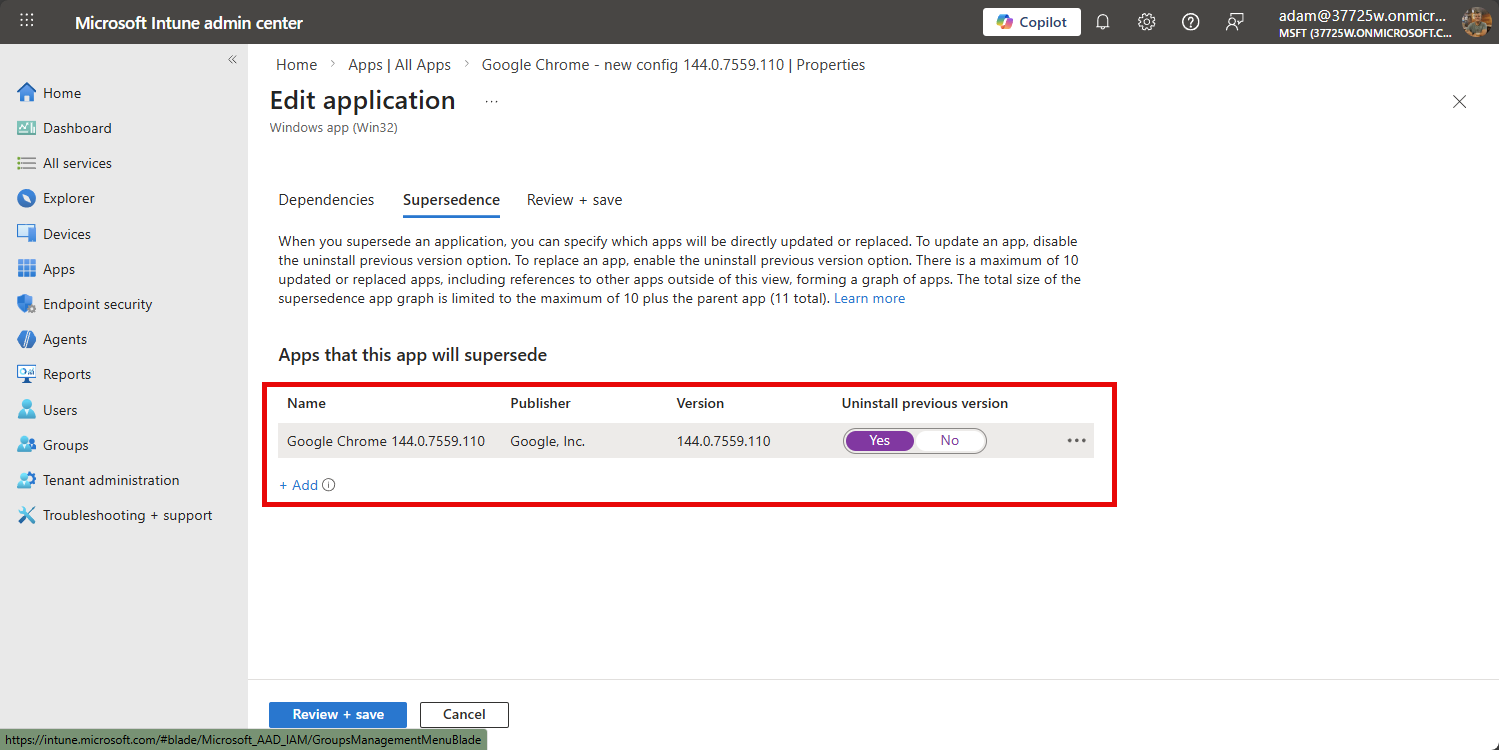
In Intune:
1. In Intune, navigate directly to the new package created from step 1
2. Click on the **Properties** blade and edit **Supersedence**
3. Click **+ Add** and browse for the original package you need to uninstall
4. Toggle the **Uninstall previous version** to **Yes**
5. Click **Review + save**
{% hint style="info" icon="pen" %}
When using supersedence, ensure you select the **Install and Update App** package type.\
The **Update Only** package type does not support supersedence scenarios.
The **Install and Update App** package is made when you create a required, available, or uninstall assignment on your deployment in Patch My PC Cloud.
Whereas the **Update Only** package type is made when you create an **Update Only** assignment.
{% endhint %}
When you complete the next step, this will force the Intune client to uninstall the software and install the software again with the new configuration.
### Step 5: Create assignments
Finally, the last step is to create assignments for the package with the new configuration to your devices and remove the assignment(s) from the original package. You should do this directly on the packages in the Intune portal.
It is strongly recommended to consider creating an assignment to a smaller security group of test devices first, so you can verify your new configuration applies correctly and smoothly.
When satisfied, gradually increase the scope of targeting to eventually include all intended users or devices.
After a period of time, when satisfactory compliance has been reached for the new package, it is recommended to delete both deployments in Patch My PC Cloud and recreate one again containing your newly desired configuration.
The reason why we recommend you delete both of the deployments, rather than the original deployment and keeping the new deployment, because it's currently not possible to change a deployment previously made with the assignment option "**App Without Assignment**" to then using assignments - it's likely you want subsequent updates of your deployment to automatically be assigned to security groups, e.g. with [Update Rings](https://docs.patchmypc.com/patch-my-pc-cloud/cloud-deployments/cloud-update-rings).
### Important Notes About Future Updates
When Patch My PC later releases a new version of the application, any custom detection logic created for this workaround **will not be carried forward automatically**.
This is generally desirable because:
* All devices should already have the correct configuration
* Future updates can rely on standard version-based detection
* Normal Patch My PC update workflows can resume
### Key Risks and Considerations
* This is a **manual workaround** for a limitation of version-only detection
* Custom detection logic introduces customer-owned complexity
* Supersedence can be disruptive if not tested carefully
* Always test on a limited device group before broad deployment
### Summary
If configuration changes are required but the software version does not change:
* Create a new deployment with the updated configuration
* Pause updates to prevent version drift
* Use **custom detection logic** to represent configuration state
* Use **supersedence only if required**
---
# Agent Instructions
This documentation is published with GitBook. GitBook is the documentation platform designed so that both humans and AI agents can read, navigate, and reason over technical content effectively. Learn more at gitbook.com.
## Querying This Documentation
If you need additional information that is not directly available in this page, you can query the documentation by asking a question.
Perform an HTTP GET request on the following URL with the `ask` and `goal` query parameters:
```
GET https://docs.patchmypc.com/patch-my-pc-cloud/technical-references/triggering-a-reinstall-when-configuration-changes-but-the-software-version-does-not.md?ask=&goal=
```
`ask` is the immediate question: it should be specific, self-contained, and written in natural language.
`goal` is what the user is ultimately trying to achieve, the reason they need the answer. Sharing it helps GitBook give you a better, more relevant answer. A goal is most helpful when it describes the outcome the user wants rather than restating the question. For example, with `ask=how do I create an API token`, a goal like `automate deployments from our CI pipeline` lets GitBook tailor the answer to that use case.
The response will contain a direct answer to the question and relevant excerpts and sources from the documentation.
Use this mechanism when the answer is not explicitly present in the current page, you need clarification or additional context, or you want to retrieve related documentation sections.