> For the complete documentation index, see [llms.txt](https://docs.patchmypc.com/llms.txt). Markdown versions of documentation pages are available by appending `.md` to page URLs; this page is available as [Markdown](https://docs.patchmypc.com/patch-my-pc-cloud/onboard-cloud.md).
# Onboard to Patch My PC Cloud
*Applies to: Patch My PC Cloud*
To sign up for a free trial to PMPC Cloud:
1. Navigate to
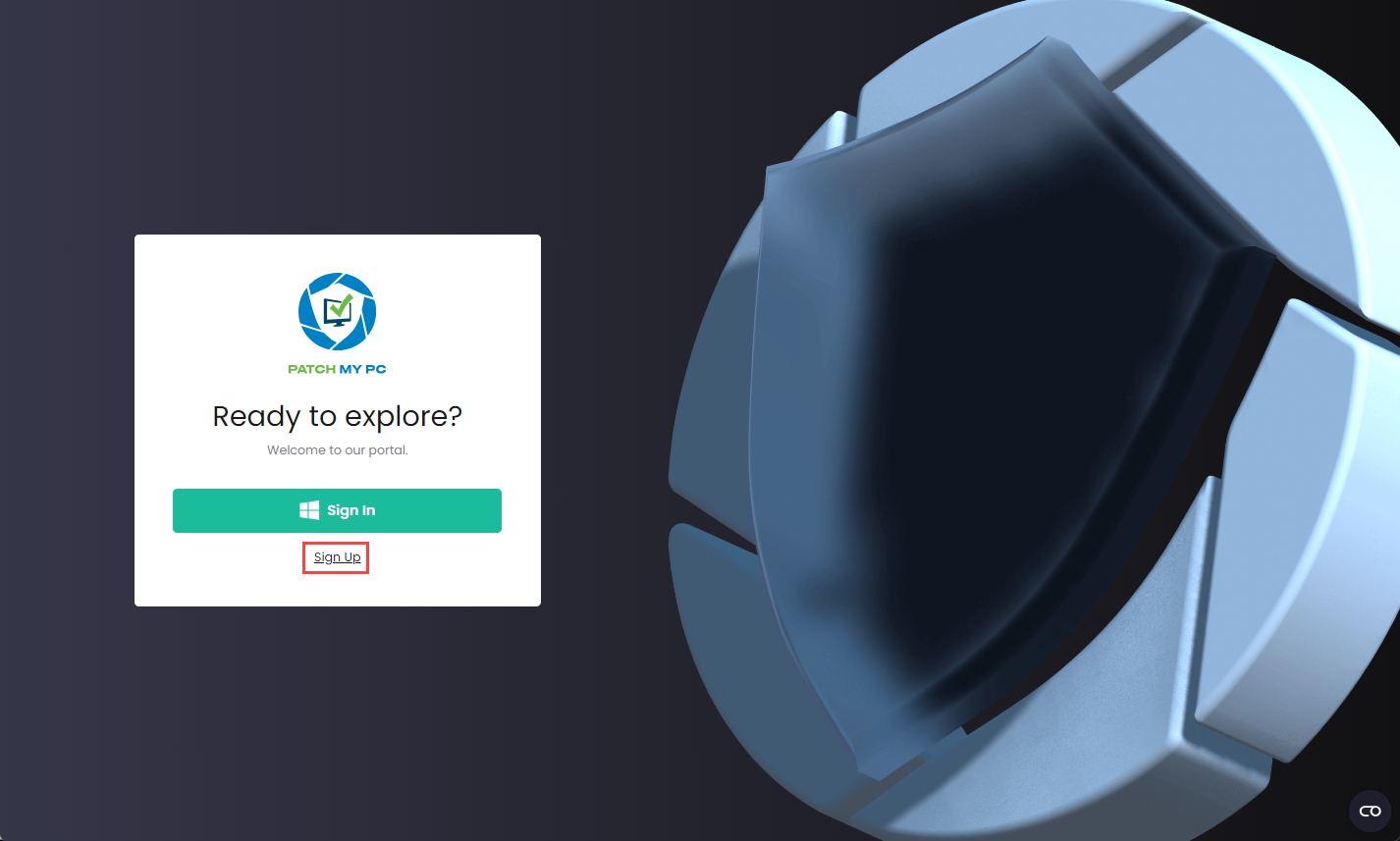
2. Click **Sign Up**.
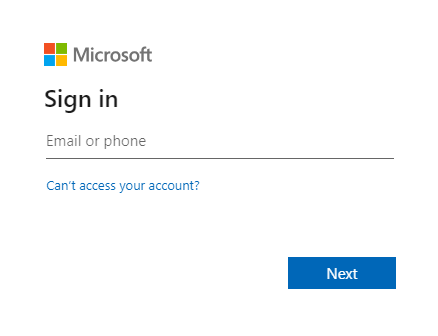
3. On the **Sign in** screen, enter the Entra ID you want to use to onboard to PMPC Cloud or click to select the relevant account from the list of already signed-in accounts. Then click **Next**.
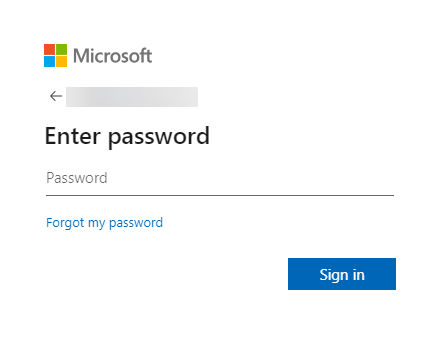
4. Enter the password and click **Sign in**.
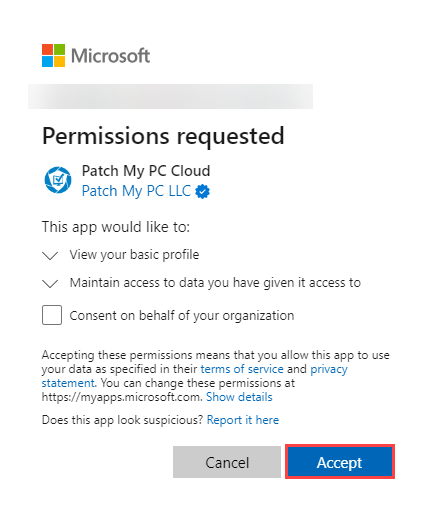
5. If the **Permission requested** screen is not displayed, go to Step 7.
6. Review the **Permission requested** screen, clicking **Accept** if you are happy to continue.
{% hint style="info" %}
**Note**
This dialog box is for the Enterprise Application Registration process. We require these permissions to authenticate you.
See [Permissions required for Patch My PC Cloud](/patch-my-pc-cloud/technical-references/cloud-permissions-reference/permissions-required-for-patch-my-pc-cloud.md) for more details.
You do not need to check the optional **Consent on behalf of your organization** checkbox, which is only visible to Global Administrators or a user with the Privileged Role Administrators role.
However, if you are assigned one of the above roles, and want to accept the request to read the profile for all users in your tenant and prevent this message from being displayed for them, you should check it.
Either way, checking or unchecking this checkbox does not affect PMPC Cloud functionality.
Once you accept the permissions, you will not see this dialog box again on subsequent sign-ins.
{% endhint %}
{% hint style="success" %}
**Tip**
You can click the down arrow beside each permission to get more information.
{% endhint %}
7. If do have previously created a Cloud Company and do not see the **Select the Company You Want to Sign-In To** screen, go to Step 9.
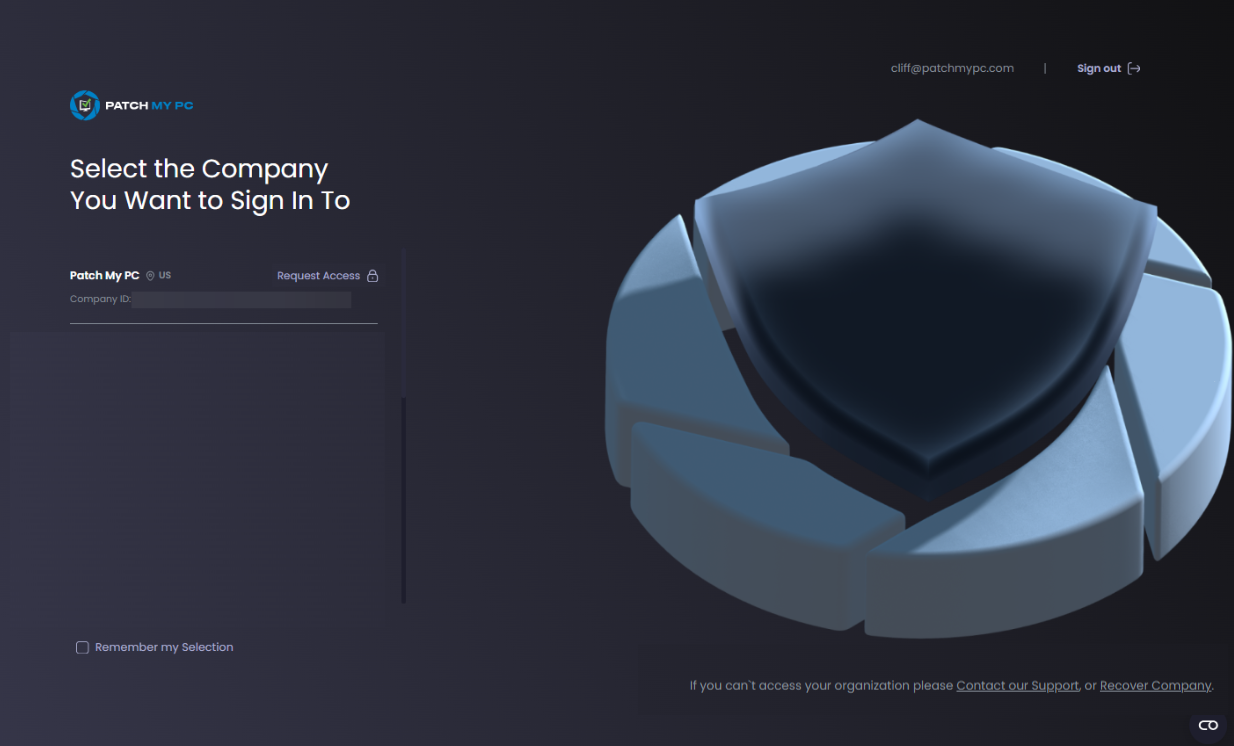
8. On the **Select the Company You Want to Sign-In To** screen, select the relevant option:
1. If you are setting up a new company, click **Create Company** and continue to Step 9.
2. If your email address has already been used to create a user in a PMPC Cloud company, you will see **Select** beside the relevant companies that you can sign in to.
3. If your email address is not associated with a user in a PMPC Cloud company, you can click **Request Access** beside the company you want to join.
\
The **Request Access to join *****\*** popup appears.
8. Enter an optional **Reason for Request** then click **Submit**.\
\
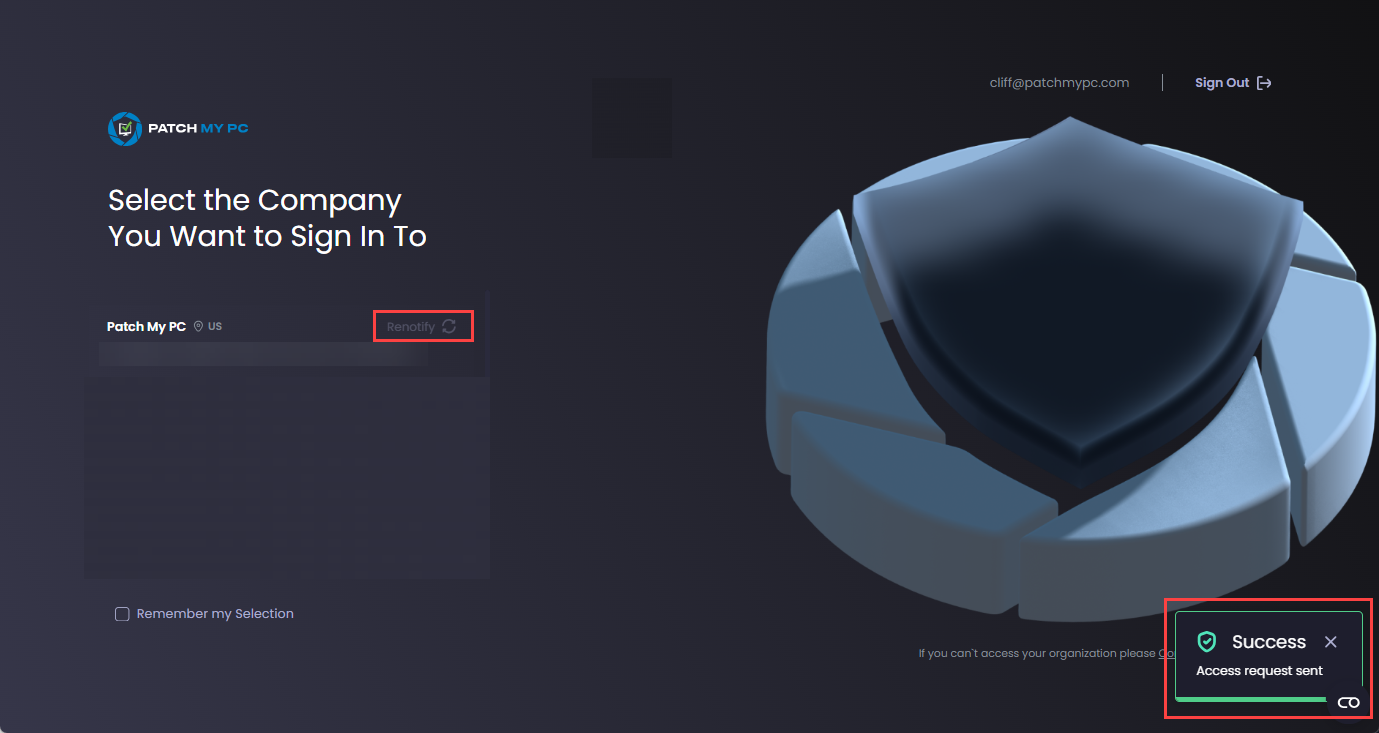
The **Request Access** text changes to **Renotify** and the **Success - Access request sent** notification is shown.
You now need to wait for a user with the **Full Admin with Access Management** role to review and approve your request.
{% hint style="success" %}
**Tip**
You can click the **Remember my Selection** checkbox to on the **Select the Company You Want to Sign-In To** screen to save your choice to save you having to chose the company you want to sign into each time.
{% endhint %}
{% hint style="info" %}
**Note**
Users will receive an email from the mailbox advising whether their request to join a company was accepted or rejected.
{% endhint %}
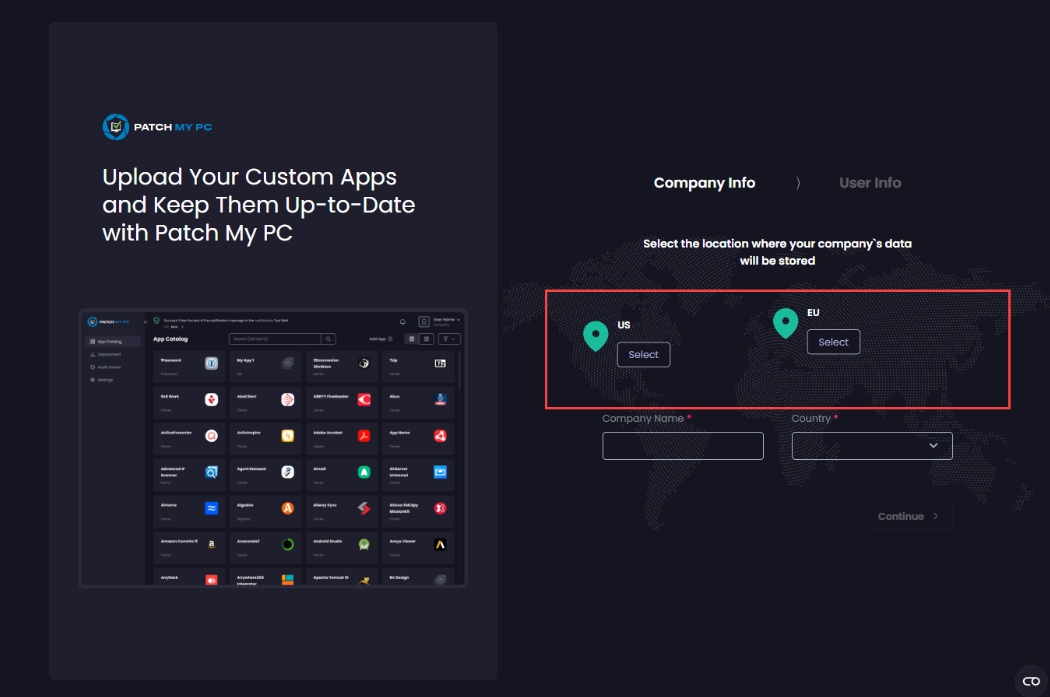
9. On the **Company Info** screen, click **Select** for the location where your company’s data will be stored.
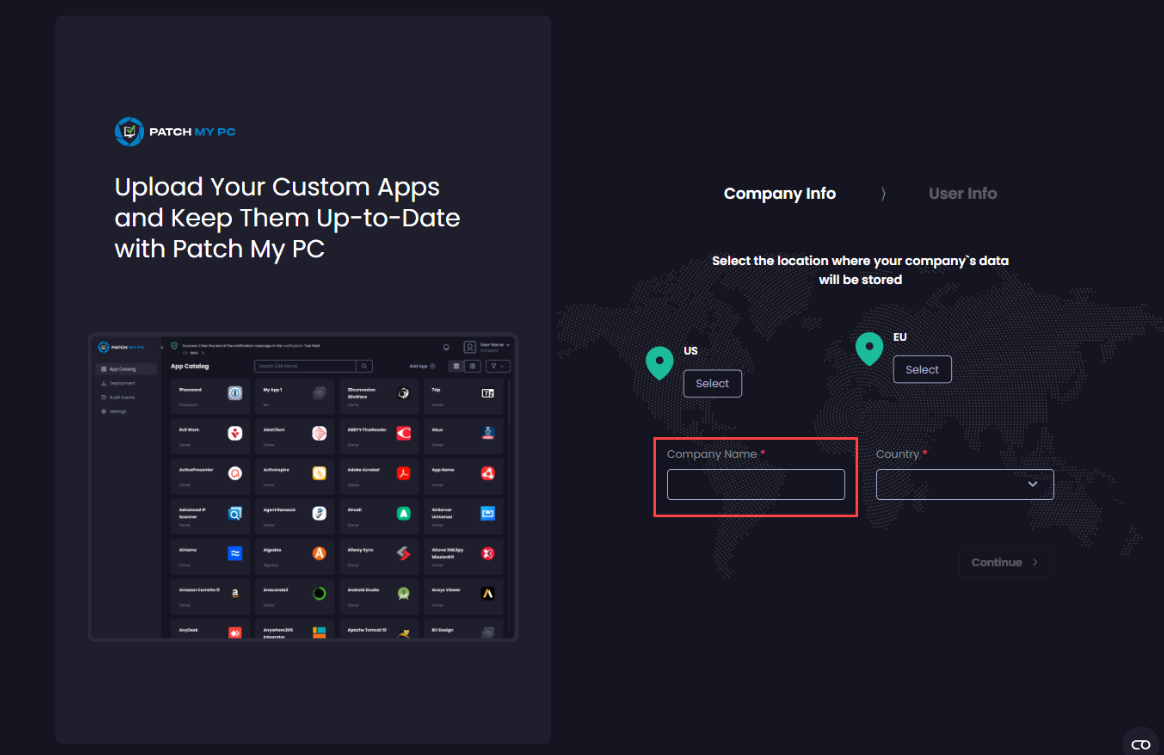
10. In the **Company Name** field, type your company’s name.
{% hint style="danger" %}
**Important**
You cannot use the AT symbol (**@**), forward slash (**/**) or plus (**+**) symbols in your Company Name.
{% endhint %}
11. Select your company’s country from the **Country** dropdown.
12. Click **Continue**.
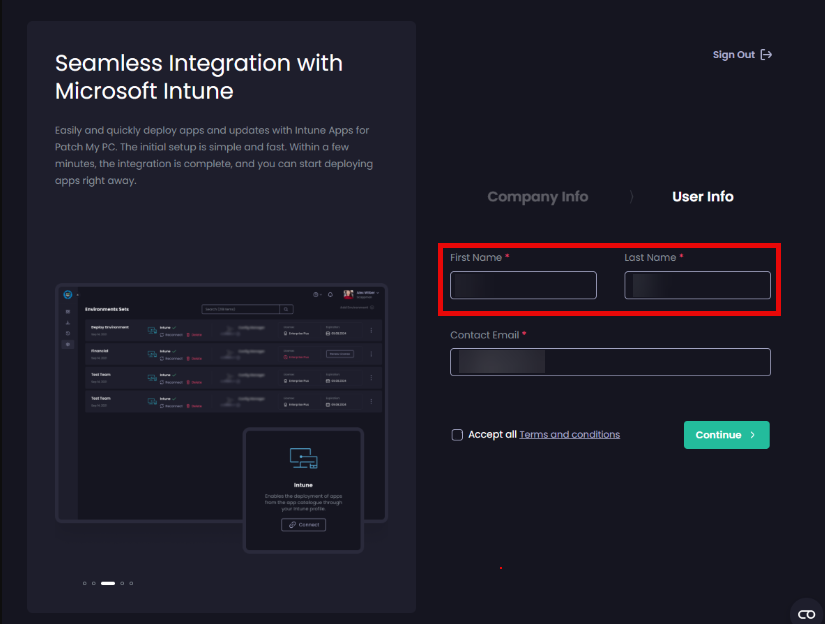
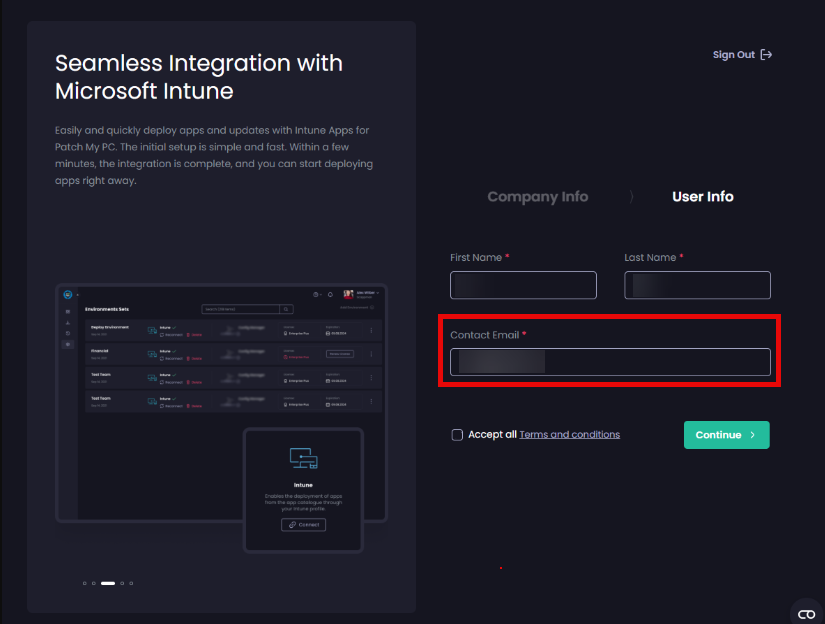
13. On the **User Info** screen, verify your **First Name** and **Last Name** are correct, amending as required.
14. Enter a valid email address in the **Contact Email** field.
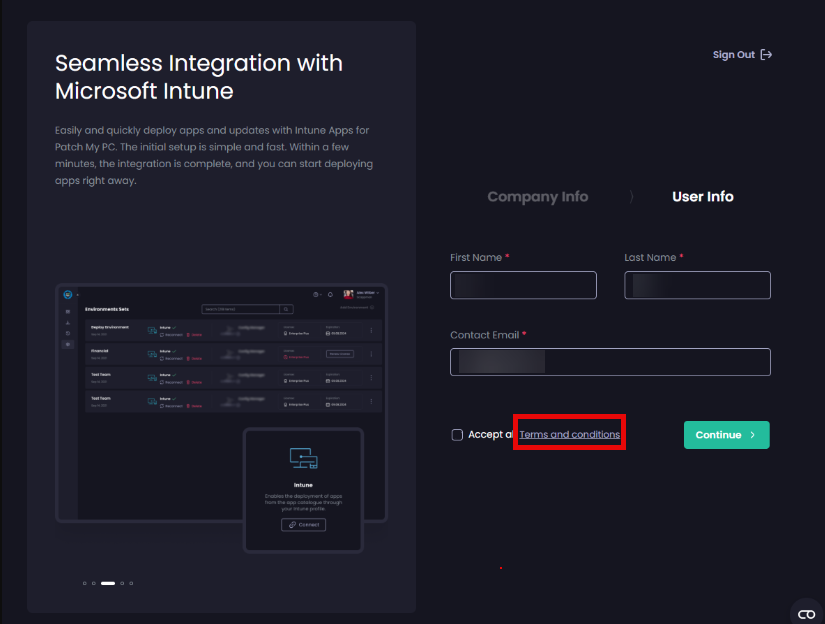
15. Click the **Terms and Conditions** link to see these for using PMPC software and services.
The **Terms and Conditions** page is displayed. Once you’ve reviewed them, click the **X** in the top right-hand corner to close this window.
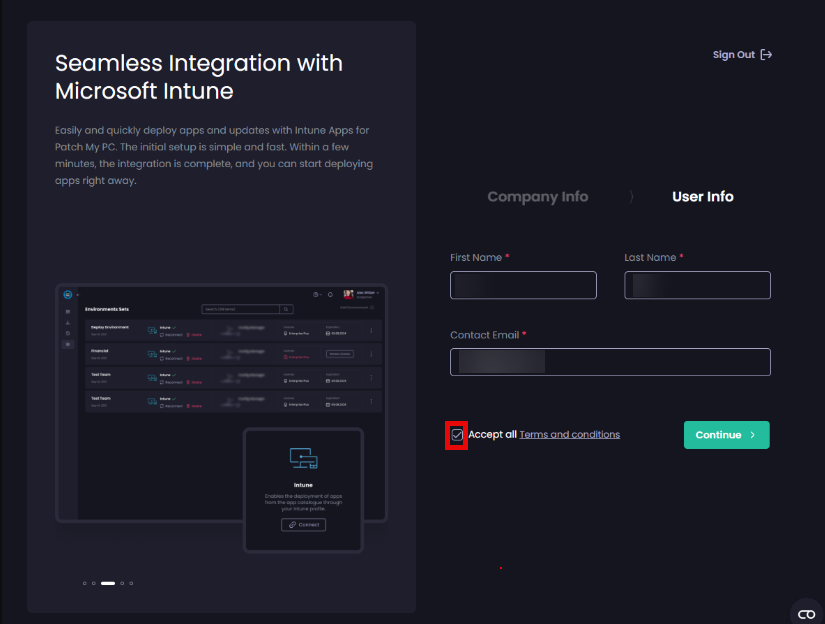
16. If you agree with our terms and conditions, check the **Accept all Terms and conditions** checkbox.
{% hint style="info" %}
**Note**
You cannot proceed with the onboarding without checking this checkbox.
{% endhint %}
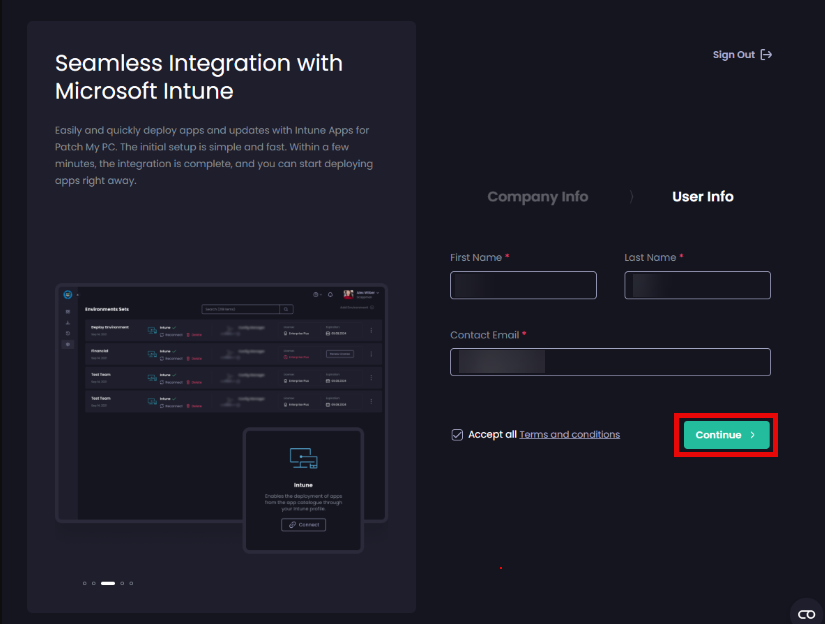
17. Click **Continue**.
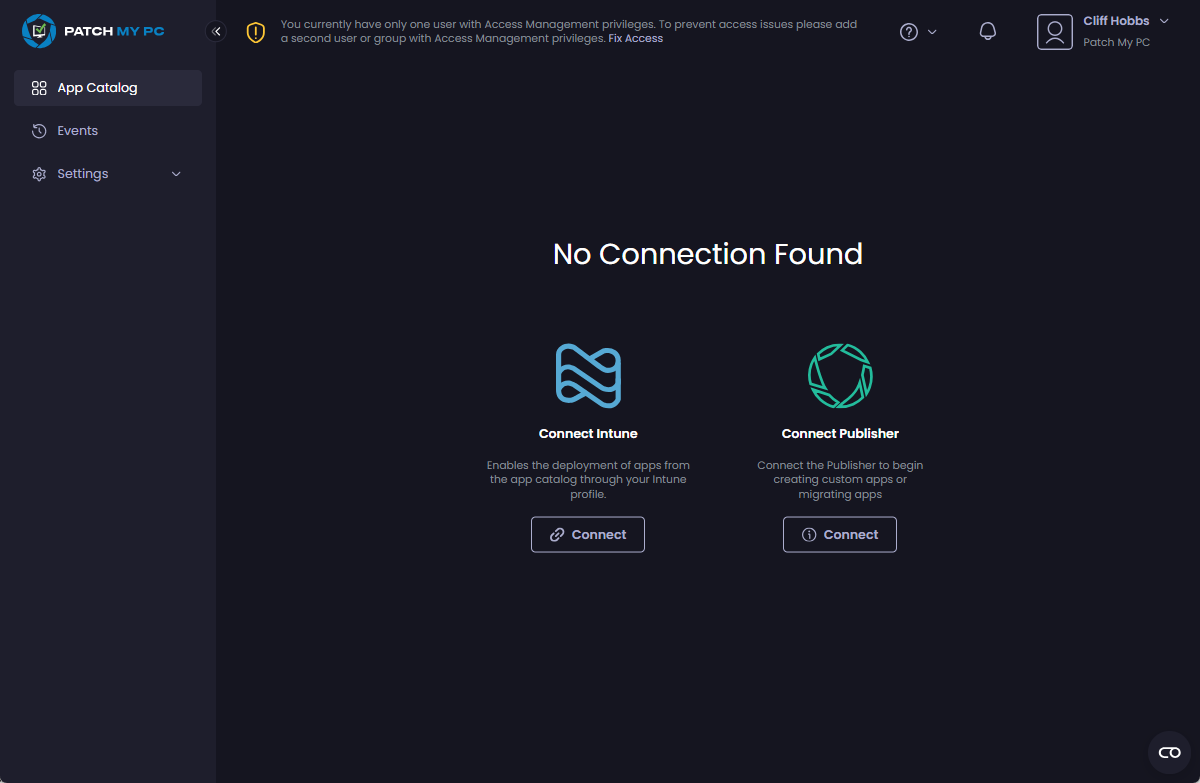
The PMPC Portal loads, showing the **App Catalog** page.
{% hint style="info" %}
**Note**
The first time you sign into a new PMPC Cloud Company, you will see the following message at the top of your screen:
**You currently have only one user with Access Management privileges. To prevent access issues in the future, please add a second user with Access Management privileges.**
This is warning you that you only have one user who can control access to this company and that we recommend you create at least another user in this company with the [Full Admin with Access Management user](/patch-my-pc-cloud/manage/settings/users/user-roles-reference.md) role. See [Add a Cloud User](/patch-my-pc-cloud/manage/settings/users/add-user.md) for more information.
{% endhint %}
## Next Steps
Now that you've finished onboarding to PMPC Cloud, you should consider:
* Connecting Publisher by following the [Add a Publisher Connection](/patch-my-pc-cloud/manage/settings/connections/add-connection.md#add-a-publisher-connection) process.
{% hint style="info" %}
**Note**
You only need to connect Publisher if you are using the Custom Apps or other features that require our On-Premises Publisher. If you are just using PMPC Cloud, you do not need to connect to Publisher.
{% endhint %}
* Connecting your Intune tenant by following the [Add an Intune Connection](/patch-my-pc-cloud/manage/settings/connections/add-connection.md#add-an-intune-connection) process.
* [Activate your license](/patch-my-pc-cloud/manage/settings/subscription/license/license-key.md#activate-a-new-license) if you have already purchased a PMPC Cloud license.
{% hint style="info" %}
**Note**
If you decide to activate a license without first connecting your PMPC Company to your Intune tenant, you will be unable to start a trial directly from the portal. If you are using an Enterprise Plus license, you will be able to [Sign up for an Enterprise Premium Trial from Enterprise Plus](/patch-my-pc-cloud/manage/settings/company-settings/sign-up-enterprise-premium-trial.md), once you have [connected your company to your Intune tenant](broken://pages/RoXhXa1jcXhIcPcKJk05#connecting-to-an-intune-tenant).
{% endhint %}
---
# Agent Instructions
This documentation is published with GitBook. GitBook is the documentation platform designed so that both humans and AI agents can read, navigate, and reason over technical content effectively. Learn more at gitbook.com.
## Querying This Documentation
If you need additional information that is not directly available in this page, you can query the documentation by asking a question.
Perform an HTTP GET request on the following URL with the `ask` and `goal` query parameters:
```
GET https://docs.patchmypc.com/patch-my-pc-cloud/onboard-cloud.md?ask=&goal=
```
`ask` is the immediate question: it should be specific, self-contained, and written in natural language.
`goal` is what the user is ultimately trying to achieve, the reason they need the answer. Sharing it helps GitBook give you a better, more relevant answer. A goal is most helpful when it describes the outcome the user wants rather than restating the question. For example, with `ask=how do I create an API token`, a goal like `automate deployments from our CI pipeline` lets GitBook tailor the answer to that use case.
The response will contain a direct answer to the question and relevant excerpts and sources from the documentation.
Use this mechanism when the answer is not explicitly present in the current page, you need clarification or additional context, or you want to retrieve related documentation sections.
.png?alt=media)
.png?alt=media)
.png?alt=media)
.png?alt=media)
.png?alt=media)
.png?alt=media)
.png?alt=media)
.png?alt=media)