> For the complete documentation index, see [llms.txt](https://docs.patchmypc.com/llms.txt). Markdown versions of documentation pages are available by appending `.md` to page URLs; this page is available as [Markdown](https://docs.patchmypc.com/patch-my-pc-publisher/supported-configurations.md).
# Supported configurations for Patch My PC Publisher
*Applies to: Patch My PC Publisher V3.x*
Patch My PC (PMPC) Publisher can be used in several deployment models:
* **WSUS Standalone -** Publish third-party updates directly into WSUS for organizations not using ConfigMgr.
* **ConfigMgr -** Publish third-party updates to WSUS for synchronization into ConfigMgr, and create full ConfigMgr applications for software deployment through Software Center.
* **Intune -** Create and maintain Win32 apps (and updates) in Intune using Microsoft Graph.
Each of these deployment models has its own set of [Requirements](/patch-my-pc-publisher/requirements.md).
Many organizations use Publisher in hybrid scenarios where WSUS, ConfigMgr, and Intune coexist.
## Support for Co-Managed Environments
Publisher can also be used in the co-management scenarios detailed below when using Microsoft ConfigMgr and Intune together, with a specific focus on how Windows and third-party updates are delivered. It is intended for customers adopting a phased transition from ConfigMgr to cloud management.
* [Windows Updates and Third Party Updates from ConfigMgr](#windows-updates-and-third-party-updates-from-configmgr)
* [First-Party Updates from Windows Update and Third-Party Updates from ConfigMgr](#first-party-updates-from-windows-update-and-third-party-updates-from-configmgr)
### Windows Updates and Third Party Updates from ConfigMgr
In this scenario, devices are co-managed but all update workloads remain with ConfigMgr. Both first-party (Microsoft Windows) updates and third-party updates published by Publisher are delivered through ConfigMgr.
This approach is commonly used as an initial transition step. Customers typically move only the [**Client Apps**](https://learn.microsoft.com/en-us/intune/configmgr/comanage/workloads#client-apps) workload to Intune. This enables installation of Win32 applications from Intune whilst preserving the existing update model in ConfigMgr.
The key characteristics of this scenario are:
* ConfigMgr continues to manage Windows updates.
* ConfigMgr continues to manage third-party updates.
* Intune is used to deploy Win32 applications.
This scenario requires minimal change and allows customers to validate Win32 app deployment from Intune without affecting update behavior.
{% hint style="info" %}
**Note**
When the same applications or updates are deployed from both platforms simultaneously, reporting discrepancies may be observed temporarily. Application detection and compliance evaluation occur on different schedules across ConfigMgr and Intune. Over time, reports should converge as detection cycles complete.
{% endhint %}
### First-Party Updates from Windows Update and Third-Party Updates from ConfigMgr
In this scenario, customers move Windows update management to Intune whilst continuing to deliver third-party updates from ConfigMgr.
This is typically achieved using Windows Update client policies or Autopatch. ConfigMgr remains responsible for third party updates published by Publisher.
#### ConfigMgr Configuration
The following conditions must be met for this scenario to function correctly.
* The [Software Update Client Settings](/patch-my-pc-publisher/requirements/configmgr-requirements/client-settings.md) in ConfigMgr must remain enabled.
* The **Windows Update Policies** workload must be moved to Pilot or fully to Intune.
{% hint style="info" %}
**Note**
If you are using Autopatch, additional workloads must also be moved to Intune or Pilot, including Device Configuration and Office Click-to-Run Apps. This is a Microsoft Autopatch service requirement and not a Publisher requirement. These workload moves are not necessary when managing update policy from Intune using Windows Update client settings without Autopatch.
See [Configuration Manager co-management requirements](https://learn.microsoft.com/en-us/windows/deployment/windows-autopatch/prepare/windows-autopatch-prerequisites#configuration-manager-co-management-requirements) for more information on other Autopatch requirements.
{% endhint %}
### Scan Source Configuration
Scan source determines whether the client scans Windows Update or WSUS for specific update categories.
{% hint style="danger" %}
**Important**
Microsoft released [client hotfix KB36495448 for Microsoft ConfigMgr versions 2503 and 2509](https://learn.microsoft.com/en-us/intune/configmgr/hotfix/2509/36495448). This hotfix changes how the ConfigMgr client interacts with Windows Update scan source policies.
If this hotfix is installed, the scan source configuration steps below are **not** required when third-party updates should continue to come from WSUS, and first-party updates should come from the Windows Update service.
If a custom scan source configuration is present, those settings are honored, and scan behavior follows the configured policies.
{% endhint %}
Scan source can be configured using Group Policy or Local Policy.
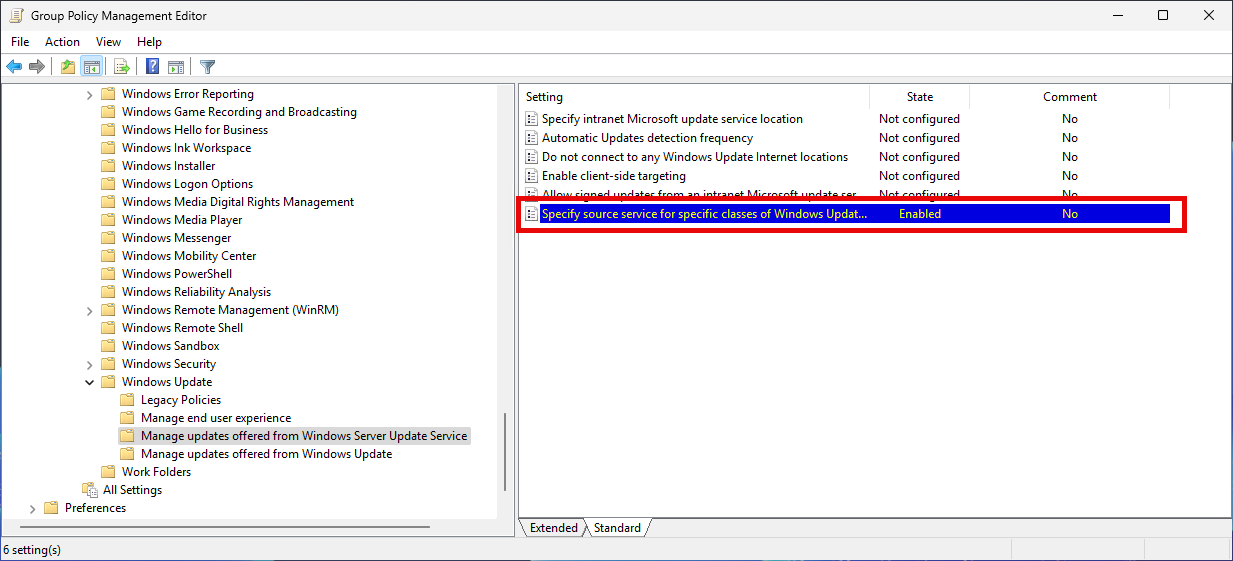
1. Open the **Group Policy Management Console** and edit an existing Group Policy Object or create a new one that targets the required devices.
2. Navigate to the following policy path:\
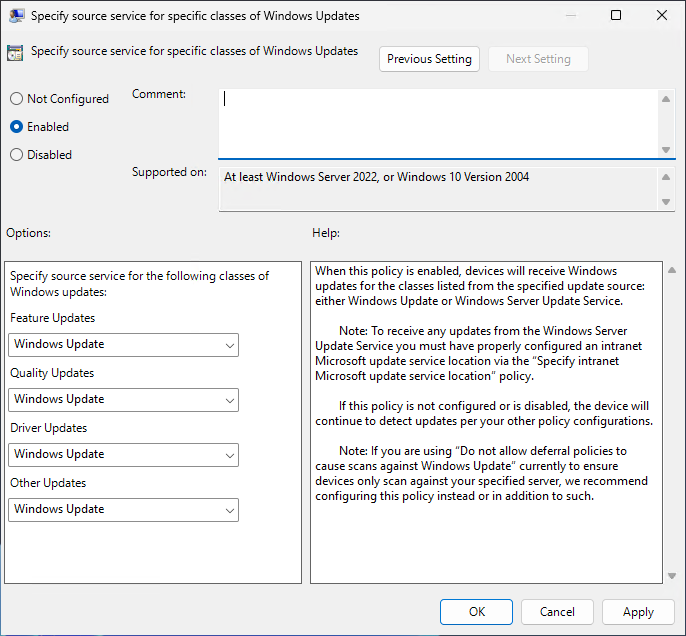
**Computer Configuration | Policies | Administrative Templates | Windows Components | Windows Update | Manage updates offered from Windows Server Update Service | Specify source service for specific classes of Windows Updates.**
3. Set the policy to **Enabled** and under **Options**, set all scan source classes to **Windows Update**.
4. Click **Apply** to save the policy.
As a result of this policy being applied, the following registry values should exist:
```
HKEY_LOCAL_MACHINE\SOFTWARE\Policies\Microsoft\Windows\WindowsUpdate\AU\UseUpdateClassPolicySource = 1
HKEY_LOCAL_MACHINE\SOFTWARE\Policies\Microsoft\Windows\WindowsUpdate\SetPolicyDrivenUpdateSourceForDriverUpdates = 0
HKEY_LOCAL_MACHINE\SOFTWARE\Policies\Microsoft\Windows\WindowsUpdate\SetPolicyDrivenUpdateSourceForFeatureUpdates = 0
HKEY_LOCAL_MACHINE\SOFTWARE\Policies\Microsoft\Windows\WindowsUpdate\SetPolicyDrivenUpdateSourceForOtherUpdates = 0
HKEY_LOCAL_MACHINE\SOFTWARE\Policies\Microsoft\Windows\WindowsUpdate\SetPolicyDrivenUpdateSourceForQualityUpdates = 0
```
With this configuration in place, first-party Windows updates are scanned and retrieved from the Windows Update service. Third-party updates continue to be scanned and enforced through ConfigMgr.
### Content Availability
When third-party updates are delivered from ConfigMgr, devices must have line of sight to a Management Point and Distribution Point to scan for and download update content. This requirement applies even when devices are co-managed, and Win32 applications are deployed from Intune.
If devices are frequently off the corporate network and not connected through a VPN, consider deploying or leveraging a Cloud Management Gateway (CMG). A CMG allows Internet-based devices to continue receiving third-party update content from ConfigMgr without requiring an on-premises network connection.
### Compliance Reporting
Native ConfigMgr software update compliance reporting, including built-in SSRS reports, only displays compliance data for updates that are managed and deployed by ConfigMgr. Updates and applications that are managed exclusively by Intune are not included in ConfigMgr reporting.
Similarly, Advanced Insights Software Update Compliance reporting only displays compliance data collected from ConfigMgr. Updates and applications that are managed and deployed exclusively from Intune are not included in this report.
As devices transition to Intune-managed updates, you should plan to use Advanced Insights for Intune to report on update and application compliance for those devices. This ensures accurate visibility across both ConfigMgr-managed and Intune-managed workloads during and after the transition.
{% hint style="info" %}
**Note**
See [Advanced Insights for Intune and ConfigMgr](https://patchmypc.com/product/advanced-insights/) for more information on Advanced Insights.
{% endhint %}
### Final Transition Away from ConfigMgr
As customers continue their cloud adoption journey, the final transition typically involves moving third-party updates to Intune and disabling the Software Update Client Settings in ConfigMgr.
At that stage, ConfigMgr no longer participates in update management. Some customers may also choose to uninstall the ConfigMgr client entirely once all workloads have been migrated.
This final step is optional and depends on operational requirements and long term management strategy.
---
# Agent Instructions
This documentation is published with GitBook. GitBook is the documentation platform designed so that both humans and AI agents can read, navigate, and reason over technical content effectively. Learn more at gitbook.com.
## Querying This Documentation
If you need additional information that is not directly available in this page, you can query the documentation by asking a question.
Perform an HTTP GET request on the following URL with the `ask` and `goal` query parameters:
```
GET https://docs.patchmypc.com/patch-my-pc-publisher/supported-configurations.md?ask=&goal=
```
`ask` is the immediate question: it should be specific, self-contained, and written in natural language.
`goal` is what the user is ultimately trying to achieve, the reason they need the answer. Sharing it helps GitBook give you a better, more relevant answer. A goal is most helpful when it describes the outcome the user wants rather than restating the question. For example, with `ask=how do I create an API token`, a goal like `automate deployments from our CI pipeline` lets GitBook tailor the answer to that use case.
The response will contain a direct answer to the question and relevant excerpts and sources from the documentation.
Use this mechanism when the answer is not explicitly present in the current page, you need clarification or additional context, or you want to retrieve related documentation sections.