> For the complete documentation index, see [llms.txt](https://docs.patchmypc.com/llms.txt). Markdown versions of documentation pages are available by appending `.md` to page URLs; this page is available as [Markdown](https://docs.patchmypc.com/patch-my-pc-publisher/requirements/intune-requirements/entra-id-app-registration/client-credentials.md).
# Client Credentials for Patch My PC Publisher
*Applies to: Patch My PC Publisher V3.x*
Patch My PC (PMPC) Publisher authenticates to Microsoft Intune using client credentials associated with an Entra ID app registration. Client credentials allow Publisher to authenticate using app-only (non-interactive) authentication, which is required for automation and unattended publishing.
Microsoft Entra ID supports two client credential types:
* [Certificates](#use-a-certificate-for-authentication)
* [Client Secrets](#use-a-client-secret-for-authentication)
Although Publisher supports both methods, [certificate-based authentication](#use-a-certificate-for-authentication) is strongly recommended.
{% hint style="success" %}
**Tip**
Certificate-based authentication is recommended because it uses a *"something you have"* security model rather than a *"something you know"* model. The private key is stored securely on the device where Publisher is installed and is never transmitted or shared.
Authentication succeeds only if the calling service can prove possession of the private key, making it significantly harder to compromise than a client secret, which is simply a string value that can be copied, leaked, or reused from elsewhere.
This approach aligns with Microsoft’s security best practices for service-to-service authentication and provides stronger protection for automated workloads that require unattended access to Microsoft Intune.
{% endhint %}
{% hint style="info" %}
**Note**
See the [Credentials (including certificates and secrets)](https://learn.microsoft.com/entra/identity-platform/security-best-practices-for-app-registration#credentials-including-certificates-and-secrets) section of [Security best practices for application properties in Microsoft Entra ID](https://learn.microsoft.com/entra/identity-platform/security-best-practices-for-app-registration) for more guidance on why a certificate should be used instead of a client secret.
{% endhint %}
## Use a Certificate for Authentication
Certificate-based authentication is the preferred and recommended approach for securing Publisher’s access to your Intune tenant. It uses a certificate that your Publisher service holds the private key for, while the public key is uploaded to the Entra ID app registration. This method aligns with Microsoft’s security best practices for service-to-service authentication.
### **Prerequisites**
To use a Certificate for Authentication:
* You must have created [an Entra ID App Registration](/patch-my-pc-publisher/requirements/intune-requirements/entra-id-app-registration/create-app-registration.md).
* You need access to the device where Publisher will be installed to create and export certificates.
* The certificate must meet the following requirements to be used for app authentication:
* RSA key with 2048-bit minimum key length. (Entra ID currently supports only RSA).
* Signed using SHA256 or stronger. (Entra ID also supports certificates signed with SHA384 and SHA512 hash algorithms).
* Intended for client authentication.
* Valid and not expired.
* Private key accessible to the Publisher service.
{% hint style="info" %}
**Note**
The steps below detail how to create a self-signed certificate for client authentication. However, this is not the only supported option. If your organization has an established PKI and your PKI administrators provide a client authentication certificate, you may use that certificate instead.
As long as the certificate meets Entra ID requirements and the private key is installed in the Local Machine certificate store on the server where Publisher is installed, Publisher can use it for authentication in the same way as a self-signed certificate.
See [Create a self-signed public certificate to authenticate your application](https://docs.microsoft.com/en-us/azure/active-directory/develop/howto-create-self-signed-certificate) for more information on creating a self-signed certificate for authentication with an app registration.
{% endhint %}
### Step 1: Create a Self-Signed Certificate
To create a Self-Signed Certificate:
1. Open **PowerShell as Administrator** on the computer where Publisher is installed.
2. Run the following PowerShell snippet to create a new self-signed certificate in the **Local Machine Personal** store.
```powershell
$subjectName = 'PatchMyPCPublisherIntuneConnector'
$certStore = 'LocalMachine'
$validityPeriod = 12
$newCert = @{
Subject = "CN=$($subjectName)"
CertStoreLocation = "Cert:\$($certStore)\My"
HashAlgorithm = 'sha256'
KeyExportPolicy = 'NonExportable'
KeyUsage = 'DigitalSignature'
KeyAlgorithm = 'RSA'
KeyLength = 2048
KeySpec = 'Signature'
NotAfter = (Get-Date).AddMonths($validityPeriod)
TextExtension = @("2.5.29.37={text}1.3.6.1.5.5.7.3.2")
}
$cert = New-SelfSignedCertificate @newCert
```
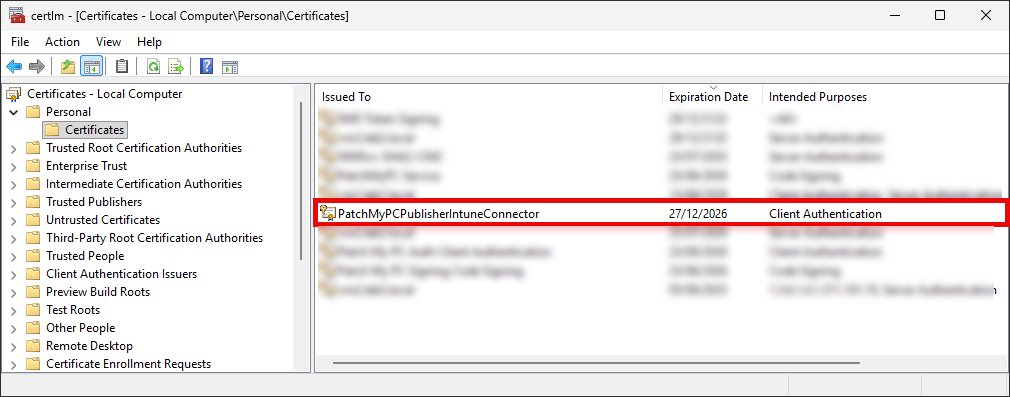
3. Open **certlm.msc** and verify the new certificate appears under **Local Machine | Personal**.
4. Whilst still in the elevated PowerShell session, run the following PowerShell snippet to export the **public key** (.cer) to a temporary folder.
```powershell
$certFolder = "C:\temp\certs"
New-Item -Path $certFolder -ItemType Directory -Force | Out-Null
Export-Certificate -Cert $cert -FilePath "$certFolder\PatchMyPCIntuneConnector.cer"
```
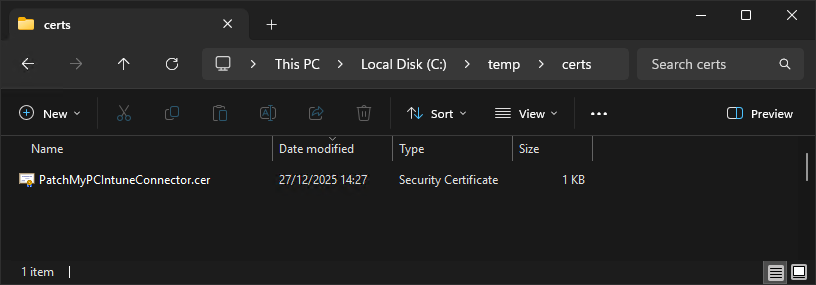
5. Confirm the `.cer` file exists in **C:\temp\certs**.
### Step 2: Upload the Certificate to the App Registration
To upload the certificate to the App Registration:
1. In the **Microsoft Entra admin center**, open the app registration you created.
2. Navigate to **Certificates & secrets**.
3. Under **Certificates**, click **Upload certificate**.
4. Select the exported `.cer` file and click **Add**.
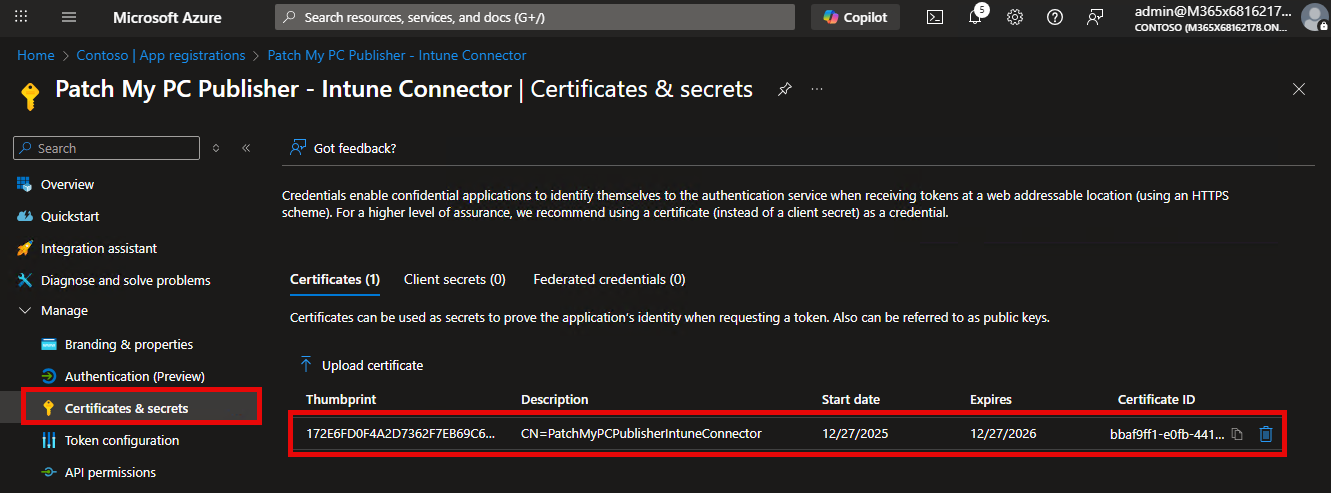
5. Verify the certificate’s **thumbprint** appears in the list with the correct expiration.
### Step 3: Configure Publisher to use the Certificate
Finally, you need to configure Publisher to use the Certificate.
{% hint style="info" %}
**Note**
See [Authentication Settings](/patch-my-pc-publisher/manage/intune-tabs/intune-options/authentication.md) for more details on using the certificate for authentication.
{% endhint %}
## Use a Client Secret for Authentication
Client secret–based authentication is supported by Publisher, but it is not the recommended approach for production environments. A client secret is a shared string value (similar to a password) that Publisher uses to authenticate to Microsoft Intune via the Entra ID app registration.
This method may be suitable for:
* Short-term testing or proof-of-concept scenarios.
* Environments where certificate-based authentication is not possible.
{% hint style="danger" %}
**Important**
As client secrets are considered a weak client credential, they carry a higher risk of exposure and should be rotated regularly.
{% endhint %}
### **Prerequisites**
* You must have created [an Entra ID App Registration](/patch-my-pc-publisher/requirements/intune-requirements/entra-id-app-registration/create-app-registration.md).
* You have permission to create secrets for the app registration.
### Step 1: Create a Client Secret
To create a Client Secret:
1. Sign in to the **Microsoft Entra admin center**.
2. Navigate to **Entra ID | App registrations**.
3. Select the app registration created for Publisher.
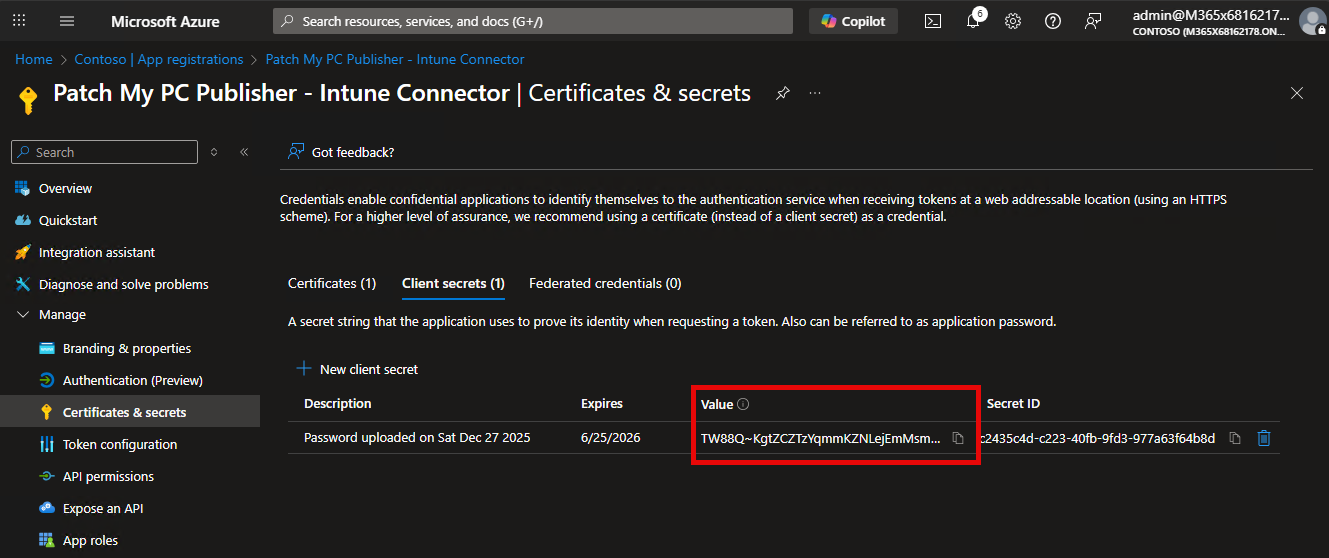
4. In the left-hand menu, select **Certificates & secrets**.
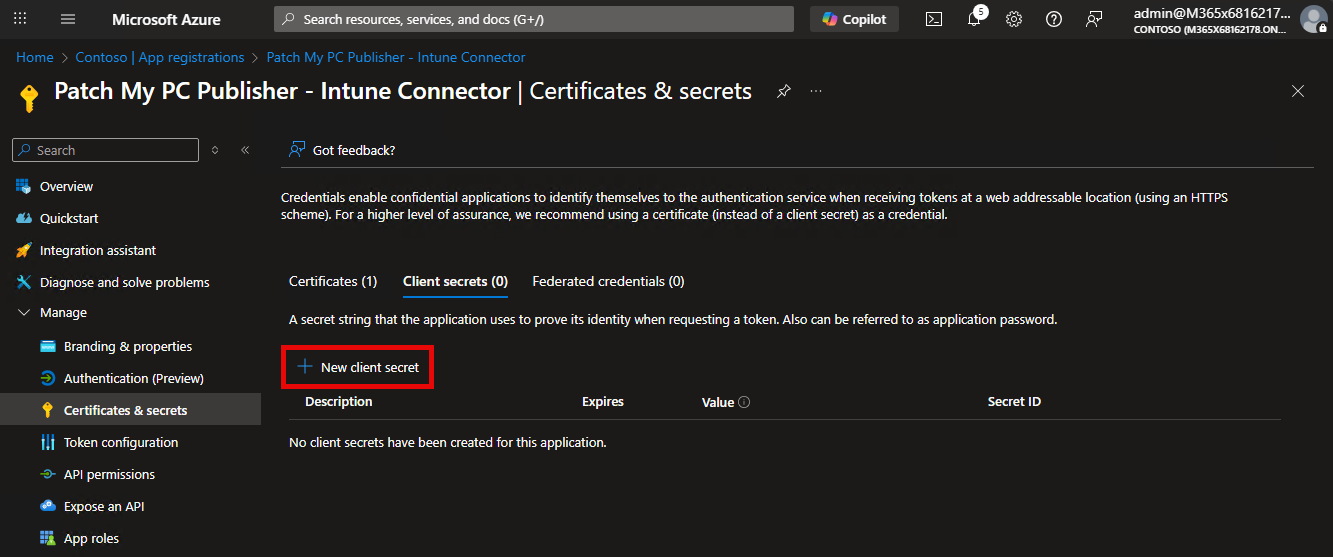
5. Under **Client secrets**, select **New client secret**.
6. Enter a **description** *(optional)*.
7. Choose an **expiration period** appropriate for your organization.
{% hint style="info" %}
**Note**
Microsoft recommends short-lived secrets. Expiration periods of **6 months or less** are strongly advised.
{% endhint %}
8. Select **Add**.
9. After the secret is created, **copy the Value immediately** and store it securely, as you will not be able to retrieve the secret once you navigate away from the page.
### Step 2: Configure Publisher to use the Client Secret
Finally, you need to configure Publisher to use the Client Secret.
{% hint style="info" %}
**Note**
See [Authentication Settings](/patch-my-pc-publisher/manage/intune-tabs/intune-options/authentication.md) for more details on using the Client Secret for authentication.
{% endhint %}
---
# Agent Instructions
This documentation is published with GitBook. GitBook is the documentation platform designed so that both humans and AI agents can read, navigate, and reason over technical content effectively. Learn more at gitbook.com.
## Querying This Documentation
If you need additional information that is not directly available in this page, you can query the documentation by asking a question.
Perform an HTTP GET request on the following URL with the `ask` and `goal` query parameters:
```
GET https://docs.patchmypc.com/patch-my-pc-publisher/requirements/intune-requirements/entra-id-app-registration/client-credentials.md?ask=&goal=
```
`ask` is the immediate question: it should be specific, self-contained, and written in natural language.
`goal` is what the user is ultimately trying to achieve, the reason they need the answer. Sharing it helps GitBook give you a better, more relevant answer. A goal is most helpful when it describes the outcome the user wants rather than restating the question. For example, with `ask=how do I create an API token`, a goal like `automate deployments from our CI pipeline` lets GitBook tailor the answer to that use case.
The response will contain a direct answer to the question and relevant excerpts and sources from the documentation.
Use this mechanism when the answer is not explicitly present in the current page, you need clarification or additional context, or you want to retrieve related documentation sections.