> For the complete documentation index, see [llms.txt](https://docs.patchmypc.com/llms.txt). Markdown versions of documentation pages are available by appending `.md` to page URLs; this page is available as [Markdown](https://docs.patchmypc.com/patch-my-pc-publisher/requirements/intune-requirements/entra-id-app-registration/application-permissions.md).

# Application Permissions for Patch My PC Publisher

*Applies to: Patch My PC Publisher V3.x*

To allow Patch My PC (PMPC) Publisher to automatically create, update, and assign Win32 applications in Microsoft Intune, the Entra ID app registration must be granted a specific set of Microsoft Graph application permissions.

The table below lists the required and optional permissions, along with an explanation of how each permission is used by Publisher.

<table data-search="true"><thead><tr><th valign="top">Permission</th><th valign="top">Description</th><th valign="top">Used For</th></tr></thead><tbody><tr><td valign="top">DeviceManagementApps.ReadWrite.All</td><td valign="top">Read and write Intune applications</td><td valign="top">Create, update, and manage Win32 applications</td></tr><tr><td valign="top">DeviceManagementConfiguration.Read.All</td><td valign="top">Read Intune configuration data</td><td valign="top">Read assignment filter properties</td></tr><tr><td valign="top">DeviceManagementManagedDevices.Read.All</td><td valign="top">Read managed device information</td><td valign="top">Device inventory used by auto-publishing logic</td></tr><tr><td valign="top">DeviceManagementRBAC.Read.All</td><td valign="top">Read role-based access control information</td><td valign="top">Read scope tags and RBAC assignments</td></tr><tr><td valign="top">DeviceManagementServiceConfig.ReadWrite.All</td><td valign="top">Read and write Intune service configuration</td><td valign="top">Manage Enrollment Status Page (ESP) settings</td></tr><tr><td valign="top">GroupMember.Read.All</td><td valign="top">Read group memberships</td><td valign="top">Assign applications to Entra ID groups</td></tr></tbody></table>

{% hint style="danger" %}
**Important**

The **DeviceManagementServiceConfig.ReadWrite.All** permission is required to manage blocking apps in the Enrollment Status Page (ESP). This is the only feature in Publisher that relies on this permission.

Although we understand this permission may appear broad, Microsoft does not currently provide a more granular Graph permission for updating the blocking apps configuration within ESP profiles.

If you revoke this permission from the app registration application, Publisher will no longer be able to manage or keep ESP blocking apps up to date in Intune.
{% endhint %}

These permissions are not strictly required for publishing, but improve the user experience within the Publisher UI.

<table><thead><tr><th width="169.55560302734375" valign="top">Permission</th><th valign="top">Description</th><th valign="top">Used For</th></tr></thead><tbody><tr><td valign="top">User.ReadBasic.All</td><td valign="top">Read basic user profile information</td><td valign="top">Display user names when resolving group members</td></tr><tr><td valign="top">Device.Read.All</td><td valign="top">Read device properties</td><td valign="top">Display device names when resolving group members</td></tr></tbody></table>

{% hint style="info" %}
**Note**

Although Publisher can detect that groups contain members, without the optional permissions above, Publisher cannot resolve those members into readable user or device names in any group picker interface.
{% endhint %}

## Add API Permissions

To add the required Microsoft Graph **Application permissions** to the Entra ID app registration used by the Publisher:

1. Sign in to the **Microsoft Entra admin center**.
2. Navigate to **Entra ID | App registrations**.
3. Select the app registration created for Patch My PC Publisher (for example, *Patch My PC Publisher – Intune Connector*).
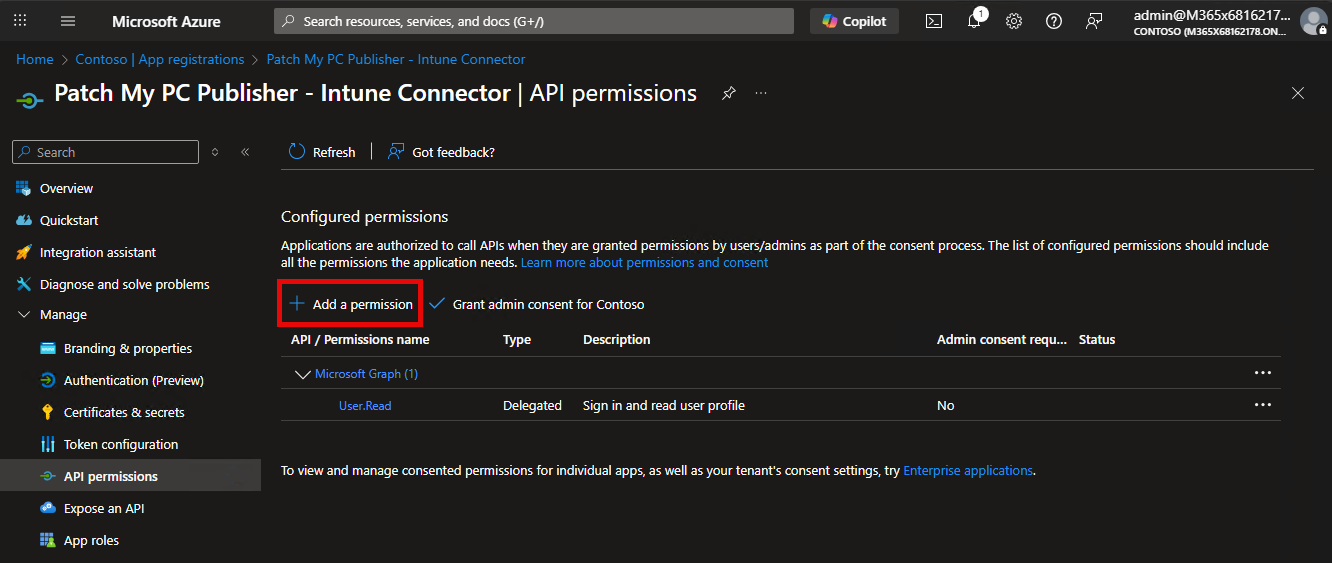
4. In the left-hand menu, select **API permissions**.
5. Select **Add a permission**.

<figure><img src="https://3773699522-files.gitbook.io/~/files/v0/b/gitbook-x-prod.appspot.com/o/spaces%2F-MX7dvS0r_4fc0AikgJS%2Fuploads%2FUj9dAlxu1FqVA4G7BGBN%2Fimage.png?alt=media&amp;token=6e12718e-b825-4bf6-b1f0-8b30bb861582" alt="Add an API Permission" width="563"><figcaption></figcaption></figure>

6. In the **Request API permissions** pane, choose **Microsoft Graph**.
7. Select **Application permissions** (not Delegated permissions).
8. Use the search box or expand the relevant categories and add the permissions listed in the table above, including:
   * Required
     * **DeviceManagementApps.ReadWrite.All**
     * **DeviceManagementConfiguration.Read.All**
     * **DeviceManagementManagedDevices.Read.All**
     * **DeviceManagementRBAC.Read.All**
     * **DeviceManagementServiceConfig.ReadWrite.All**
     * **GroupMember.Read.All**
   * Optional
     * **User.ReadBasic.All**
     * **Device.Read.All**
9. Select **Add permissions** to apply the selected permissions.
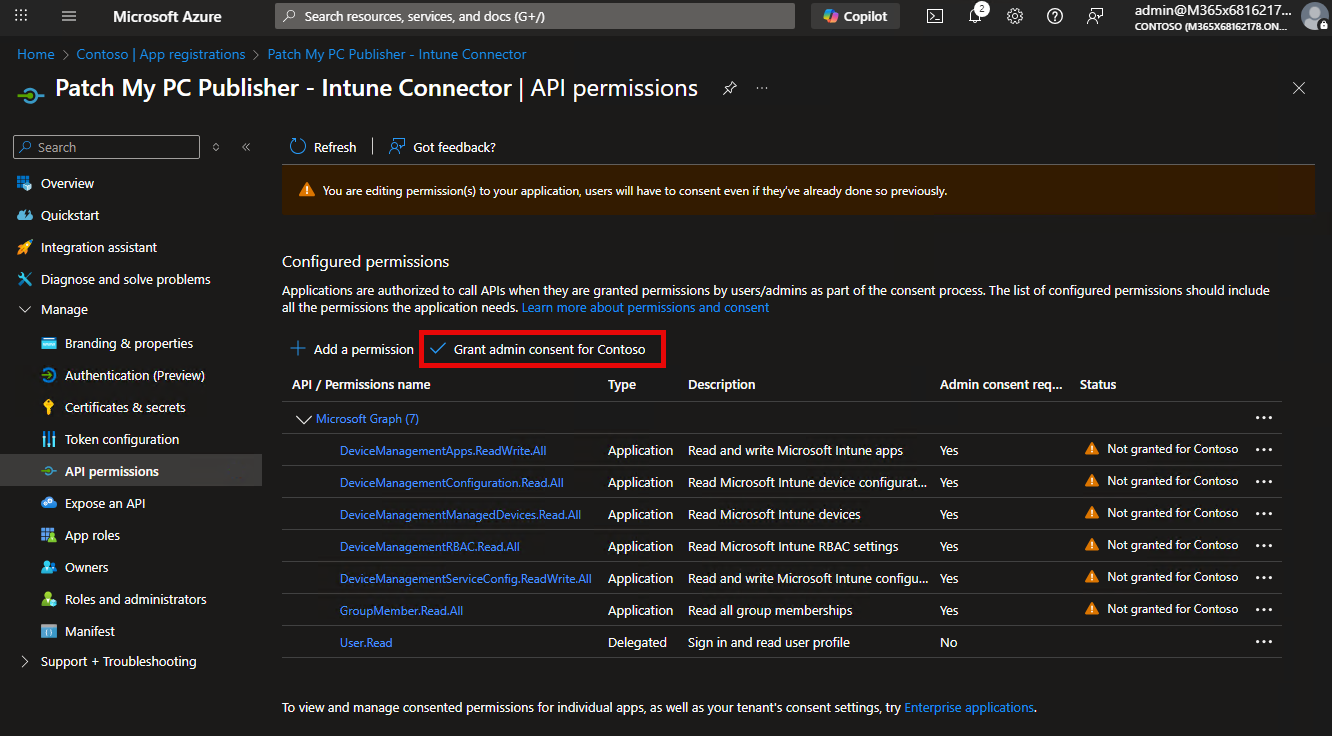
10. Select **Grant admin consent** and confirm the prompt to approve the permissions.<br>

    <figure><img src="https://3773699522-files.gitbook.io/~/files/v0/b/gitbook-x-prod.appspot.com/o/spaces%2F-MX7dvS0r_4fc0AikgJS%2Fuploads%2FYYqTp2k3e0BL75WojxQl%2Fimage.png?alt=media&amp;token=602dc05f-d22e-4544-b429-824161889170" alt="Grant admin consent" width="563"><figcaption></figcaption></figure>

The image below reflects the required, granted, permissions.

<figure><img src="https://3773699522-files.gitbook.io/~/files/v0/b/gitbook-x-prod.appspot.com/o/spaces%2F-MX7dvS0r_4fc0AikgJS%2Fuploads%2FM784AStK8j4gwXrQWI3s%2Fimage.png?alt=media&amp;token=ae2ae98f-e32c-426e-98ac-cb6f872e21b4" alt="Granted API Permissions" width="563"><figcaption></figcaption></figure>

{% hint style="info" %}
**Note**

Granting admin consent requires an account with sufficient privileges, such as **Global Administrator** or **Privileged Role Administrator**. Until admin consent is granted, Publisher will be unable to authenticate successfully or perform Intune operations.
{% endhint %}


---

# Agent Instructions
This documentation is published with GitBook. GitBook is the documentation platform designed so that both humans and AI agents can read, navigate, and reason over technical content effectively. Learn more at gitbook.com.

## Querying This Documentation
If you need additional information that is not directly available in this page, you can query the documentation by asking a question.

Perform an HTTP GET request on the following URL with the `ask` and `goal` query parameters:

```
GET https://docs.patchmypc.com/patch-my-pc-publisher/requirements/intune-requirements/entra-id-app-registration/application-permissions.md?ask=<question>&goal=<user_goal>
```

`ask` is the immediate question: it should be specific, self-contained, and written in natural language.
`goal` is what the user is ultimately trying to achieve, the reason they need the answer. Sharing it helps GitBook give you a better, more relevant answer. A goal is most helpful when it describes the outcome the user wants rather than restating the question. For example, with `ask=how do I create an API token`, a goal like `automate deployments from our CI pipeline` lets GitBook tailor the answer to that use case.

The response will contain a direct answer to the question and relevant excerpts and sources from the documentation.

Use this mechanism when the answer is not explicitly present in the current page, you need clarification or additional context, or you want to retrieve related documentation sections.