> For the complete documentation index, see [llms.txt](https://docs.patchmypc.com/llms.txt). Markdown versions of documentation pages are available by appending `.md` to page URLs; this page is available as [Markdown](https://docs.patchmypc.com/patch-my-pc-publisher/requirements/configmgr-requirements/sup-requirements/remote-sup.md).
# ConfigMgr Remote Software Update Requirements for Patch My PC Publisher
*Applies to: Patch My PC Publisher V3.x*
When the Microsoft ConfigMgr Software Update Point (SUP) role is installed on a remote Site System (separate from the Site Server), there are additional requirements to ensure third-party update publishing and certificate management function correctly when using Patch My PC (PMPC) Publisher.
## Network
When Publisher is installed on a remote SUP, there are additional network requirements which can be found on the [ConfigMgr Network Requirements](/patch-my-pc-publisher/requirements/configmgr-requirements/network.md) page.
## Software
When Publisher is installed on a remote SUP, it is important that the ConfigMgr Console is also installed on the remote SUP to facilitate interactions from Publisher to ConfigMgr, through the ConfigMgr SDK, via the SMS Provider.
{% hint style="info" %}
**Note**
See [ConfigMgr Software Requirements](/patch-my-pc-publisher/requirements/configmgr-requirements/software.md) for more information.
{% endhint %}
## ConfigMgr Security Role
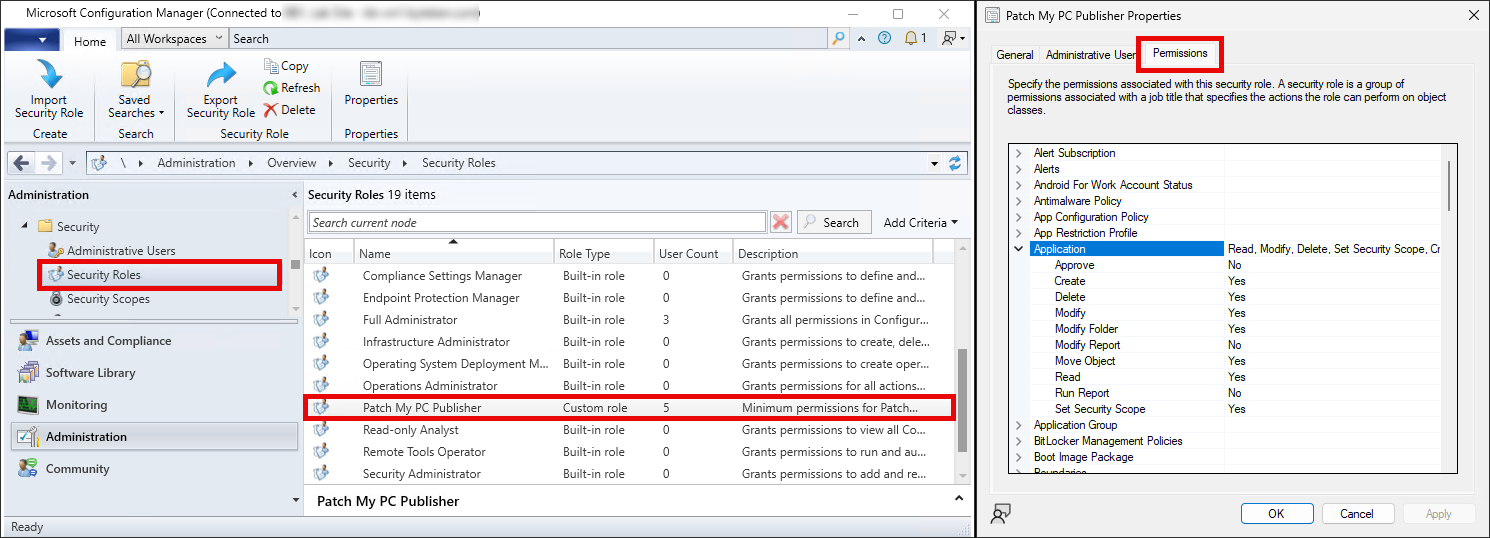
When Publisher is installed on the Site Server, it already has the required permissions to interact with ConfigMgr because the service runs under the **SYSTEM** account. When Publisher is installed on a remote SUP, these permissions may not be present by default. In that case, Publisher requires specific ConfigMgr permissions to create, modify, and distribute applications and updates. These permissions can be granted through a Security Role which can be created automatically by Publisher or configured manually by an administrator.
{% hint style="danger" %}
**Important**
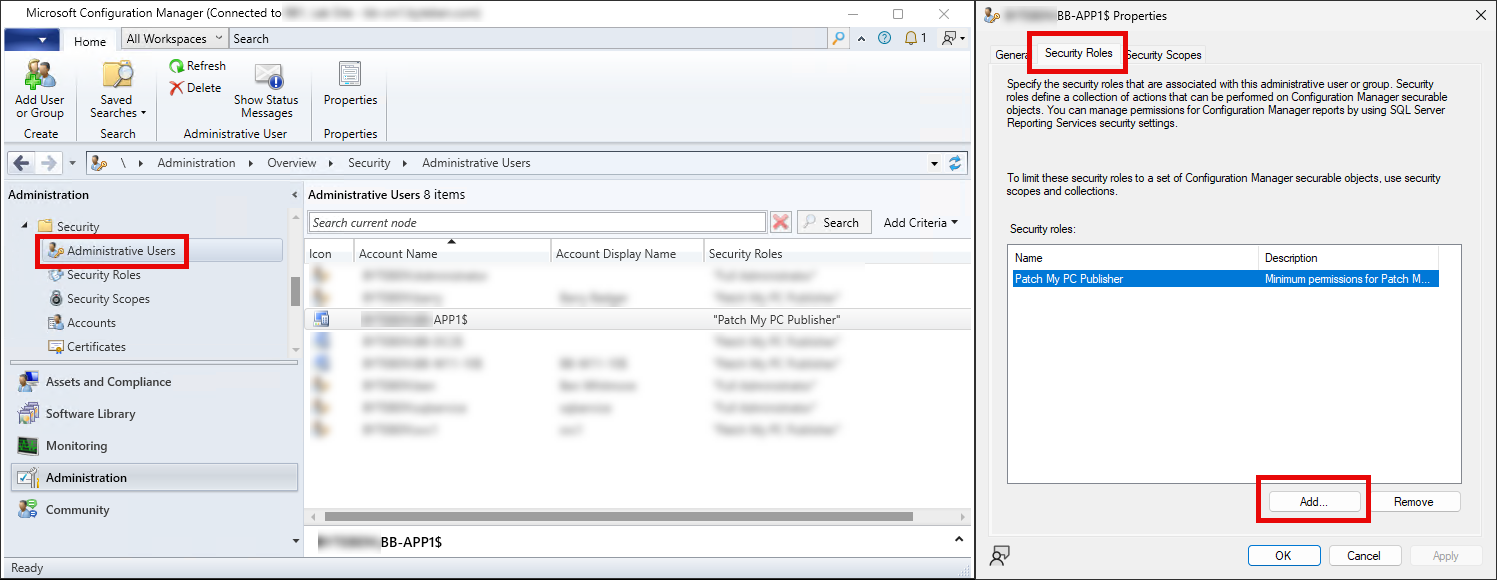
Whilst Publisher can create the necessary Security Role automatically, an administrator still needs to add the computer account of the remote SUP to that Security Role in the ConfigMgr console.
{% endhint %}
There are two options to ensure that when Publisher is installed on a remote SUP, it has the correct permissions:
* [Option 1: Automatically Create the ConfigMgr Security Role (Recommended)](#option-1-automatically-create-the-configmgr-security-role-recommended)
* [Option 2: Manually Create the ConfigMgr Security Role](#option-2-manually-create-the-configmgr-security-role)
### Option 1: Automatically Create the ConfigMgr Security Role (Recommended)
Publisher can create a Security Role in ConfigMgr with the minimum required permissions to interact with the required ConfigMgr components as detailed in [Connection and Source Options](/patch-my-pc-publisher/manage/configmgr-apps-tab/base-install-options/connection-source.md).
### Option 2: Manually Create the ConfigMgr Security Role
If your organization requires manual role creation or approval by a security team, you can create the role yourself and assign it to the remote SUP's computer account.
Publisher requires the following ConfigMgr permissions:
* **Application**\
Read, Modify, Delete, Set Security Scope, Create, Move Object, Modify Folder
* **Distribution Point**\
Read, Copy to Distribution Point
* **Distribution Point Group**\
Read, Copy to Distribution Point Group
* **Folder Class**\
Read, Modify, Create
* **Security Scopes**\
Read
* **Site**\
Read
* **Software Updates**\
Read, Modify
It is important that you also assign this role to the **computer$** account of the remote SUP.
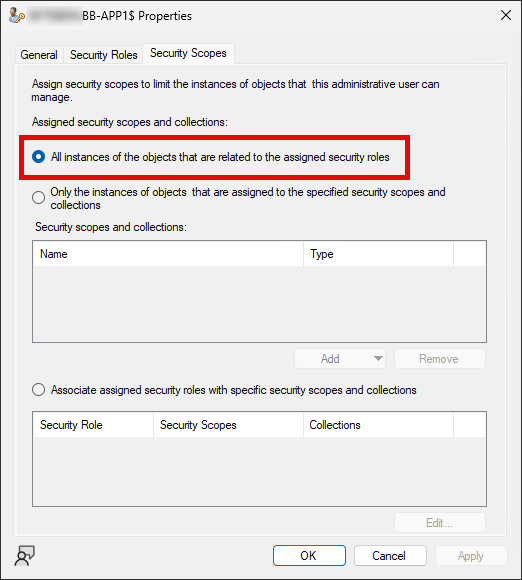
The Security Scopes should be assigned to **All instances of the objects that are related to the assigned security roles**.
## WSUS SSL Requirements
If there is an expectation that ConfigMgr can retrieve the signing certificate and distribute it to client devices, then Secure Sockets Layer (SSL) is required on the remote SUP WSUS instance.
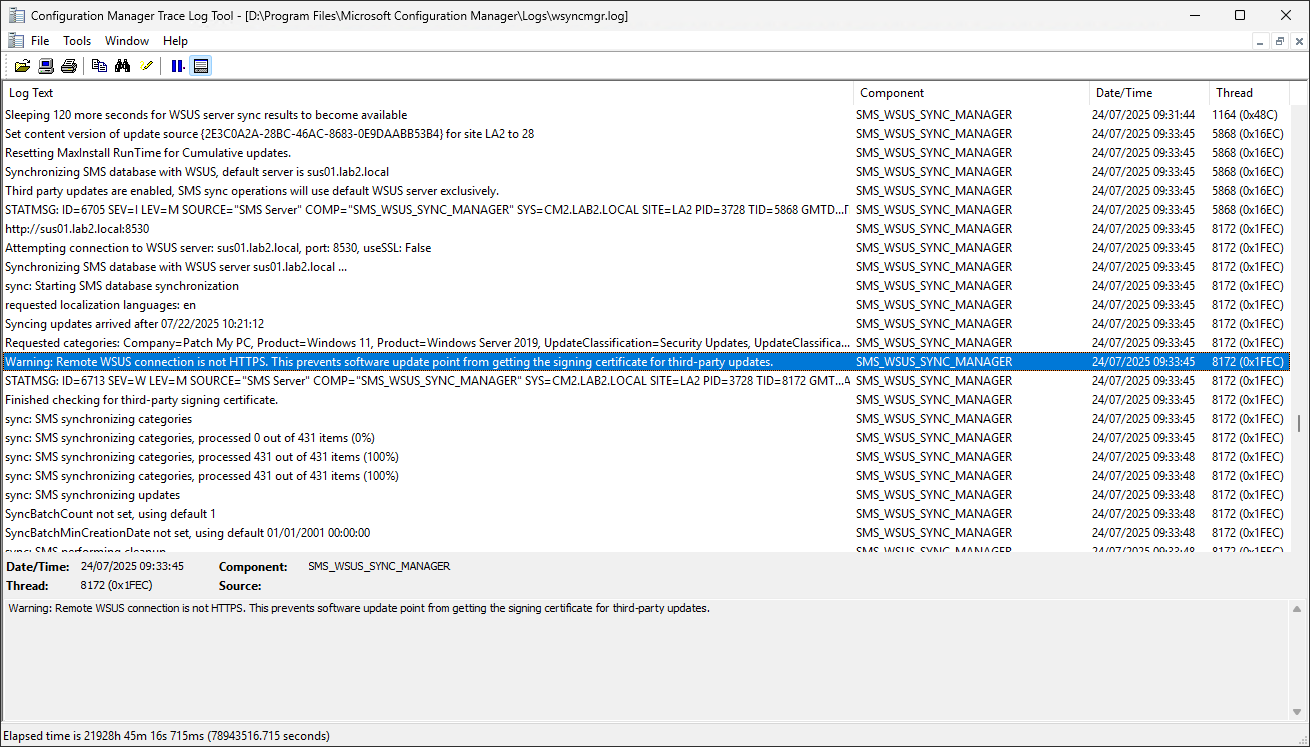
If WSUS on a remote SUP is **not** configured for SSL, **wsyncmgr.log** will log the following warning during a SUP sync:
> `Remote WSUS connection is not HTTPS. This prevents software update point from getting the signing certificate for third-party updates`
This warning indicates that ConfigMgr is unable to retrieve the WSUS signing certificate from the remote SUP. As a result, ConfigMgr cannot store the certificate in the Site Database or distribute it to client devices during a software update scan.
To resolve this, WSUS on the remote SUP must be configured to use HTTPS (SSL) when ConfigMgr is set to manage the signing certificate.
For more information on enabling SSL for WSUS, see [Tutorial: Configure a software update point to use TLS/SSL with a PKI certificate](https://learn.microsoft.com/en-us/intune/configmgr/sum/get-started/software-update-point-ssl).
{% hint style="info" %}
**Note**
SSL is not a strict requirement in this scenario. However, when SSL is not enabled on a remote SUP, the code-signing certificate must be manually distributed to the Site Server, any other SUPs, and all client devices.
The certificate must be placed in the **Trusted Publishers** (and the **Trusted Root Certification Authorities** store if it's a self-signed certificate) using Group Policy or another certificate deployment method.
{% endhint %}
---
# Agent Instructions
This documentation is published with GitBook. GitBook is the documentation platform designed so that both humans and AI agents can read, navigate, and reason over technical content effectively. Learn more at gitbook.com.
## Querying This Documentation
If you need additional information that is not directly available in this page, you can query the documentation by asking a question.
Perform an HTTP GET request on the following URL with the `ask` and `goal` query parameters:
```
GET https://docs.patchmypc.com/patch-my-pc-publisher/requirements/configmgr-requirements/sup-requirements/remote-sup.md?ask=&goal=
```
`ask` is the immediate question: it should be specific, self-contained, and written in natural language.
`goal` is what the user is ultimately trying to achieve, the reason they need the answer. Sharing it helps GitBook give you a better, more relevant answer. A goal is most helpful when it describes the outcome the user wants rather than restating the question. For example, with `ask=how do I create an API token`, a goal like `automate deployments from our CI pipeline` lets GitBook tailor the answer to that use case.
The response will contain a direct answer to the question and relevant excerpts and sources from the documentation.
Use this mechanism when the answer is not explicitly present in the current page, you need clarification or additional context, or you want to retrieve related documentation sections.