> For the complete documentation index, see [llms.txt](https://docs.patchmypc.com/llms.txt). Markdown versions of documentation pages are available by appending `.md` to page URLs; this page is available as [Markdown](https://docs.patchmypc.com/patch-my-pc-publisherv2/publisher-requirements/wsus-requirements/permissions.md).
# Permissions
*Applies to: Patch My PC Publisher V2.x*
## Overview
When publishing third-party updates through WSUS, correct permissions are critical. In standalone WSUS environments, Microsoft updates and third-party update binaries are both written to the WSUSContent directory, so administrators are typically already familiar with WSUS content storage.
In ConfigMgr environments, however, Microsoft update binaries are downloaded and stored directly in ConfigMgr deployment packages, and the WSUS content folder is primarily used for metadata. As a result, customers using a SUP may not have previously planned for WSUS content storage or permissions.
Third-party update content is written directly into the WSUS content folders, requiring WSUS to be able to create, modify, and serve update content without restriction. In environments where WSUS servers share a database, the WSUS content location **must** also be shared, and permissions must be carefully configured to ensure all WSUS instances can access the content reliably.
For third-party patching to function correctly, permissions must be aligned across:
* WSUS content directories
* IIS Content virtual directory authentication settings
Any misalignment between these components can result in publishing failures or clients being unable to download third-party updates.
## WSUS Content Directory Permissions
The permissions required for third-party patching through WSUS depend heavily on where the WSUS content directory is located. WSUS supports storing content either locally on the WSUS server or on a remote file share, and the permission model differs significantly between these two scenarios.
Understanding the WSUS content location is essential, as this is where third-party update binaries are downloaded, staged, signed, and ultimately served to clients.
## Determining the WSUS Content Location
Before validating permissions, you should first confirm where WSUS content is stored. There are two reliable ways to do this.
{% hint style="success" %}
**Tip**
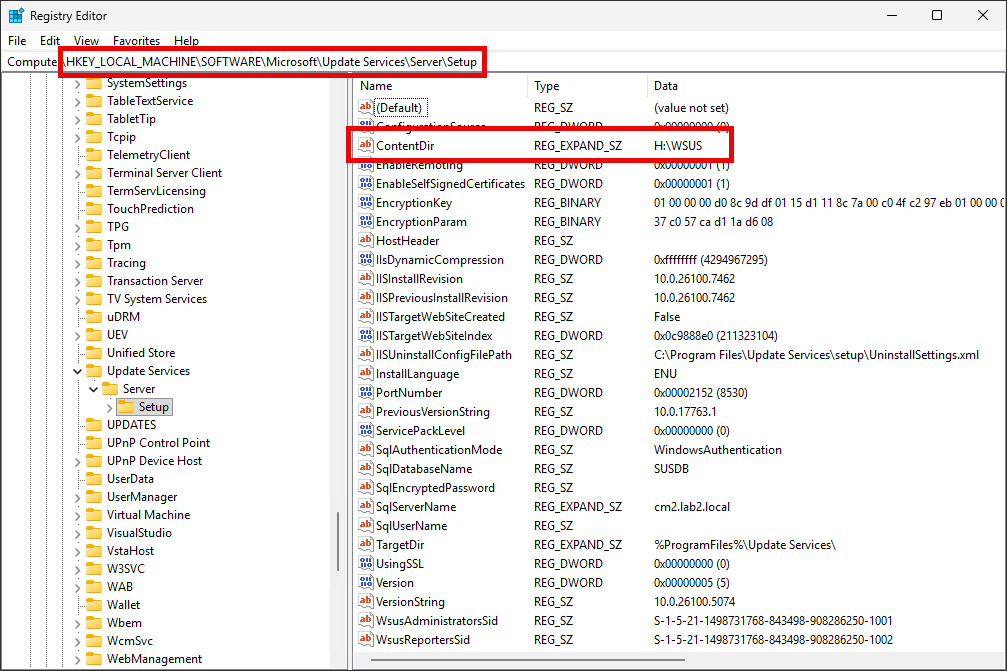
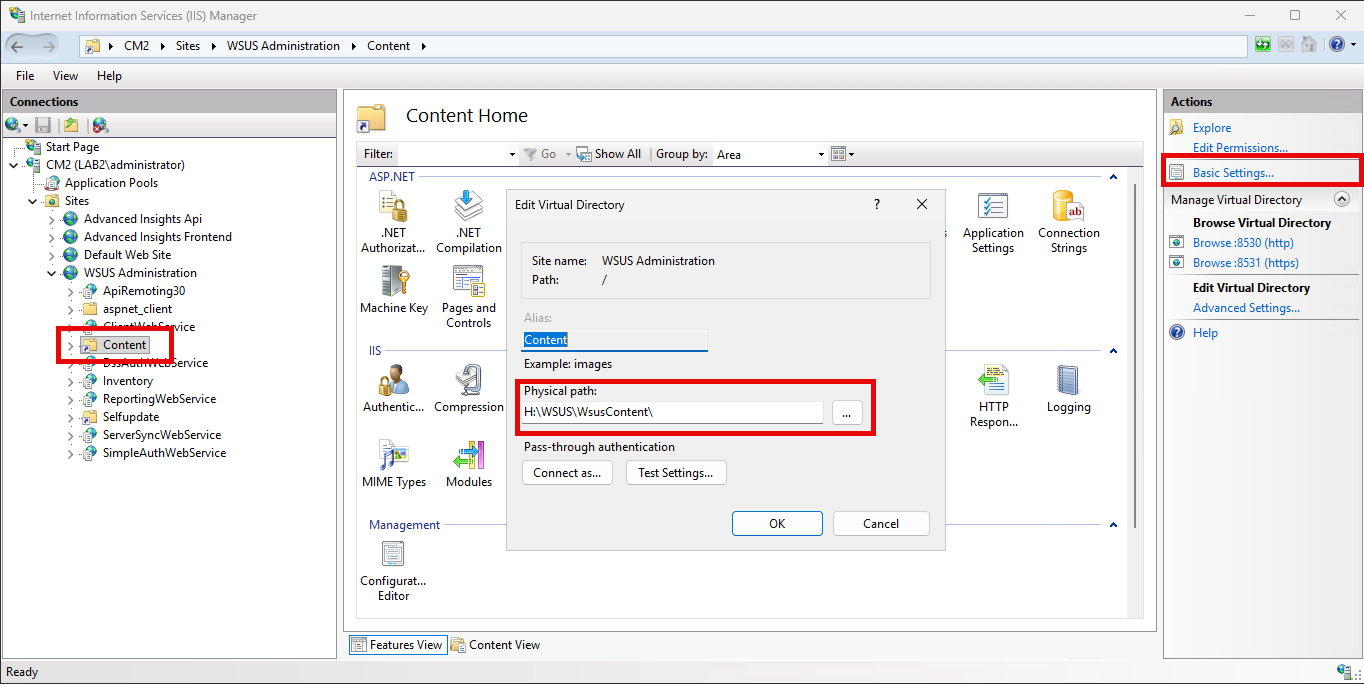
When you consider the options below to validate the location of the WSUS content directoy, you may notice that the **`ContentDir`** registry value references the root WSUS content directory, while the IIS Content virtual directory points specifically to the `WSUSContent` subfolder beneath that root. This is expected and represents a correct configuration.
The registry defines the overall WSUS content location, which contains both WSUSContent and UpdateServicesPackages, while IIS is intentionally mapped only to the WSUSContent folder to serve update binaries to clients.
{% endhint %}
### Option 1: Registry
On the WSUS server, open **Registry Editor** and navigate to `HKLM\SOFTWARE\Microsoft\Update Services\Server\Setup`
The **`ContentDir`** value defines the root WSUS content path. This directory contains both:
* **WSUSContent**
* **UpdateServicesPackages**
### Option 2: IIS (Content Virtual Directory)
You can also verify the content location in **IIS Manager**:
1. Open **IIS Manager**
2. Browse to **Sites > WSUS Administration**
3. Select the **Content** virtual directory
4. Open **Basic Settings**
The **Physical path** shown here maps directly to the WSUSContent directory on disk.
## Scenario 1: WSUS Content Stored Locally
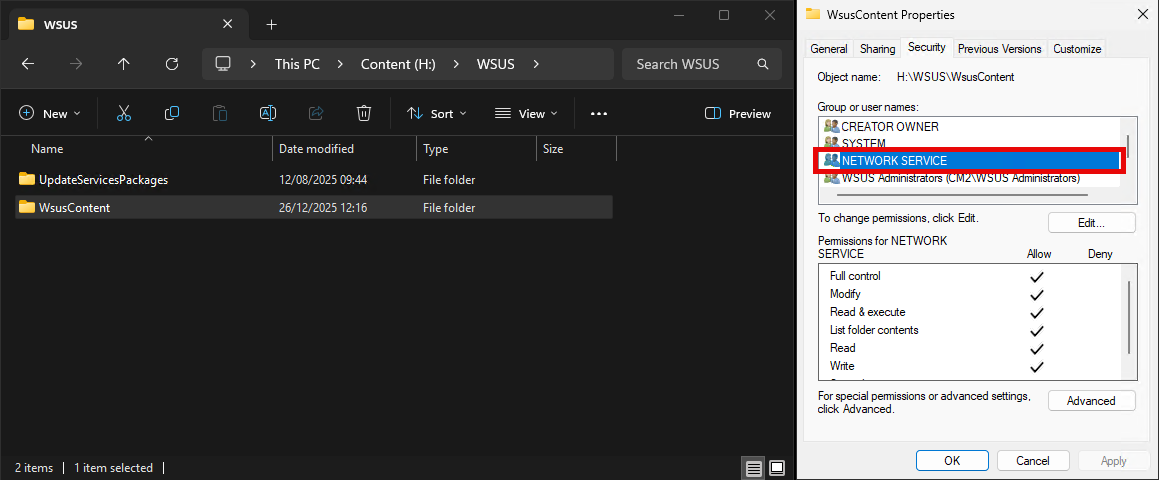
When WSUS content is stored locally, the WSUS application pool identity (typically the Network Service) must have **Full Control** permissions on the `WSUSContent` and `UpdateServicesPackages` directories. These permissions may be granted directly on the folders or inherited from the WSUS content root, depending on how the server was configured.
{% hint style="info" %}
**Note**
If the **`ContentDir`** value is set to **`%ProgramFiles%\Update Services`**, this indicates that a custom WSUS content location was not specified during the WSUS configuration wizard. In this case, WSUS stores content on the system drive by default.
While this configuration can work in small or single-WSUS environments with sufficient free space on the system drive, it is generally sub-optimal for larger environments or for third-party patching scenarios where additional content is introduced. Storing WSUS content on the system drive can quickly consume disk space and complicate future scaling or maintenance.
The **`wsusutil movecontent`** command can be used to relocate the WSUS content directory to a dedicated drive or directory. Moving WSUS content off the system drive helps support better scalability, simplifies disk management, and makes it easier to share content if additional WSUS servers are introduced later.
For step-by-step guidance and important considerations when moving the WSUS content folder, see\
For guidance on recommended storage locations and disk space planning for third-party patching, see the [Disk Space](/patch-my-pc-publisherv2/publisher-requirements/wsus-requirements/disk-space.md) section later in this document.
{% endhint %}
In this scenario:
* The WSUSContent and UpdateServicesPackages folders reside on a local volume.
* The WSUS application pool identity (typically Network Service) has **Full control** to these folders.
* Default NTFS permissions when the WSUS role is installed are usually sufficient.
{% hint style="warning" %}
**Important**
In a shared WSUS database configuration, where multiple WSUS servers use the same SUSDB, all WSUS servers must reference the WSUS content location using an identical path. This path must be accessible in the same way from every WSUS server in the deployment. In practice, this is most commonly achieved by using a UNC path to a shared content location.
Shared WSUS database configurations require a single, shared WSUS content location. Maintaining separate local content copies on each WSUS server is not supported.
{% endhint %}
## Scenario 2: WSUS Content Stored Remotely (SMB Share)
When WSUS content is stored on a remote file share, or when WSUS content is shared between multiple WSUS servers in a shared database configuration, additional permission and configuration considerations apply.
In these scenarios, WSUS no longer accesses content as a local file system operation. Instead, all read and write activity typically occurs over SMB, which changes how identity and permissions are evaluated. Because the WSUS application pool runs under Network Service, access to remote content occurs using the computer account of the WSUS server.
* If the WSUS server is remote from where the content is hosted, the computer account of that WSUS server must be granted appropriate permissions on both the SMB share and NTFS folder hosting the WSUS content.
* If the WSUS server is also the server hosting the content and the content is accessed using a UNC path, the Network Service identity or the computer account must have appropriate permissions on both the SMB share and the underlying NTFS folders. Either is fine because when WSUS accesses content over a UNC path, the Network Service identity automatically authenticates as the WSUS server’s computer account. As a result, granting permissions to either Network Service or the computer account is functionally equivalent for SMB access.
#### **Example**
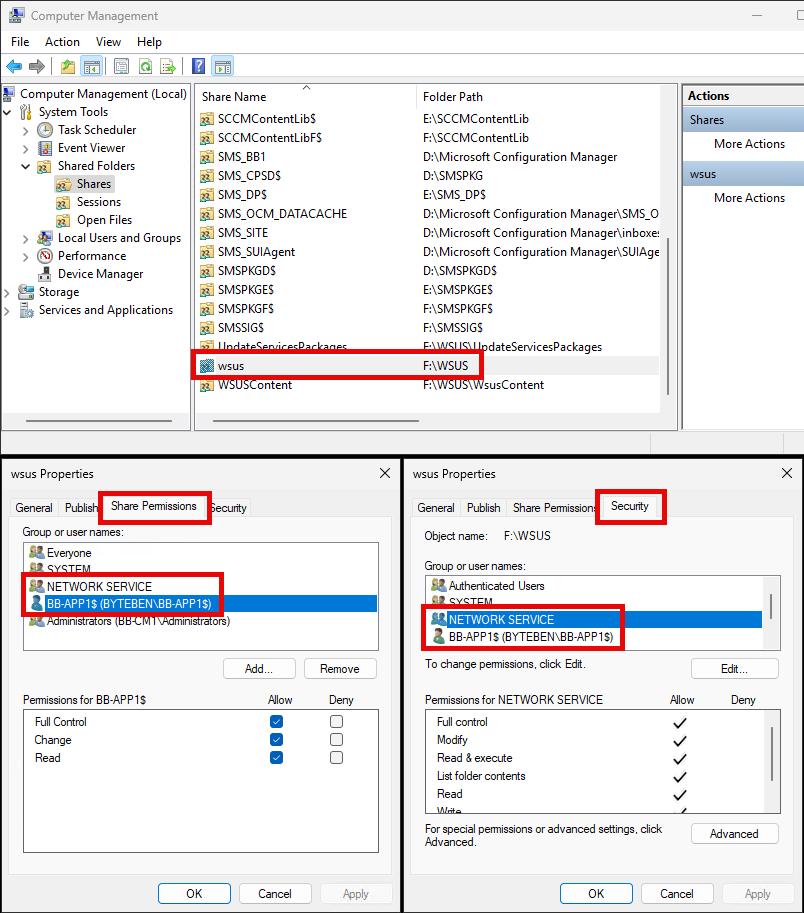
In the following example, a shared WSUS database is used, with WSUS content physically hosted on BB-CM1, while BB-APP1 acts as an additional WSUS server accessing that content remotely. Because the content is accessed via a UNC path, SMB permissions are always required. On the content-hosting server (BB-CM1), the WSUS application pool runs under Network Service, which performs local WSUS operations and accesses the content over SMB. When accessing a UNC path, Network Service authenticates as the WSUS server’s computer account, which is why granting permissions to either identity is functionally equivalent.
{% hint style="info" %}
**Note**
The image shows the Network Service (for BB-CM1) being granted the required SMB and NTFS permissions. It would be equally valid to grant these permissions to the computer account of BB-CM1 instead, as Network Service authenticates as the server’s computer account when accessing the content over a UNC path.
{% endhint %}
In addition, the computer account of the remote WSUS server (BB-APP1$) must be granted permissions, as it accesses the same content over SMB when serving clients. Granting permissions to the appropriate identities ensures that WSUS operations and content delivery function correctly across all WSUS servers participating in the shared database scenario.
{% hint style="info" %}
**Note**
Even in a single WSUS server environment, if WSUS content is stored on a remote UNC path, the computer account of the WSUS server must have permissions on both the SMB share and NTFS folders.
{% endhint %}
{% hint style="success" %}
**Tip**
No additional, separate SMB configuration is required for the WSUSContent and UpdateServicesPackages shares themselves when WSUS content is stored remotely. These shares are created automatically during the initial WSUS configuration and are not accessed independently. All access occurs through the WSUS content *root* share.
As long as inheritance is enabled on the WSUSContent and UpdateServicesPackages folders, the required NTFS permissions applied at the WSUS content root will propagate correctly to these subfolders.
{% endhint %}
### Common Remote Content Misconfigurations
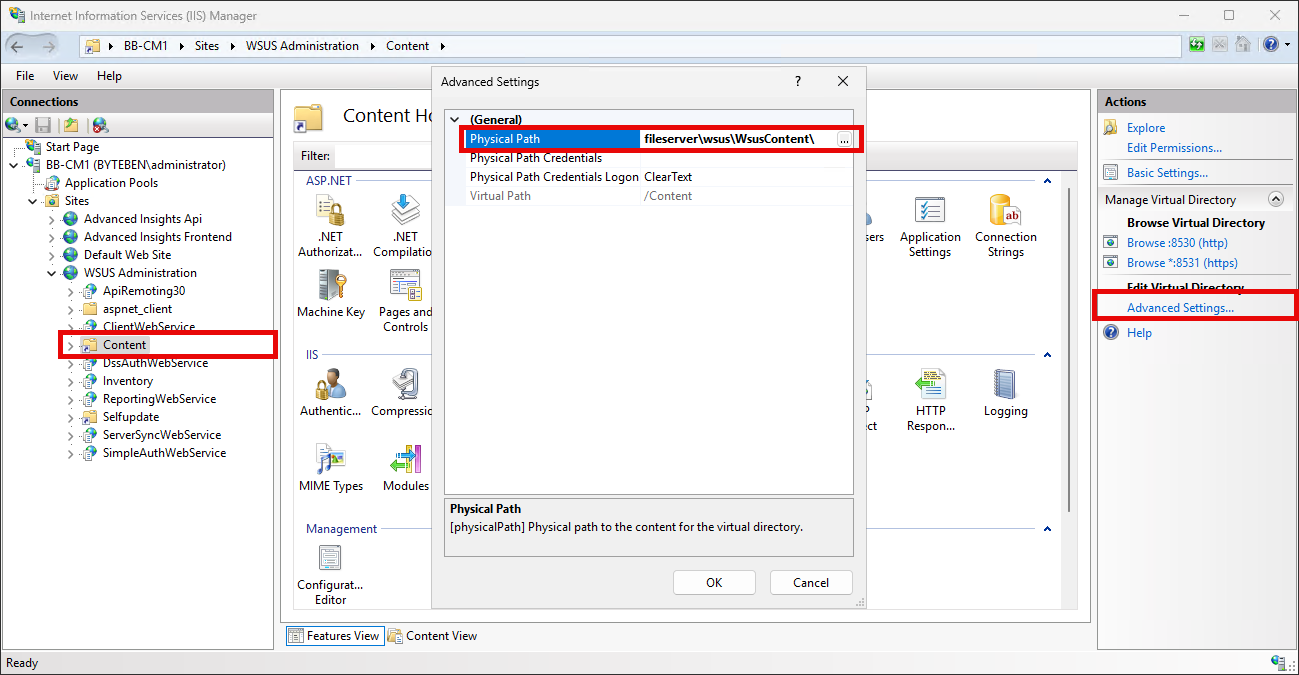
During the WSUS post installation process, when the WSUS content location is configured to use a UNC path, a known issue can cause the Physical Path for the Content virtual directory in IIS to be set incorrectly.
In this scenario, WSUS correctly stores the content location in the registry, for example `\\FileServer\WSUS`. However, the Content virtual directory in IIS may be configured without the required UNC prefix. As a result, the IIS path may appear as `FileServer\WSUS\WSUSContent` instead of the correct `\\FileServer\WSUS\WSUSContent`.
This mismatch can prevent clients and downstream systems from accessing WSUS content correctly, even though the registry configuration appears valid.
When the WSUS Content virtual directory in IIS is misconfigured like this, third-party updates can still be published successfully, but clients will be unable to download the update content. In the example below a 404 is shown while attempting to download a third-party update (CAB file).
---
# Agent Instructions
This documentation is published with GitBook. GitBook is the documentation platform designed so that both humans and AI agents can read, navigate, and reason over technical content effectively. Learn more at gitbook.com.
## Querying This Documentation
If you need additional information that is not directly available in this page, you can query the documentation by asking a question.
Perform an HTTP GET request on the following URL with the `ask` and `goal` query parameters:
```
GET https://docs.patchmypc.com/patch-my-pc-publisherv2/publisher-requirements/wsus-requirements/permissions.md?ask=&goal=
```
`ask` is the immediate question: it should be specific, self-contained, and written in natural language.
`goal` is what the user is ultimately trying to achieve, the reason they need the answer. Sharing it helps GitBook give you a better, more relevant answer. A goal is most helpful when it describes the outcome the user wants rather than restating the question. For example, with `ask=how do I create an API token`, a goal like `automate deployments from our CI pipeline` lets GitBook tailor the answer to that use case.
The response will contain a direct answer to the question and relevant excerpts and sources from the documentation.
Use this mechanism when the answer is not explicitly present in the current page, you need clarification or additional context, or you want to retrieve related documentation sections.