> For the complete documentation index, see [llms.txt](https://docs.patchmypc.com/llms.txt). Markdown versions of documentation pages are available by appending `.md` to page URLs; this page is available as [Markdown](https://docs.patchmypc.com/patch-my-pc-publisher/manage/wsus-updates-tab/wsus-options/wsus-maintenance.md).

# WSUS Maintenance section of Patch My PC Publisher

*Applies to: Patch My PC Publisher V3.x*

The **WSUS MAINTENANCE** section on the **WSUS Options** tab of Patch My PC (PMPC) Publisher provides options to help manage and clean up third party update content stored in WSUS.&#x20;

<figure><img src="https://3773699522-files.gitbook.io/~/files/v0/b/gitbook-x-prod.appspot.com/o/spaces%2F-MX7dvS0r_4fc0AikgJS%2Fuploads%2FmaAnGeUSSSRoMifeemlR%2Fimage.png?alt=media&amp;token=12f8b0fc-63f6-4023-837f-3e7981d627ab" alt="&#x27;WSUS MAINTENANCE&#x27; section" width="563"><figcaption></figcaption></figure>

These options are designed to reduce disk usage, remove unused content, and prevent long-term WSUS performance and stability issues caused by accumulated third party updates.

These actions cannot be triggered manually. If enabled, they run at the end of a publishing sync cycle.

## Show Unreferenced WSUS Folders

Unreferenced folders typically occur when updates are declined, expire, or are deleted, but the associated content is not removed. Reviewing these folders helps identify orphaned content you can safely clean up.

Clicking **Show Unreferenced WSUS Folders** triggers the scanning of the WSUS content directory and identifies folders that are no longer referenced by any updates in the WSUS database, with the results being shown on the **Unreferenced WSUS Folders** screen.

<figure><img src="https://3773699522-files.gitbook.io/~/files/v0/b/gitbook-x-prod.appspot.com/o/spaces%2F-MX7dvS0r_4fc0AikgJS%2Fuploads%2FOipex1EuRuShLCVWJDOL%2Fimage.png?alt=media&amp;token=7d13aad1-036a-43ef-a56f-a9ab3415aecc" alt="&#x27;Unreferenced WSUS Folders&#x27; screen" width="563"><figcaption></figcaption></figure>

The following fields are shown for any items that are found.

<table><thead><tr><th width="110.88897705078125" valign="top">Column</th><th valign="top">Description</th></tr></thead><tbody><tr><td valign="top">Selected</td><td valign="top">Indicates whether the folder is selected for deletion. Selected folders will be removed when <strong>Delete Selected</strong> is clicked.</td></tr><tr><td valign="top">Path</td><td valign="top">The full path to the unreferenced WSUS folder.</td></tr><tr><td valign="top">File</td><td valign="top">An example file found within the unreferenced folder. This helps identify the type of content stored in the folder. There may be more files, but only a single file is listed.</td></tr><tr><td valign="top">Folder Size</td><td valign="top">The total disk space consumed by the unreferenced folder. This helps assess the potential storage savings before deleting the folder.</td></tr></tbody></table>

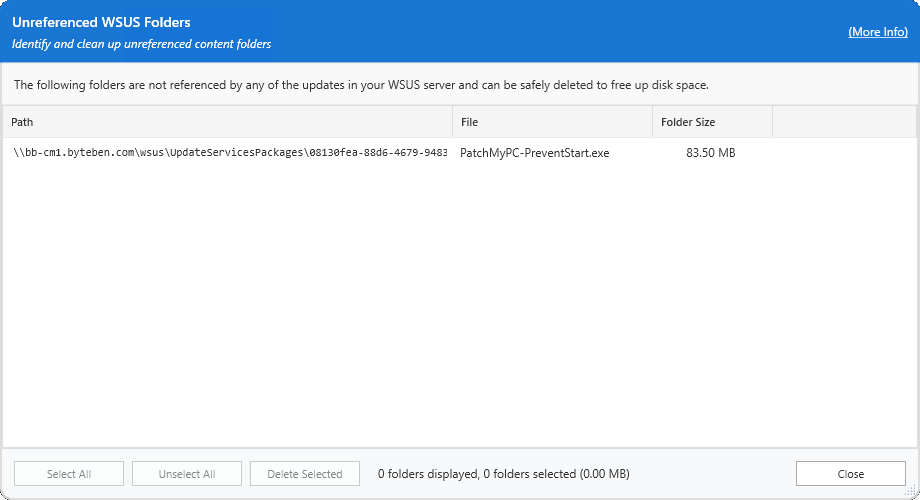
In the example below, a single, unreferenced folder was found in the **UpdateServicesPackages** folder. This is the folder where third-party updates are initially staged before being compressed to a CAB file, signed, and then finally copied to the WSUS Content folder.

<figure><img src="https://3773699522-files.gitbook.io/~/files/v0/b/gitbook-x-prod.appspot.com/o/spaces%2F-MX7dvS0r_4fc0AikgJS%2Fuploads%2FbxIG9sdfY9RCQSeUFQKc%2Fimage.png?alt=media&amp;token=4dd41069-5da8-4a86-b7eb-24cb59398948" alt="Unreferenced WSUS Folders" width="563"><figcaption></figcaption></figure>

Clicking **Delete Selected** permanently removes the selected unreferenced folders from the WSUS content directory.

Use this option to safely reclaim disk space after reviewing the list of unreferenced folders and confirming they are no longer needed.

## Enable the automatic deletion and cleanup of the UpdateServicesPackages folder for declined third-party-updates

When you enable the **Enable the automatic deletion and cleanup of the UpdateServicesPackages folder for declined third-party-updates** option (which is by default), Publisher automatically removes WSUS content associated with declined or deleted third party updates.

This cleanup runs after a successful Publisher synchronization. The process performs two actions:

* First, it deletes content for declined third party updates.
* Second, it removes any unreferenced folders from the **UpdateServicesPackages** directory that are no longer associated with update metadata.

This option helps prevent long-term WSUS content growth and reduces disk usage without requiring manual cleanup.

### Only delete declined Patch My PC third-party updates

When you enable the **Only delete declined Patch My PC third-party updates** option (which it is by default), automatic cleanup is limited to updates published by Patch My PC. Content from other third party catalogs such as Ivanti, Dell, HP, or Lenovo is not removed, even if those updates are declined.

If this option is unchecked, the cleanup process also applies to declined third party updates from other vendors. This can be useful in environments where multiple catalogs have been used historically, and broad cleanup is required.

## Automatically run the Unneeded updates files cleanup action in the WSUS Cleanup Wizard

When you enable the **Automatically run the Unneeded updates files cleanup action in the WSUS Cleanup Wizard** option (which isn't checked by default), Publisher will automatically run the WSUS Server Cleanup Wizard action that removes unneeded update files.

This action helps clean up unused content in the WSUS content directory and complements the UpdateServicesPackages cleanup by removing additional unused files managed by WSUS.

{% hint style="danger" %}
**Important**

If you have downstream WSUS servers that do not share the same SUSDB, carefully consider enabling this automatic deletion and cleanup. In WSUS hierarchies, perform cleanup from the bottom up to avoid removing content that downstream servers need.
{% endhint %}


---

# Agent Instructions
This documentation is published with GitBook. GitBook is the documentation platform designed so that both humans and AI agents can read, navigate, and reason over technical content effectively. Learn more at gitbook.com.

## Querying This Documentation
If you need additional information that is not directly available in this page, you can query the documentation by asking a question.

Perform an HTTP GET request on the following URL with the `ask` and `goal` query parameters:

```
GET https://docs.patchmypc.com/patch-my-pc-publisher/manage/wsus-updates-tab/wsus-options/wsus-maintenance.md?ask=<question>&goal=<user_goal>
```

`ask` is the immediate question: it should be specific, self-contained, and written in natural language.
`goal` is what the user is ultimately trying to achieve, the reason they need the answer. Sharing it helps GitBook give you a better, more relevant answer. A goal is most helpful when it describes the outcome the user wants rather than restating the question. For example, with `ask=how do I create an API token`, a goal like `automate deployments from our CI pipeline` lets GitBook tailor the answer to that use case.

The response will contain a direct answer to the question and relevant excerpts and sources from the documentation.

Use this mechanism when the answer is not explicitly present in the current page, you need clarification or additional context, or you want to retrieve related documentation sections.