> For the complete documentation index, see [llms.txt](https://docs.patchmypc.com/llms.txt). Markdown versions of documentation pages are available by appending `.md` to page URLs; this page is available as [Markdown](https://docs.patchmypc.com/patch-my-pc-publisher/manage/wsus-updates-tab/wsus-options/modify-published-updates.md).

# Modify Published Updates section of Patch My PC Publisher

*Applies to: Patch My PC Publisher V3.x*

The **MODIFY PUBLISHED UPDATES** section on the **WSUS Options** tab of Patch My PC (PMPC) Publisher is used to manage third party updates that have already been published to WSUS.&#x20;

<figure><img src="https://3773699522-files.gitbook.io/~/files/v0/b/gitbook-x-prod.appspot.com/o/spaces%2F-MX7dvS0r_4fc0AikgJS%2Fuploads%2FzKUqEMAu30wPVOopGvD1%2Fimage.png?alt=media&amp;token=c545215d-b250-4bcc-af24-173ef62185b2" alt="&#x27;MODIFY PUBLISHED UPDATES&#x27; section" width="563"><figcaption></figcaption></figure>

It provides a centralized view of published updates and lets administrators safely maintain, clean up, and correct updates without manually interacting with the WSUS console.

## Run Wizard

Clicking **Run Wizard** opens the **Update Manager**, which is commonly used for troubleshooting, republishing workflows, and ongoing maintenance to ensure WSUS and ConfigMgr evaluate and display only the correct updates.

<figure><img src="https://3773699522-files.gitbook.io/~/files/v0/b/gitbook-x-prod.appspot.com/o/spaces%2F-MX7dvS0r_4fc0AikgJS%2Fuploads%2FLtUj9V2QGu6wtY4mKNRn%2Fimage.png?alt=media&amp;token=e4f1c192-302e-41aa-bb6c-e64a45451109" alt="Update Manager" width="563"><figcaption></figcaption></figure>

## About the Update Manager

The **Update Manager** is divided into two main areas that make it easy to locate and manage published, third-party updates:

* The upper portion of the window contains filtering controls.
* The main pane displays the list of matching updates and their current state.

The filtering area lets you quickly narrow updates by common attributes such as vendor, declined status, expired status, supersedence status, metadata state, and enabled status. Multiple filters can be combined to precisely target updates, which is especially useful in environments with a large number of published third party updates. The **Title filter** lets you search by update name, making it easy to find specific products or versions.

The main results grid displays each update along with key information, including classification, vendor, publish date, and current state in WSUS. From this view, you can select one or more updates and perform actions using the buttons at the bottom of the wizard. This layout allows administrators to review update status and take action without switching between the Publisher, WSUS, and ConfigMgr consoles.

### Conditional Formatting

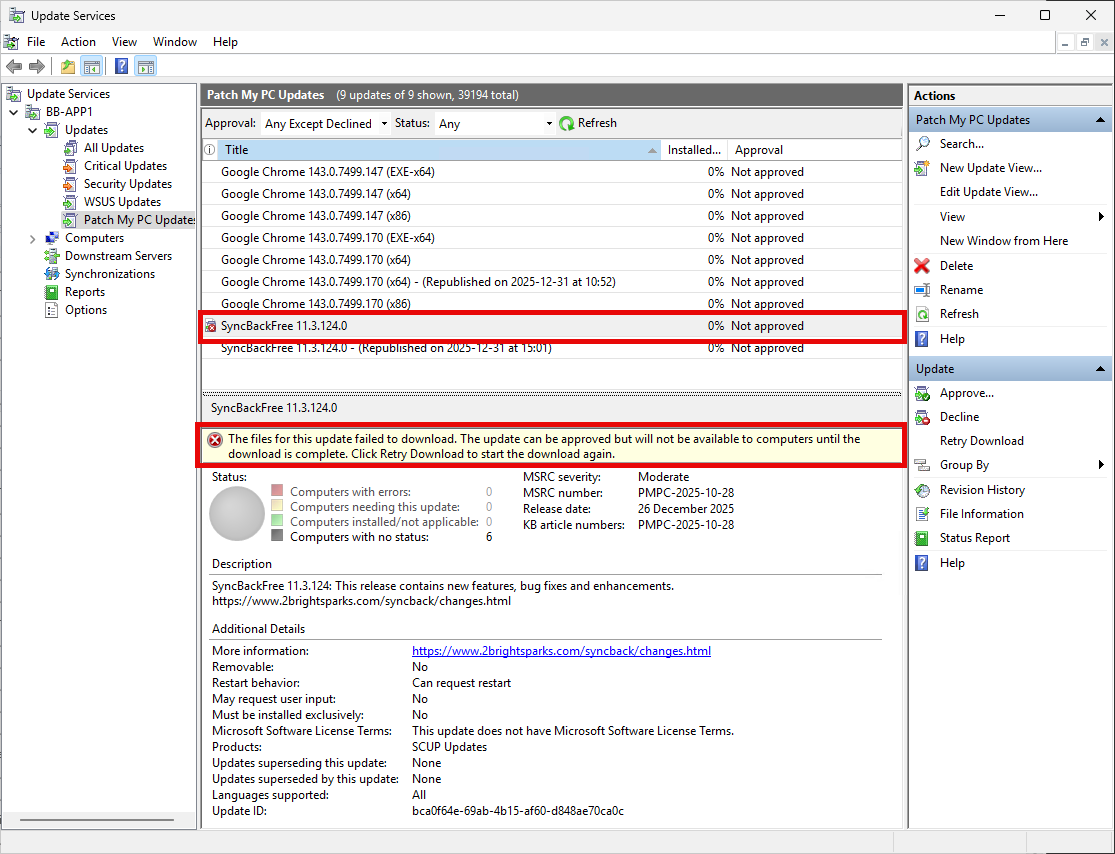
The **UpdateID** column is highlighted in yellow when the update is in a WSUS state that is not considered complete or healthy.

<figure><img src="https://3773699522-files.gitbook.io/~/files/v0/b/gitbook-x-prod.appspot.com/o/spaces%2F-MX7dvS0r_4fc0AikgJS%2Fuploads%2Fz6cdGHRvKmUrzrzMcdDu%2Fimage.png?alt=media&amp;token=7174bfeb-0c4c-465d-b9c7-74c9d42a77c3" alt="&#x27;UpdateID&#x27; column highlighted in yellow" width="563"><figcaption></figcaption></figure>

This typically indicates that publishing did not complete successfully or that update content is missing or not yet available. Common causes include incomplete content upload or metadata processing issues.

The yellow highlight is an attention indicator. Click [**More Details**](#more-details-button) to see the update status.

If you select an update that is highlighted in yellow and click [**Show in WSUS**](#show-in-wsus-button), the WSUS console provides more detailed state information. This additional detail can help identify why the update is flagged, such as missing content.

<figure><img src="https://3773699522-files.gitbook.io/~/files/v0/b/gitbook-x-prod.appspot.com/o/spaces%2F-MX7dvS0r_4fc0AikgJS%2Fuploads%2FXt4kguqHNTfc1tjHKd4k%2Fimage.png?alt=media&amp;token=437d344f-602b-4ad5-9c3c-8bc5176c6cc8" alt="Update Missing Content" width="563"><figcaption></figcaption></figure>

### Filtering

The filtering options at the top of the **Update Manager** are used to quickly narrow down the list of published updates. This is especially important in environments with a large number of third party updates, where manually scrolling through the list would be inefficient.

<table><thead><tr><th width="168" valign="top">Filter name</th><th valign="top">Description</th><th valign="top">Values</th></tr></thead><tbody><tr><td valign="top">Title Filter</td><td valign="top">Allows searching by update name. This is useful for locating specific products or versions, including republished updates that include a timestamp in the name.</td><td valign="top">&#x3C;string></td></tr><tr><td valign="top">Vendor</td><td valign="top">Filters updates by the publishing vendor. This is commonly used to isolate PMPC updates or updates from a specific third-party vendor.</td><td valign="top">Default: All Vendors<br>All Vendors<br>Patch My PC</td></tr><tr><td valign="top">Declined Status</td><td valign="top">Filters updates based on whether they are currently declined in WSUS. This is useful when identifying updates that are still active versus those already retired.</td><td valign="top">Default: All Declined Status<br>Declined<br>Not Declined</td></tr><tr><td valign="top">Expired Status</td><td valign="top">Filters updates based on whether they are marked as expired. Expired updates are no longer evaluated by ConfigMgr clients.</td><td valign="top">Default: All Expired Status<br>Expired<br>Not Expired<br></td></tr><tr><td valign="top">Metadata Status</td><td valign="top">Filters updates based on whether the update is published with Full Content or Metadata only.</td><td valign="top">Default: All Metadata Status<br>Metadata Only<br>Full Content<br></td></tr><tr><td valign="top">Superseded Status</td><td valign="top">Filters updates based on whether they are superseded by another update.</td><td valign="top">Default: All Superseded Status<br>Superseded<br>Not Superseded<br></td></tr><tr><td valign="top">Enabled Status</td><td valign="top">Filters updates based on if they are selected (Enabled) in the Publisher</td><td valign="top">Default: All Enabled Status<br>Enabled<br>Not Enabled</td></tr></tbody></table>

### Decline button

*Declining* an update marks it as declined in WSUS. Declined updates are no longer evaluated for installation by the Windows Update Agent for WSUS standalone environments or by ConfigMgr clients.

Declining updates is most commonly used to reduce legacy technical debt in environments where multiple third party catalogs have been used over time. In these scenarios, WSUS often contains thousands of third party updates that are no longer deployed or used for compliance.&#x20;

If updates remain undeclined, ConfigMgr continues to evaluate them for applicability, even if they are never deployed. This unnecessary evaluation increases client scan times and adds additional IIS and database load on WSUS servers.

Declining unused updates helps streamline the update catalog and improves overall performance. By ensuring that only actively managed updates remain available, clients spend less time scanning for applicability, and WSUS processes fewer update records during synchronization and evaluation cycles.&#x20;

{% hint style="success" %}
**Tip**

As a best practice, any update that is no longer required should be declined to minimize operational overhead.
{% endhint %}

#### To decline one or more published updates

1. Locate and select the update(s) you want to decline using the available filters.
2. Click **Decline**.&#x20;

<figure><img src="https://3773699522-files.gitbook.io/~/files/v0/b/gitbook-x-prod.appspot.com/o/spaces%2F-MX7dvS0r_4fc0AikgJS%2Fuploads%2FdfcMFAc7EHadHFZszW2Y%2Fimage.png?alt=media&amp;token=5e55b4b5-5705-45c9-9ad6-611aa596b9af" alt="Declining an update" width="563"><figcaption></figcaption></figure>

Publisher sends the request to WSUS and displays a progress and confirmation window showing the result for each selected update.

The **Declined** column changes to **Yes** for the declined updates. Publisher sends the request to WSUS and displays a progress and confirmation window showing the result for each selected update.

{% hint style="info" %}
**Note**

Declining updates is also important for managing WSUS product category limits. Some patch management solutions create a separate WSUS product category for each product or vendor. Over time, this can cause the total number of enabled categories to exceed the Microsoft-supported limit of 100, which can lead to publishing and synchronization failures.

Declining updates from unused catalogs reduces the effective category footprint in WSUS and prevents you from hitting this limit.

For more information on category limits and related publishing errors, see [Publishing operation failed, too many locally published categories.](https://patchmypc.com/kb/publish-error-too-many-locally-published-categories/)
{% endhint %}

{% hint style="success" %}
**Tip**

Only after a Software Update Point (SUP) synchronization are declined updates marked as expired in ConfigMgr.
{% endhint %}

### Un-decline button

The *Un-decline* option reverses a previously declined update and makes it active again. The exact behavior depends on whether the environment is using ConfigMgr or WSUS in standalone mode.

In a ConfigMgr environment, you can only undecline an update while it still exists in the ConfigMgr database. After you decline an update and a SUP synchronization runs, ConfigMgr marks it as expired. Expired updates remain available only until ConfigMgr maintenance removes them. ConfigMgr runs a cleanup stored procedure on a regular schedule, typically every seven days, to remove expired updates. Once this cleanup has occurred, the update can no longer be undeclined.

In a WSUS standalone environment without ConfigMgr, the undecline behavior is simpler. Declined updates remain in WSUS until you manually delete them or clean them up using WSUS maintenance. As long as the update still exists in WSUS, you can undecline it at any time.

#### To un-decline one or more published updates

1. Locate and select the update(s) you want to undecline using the available filters.
2. Click **Un-decline**.&#x20;

<figure><img src="https://3773699522-files.gitbook.io/~/files/v0/b/gitbook-x-prod.appspot.com/o/spaces%2F-MX7dvS0r_4fc0AikgJS%2Fuploads%2FHwREOTpZzuz5jjVxKbhB%2Fimage.png?alt=media&amp;token=7c247be2-6fce-4b2c-a502-e0ae1d766619" alt="Undeclining an update" width="563"><figcaption></figcaption></figure>

Publisher sends the request to WSUS and displays a progress and confirmation window showing the result for each selected update.

The **Declined** column changes to **No** for the undeclined updates.&#x20;

### Delete button

The *Delete* option permanently removes selected published updates from WSUS. This action deletes the update metadata and content and cannot be reversed.&#x20;

Because of the associated risk with permanent deletion, the **Delete** button is disabled by default.

{% hint style="info" %}
**Note**

See [Enable the Delete button](#enabling-the-delete-button) for details on how to enable the **Delete** button.
{% endhint %}

{% hint style="danger" %}
**Important**

Deleting updates permanently removes them from WSUS. If the associated product remains enabled in Publisher, Publisher will publish the same update on the next sync, using the same Update ID. When this happens, ConfigMgr can resynchronize the update and clients may already have cached content that no longer matches the republished update.

This mismatch can cause hash validation failures during deployment and prevent updates from installing successfully on clients.
{% endhint %}

Deleting updates is intended only for exceptional scenarios, such as updates that were published in error, cleaning up unused third party vendors, or reducing WSUS product categories that should no longer exist. It is not recommended for routine maintenance or general cleanup. In most cases, declining updates is the preferred and safer option, as it avoids potential update identity and hash-related issues.

#### To delete one or more published updates

1. [Enable the Delete button](#enabling-the-delete-button) via a registry value in the **Patch My PC Publishing Service** key.
2. Locate and select the update(s) you want to delete using the available filters.
3. Click **Delete**.

<figure><img src="https://3773699522-files.gitbook.io/~/files/v0/b/gitbook-x-prod.appspot.com/o/spaces%2F-MX7dvS0r_4fc0AikgJS%2Fuploads%2Fpm1qkbNMYYlkxRHcWcd4%2Fimage.png?alt=media&amp;token=979a61a4-a3d7-4588-9e15-700fe97e74fc" alt="" width="563"><figcaption></figcaption></figure>

Publisher sends the request to WSUS and displays a progress and confirmation window showing the result for each selected update.

4. On the **Deletion Confirmation** dialog, click **Yes** if you are sure you want to delete the update(s), or click **No** to abort the deletion.

<figure><img src="https://3773699522-files.gitbook.io/~/files/v0/b/gitbook-x-prod.appspot.com/o/spaces%2F-MX7dvS0r_4fc0AikgJS%2Fuploads%2FLvzeVisGGJmiNiVYs57n%2Fimage.png?alt=media&amp;token=89f26b3f-7faa-4c52-a7ae-2539b63a4cdf" alt="&#x27;Deletion Confirmation&#x27; dialog" width="421"><figcaption></figcaption></figure>

5. Review the results to confirm the action completed successfully, then select **Close** to exit the confirmation window.

#### Enabling the Delete button

The **Delete** button is greyed out by default and must be explicitly enabled using a registry key. This safeguard helps prevent accidental update deletion.

**To enable the Delete button**

1. On the system where the Publisher service is installed, open an elevated command prompt.
2. Run the following command:

```
REG ADD "HKLM\SOFTWARE\Patch My PC Publishing Service" /v EnableDeleteUpdates /t REG_DWORD /d 1
```

3. Close and reopen the **Update Manager**.

If you select an update, the **Delete** button is now available.

<figure><img src="https://3773699522-files.gitbook.io/~/files/v0/b/gitbook-x-prod.appspot.com/o/spaces%2F-MX7dvS0r_4fc0AikgJS%2Fuploads%2FR35SblKMf9fnEFQ68fu3%2Fimage.png?alt=media&amp;token=77d5a0cc-666d-4e03-99b6-b946db0115ba" alt="&#x27;Delete&#x27; button is now available" width="563"><figcaption></figcaption></figure>

### Re-Sign Update button

The *Re-Sign Update* option allows you to re-sign an already published update using a new WSUS code signing certificate. This is typically required when the original code signing certificate has expired, and timestamping was not enabled when the update was published.

{% hint style="danger" %}
**Important**

Timestamping keeps an update cryptographically valid after a code signing certificate expires. In WSUS standalone environments, re-signing may not be required, even if the certificate has expired, as long as the certificate is still present in the client Trusted Publishers certificate store.

If ConfigMgr is configured to [manage certificates for third-party updates](https://learn.microsoft.com/en-us/intune/configmgr/sum/deploy-use/third-party-software-updates#configure-the-wsus-signing-certificate), it will block expired code signing certificates. During a Software Update Scan Cycle, ConfigMgr removes expired certificates from the Trusted Publishers store on clients. If the certificate is no longer present on the client device, updates signed with that certificate are not trusted, even if timestamping was enabled, and the updates must be re-signed.
{% endhint %}

{% hint style="danger" %}
**Important**

Re-signing changes the update content hash. As a result, existing content already downloaded into ConfigMgr deployment packages is no longer valid.

After you re-sign updates, remove the old content and let ConfigMgr download the newly signed content.
{% endhint %}

#### To re-sign an update

1. Locate and select the update you want to re-sign by using the available filtering options.
2. Click **Re-Sign Update**.

<figure><img src="https://3773699522-files.gitbook.io/~/files/v0/b/gitbook-x-prod.appspot.com/o/spaces%2F-MX7dvS0r_4fc0AikgJS%2Fuploads%2FySnBAmg4gknD9YgoSe2X%2Fimage.png?alt=media&amp;token=7b9e38de-82fb-479f-bc7e-73334ab92524" alt="Clicking &#x27;Re-Sign Update&#x27;" width="563"><figcaption></figcaption></figure>

Publisher sends the request to WSUS and displays a progress and confirmation window showing the result for each selected update.

3. Review the warning message that you will need to delete the deployment package's content and redistribute it. Click **OK** to continue, or **Cancel** to abort.

<figure><img src="https://3773699522-files.gitbook.io/~/files/v0/b/gitbook-x-prod.appspot.com/o/spaces%2F-MX7dvS0r_4fc0AikgJS%2Fuploads%2FuxUubf3ymXrtB5qB63Nd%2Fimage.png?alt=media&amp;token=3aca546b-a625-4e04-b3ac-ea4ab9700222" alt="Warning about deleting the deployment package and redistributing it" width="474"><figcaption></figcaption></figure>

4. After re-signing completes, delete the affected updates from the ConfigMgr deployment package.
5. After a SUP synchronization refreshes the update metadata, re-download the content to the deployment package. This can be done manually from the ConfigMgr console or automatically through an Automatic Deployment Rule, depending on how updates are managed in your environment.

### Show in WSUS button

The *Show in WSUS* option controls whether locally published third party updates are visible in the WSUS console. This option does not affect update applicability, deployment, or compliance in ConfigMgr. It only controls WSUS console visibility.

This is typically used for troubleshooting scenarios where additional WSUS-level detail is required, such as reviewing update state, content status, or category associations directly in WSUS.

When you select this option, Publisher marks the update so it appears in the WSUS console. This allows administrators to use native WSUS views to investigate publishing or processing issues without changing how the update behaves in WSUS or ConfigMgr.

#### To show one or more published updates in the WSUS console

1. Locate and select the update(s) you want to show in WSUS using the available filters.
2. Click **Show in WSUS**.&#x20;

<figure><img src="https://3773699522-files.gitbook.io/~/files/v0/b/gitbook-x-prod.appspot.com/o/spaces%2F-MX7dvS0r_4fc0AikgJS%2Fuploads%2FMYtt4Sf6drUzQgSsGUCL%2Fimage.png?alt=media&amp;token=c8c45dcc-e222-401b-80f3-a61417551614" alt="Clicking &#x27;Show in WSUS&#x27;" width="563"><figcaption></figcaption></figure>

Publisher sends the request to WSUS and displays a progress and confirmation window showing the result for each selected update.

3. Review the results to confirm the action completed successfully, then select **Close** to exit the confirmation window.

### Hide in WSUS button

The *Hide in WSUS* option controls whether locally published third party updates are visible in the WSUS console. This option does not affect update applicability, deployment, or compliance in ConfigMgr. It only controls WSUS console visibility.

When you select this option, Publisher marks the update so that it is removed from view in the WSUS console.

{% hint style="info" %}
**Note**

Hiding updates in WSUS is an effective way to help control the WSUS product category limit. Some third party vendors create a large number of locally published categories, which over time can result in tens of categories being visible in the WSUS console. When the total number of locally published categories approaches or exceeds the Microsoft-supported limit of 100, publishing and synchronization errors can occur.

Using **Hide in WSUS** can reduce the number of locally published categories exposed in the WSUS console while still allowing ConfigMgr to manage the updates normally. This is a recommended mitigation when cleaning up unused vendors or when addressing errors related to too many locally published categories.&#x20;

For more information on the consequences and remediation of too many WSUS categories, see [Publishing operation failed, too many locally published categories.](https://patchmypc.com/kb/publish-error-too-many-locally-published-categories/)
{% endhint %}

#### To hide one or more published updates in the WSUS console

1. Locate and select the update(s) you want to hide in WSUS using the available filters.
2. Click **Hide in WSUS**.&#x20;

<figure><img src="https://3773699522-files.gitbook.io/~/files/v0/b/gitbook-x-prod.appspot.com/o/spaces%2F-MX7dvS0r_4fc0AikgJS%2Fuploads%2FH73w4b9ilPlKrlpKdUXs%2Fimage.png?alt=media&amp;token=688c8a30-c6c4-43ba-8b26-11751ae7e279" alt="Clicking &#x27;Hide in WSUS&#x27;" width="563"><figcaption></figcaption></figure>

Publisher sends the request to WSUS and displays a progress and confirmation window showing the result for each selected update.

### Applicability Rules button

The *Applicability Rules* option allows you to view the detection and applicability logic that determines whether an update is required on an endpoint or whether the update is already installed.

These rules are defined in the PMPC catalog and are published to WSUS as part of the update metadata. In a ConfigMgr environment, ConfigMgr evaluates these rules during software update scan cycles to determine applicability and compliance.&#x20;

In a WSUS standalone environment, WSUS clients evaluate the same rules locally to determine whether the update is applicable or already installed.

#### To view applicability rules for an update

1. Locate the update you want to view the applicability rules for by using the available filters.
2. Click **Applicability Rules**.

<figure><img src="https://3773699522-files.gitbook.io/~/files/v0/b/gitbook-x-prod.appspot.com/o/spaces%2F-MX7dvS0r_4fc0AikgJS%2Fuploads%2FnzdsARLVYrEj0exU8Dc9%2Fimage.png?alt=media&amp;token=65fed5c8-9b39-4285-a22b-039a5ab54b96" alt="Clicking &#x27;Show Applicability Rules&#x27;" width="563"><figcaption></figcaption></figure>

Publisher sends the request to WSUS and displays a progress and confirmation window showing the result for each selected update.

3. On the **Applicability Rules** screen, review the results to confirm the action completed successfully, then select **Close** to exit the confirmation window.

<figure><img src="https://3773699522-files.gitbook.io/~/files/v0/b/gitbook-x-prod.appspot.com/o/spaces%2F-MX7dvS0r_4fc0AikgJS%2Fuploads%2Foac2IslSr6eK2Cd2bWXK%2Fimage.png?alt=media&amp;token=76009b4e-c795-44ed-8d0a-0c46b90eb5f9" alt="&#x27;Applicability Rules&#x27; screen" width="563"><figcaption></figcaption></figure>

{% hint style="info" %}
**Note**

Not all third party updates display detailed applicability rules in this view. For MSP-based updates, applicability is evaluated using MSI patch metadata rather than standard WSUS file, registry, or WMI detection rules.

The MSI patch metadata defined in the catalog can be extensive and evaluates conditions such as target product codes, supported version ranges, and upgrade codes to determine whether the patch is applicable or already installed. Instead of displaying this extensive evaluation logic, Publisher displays a placeholder labeled **WSUS Generated MSP Rule.**
{% endhint %}

### More Details button

The *More Details* option opens an **Update Details** screen for a selected update. This view exposes the update's underlying WSUS metadata and is intended for validation and troubleshooting. The information shown here is read-only and reflects exactly what was published to WSUS.

#### To view more details for an update

1. Locate the update you want to view more details about.
2. Click **More Details**.

<figure><img src="https://3773699522-files.gitbook.io/~/files/v0/b/gitbook-x-prod.appspot.com/o/spaces%2F-MX7dvS0r_4fc0AikgJS%2Fuploads%2F1BJZa6VAWmY3uY35FYQV%2Fimage.png?alt=media&amp;token=d5f06d53-08c5-4cc4-a963-b8d7a44fd64d" alt="Clicking &#x27;More Details&#x27;" width="563"><figcaption></figcaption></figure>

Publisher sends the request to WSUS and displays a progress and confirmation window showing the result for each selected update.

The **Update Details** screen appears. Review it then click **Close** to close it.

<figure><img src="https://3773699522-files.gitbook.io/~/files/v0/b/gitbook-x-prod.appspot.com/o/spaces%2F-MX7dvS0r_4fc0AikgJS%2Fuploads%2FUa8wW8FSpbffadRjsPeX%2Fimage.png?alt=media&amp;token=6f58a227-0761-4ebc-8ac0-70349bf563c3" alt="&#x27;Update Details&#x27; screen" width="563"><figcaption></figcaption></figure>

This view is useful when confirming update identity, revision state, and metadata values that affect installation behavior.

The table below describes each field displayed in the **Update Details** window.

<table><thead><tr><th width="150.00006103515625" valign="top">Field</th><th valign="top">Description</th></tr></thead><tbody><tr><td valign="top">Title</td><td valign="top">The full update title as published to WSUS.</td></tr><tr><td valign="top">State</td><td valign="top">The current WSUS processing state of the update. <strong>Ready</strong> indicates the update is fully processed and usable.</td></tr><tr><td valign="top">Description</td><td valign="top">The update's description.</td></tr><tr><td valign="top">Information URL</td><td valign="top">A URL with additional information about the update.</td></tr><tr><td valign="top">Support URL</td><td valign="top">A vendor provided support or documentation link.</td></tr><tr><td valign="top">Creation date</td><td valign="top">The date and time when this revision of the update's metadata was authored. The date is in Coordinated Universal Time.</td></tr><tr><td valign="top">Arrival date</td><td valign="top">The date and time when the metadata for this revision of the update finished downloading to the WSUS server.</td></tr><tr><td valign="top">Classification</td><td valign="top">The WSUS classification assigned to the update, such as <strong>Updates</strong> or <strong>SecurityUpdates</strong>.</td></tr><tr><td valign="top">Severity</td><td valign="top">The severity level associated with the update when applicable.</td></tr><tr><td valign="top">Status flags</td><td valign="top">Whether the update is <strong>Approved</strong>, <strong>Expired</strong>, <strong>Declined</strong>, or <strong>Superseded</strong>.</td></tr><tr><td valign="top">Superseded</td><td valign="top">Indicates whether the update is superseded by another update.</td></tr><tr><td valign="top">Supersedes</td><td valign="top">Contains information about any updates this update supersedes.</td></tr><tr><td valign="top">UpdateID</td><td valign="top">The unique WSUS update identifier. Note: This value changes for republished updates.</td></tr><tr><td valign="top">Revision</td><td valign="top">The WSUS revision number for the update. The revision increments when WSUS detects a change in the update metadata during synchronization.</td></tr><tr><td valign="top">Filename</td><td valign="top">The primary file name associated with the update content.</td></tr><tr><td valign="top">Content path</td><td valign="top">The path to the update's content.</td></tr><tr><td valign="top">Hash</td><td valign="top">The content hash for the update. This value is shown in Base64 format and is used for content integrity validation.</td></tr><tr><td valign="top">Command Line</td><td valign="top">The installation command line that WSUS and clients use to install the update.</td></tr><tr><td valign="top">CVE IDs</td><td valign="top">Any CVE identifiers associated with the update.</td></tr></tbody></table>

{% hint style="info" %}
**Note**

If the update includes customizations, the **Filename** is always **PatchMyPC-ScriptRunner.exe**. This indicates that the Script Runner is used to execute the customized installation logic.

If no customizations are applied to the update in Publisher, the original vendor provided installer filename is shown instead.
{% endhint %}

### Extract Content button

The *Extract Content* option allows you to export the WSUS content for a selected update to a local folder. This is typically used for troubleshooting, validation, or inspecting the update's files published to WSUS.

#### To extract content for an update

1. Locate and select the update you want extract content for for by using the available filters.
2. Click **Extract Content**.

<figure><img src="https://3773699522-files.gitbook.io/~/files/v0/b/gitbook-x-prod.appspot.com/o/spaces%2F-MX7dvS0r_4fc0AikgJS%2Fuploads%2Fr32IB6uEGcc7siBVHXrq%2Fimage.png?alt=media&amp;token=4405d047-9f8c-4582-bcda-28398dc45237" alt="Clicking &#x27;Extract Content&#x27;" width="563"><figcaption></figcaption></figure>

Publisher sends the request to WSUS and displays a progress and confirmation window showing the result for each selected update.

3. On the **Wsus Update Extraction** screen, enter/browse to an existing folder or create a new one to store the extracted content, then click **OK** to extract the content.

<figure><img src="https://3773699522-files.gitbook.io/~/files/v0/b/gitbook-x-prod.appspot.com/o/spaces%2F-MX7dvS0r_4fc0AikgJS%2Fuploads%2FmIXwYl3y4eaJYah1QUss%2Fimage.png?alt=media&amp;token=1f42f6ce-f4b6-4978-b4f4-1b177d0be8cb" alt="&#x27;Wsus Update Extraction&#x27; screen" width="563"><figcaption></figcaption></figure>

The **Extract Complete** dialog is shown showing the result of the extraction.

<figure><img src="https://3773699522-files.gitbook.io/~/files/v0/b/gitbook-x-prod.appspot.com/o/spaces%2F-MX7dvS0r_4fc0AikgJS%2Fuploads%2FyLWWe4IUtOaPX8RWHPdj%2Fimage.png?alt=media&amp;token=0609a4e7-b904-4464-abd9-1e52b14f5cdc" alt="&#x27;Extract Complete&#x27; dialog" width="263"><figcaption></figcaption></figure>

4. Click **OK** to close the **Extract Complete** dialog.

{% hint style="success" %}
**Tip**

The CAB file from the WSUS Content folder is copied to the folder specified in Step 3. Typically, double-clicking a CAB file in Windows Explorer displays the vendor installer binary along with any supporting PMPC files required to install a customized update.
{% endhint %}


---

# Agent Instructions
This documentation is published with GitBook. GitBook is the documentation platform designed so that both humans and AI agents can read, navigate, and reason over technical content effectively. Learn more at gitbook.com.

## Querying This Documentation
If you need additional information that is not directly available in this page, you can query the documentation by asking a question.

Perform an HTTP GET request on the following URL with the `ask` and `goal` query parameters:

```
GET https://docs.patchmypc.com/patch-my-pc-publisher/manage/wsus-updates-tab/wsus-options/modify-published-updates.md?ask=<question>&goal=<user_goal>
```

`ask` is the immediate question: it should be specific, self-contained, and written in natural language.
`goal` is what the user is ultimately trying to achieve, the reason they need the answer. Sharing it helps GitBook give you a better, more relevant answer. A goal is most helpful when it describes the outcome the user wants rather than restating the question. For example, with `ask=how do I create an API token`, a goal like `automate deployments from our CI pipeline` lets GitBook tailor the answer to that use case.

The response will contain a direct answer to the question and relevant excerpts and sources from the documentation.

Use this mechanism when the answer is not explicitly present in the current page, you need clarification or additional context, or you want to retrieve related documentation sections.
