> For the complete documentation index, see [llms.txt](https://docs.patchmypc.com/llms.txt). Markdown versions of documentation pages are available by appending `.md` to page URLs; this page is available as [Markdown](https://docs.patchmypc.com/patch-my-pc-publisher/manage/intune-tabs/intune-options/publishing.md).
# Publishing section of Patch My PC Publisher
*Applies to: Patch My PC Publisher V3.x*
The **PUBLISHING** section on the **Intune Options** tab of Patch My PC (PMPC) Publisher controls how Publisher creates, updates, names, organizes, and maintains apps and updates in Intune. These settings apply globally to all apps created from the **Intune Options** tab and directly influence application lifecycle behavior.
{% hint style="success" %}
**Tip**
Some options in the **Intune Win32 Application Options** section are global defaults. These settings can be overridden at the Vendor or Product level within the [Product Tree](/patch-my-pc-publisher/fundamentals/product-tree/working.md). When a more specific customization exists at a lower level, it takes precedence over the global setting, following standard product tree inheritance behavior.
{% endhint %}
## Digitally sign the detection method script and enforce signature checking on the application in Intune
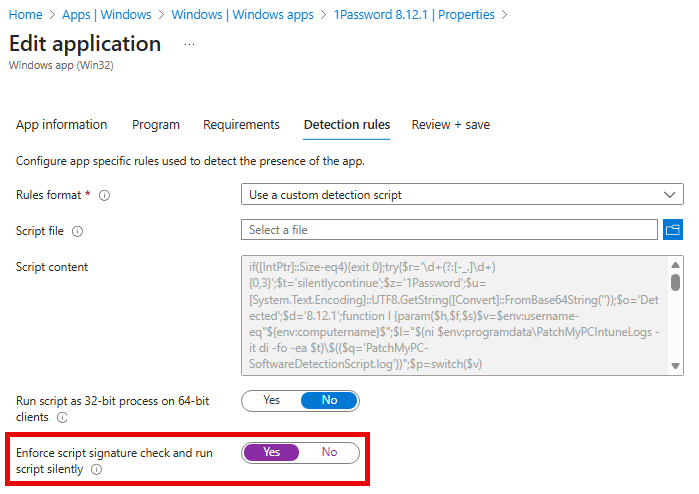
When you enable the **Digitally sign the detection method script and enforce signature checking on the application in Intune** option, Publisher digitally signs PowerShell-based detection and requirement scripts used by Win32 apps and configures the Win32 app to require signed scripts.
Specifically, Publisher sets the **Enforce script signature check and run script silently** property on the Win32 app’s detection and/or requirement rule in Intune. This is an application-level setting and does not modify PowerShell execution policy or device security configuration.
This option is intended for environments that already enforce signed PowerShell scripts, such as those using an AllSigned execution policy or app control solutions like AppLocker or Windows Defender Application Control (WDAC). By signing the detection and requirement scripts and enabling signature enforcement on the app, Publisher allows them to run silently and unblocked where unsigned scripts would otherwise be blocked or require user confirmation.
### To select a code-signing certificate for signing detection and requirement scripts
1. Enable the **Digitally sign the detection method script and enforce signature checking on the app in Intune** option.
2. Click **Browse** next to **Select code-signing certificate**.
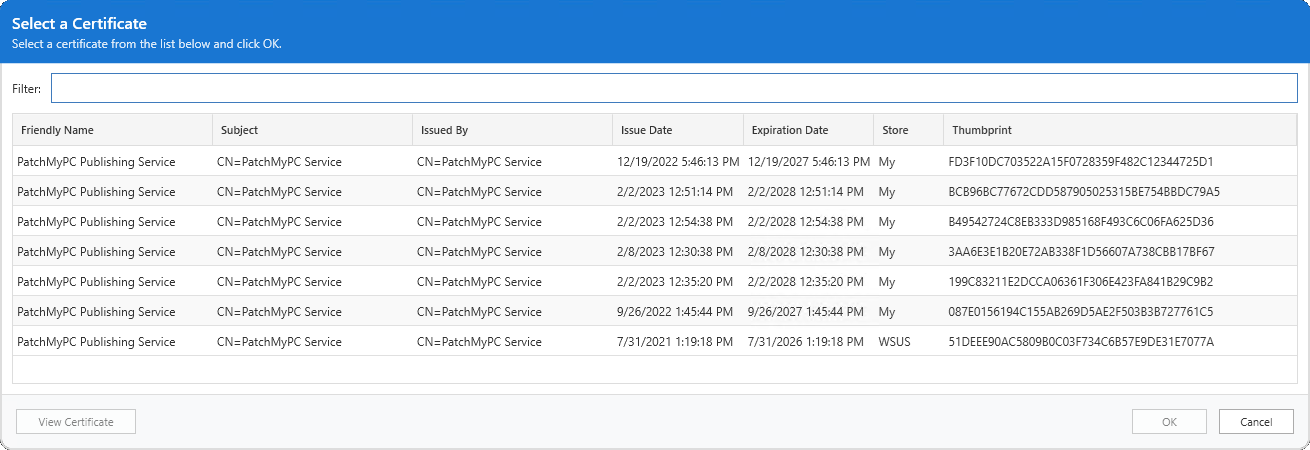
3. In the certificate selection window, choose a valid code-signing certificate from the **Local Computer – Personal** certificate store.
4. Click **OK** to confirm the certificate selection.
5. Select **OK** again to save the Intune Options.
{% hint style="info" %}
**Note**
If Publisher is also being used for WSUS or ConfigMgr publishing, it is acceptable to select the existing WSUS code-signing certificate, if present. This lets you reuse the same trusted certificate for both third-party update publishing and Intune Win32 detection and requirement script signing.
{% endhint %}
The rest of this section is split into the following two sections:
* [Application-Specific Options](#application-specific-options)
* [Update-Specific Options](#update-specific-options)
## Application-Specific Options
### Copy assignments from the previous release when a new application is published
When creating apps, Publisher applies any assignments that are configured within the Publisher itself. Administrators may sometimes also add or adjust assignments directly in Intune after an app has been created.
When you enable the **Copy assignments from the previous release when a new application or update is published** option, Publisher carries forward all existing assignments from the previous app version when creating a newer version. This includes assignments configured in Publisher and assignments that were manually added in Intune.
By enabling the option, the assumption is that any assignments present on the previous app represent the administrator’s intended targeting and should continue to apply to the updated version. This ensures assignment targeting remains consistent across app updates without requiring manual reassignment.
{% hint style="info" %}
**Note**
Assignments are copied only at app creation time. Enabling this option after a newer version already exists in Intune does not apply assignments from an older version of the app, retroactively.
{% endhint %}
### Delete assignments from the previous release when a new application is published
When you enable the **Delete assignments from the previous release when a new application is published** option, Publisher removes assignments from older app versions when a new version is created.
If app retention is enabled, older Win32 apps may still exist in the Intune admin center and would otherwise remain assigned. Removing assignments from the previous version ensures that only the latest version of the app is targeted to Microsoft Entra ID groups, avoiding multiple versions being deployed unnecessarily to the same devices or users.
{% hint style="info" %}
**Note**
Assignments are removed only when you create a new app. If this option is enabled after a newer version already exists in Intune, assignments are not removed retroactively.
{% endhint %}
### Copy dependencies from the previous release when a new application is published
When you enable the **Copy dependencies from the previous release when a new application is published** option, Publisher keeps app dependencies in Intune aligned as new versions of Patch My PC apps are published.
If a Win32 app has dependencies that reference other Win32 apps created by Publisher, Publisher updates those dependency references to point to the latest published versions when a new app version is created. This ensures dependency chains remain valid and up to date without requiring administrators to manually maintain dependencies after each update.
{% hint style="danger" %}
**Important**
Apps that are part of an active dependency chain remain protected from deletion. However, once dependencies are replaced with newer versions, older apps created by Publisher that are no longer referenced may become eligible for deletion based on the app retention policy configured in Publisher.
{% endhint %}
### Copy requirements from the previous release when a new application is published
When you enable the **Copy requirements from the previous release when a new application is published** option, any customer-defined Win32 requirement rules added to the previous app after it was initially published are copied forward and applied to future Win32 apps created by Publisher.
{% hint style="info" %}
**Note**
Requirement rules are copied forward only when you create a new app. If this option is enabled after a newer version already exists in Intune, requirements are not copied retroactively.
{% endhint %}
### Update Enrollment Status Page associations when an updated application is published
When you enable the **Update Enrollment Status Page associations when an updated application is published** option, Publisher automatically updates Enrollment Status Page (ESP) app associations to reference the latest version of a Win32 app created by Publisher.
If a new version of an app is published and that app is already referenced by an ESP profile, Publisher replaces the older application version in the ESP association.
This ensures that when new devices go through Autopilot, the ESP waits for and installs the most recent version of the app, without requiring manual updates to ESP configurations after each app update.
Apps must be explicitly associated with an ESP profile using the [Product Tree](/patch-my-pc-publisher/fundamentals/product-tree/overview.md). This is done by right-clicking a product and selecting [Manage Enrollment Status Page](/patch-my-pc-publisher/customizations/list-customizations/manage-enrollment-status-page.md), where you choose which ESP configuration the application should be included in.
{% hint style="info" %}
**Note**
Updating the ESP association ensures the correct app is referenced during Autopilot, but it does not create or modify app assignments. The newly published app must still be targeted with a **Required** assignment to the devices or groups used during Autopilot.
{% endhint %}
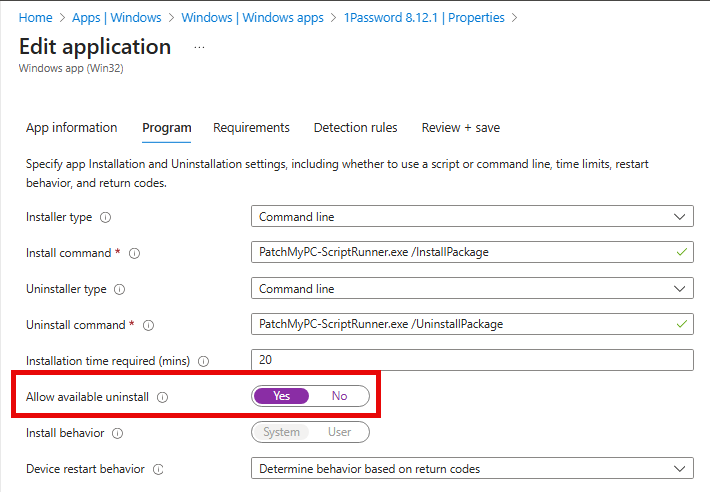
### Enable 'Allow available uninstall'
When you enable the **Enable 'Allow available uninstall'** option, Publisher configures Win32 apps in Intune to allow users to uninstall the app from the Company Portal when the app is assigned as **Available**.
### Delete any previously created applications when an updated application is published
When you enable the **Delete any previously created applications when an updated application is published** option, Publisher controls how many older Win32 app versions are retained in Intune when a new version is published.
If this option is *not* enabled, previously created app versions are never automatically removed and will continue to exist in the Intune tenant indefinitely.
Rather than being a simple on/off delete, this option works with **Retain up to *****x***** previously created applications**, where ***x*** can be set between **0** and **10**. Publisher can track and manage up to the **10** most recent versions of an app.
* Setting the value to **0** ensures that only the latest version of the app exists in Intune.
* Setting the value to **1** or more retains that number of previous versions alongside the latest release.
Retention settings can be overridden at the vendor and product level in the [Product Tree](/patch-my-pc-publisher/fundamentals/product-tree/working.md), allowing more granular control. For example:
* A global default may be set to retain **1** or **2** previous versions.
* Apps with a faster release cadence, such as web browsers, may retain **3** to **5** versions.
* The maximum supported retention value is **10**.
{% hint style="danger" %}
**Important**
Publisher tracks app retention based on catalog metadata, which includes the product IDs for the most recent 10 versions of an app. This means retention and cleanup decisions can be made only for those versions that still fall within the latest 10 versions tracked by the catalog.
If older Win32 apps exist in Intune outside of the last 10 tracked versions, Publisher can no longer associate them with the product lifecycle. Even if retention is enabled, those older apps are not automatically managed or removed.
In these cases, any apps falling outside of the tracked window must be reviewed and cleaned up manually using the [Intune Manager](/patch-my-pc-publisher/manage/intune-tabs/intune-manager.md).
{% endhint %}
#### Retention Best Practice
As a general best practice, it is recommended to retain at least one previous version of an app.
Keeping a single previous version allows administrators to rollback if an issue is discovered after publication that was not detected during testing. In these scenarios, Win32 app supersedence can be used to roll devices back to the last known good version. Without a retained previous version in Intune, rolling back becomes significantly more difficult.
The appropriate retention value ultimately depends on your organization’s update and rollback policy.
### Delay in-place updates of previously created applications by x days
When you enable the **Delay in-place updates of previously created applications by x days** option, application updates are delayed for the specified number of days after the new version is synchronized from the catalog.
* The delay is calculated from the date Publisher first detects the new version.
* This allows time for validation or testing before updating production apps.
**Example:**If a new version is synchronized on February 3 and the delay is set to 3 days, the application will not be updated until a Publisher sync on or after February 6.
This allows time for validation or testing before updating production applications.
The delay is calculated from the date Publisher first detects the new version.
## Update-Specific Options
The following options in this section behave the same regardless of whether they apply to applications or updates. Clicking a link takes you to the relevant section:
* [Copy assignments from the previous release when a new update is published](#copy-assignments-from-the-previous-release-when-a-new-application-is-published)
* [Delete assignments from the previous release when a new update is published](#delete-assignments-from-the-previous-release-when-a-new-application-is-published)
* [Copy dependencies from the previous release when a new update is published](#copy-dependencies-from-the-previous-release-when-a-new-application-is-published)
* [Copy requirements from the previous release when a new update is published](#copy-requirements-from-the-previous-release-when-a-new-application-is-published)
* [Delete any previously created applications when an updated update is published](#delete-any-previously-created-applications-when-an-updated-application-is-published)
* [Delay in-place updates of previously created updates by x days](#delay-in-place-updates-of-previously-created-applications-by-x-days).
---
# Agent Instructions
This documentation is published with GitBook. GitBook is the documentation platform designed so that both humans and AI agents can read, navigate, and reason over technical content effectively. Learn more at gitbook.com.
## Querying This Documentation
If you need additional information that is not directly available in this page, you can query the documentation by asking a question.
Perform an HTTP GET request on the following URL with the `ask` and `goal` query parameters:
```
GET https://docs.patchmypc.com/patch-my-pc-publisher/manage/intune-tabs/intune-options/publishing.md?ask=&goal=
```
`ask` is the immediate question: it should be specific, self-contained, and written in natural language.
`goal` is what the user is ultimately trying to achieve, the reason they need the answer. Sharing it helps GitBook give you a better, more relevant answer. A goal is most helpful when it describes the outcome the user wants rather than restating the question. For example, with `ask=how do I create an API token`, a goal like `automate deployments from our CI pipeline` lets GitBook tailor the answer to that use case.
The response will contain a direct answer to the question and relevant excerpts and sources from the documentation.
Use this mechanism when the answer is not explicitly present in the current page, you need clarification or additional context, or you want to retrieve related documentation sections.