> For the complete documentation index, see [llms.txt](https://docs.patchmypc.com/llms.txt). Markdown versions of documentation pages are available by appending `.md` to page URLs; this page is available as [Markdown](https://docs.patchmypc.com/patch-my-pc-publisher/manage/intune-tabs/intune-options/authentication.md).
# Authentication section of Patch My PC Publisher
*Applies to: Patch My PC Publisher V3.x*
The **AUTHENTICATION** section on the **Intune Options** tab of Patch My PC (PMPC) Publisher defines how Publisher authenticates with Entra ID and communicates with Microsoft Intune using a Microsoft Entra ID application registration. These settings are required before Publisher can create, update, or manage Win32 applications and updates in Intune.
This section establishes the trust relationship between Publisher and your Intune tenant by configuring the tenant authority, application identifier, and authentication method. Authentication can be performed using either a client secret or a certificate, depending on your organization's security requirements.
## Tenant Friendly Name
The **Tenant Friendly Name** is a descriptive label for the app registration configuration. This value is shown only in Publisher and is used to help identify the tenant connection when reviewing settings.
## Authority
The **Authority** URL is constructed by using the Microsoft sign-in endpoint and your tenant name. The supported endpoint is:
[`https://login.microsoftonline.com`](https://login.microsoftonline.com)
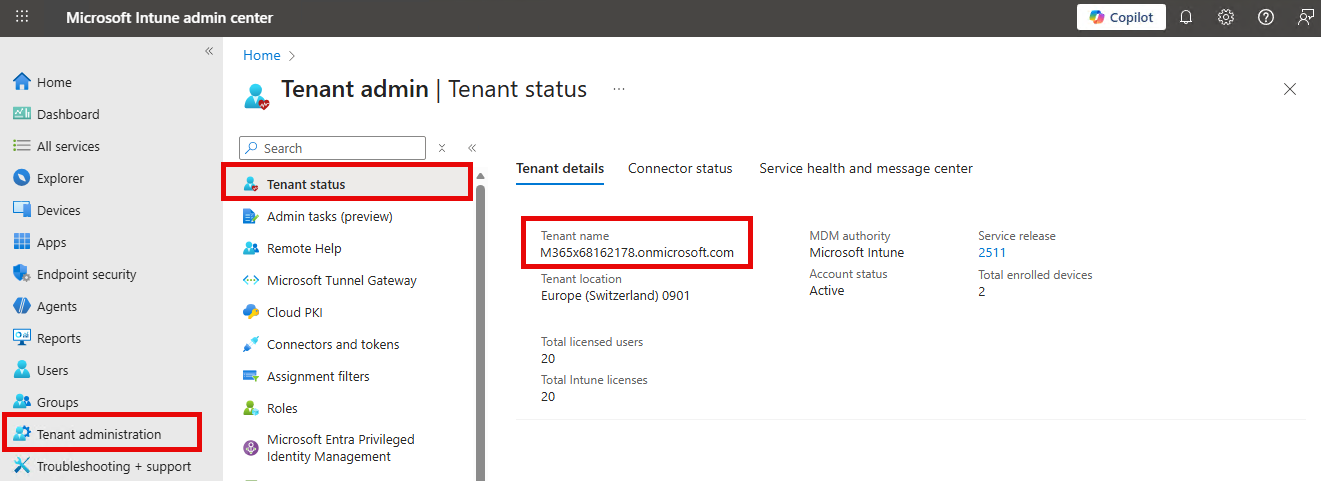
To complete the authority value, append your tenant name to the URL. The tenant name can be found in the [**Tenant status**](https://intune.microsoft.com/#view/Microsoft_Intune_DeviceSettings/TenantAdminMenu/~/tenantStatus) page in the Intune admin center.
The completed authority value should follow this format:
`https://login.microsoftonline.com/tenantname.onmicrosoft.com`
{% hint style="info" %}
**Note**
The tenant name used in the authority value does not have to be the onmicrosoft.com domain. Any verified domain name associated with the tenant can be used, as all verified domains resolve to the same authentication endpoint and identify the same tenant.
{% endhint %}
## Authentication URL
The **Authentication URL** defines the Microsoft Graph endpoint used for authentication and token acquisition. The default URL is:
`https://graph.microsoft.com`
{% hint style="info" %}
**Note**
These values may need to be changed only when your Intune tenant is hosted in a government or sovereign cloud, such as GCC High or Microsoft 21Vianet (China), which use different authentication and Microsoft Graph endpoints than the public commercial cloud.
If your tenant is hosted in the standard commercial Microsoft 365 cloud, you should continue using the default values. For details on the specific endpoints required for each cloud environment, refer to the [Intune-specific network requirements](/patch-my-pc-publisher/requirements/intune-requirements/network.md).
{% endhint %}
## Graph Base URL
The **Graph Base URL** defines the Microsoft Graph endpoint used for Intune and application management operations. The default Graph base URL is:
`https://graph.microsoft.com/beta`
## Restore button
Clicking **Restore** beside either the **Authentication URL** or the **Graph Base URL** fields resets them to the recommended default values.
## Application (Client) ID
The **Application (Client) ID** field must contain the Application client ID from your Entra ID app registration.
To obtain this value, select **App registrations** in the [Microsoft Entra admin center](https://entra.microsoft.com/#view/Microsoft_AAD_RegisteredApps/ApplicationsListBlade/quickStartType~/null/sourceType/Microsoft_AAD_IAM), and copy the **Application (client) ID** value.
{% hint style="info" %}
**Note**
See [Entra ID App Registration](/patch-my-pc-publisher/requirements/intune-requirements/entra-id-app-registration/create-app-registration.md) for more details on how to create an Entra ID App Registration for use with Publisher.
{% endhint %}
## App Secret or App Certificate
The authentication method depends on the [credentials configured on the app registration](/patch-my-pc-publisher/requirements/intune-requirements/entra-id-app-registration/create-app-registration.md).
* If [client secret authentication](/patch-my-pc-publisher/requirements/intune-requirements/entra-id-app-registration/create-app-registration.md) is used, select the **App Secret** option and enter the client secret value generated during app registration setup.
* If [certificate-based authentication](/patch-my-pc-publisher/requirements/intune-requirements/entra-id-app-registration/create-app-registration.md) is used, select the **App Certificate** option and browse the Local Machine certificate Personal store to select the appropriate certificate.
{% hint style="info" %}
**Note**
Certificate-based authentication is the recommended client credential to use for an app registration. See [Client Credentials](/patch-my-pc-publisher/requirements/intune-requirements/entra-id-app-registration/client-credentials.md) for more information and to help decide which client credential method to use if you have not already chosen one.
{% endhint %}
Whichever client credential method you use, its expiry date is shown below the credential field.
## Test Connection button
Clicking **Test Connection** validates authentication, connectivity, and the required API permissions.
The results are shown on the **App Registration Connection Status** screen, confirming if Publisher can successfully connect to the Intune tenant via Microsoft Graph and that all required Microsoft Graph permissions are available. When the test completes successfully and all permissions show as enabled, Publisher is ready to publish applications and updates to Intune.
{% hint style="info" %}
**Note**
See [API Permissions](/patch-my-pc-publisher/requirements/intune-requirements/entra-id-app-registration/application-permissions.md) for more information about the API permissions required for Publisher.
{% endhint %}
{% hint style="danger" %}
**Important**
If the test fails, review the authority value, application (client) ID, and client credential method used before proceeding.
{% endhint %}
---
# Agent Instructions
This documentation is published with GitBook. GitBook is the documentation platform designed so that both humans and AI agents can read, navigate, and reason over technical content effectively. Learn more at gitbook.com.
## Querying This Documentation
If you need additional information that is not directly available in this page, you can query the documentation by asking a question.
Perform an HTTP GET request on the following URL with the `ask` and `goal` query parameters:
```
GET https://docs.patchmypc.com/patch-my-pc-publisher/manage/intune-tabs/intune-options/authentication.md?ask=&goal=
```
`ask` is the immediate question: it should be specific, self-contained, and written in natural language.
`goal` is what the user is ultimately trying to achieve, the reason they need the answer. Sharing it helps GitBook give you a better, more relevant answer. A goal is most helpful when it describes the outcome the user wants rather than restating the question. For example, with `ask=how do I create an API token`, a goal like `automate deployments from our CI pipeline` lets GitBook tailor the answer to that use case.
The response will contain a direct answer to the question and relevant excerpts and sources from the documentation.
Use this mechanism when the answer is not explicitly present in the current page, you need clarification or additional context, or you want to retrieve related documentation sections.