> For the complete documentation index, see [llms.txt](https://docs.patchmypc.com/llms.txt). Markdown versions of documentation pages are available by appending `.md` to page URLs; this page is available as [Markdown](https://docs.patchmypc.com/patch-my-pc-publisher/manage/intune-tabs/intune-manager.md).

# Intune Manager in Patch My PC Publisher

*Applies to: Patch My PC Publisher V3.x*

The **Intune Manager** component of Patch My PC (PMPC) Publisher is available under both the **Intune Apps** tab and **Intune Updates** tab. The only difference is the name:

<table><thead><tr><th valign="top">Tab</th><th valign="top">Intune Manager name</th></tr></thead><tbody><tr><td valign="top">Intune Apps</td><td valign="top">App Manager</td></tr><tr><td valign="top">Intune Updates</td><td valign="top">Update Manager</td></tr></tbody></table>

{% hint style="info" %}
**Note**

This document uses the term **Intune Manager** throughout to refer to both the **App Manager** and **Update Manager**, depending on which Intune tab you are working with.
{% endhint %}

Clicking the relevant **Intune Manager** tab in Publisher loads the relevant manager, which is used to view and manage Win32 apps (apps and updates) in Intune. It provides a centralized interface to review app properties, assignments, and installation status before performing app modifications.

Intune **App Manager**.

<figure><img src="https://3773699522-files.gitbook.io/~/files/v0/b/gitbook-x-prod.appspot.com/o/spaces%2F-MX7dvS0r_4fc0AikgJS%2Fuploads%2F3YxBDYKunYD2QYcmixw7%2Fimage.png?alt=media&amp;token=2caa9371-2e77-44b8-a32d-f1ff7fa81efe" alt="App Manager" width="563"><figcaption></figcaption></figure>

Intune **Update Manager**.

<figure><img src="https://3773699522-files.gitbook.io/~/files/v0/b/gitbook-x-prod.appspot.com/o/spaces%2F-MX7dvS0r_4fc0AikgJS%2Fuploads%2FJqt0mrznfJV4VWvojxC6%2Fimage.png?alt=media&amp;token=122cfe8d-9d21-4345-9227-31d8bebf6d5b" alt="Update Manager" width="563"><figcaption></figcaption></figure>

Intune Manager queries Intune through Microsoft Graph and displays all Win32 apps in the Intune tenant.

The primary use case for this is app modification and cleanup. It lets administrators identify unused apps, remove assignments, extract content, or delete apps in a controlled, supported way.

The table below outlines the default columns in the Intune Manager.

{% hint style="success" %}
**Tip**

You can right-click any column heading to see a list of the available columns. To add a column, click it, and it will be added to the current window. Likewise, to remove a column, select it from the right-click list.

You can also reorder the columns using drag and drop.
{% endhint %}

<table><thead><tr><th width="198" valign="top">Column name</th><th valign="top">Description</th></tr></thead><tbody><tr><td valign="top">Name</td><td valign="top">Displays the app's name as it appears in the Intune Admin Center.</td></tr><tr><td valign="top">Description</td><td valign="top">Shows the app's description defined in Intune for the Win32 apps.</td></tr><tr><td valign="top">Publisher</td><td valign="top">Displays the software vendor associated with the app as defined in Intune for the Win32 app.</td></tr><tr><td valign="top">Device Installs</td><td valign="top">Shows the number of devices where the app is successfully installed.</td></tr><tr><td valign="top">Device Install Pending</td><td valign="top">Shows the number of devices where installation is in progress or pending.</td></tr><tr><td valign="top">Device N/A</td><td valign="top">Shows the number of devices where the app is not applicable based on requirements or applicability rules.</td></tr><tr><td valign="top">User Installs</td><td valign="top">Shows the number of user-based installations associated with the app.</td></tr><tr><td valign="top">Classification</td><td valign="top">Displays whether the item is classified as an app or update in Intune.</td></tr><tr><td valign="top">Modified</td><td valign="top">Displays the date and time the app was last modified in Intune.</td></tr><tr><td valign="top">Assigned</td><td valign="top">Indicates whether the app has one or more assignments configured in Intune.</td></tr></tbody></table>

{% hint style="success" %}
**Tip**

Highlighting a row in the app results table and pressing **Ctrl + C** copies the entire row to the Clipboard. This is useful for app management and troubleshooting scenarios.
{% endhint %}

## Search

The **Search** field quickly filters results.

When app results are already displayed, the list is filtered automatically as you type. No additional action is required to apply the search.

The search evaluates all visible columns in the results grid. Matching results are shown dynamically based on the entered text.

Clearing the search field restores the full list of results.

## Status

The **Status** dropdown filters the apps displayed based on their status, which can be:

* **All** (default)
* **Published**
* **Available**

## Publisher

The **Publisher** dropdown filters the apps by vendor and can be either **All** (default) or a specific vendor.

## Show

The **Show** dropdown filters apps by app type and origin. It lets you quickly narrow the list to Win32 apps created or managed by Publisher (**Show All PMPC**), or view all apps regardless of source.

This dropdown primarily controls whether the grid shows Publisher-managed Win32 apps, non-Publisher apps, or both.

{% hint style="info" %}
**Note**

This filter only changes what is visible in the grid. It does not modify apps in Intune.
{% endhint %}

## Refresh

The **Refresh** button refreshes the data to ensure the app information displayed is up-to-date.

## Select All

The **Select All** button selects every app currently visible in the list. This is commonly used when performing bulk actions such as deleting multiple apps.

## Select None

The **Select None** button clears any current selection.

## Show Categories

The **Show Categories** button shows a list of categories and the number of apps assigned to each.

## Export

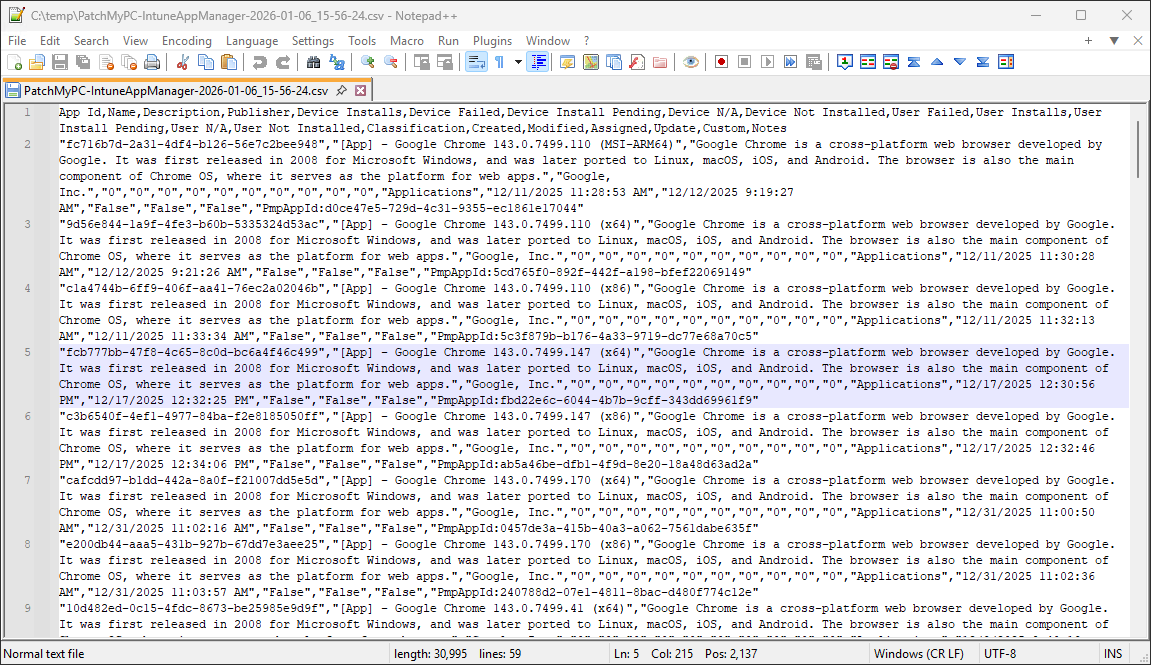
The **Export** button is used to export the currently displayed Intune Win32 app data to a CSV file.

### To Export the results

1. Ensure the results are displayed in Intune Manager, then click **Export**.
2. Choose a destination location for the CSV file and click **Save** to complete the export.

The CSV file is created immediately and can be opened in tools such as Microsoft Excel or Power BI.

<figure><img src="https://3773699522-files.gitbook.io/~/files/v0/b/gitbook-x-prod.appspot.com/o/spaces%2F-MX7dvS0r_4fc0AikgJS%2Fuploads%2Fdzw7FJK1unJ6O5xs9sJr%2Fimage.png?alt=media&amp;token=dec0cbda-d910-45c8-a1d5-e0cc69b870a6" alt="PatchMyPC-IntuneAppManager.csv" width="563"><figcaption></figcaption></figure>

{% hint style="info" %}
**Note**

You can use the exported CSV with the PMPC Power BI dashboard to monitor compliance and deployment of apps and updates in Intune. See [Power BI Reports for Microsoft Intune Third-Party Update and Application Deployments](https://patchmypc.com/kb/power-bi-reports-microsoft-intune/) for more information.
{% endhint %}

## Delete Assignments

The **Delete Assignments** button is used to delete all of the assignments for the selected items.

If you are sure you want to do this, click **Yes** on the **Delete Assignments** dialog.

<figure><img src="https://3773699522-files.gitbook.io/~/files/v0/b/gitbook-x-prod.appspot.com/o/spaces%2F-MX7dvS0r_4fc0AikgJS%2Fuploads%2FUnFyRXHielUoKzfehd65%2Fimage.png?alt=media&amp;token=383c17ae-afa7-48db-bce6-3cc1d486fb45" alt="&#x27;Delete Assignments&#x27; dialog" width="415"><figcaption></figcaption></figure>

## Delete Application(s)

The **Delete Applications(s)** button deletes all the selected apps. Multiple apps can be selected at the same time using **Ctrl + Click** or **Shift + Click**.

### To delete apps

1. Locate the app(s) you want to delete.
2. Click **Delete Application(s)**.
3. If you are sure you want to do this, click **Yes** on the **Delete Applications** dialog.

<figure><img src="https://3773699522-files.gitbook.io/~/files/v0/b/gitbook-x-prod.appspot.com/o/spaces%2F-MX7dvS0r_4fc0AikgJS%2Fuploads%2FqQddpjt36jkfIA7XHxKd%2Fimage.png?alt=media&amp;token=0943a301-776c-4852-bf0b-f4ed1d0b02ff" alt="&#x27;Delete Applications&#x27; dialog" width="323"><figcaption></figcaption></figure>

Publisher removes the selected apps from Intune.

## Right-Click Options

Intune Manager provides several right-click options that let you view information and perform actions on existing Win32 apps in your Intune tenant. These actions apply immediately and operate on live Intune data.

### Manage DO Priority

The **Manage DO Priority** option allows you to configure the Delivery Optimization (DO) priority for the selected app.

DO priority controls how quickly an app's content downloads once the Intune Management Extension (IME) evaluates the policy:

* **Foreground** prioritizes the download and processes the content immediately.
* **Background** allows Windows to download the content with normal priority and defer based on network conditions and activity.

{% hint style="info" %}
**Note**

For most Intune Updates, **Background** is an appropriate choice as the installation is typically not time-critical. When deploying PMPC apps during Autopilot, we recommend setting DO to **Foreground**. This ensures faster content download and helps prevent delays to a user’s onboarding experience.

See [Manage Assignments](/patch-my-pc-publisher/customizations/list-customizations/manage-assignments.md) for more information about the various configuration options for assignments.
{% endhint %}

### Manage ESP Associations

The **Manage ESP Associations** option allows you to view and manage Enrollment Status Page (ESP) associations for the selected application. It determines whether the app is required during device enrollment and ESP processing.

When you click this option, the **Select ESPs** screen appears, from which you can select the relevant ESP profile(s) you want the selected app(s) to be associated with.

<figure><img src="https://3773699522-files.gitbook.io/~/files/v0/b/gitbook-x-prod.appspot.com/o/spaces%2F-MX7dvS0r_4fc0AikgJS%2Fuploads%2FgRDcBwX6T5HSD0QqWRSU%2Fimage.png?alt=media&amp;token=c0adc667-0bf3-4728-9b2d-09497a5e5399" alt="&#x27;Select ESPs&#x27; screen" width="465"><figcaption></figcaption></figure>

{% hint style="info" %}
**Note**

Only classic ESP profiles are supported. This feature *does not* apply to the newer Autopilot device preparation policies found in the Windows Autopilot configuration experience.

See [Manage Enrollment Status Page](/patch-my-pc-publisher/customizations/list-customizations/manage-enrollment-status-page.md) for more information about the various configuration options for ESP associations.
{% endhint %}

### View Assignments

The **View Assignments** option is only available when a single Win32 app is selected. Selecting this option opens the **Manage Assignments** window for the selected app.

{% hint style="info" %}
**Note**

See [Manage Assignments](/patch-my-pc-publisher/customizations/list-customizations/manage-assignments.md) for more information about the various configuration options for assignments.
{% endhint %}

### View Installation Status

The **View Installation Status** option is only available when a single Win32 app is selected.

Selecting this option opens the Microsoft Intune admin center and navigates directly to the **Overview** page of the selected app. This provides access to device and user installation status, deployment health, and related monitoring information.

{% hint style="info" %}
**Note**

This action is read-only and does not modify the app or its assignments. It provides quick access to installation status and troubleshooting information for the selected application.
{% endhint %}

### Show Categories

The **Show Categories** option opens the **Managing Categories** read-only window that displays any categories associated with the selected Win32 app(s).

<figure><img src="https://3773699522-files.gitbook.io/~/files/v0/b/gitbook-x-prod.appspot.com/o/spaces%2F-MX7dvS0r_4fc0AikgJS%2Fuploads%2FOzT7SNulEgTol5pVpxIZ%2Fimage.png?alt=media&amp;token=53addf32-58be-4e6e-9e83-7ebe5ffec478" alt="&#x27;Managing Categories&#x27; read-only window" width="448"><figcaption></figcaption></figure>

{% hint style="info" %}
**Note**

See [Manage Categories](/patch-my-pc-publisher/customizations/list-customizations/manage-categories.md) for more information about the various configuration options for Categories.
{% endhint %}

### Extract Package

There is a configurable option in Publisher, on the [Advanced](/patch-my-pc-publisher/manage/advanced-tab.md) tab to store the encryption keys used to create the Intune package files (**.intunewin**).

With the keys stored, you can use the Intune Manager to download and extract the content of the PMPC-published Intune apps and updates.

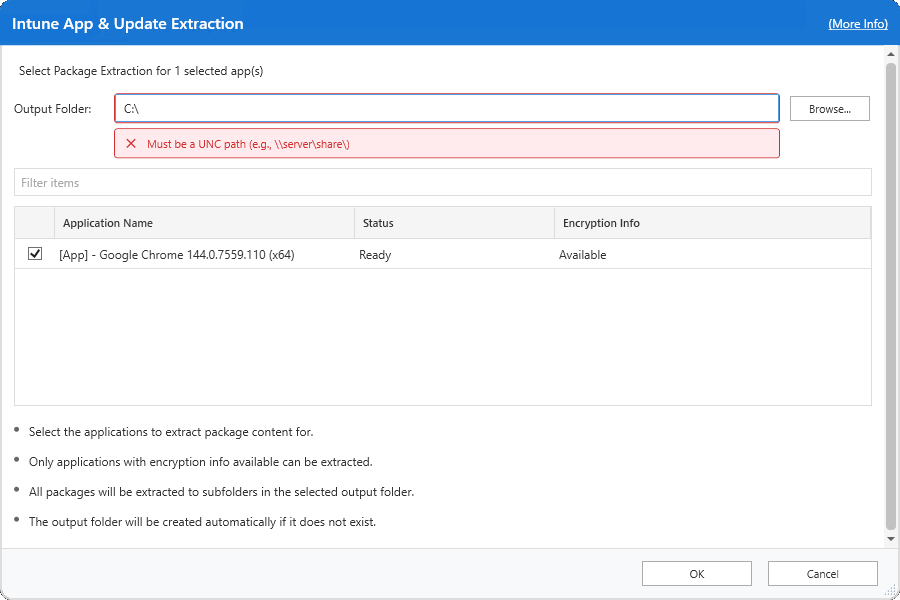
Click **Extract Package** and specify an **Output Folder** to extract the package content. You can enter a path directly or use **Browse** to select a location.

{% hint style="info" %}
**Note**

The destination must be a valid UNC path. If the specified folder does not exist, it will be created automatically.
{% endhint %}

<figure><img src="https://3773699522-files.gitbook.io/~/files/v0/b/gitbook-x-prod.appspot.com/o/spaces%2F-MX7dvS0r_4fc0AikgJS%2Fuploads%2FUt6VtEpMljYL6wPZ7Aup%2Fimage.png?alt=media&amp;token=d3c41ed4-6e74-4b3a-a13b-8c7faa77ccbf" alt="Extract Package" width="563"><figcaption></figcaption></figure>

{% hint style="info" %}
**Note**

If the **Extract Package** option is greyed out, it means the encryption keys were not gathered when the Win32 app was published, likely because the feature was enabled after the app or update was published, or you selected a Win32 app that was not created by Publisher.
{% endhint %}

### Delete Assignments

The **Delete Assignments** option removes all assignments associated with the selected Win32 apps. This action deletes Required, Available, and Uninstall assignments from Intune but does not delete the app itself.

This option supports multi-select and is applied immediately after confirmation. It is useful when you need to quickly unassign applications from multiple groups without navigating through the Intune admin center.

### Delete Application(s)

The **Delete Application(s)** option deletes the selected Win32 apps from the Intune tenant. This action also removes any associated assignments and cannot be undone.

<figure><img src="https://3773699522-files.gitbook.io/~/files/v0/b/gitbook-x-prod.appspot.com/o/spaces%2F-MX7dvS0r_4fc0AikgJS%2Fuploads%2FKsinjw793S6FtFg352I4%2Fimage.png?alt=media&amp;token=2b592f97-f111-422c-b285-8dd3c059f4ef" alt="Delete Applications" width="323"><figcaption></figcaption></figure>

This option supports multi-select and permanently removes the apps from Intune. It is intended for cleanup scenarios where apps are no longer required in the tenant.


---

# Agent Instructions
This documentation is published with GitBook. GitBook is the documentation platform designed so that both humans and AI agents can read, navigate, and reason over technical content effectively. Learn more at gitbook.com.

## Querying This Documentation
If you need additional information that is not directly available in this page, you can query the documentation dynamically by asking a question.

Perform an HTTP GET request on the current page URL with the `ask` query parameter, and the optional `goal` query parameter:

```
GET https://docs.patchmypc.com/patch-my-pc-publisher/manage/intune-tabs/intune-manager.md?ask=<question>&goal=<endgoal>
```

`ask` is the immediate question: it should be specific, self-contained, and written in natural language.
`goal` is optional and describes the broader end goal you are ultimately trying to accomplish on behalf of the user. GitBook uses it to tailor the answer towards what is most useful for that goal.

The response will contain a direct answer to the question and relevant excerpts and sources from the documentation.

Use this mechanism when the answer is not explicitly present in the current page, you need clarification or additional context, or you want to retrieve related documentation sections.