> For the complete documentation index, see [llms.txt](https://docs.patchmypc.com/llms.txt). Markdown versions of documentation pages are available by appending `.md` to page URLs; this page is available as [Markdown](https://docs.patchmypc.com/patch-my-pc-publisher/manage/configmgr-apps-tab/base-install-options/application-creation.md).
# Application Creation section in Patch My PC Publisher
*Applies to: Patch My PC Publisher V3.x*
The **APPLICATION CREATION** section on the **Base Install Options** tab of Patch My PC (PMPC) Publisher controls how applications are created, named, organized, and maintained in ConfigMgr when using Publisher.
These settings apply globally to all applications created from the **ConfigMgr Apps** tab and directly influence application lifecycle behavior.
{% hint style="success" %}
**Tip**
Some options in the **APPLICATION CREATION** section are global defaults. You can override these settings at the **vendor** or **product** level within the Product Tree. When a more specific customization exists at a lower level, it takes precedence over the global setting, following standard Product Tree inheritance behavior.
{% endhint %}
## Allow applications to be installed from the Install Application task sequence action
When you enable the **Allow applications to be installed from the Install Application task sequence action** option, Publisher explicitly sets this flag on the application object in ConfigMgr.
Specifically, Publisher enables **Allow this application to be installed from the Install Application task sequence action without being deployed** on each application it creates or updates.
{% hint style="success" %}
**Tip**
You do not need to enable this setting when applications are explicitly referenced in a task sequence using a fixed application selection in the **Install Application** step.
{% endhint %}
{% hint style="danger" %}
**Important**
When enabled, this setting is applied *only* when the deployment type setting, installation behavior, is set to **Install for system**. User-based applications that install in the user context do not meet the requirements for this setting.
See [Product Naming in the Patch My PC Catalog](/patch-my-pc-publisher/technical-references/catalog-information.md#product-naming-in-the-patch-my-pc-catalog) for more details on how to identify a user-based app.
{% endhint %}
This option should be enabled o*nly* in the following scenarios:
* Applications installed using dynamic application selection in a task sequence.
* Applications are evaluated and selected at runtime, rather than being hard-coded in the task sequence.
### Policy impact and when to disable this option
Enabling the **Allow applications to be installed from the Install Application task sequence action without being deployed** setting causes ConfigMgr to generate additional application policy. This policy is distributed to clients even if the application is never used in a task sequence.
If your environment does not use variable-driven or dynamically selected application lists in task sequences, you typically don't need this option and can disable it to reduce unnecessary policy processing.
If your environment uses task sequences that install applications dynamically, such as using an Application List variable or runtime logic, leave this option enabled (it is by default) to prevent task sequence failures.
As a general guideline, enable this option only when task sequences rely on dynamic application selection. If task sequences always explicitly reference applications or deploy them normally, disabling this option helps minimize policy overhead.
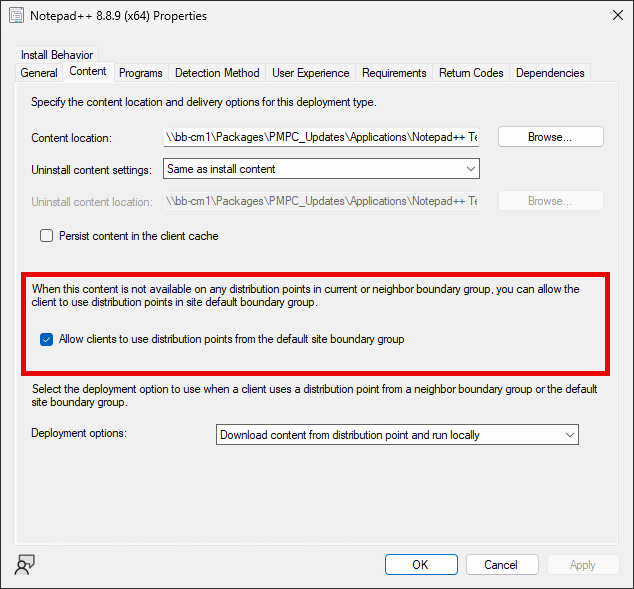
## Allow clients to use distribution points from the site’s default boundary group
Enabling the **Allow clients to use distribution points from the site’s default boundary group** option enables a fallback behavior during application installation. If the requested application content is not available on any Distribution Point (DP) in the client’s current or neighboring boundary groups, the client is allowed to download the content from DPs belonging to the site’s default boundary group.
When enabled by Publisher, this setting applies directly to the application deployment type in ConfigMgr. It helps prevent installation failures in scenarios where boundary group coverage is incomplete or where content has not yet been distributed to all required DPs.
{% hint style="info" %}
**Note**
While this option improves resiliency, it can result in clients downloading content from less optimal DPs, such as over slower network links, if the default boundary group contains DPs that are remote from the client's location.
{% endhint %}
## **Detection script code-signing**
This section controls whether Publisher digitally signs PowerShell-based detection method scripts using the [WSUS code signing certificate](/patch-my-pc-publisher/manage/wsus-updates-tab/wsus-options/certificate-management.md) and has three possible settings:
* **Do not code-sign**
* **WSUS certificate -** Code-sign using the WSUS Signing Certificate
* **Custom certificate -** Code-sign using a custom certificate
If the **WSUS certificate** option is selected (which it is by default), Publisher digitally signs PowerShell-based detection method scripts using the WSUS code-signing certificate.
This ensures the detection scripts are trusted and can run successfully on clients that enforce PowerShell execution policy or script signature requirements.
This setting is applied directly to the detection method of each application deployment type created or updated by Publisher.
If you want to select a different certificate for signing detection scripts, select the **Code-sign using a custom certificate** option and configure the relevant certificate in the **Certificate** field.
## Do not include the version in the application name
If the **Do not include the version in the application name** option is enabled (which it is not by default), newly created applications will no longer include the version number in the application name.
This is useful when external tooling or processes reference applications by name, such as MDT UDI, UI++, or other solutions that rely on a static application name.
When this setting is disabled (the default setting), each new application version includes the version number in the name. As a result, the application name changes every time a new version is published.
When this option is enabled, the application name remains the same across versions, while the underlying content, detection logic, and deployment type are updated to reflect the latest release.
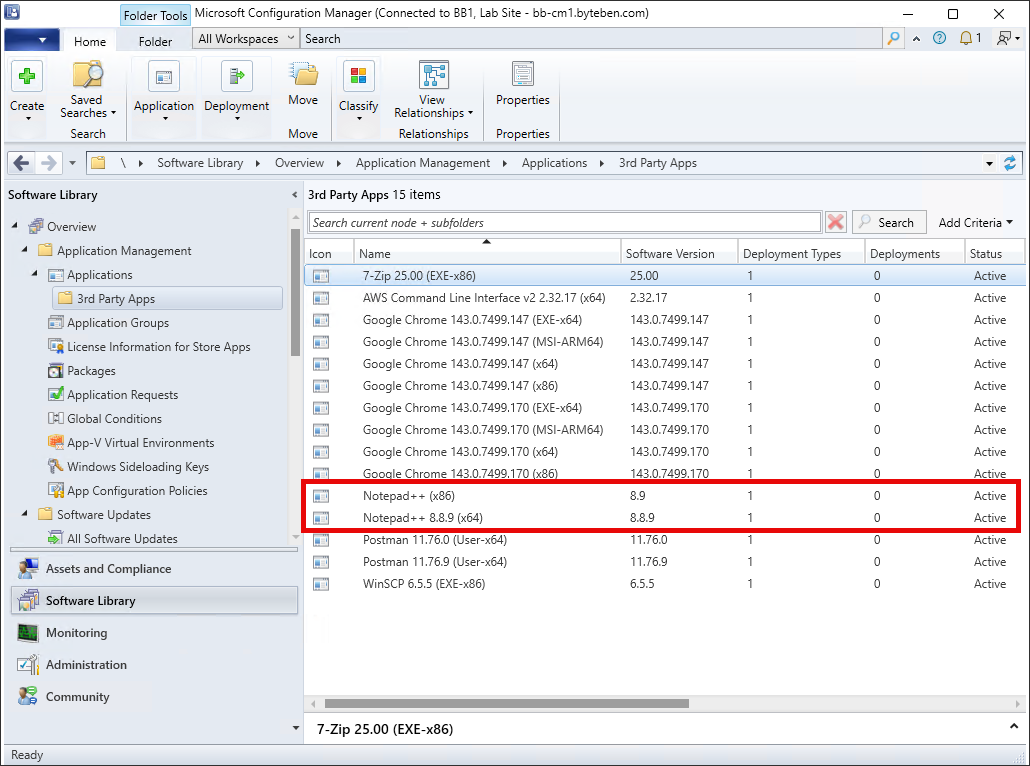
In the example below, **Notepad++ (x86)** was published with this option enabled, while **Notepad++ 8.8.9 (x64)** was published with the option disabled.
In both cases, the ConfigMgr console still shows the exact application version in the **Software Version** column.
{% hint style="info" %}
**Note**
If you want to control application naming on a per-product basis, additional naming options are available through the [right-click customizations](/patch-my-pc-publisher/customizations.md) menu in the Product Tree. Product-level naming options override this global setting.
{% endhint %}
{% hint style="danger" %}
**Important**
If this setting is enabled and application retention is also enabled, any retained applications will have the version number appended to their names to distinguish them from the current version.
{% endhint %}
## **Move applications to a folder in the applications node of the console**
The **Move applications to the following folder in the applications node of the console** setting controls *where* applications created or updated by Publisher are placed within the **Application Management | Applications** node of the ConfigMgr console.
When you enable and configure this option, Publisher automatically moves each application it creates or updates into the selected console folder. This helps keep third-party applications organized and separate from manually created or first-party applications.
### To choose where applications are placed in the ConfigMgr console
1. Load Publisher.
2. Navigate to the **ConfigMgr Apps | Base Install Options** tab.
3. Scroll down to the **APPLICATION CREATION** section.
4. Verify that the **Move applications to a folder in the applications node of the console** option is enabled.
5. Click **Browse Folders**.
6. In the **Select Console Folder** screen, window expand the **Applications** node.
7. Select an existing folder (for example, **Applications\3rd Party Apps**), or in the **Create New Folder** field, type the name of a new folder and click **Create Folder**.
8. Click **OK** to confirm the folder selection.
9. Click **OK** again to save the ConfigMgr Apps Options.
All applications created or updated by Publisher will now be moved to the selected console folder.
{% hint style="info" %}
**Note**
The selected console folder can be overridden at the vendor or product level using the Product Tree on the **ConfigMgr Apps** tab. If a folder is defined at a lower level in the tree, that more specific setting takes precedence over this global.
{% endhint %}
---
# Agent Instructions
This documentation is published with GitBook. GitBook is the documentation platform designed so that both humans and AI agents can read, navigate, and reason over technical content effectively. Learn more at gitbook.com.
## Querying This Documentation
If you need additional information that is not directly available in this page, you can query the documentation by asking a question.
Perform an HTTP GET request on the following URL with the `ask` and `goal` query parameters:
```
GET https://docs.patchmypc.com/patch-my-pc-publisher/manage/configmgr-apps-tab/base-install-options/application-creation.md?ask=&goal=
```
`ask` is the immediate question: it should be specific, self-contained, and written in natural language.
`goal` is what the user is ultimately trying to achieve, the reason they need the answer. Sharing it helps GitBook give you a better, more relevant answer. A goal is most helpful when it describes the outcome the user wants rather than restating the question. For example, with `ask=how do I create an API token`, a goal like `automate deployments from our CI pipeline` lets GitBook tailor the answer to that use case.
The response will contain a direct answer to the question and relevant excerpts and sources from the documentation.
Use this mechanism when the answer is not explicitly present in the current page, you need clarification or additional context, or you want to retrieve related documentation sections.