> For the complete documentation index, see [llms.txt](https://docs.patchmypc.com/llms.txt). Markdown versions of documentation pages are available by appending `.md` to page URLs; this page is available as [Markdown](https://docs.patchmypc.com/patch-my-pc-publisher/manage/alerts-tab/webhooks-tab/add-webhook.md).
# Add a Webhook in Patch My PC Publisher
*Applies to: Patch My PC Publisher V3.x*
## To add a webhook in Patch My PC (PMPC) Publisher
1. Load Publisher.
2. Navigate to **Alerts | Webhooks**
3. Click **Add webhook**
4. In the **Name** field, enter a name for the webhook.
{% hint style="success" %}
**Tip**
Consider using the name of the target group/team as the name of the webhook and adding either the notification level or scope of what this webhook reports in brackets at the end of the name.
{% endhint %}
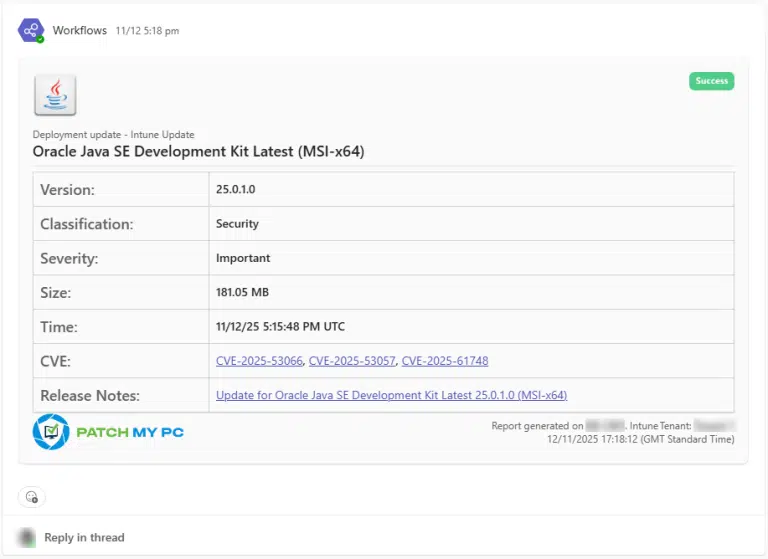
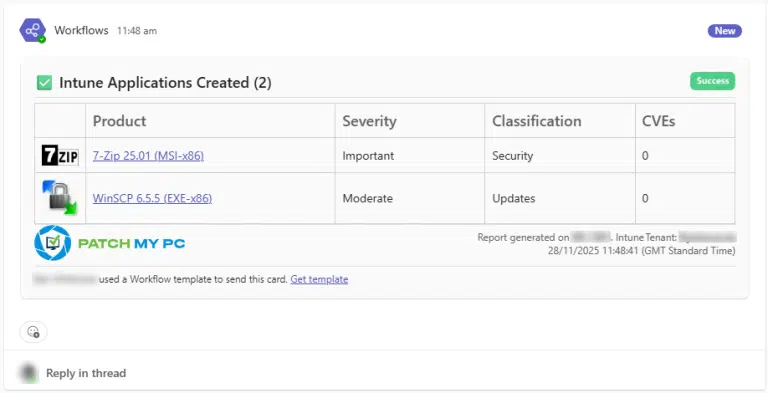
5. Click the relevant provider for this webhook which determines the expected webhook payload format. The two supported options are:
1. **Microsoft Teams Workflow (default)** - This option uses the modern Microsoft Teams workflow-based webhook model, which supports Adaptive Cards. See [Create a Microsoft Teams Webhook URL](/patch-my-pc-publisher/manage/alerts-tab/webhooks-tab/technical-references/create-microsoft-teams-webhook-url.md) for more information.
2. **Slack -** This option sends webhook notifications to Slack using the Slack webhook payload format. See [Create a Slack Webhook URL](/patch-my-pc-publisher/manage/alerts-tab/webhooks-tab/technical-references/create-slack-webhook-url.md) for more information.
{% hint style="info" %}
**Note**
We longer support adding a new **Microsoft Teams Legacy Webhook** as Microsoft no longer supports this format.
If you are using webhooks in this format, you should update them to the **Microsoft Teams Workflow** as detailed in [Update a Microsoft Teams Legacy Webhook to Use Workflows](/patch-my-pc-publisher/manage/alerts-tab/webhooks-tab/technical-references/update-teams-legacy-webhook-use-workflows.md).
{% endhint %}
6. In the **Webhook URL** field, paste the destination webhook endpoint URL generated by the target messaging platform. This field is required and must be valid for notifications to be delivered.
{% hint style="info" %}
**Note**
The webhook URL must start with `http://` or `https://` to be considered valid.
{% endhint %}
7. Under the **Notification level** section, select the required value that determines the overall verbosity of webhook messages.
1. **All -** Sends notifications for all publishing events, including successes and errors.
2. **Error -** Sends notifications only when a publishing error occurs.
3. **Success -** Sends notifications only when publishing actions complete successfully.
8. Decide whether to enable the **Send alerts as each product is published** option (it is enabled by default and is the recommended configuration). When enabled, webhook notifications are sent after each product is processed during a publishing synchronization. Each notification represents an individual product that has been successfully processed or failed, making it easier to track progress during large publishing runs.
When this option is disabled, a single webhook notification is sent only after all products have finished processing at the end of the publishing synchronization.
The end-of-synchronization notification provides a consolidated summary of all processed products but does not provide visibility into progress while the synchronization is running.
9. Under the **Scope** section, configure the relevant options:
1. **Update notifications**
2. **ConfigMgr notifications**
3. **Alert notifications**
4. **Intune application notifications**
5. **Intune update notifications**
10. Click [Test](/patch-my-pc-publisher/manage/alerts-tab/webhooks-tab/configure.md#test-button) to test the webhook.
11. Click **Apply** to save the new webhook.
{% hint style="info" %}
**Note**
Once you have created a new webhook, you may want to configure [advanced](/patch-my-pc-publisher/manage/alerts-tab/webhooks-tab/configure.md#advanced-button) settings for it.
{% endhint %}
## MSP Configuration
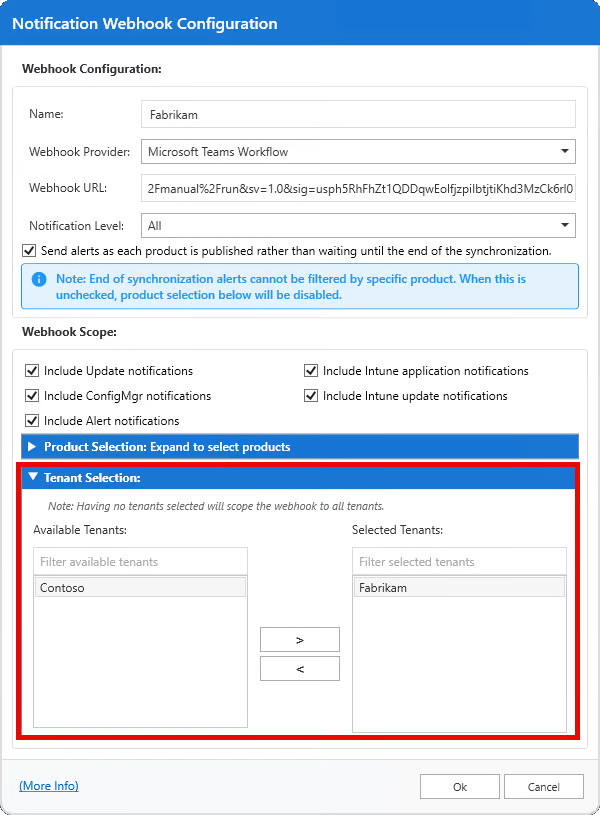
If you are using an MSP or MSP Plus license with multiple tenants configured, webhook notifications support tenant-level scoping.
When creating or editing a webhook, you can select which tenant or tenants the notification applies to. If no tenants are selected, the webhook applies to all tenants. If specific tenants are selected, the webhook applies only to those tenants.
---
# Agent Instructions
This documentation is published with GitBook. GitBook is the documentation platform designed so that both humans and AI agents can read, navigate, and reason over technical content effectively. Learn more at gitbook.com.
## Querying This Documentation
If you need additional information that is not directly available in this page, you can query the documentation by asking a question.
Perform an HTTP GET request on the following URL with the `ask` and `goal` query parameters:
```
GET https://docs.patchmypc.com/patch-my-pc-publisher/manage/alerts-tab/webhooks-tab/add-webhook.md?ask=&goal=
```
`ask` is the immediate question: it should be specific, self-contained, and written in natural language.
`goal` is what the user is ultimately trying to achieve, the reason they need the answer. Sharing it helps GitBook give you a better, more relevant answer. A goal is most helpful when it describes the outcome the user wants rather than restating the question. For example, with `ask=how do I create an API token`, a goal like `automate deployments from our CI pipeline` lets GitBook tailor the answer to that use case.
The response will contain a direct answer to the question and relevant excerpts and sources from the documentation.
Use this mechanism when the answer is not explicitly present in the current page, you need clarification or additional context, or you want to retrieve related documentation sections.