> For the complete documentation index, see [llms.txt](https://docs.patchmypc.com/llms.txt). Markdown versions of documentation pages are available by appending `.md` to page URLs; this page is available as [Markdown](https://docs.patchmypc.com/patch-my-pc-publisher/manage/alerts-tab/email-alerts-tab/email-notification-configuration/configure-oauth2.md).
# Configure OAuth2 (App Auth) in Patch My PC Publisher
*Applies to: Patch My PC Publisher V3.x*
*OAuth2* allows Patch My PC (PMPC) Publisher to send emails without using a mailbox username and password. Instead, email is sent using a Microsoft Entra ID app registration, which is the recommended approach for modern cloud email services such as Microsoft 365 (Exchange Online) and Google Workspace.
This authentication method is intended for environments where SMTP basic authentication is restricted or deprecated and where secure, non-interactive service authentication is required.
## App Registration and Permissions
OAuth2 email authentication requires a **Microsoft Entra ID app registration** with the **Microsoft Graph Mail.Send (Application)** permission granted.
{% hint style="danger" %}
**Important**
This guidance applies to customers who choose to use OAuth with Microsoft Graph instead of SMTP-based mail delivery. When using this approach, Publisher sends emails through Microsoft Graph as an unattended background service.
As no signed-in user is present, OAuth 2.0 application permissions must be used along with the `/users/{user}/sendMail` endpoint, which requires the `Mail.Send` application permission. When granted, this permission allows the application to send mail as **any** mailbox in the tenant.
[Exchange Online documentation](https://learn.microsoft.com/en-us/exchange/permissions-exo/application-rbac#why-does-my-application-still-have-access-to-mailboxes-that-arent-granted-by-the-scope-i-used-in-exchange-online-application-rbac) explains that permissions assigned in Microsoft Entra ID and Exchange Online RBAC are additive and evaluated independently. If a tenant-wide Microsoft Entra `Mail.Send` permission is granted, any scoped permission configured using Exchange Online RBAC or Application Access Policies is combined with the broader permission. The effective result is the union of both permissions, which still allows sending as any mailbox. For this reason, Exchange Online RBAC and Application Access Policies do not effectively restrict Microsoft Graph app-only send operations. This behavior is a Microsoft platform limitation, not a Publisher-specific design choice.
{% endhint %}
When configuring the app registration, you can apply standard Entra ID security practices such as:
* Using a dedicated app registration for email
* Using certificate-based authentication where possible
* Reviewing Entra ID sign-in and audit logs as part of normal operations
This approach aligns with Microsoft’s recommended model for service authentication and automation.
When deciding which Microsoft Entra ID app registration to use for OAuth2 email authentication, you have two options:
* [Option 1: Use existing App Registration (Recommended)](#option-1-use-existing-app-registration-recommended)
* [Option 2: Create a new (or use a different) App Registration](#option2-create-a-new-or-use-a-different-app-registration)
## Option 1: Use existing App Registration (Recommended)
Using an existing App Registration reuses the existing authentication method already configured for Intune publishing, removing the need to create and manage a separate app registration. Using a single app registration centralizes permissions and credentials, simplifying both initial setup and ongoing management.
### **When to choose this option**
Use this option when you:
* Already have Intune publishing configured in Publisher.
* Want to manage a single app registration for all PMPC operations in Microsoft Graph.
### **Requirements**
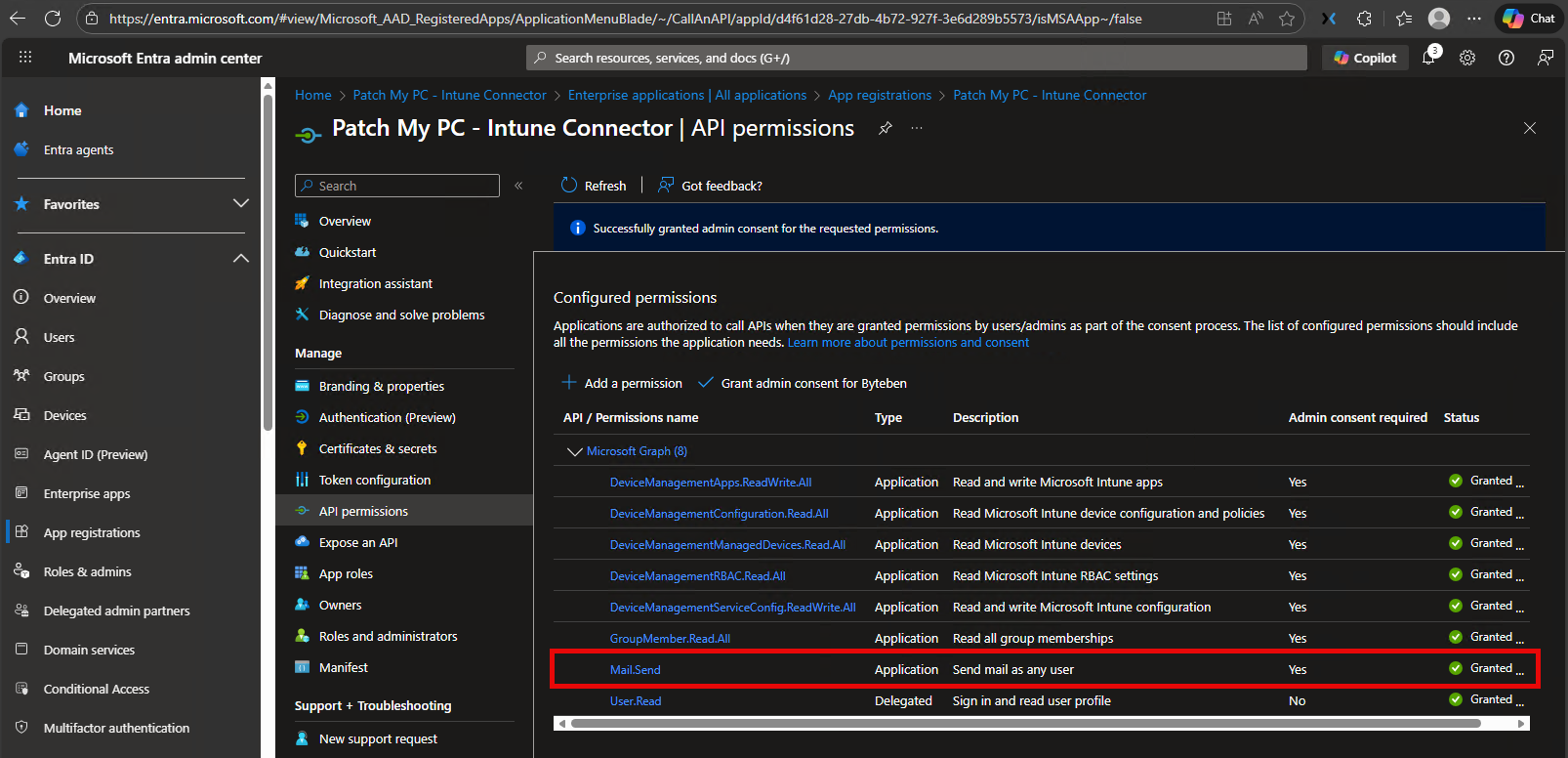
* The existing app registration requires the Microsoft Graph – **Mail.Send (Application)** permission to be granted.
### Configure the App Registration
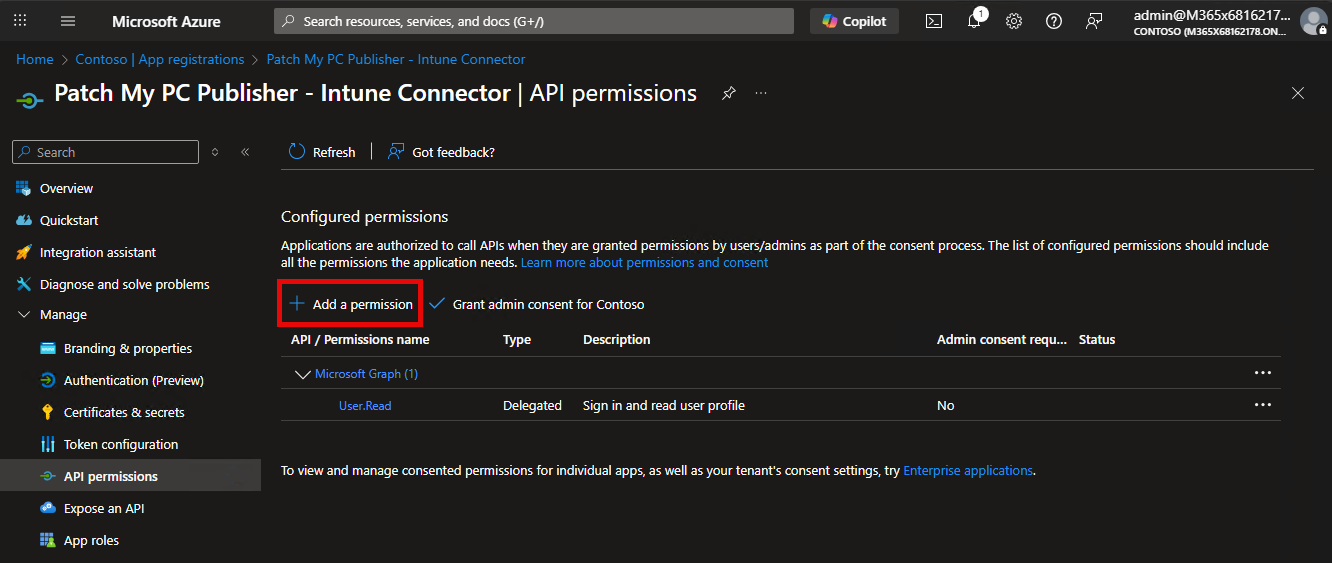
To add the required Microsoft Graph **Mail.Send (Application)** permission to the Entra ID app registration used by Publisher:
1. Sign in to the **Microsoft Entra admin center**.
2. Navigate to **Entra ID > App registrations**.
3. Select the app registration created for Patch My PC Publisher (for example, *Patch My PC Publisher – Intune Connector*).
4. In the left-hand menu, select **API permissions**.
5. Select **Add a permission**.
6. In the **Request API permissions** pane, choose **Microsoft Graph**.
7. Select **Application permissions** (not Delegated permissions).
8. Use the search box or expand the relevant categories and add the permissions listed in the table above, including:
* **Mail.Send**
9. Select **Add permissions** to apply the selected permissions.
10. Select **Grant admin consent** and confirm the prompt to approve the permission.
### Configure Publisher
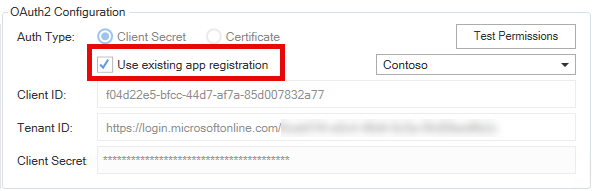
After selecting OAuth2 as the email authentication type, select **Use existing app registration** to reuse the same Microsoft Entra ID app registration configured under [Intune Apps/Updates | Options](/patch-my-pc-publisher/manage/intune-tabs/intune-options.md). The available fields are automatically updated to reflect the existing app registration details and authentication method.
Click [Test Permissions](#test-permissions) to verify the API permissions have been configured correctly.
{% hint style="info" %}
**Note**
If multiple tenants are configured in Publisher using an **MSP** or **MSP Plus** license, select the appropriate tenant from the tenant selector to use the app registration for that specific tenant.
{% endhint %}
## Option 2: Create a new (or use a different) App Registration
Creating a new (or using a different) App Registration uses a separate Microsoft Entra ID app registration that is not shared with Intune app and update publishing (if configured). The app registration can be newly created or an existing one in the tenant that you choose to use specifically for sending email from Publisher.
{% hint style="info" %}
**Note**
Using a separate app registration allows you to isolate email-sending permissions from Intune publishing and manage credentials independently.
{% endhint %}
### When to choose this option
Use this option when you:
* Want to separate email functionality from Intune publishing in Publisher.
* Do not use Intune publishing with Publisher.
* Prefer separate ownership, auditing, or credential rotation.
* Have a security policy that requires functional isolation or least-privilege separation.
### Requirements
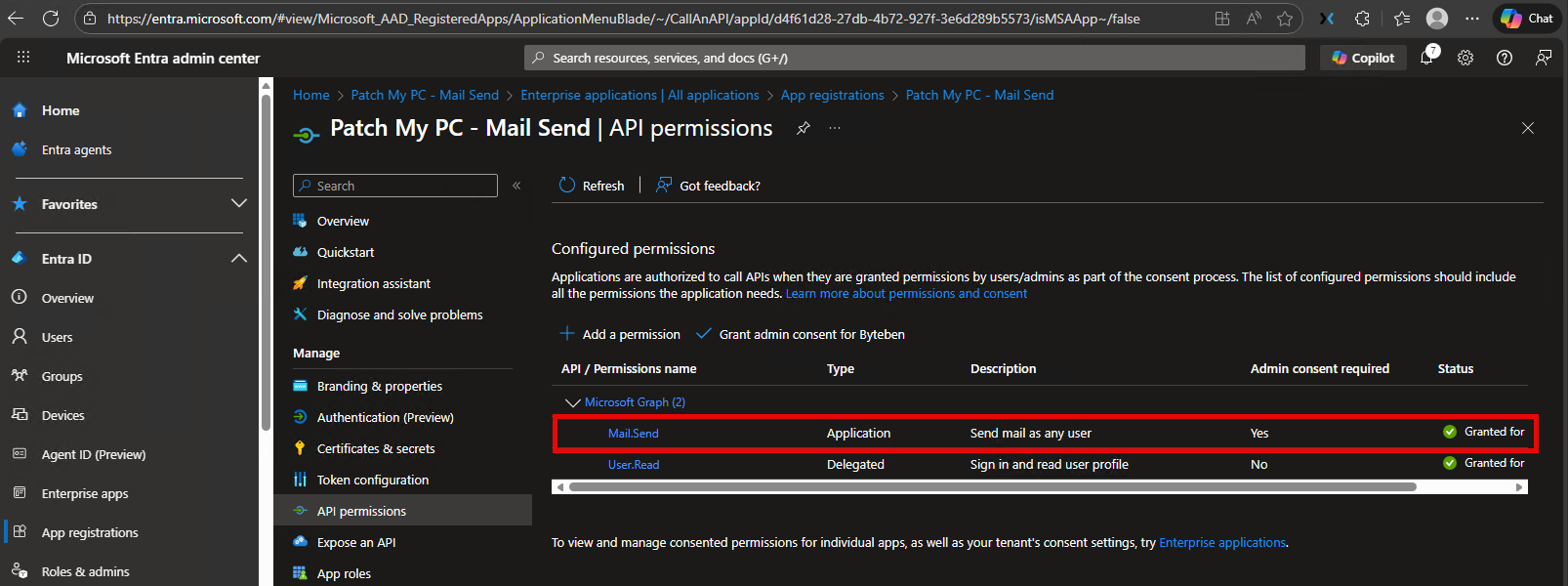
* The app registration must have been granted the Microsoft Graph – **Mail.Send (Application)** permission.
* Admin consent must be granted for the permission.
### Configure the App Registration
To add the required Microsoft Graph **Mail.Send (Application)** permission to the Entra ID app registration used by Publisher:
1. Sign in to the Microsoft Entra admin center.
2. Decide which approach best fits your environment.
1. **Create a new app registration**
i. Follow the guidance in [Register an Application](/patch-my-pc-publisher/requirements/intune-requirements/entra-id-app-registration/create-app-registration.md) to register an application in Entra ID.\
ii. After the app registration is created, continue to step 3.
2. **Use an existing app registration**
i. Navigate to **Entra ID** > **App registrations**.\
ii. Select the desired app registration to use for sending email notifications.\
iii. Continue to step 3.
3. In the left-hand menu of the app registration, select **API permissions**.
4. In the left-hand menu, select **API permissions**.
5. Select **Add a permission**.
6. In the **Request API permissions** pane, choose **Microsoft Graph**.
7. Select **Application permissions** (not Delegated permissions).
8. Use the search box or expand the relevant categories and add the permissions listed in the table above, including:
* **Mail.Send**
9. Select **Add permissions** to apply the selected permissions.
10. Select **Grant admin consent** and confirm the prompt to approve the permission.
11. Navigate to **Certificates & secrets** in the Entra ID app registration. Create or identify the client credential Publisher will use for email notifications (this can be either a certificate or a client secret, depending on the selected authentication method). Make a note of the required values, such as the Application Client ID, Tenant ID, and certificate or secret details so you can [Configure Publisher](#configure-the-publisher-1).
{% hint style="info" %}
**Note**
For additional guidance on choosing and configuring app registration credentials, refer to [Client Credentials](/patch-my-pc-publisher/requirements/intune-requirements/entra-id-app-registration/client-credentials.md), which explains credential types, requirements, and best practices in more detail.
{% endhint %}
### Configure Publisher
After selecting **OAuth2** as the email authentication type, configure the following options to complete the OAuth2 configuration in the Publisher.
#### Auth Type
Select the authentication type based on the client credential configured for the Entra ID app registration.
* Choose **Client secret** if the app registration is configured with a client secret.
* Choose **Certificate** if the app registration is configured with a certificate.
#### Client ID
Enter the Application **Client ID** from the Entra ID app registration, which you can find on the **Overview** page of the app registration in the Microsoft Entra admin center.
#### Tenant ID
Enter the tenant authority URL for your Microsoft Entra ID tenant in the **Tenant ID** field, which is typically in the format:
`https://login.microsoftonline.com/{tenant-id}`
The tenant ID can be found on the **Overview** page of the Entra ID app registration or on the Entra ID tenant properties page. Publisher uses this value to authenticate against the correct Entra ID tenant.
### Test Permissions
Click **Test Permissions** to validate that the configured app registration can authenticate successfully and has the required API permissions to send email.
When the test runs, Publisher connects to Microsoft Entra ID using the configured app registration and checks whether the required permissions are present and granted.
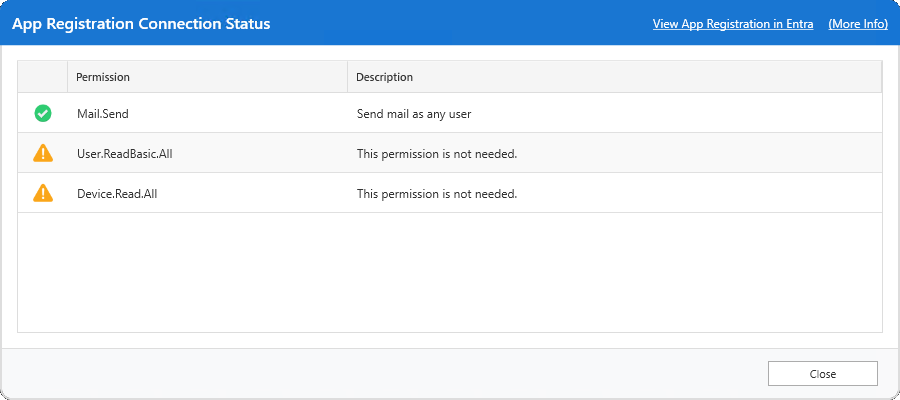
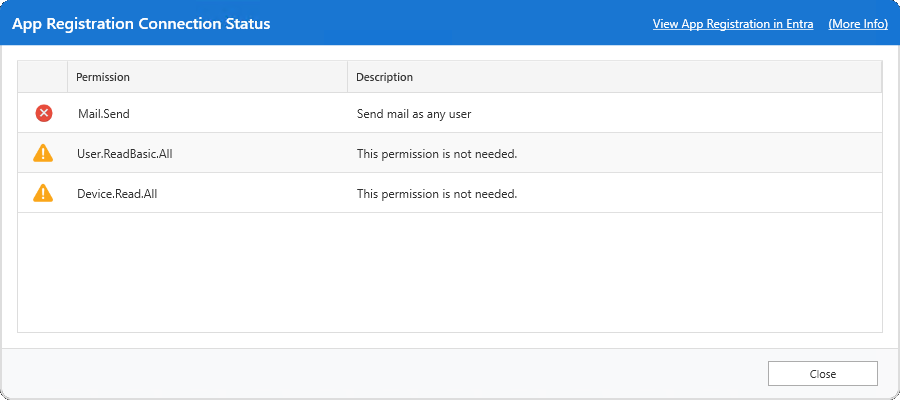
The **App Registration Connection Status** window displays the status of each permission:
#### **Green check (OK)**
The **Mail.Send** permission is present and correctly granted.
#### **Red error (Missing)**
The **Mail.Send** permission is missing or has not been granted. Email Notifications will not work until the permission is added and admin consent is granted.
---
# Agent Instructions
This documentation is published with GitBook. GitBook is the documentation platform designed so that both humans and AI agents can read, navigate, and reason over technical content effectively. Learn more at gitbook.com.
## Querying This Documentation
If you need additional information that is not directly available in this page, you can query the documentation dynamically by asking a question.
Perform an HTTP GET request on the current page URL with the `ask` query parameter, and the optional `goal` query parameter:
```
GET https://docs.patchmypc.com/patch-my-pc-publisher/manage/alerts-tab/email-alerts-tab/email-notification-configuration/configure-oauth2.md?ask=&goal=
```
`ask` is the immediate question: it should be specific, self-contained, and written in natural language.
`goal` is optional and describes the broader end goal you are ultimately trying to accomplish on behalf of the user. GitBook uses it to tailor the answer towards what is most useful for that goal.
The response will contain a direct answer to the question and relevant excerpts and sources from the documentation.
Use this mechanism when the answer is not explicitly present in the current page, you need clarification or additional context, or you want to retrieve related documentation sections.