> For the complete documentation index, see [llms.txt](https://docs.patchmypc.com/llms.txt). Markdown versions of documentation pages are available by appending `.md` to page URLs; this page is available as [Markdown](https://docs.patchmypc.com/patch-my-pc-publisher/manage/advanced-tab/customize-content-download-log-save-location.md).
# Customize Content Download and Log Save Location section of Patch My PC Publisher
*Applies to: Patch My PC Publisher V3.x*
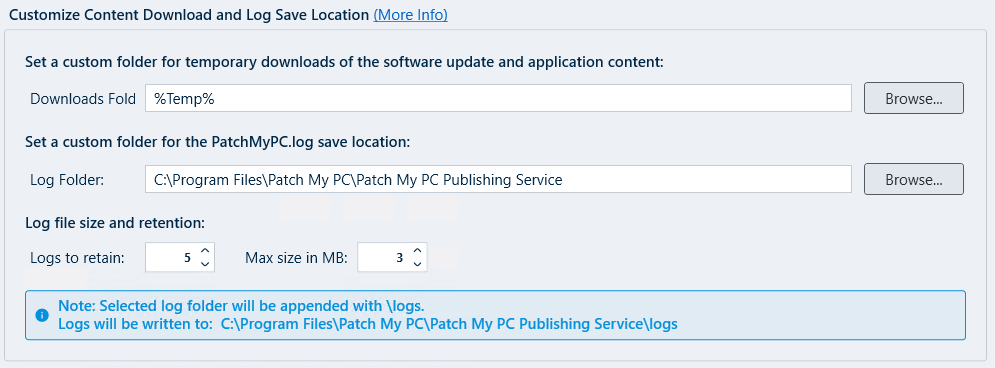
By default, Patch My PC (PMPC) Publisher downloads content and writes logs to locations derived from the system and installation context.
As Publisher runs under the **SYSTEM** account, default paths may not always align with organizational requirements for disk usage, monitoring, or security tooling.
The **Customize Content Download and Log Save Location** options allow you to override these defaults by specifying custom folders for:
* Temporary content downloads used during publishing
* The Publisher log folder
{% hint style="info" %}
**Note**
These settings apply only to Publisher and do not affect client-side installations.
{% endhint %}
## Set a custom folder for temporary downloads of the software update and application content
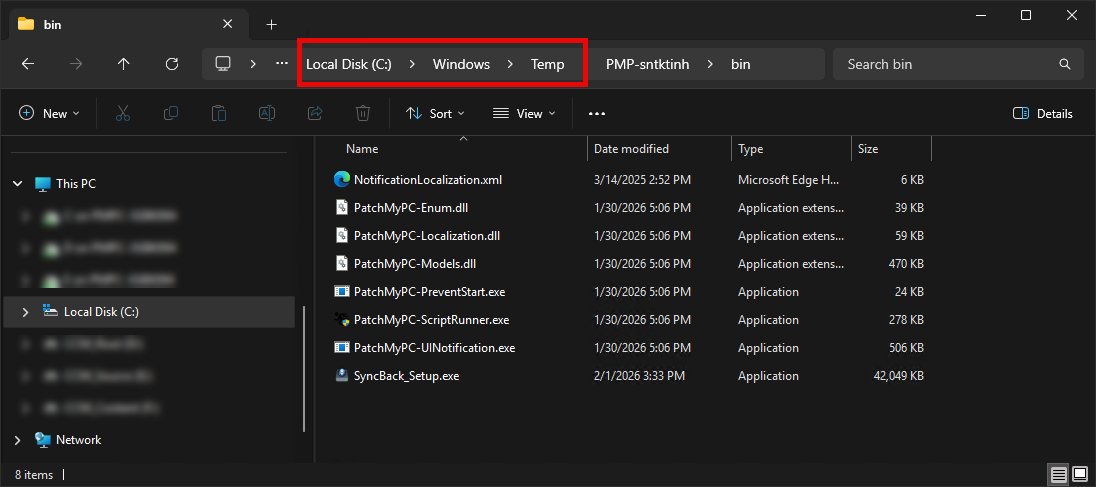
By default, content files are downloaded temporarily to %TEMP% during publishing operations. Since the Publisher runs under the SYSTEM context, this typically resolves to:
```
C:\Windows\Temp
```
This screenshot shows the Publisher using `C:\Windows\Temp` as a temporary scratch location while preparing packages during a publishing sync.
{% hint style="info" %}
**Note**
Temporary content downloaded to this location is automatically removed once publishing operations complete.
{% endhint %}
## Set a custom folder for the PatchMyPC.log save location
The Publisher writes service and operational logs to disk to support troubleshooting, auditing, and support diagnostics.
By default, Publisher logs are stored within the installation directory of the Patch My PC Publishing Service:
* **Newer Publisher versions:**\
Logs, including PatchMyPC.log, are stored in a dedicated **`Logs`** subfolder under the Publisher install directory.\
Example:
```
C:\Program Files\Patch My PC\Patch My PC Publishing Service\Logs
```
* **Older Publisher versions:**\
The primary **PatchMyPC.log** file may still be located directly in the root of the Publishing Service installation directory rather than the `Logs` subfolder.
Because the Publisher runs under the SYSTEM account, the computer account of the server hosting the Publishing Service must have write permissions to the configured log folder. If permissions are insufficient, logging may fail.
## Log file size and retention
### **Logs to retain**
The **Logs to retain** setting specifies how many log files to keep before older logs are overwritten.
{% hint style="info" %}
**Note**
It is recommended to set **Logs to Retain** to **10**. Publisher log files are relatively small, and retaining additional history is extremely valuable when troubleshooting issues or providing support, as it preserves publishing context that may otherwise be lost.
{% endhint %}
### Max size in MB
The **Max size in MB** setting specifies the maximum size of each individual log file before a new log is created.
{% hint style="info" %}
**Note**
It is recommended to set **Max size in MB** to **10**. Publisher log files are relatively small, and retaining additional history is extremely valuable when troubleshooting issues or providing support, as it preserves publishing context that may otherwise be lost.
{% endhint %}
---
# Agent Instructions
This documentation is published with GitBook. GitBook is the documentation platform designed so that both humans and AI agents can read, navigate, and reason over technical content effectively. Learn more at gitbook.com.
## Querying This Documentation
If you need additional information that is not directly available in this page, you can query the documentation dynamically by asking a question.
Perform an HTTP GET request on the current page URL with the `ask` query parameter, and the optional `goal` query parameter:
```
GET https://docs.patchmypc.com/patch-my-pc-publisher/manage/advanced-tab/customize-content-download-log-save-location.md?ask=&goal=
```
`ask` is the immediate question: it should be specific, self-contained, and written in natural language.
`goal` is optional and describes the broader end goal you are ultimately trying to accomplish on behalf of the user. GitBook uses it to tailor the answer towards what is most useful for that goal.
The response will contain a direct answer to the question and relevant excerpts and sources from the documentation.
Use this mechanism when the answer is not explicitly present in the current page, you need clarification or additional context, or you want to retrieve related documentation sections.