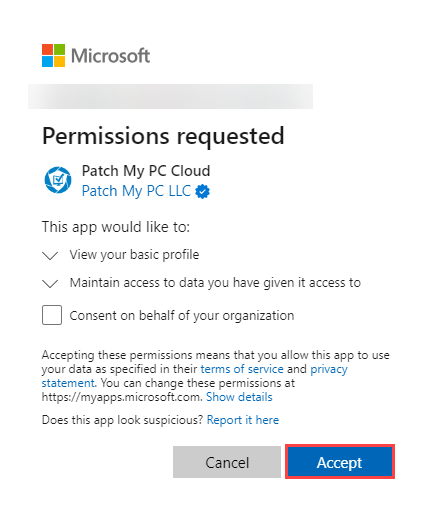
| Permission | Claim | Description |
|---|---|---|
| View your basic profile | profile | Allows the app to see your basic profile (e.g., name, picture, user name, email address). This is a permission requested to access your data in your Intune Tenant. |
| Maintain access to data you have given it access to | offline_access | Allows the app to see and update the data you gave it access to, even when you are not currently using the app. This does not give the app any additional permissions. This is a permission requested to access your data in <your_intune_tenant's_name>. |
 You will only see the C**onsent on behalf of your organization** checkbox if the user account you are signed in with is a Global Administrator or has the Privileged Role Administrator role.
How the **User consent for applications** settings are configured determines whether you can sign up for the PMPC Cloud or not.
If **Do not allow user consent** is configured, you will not see the **Permissions Requested** dialog box, but an error prompting you to contact an administrator.
If either **Allow user consent for apps from verified publishers, for selected permissions** or **Let Microsoft manage your consent settings (Recommended)** is configured, any user can register for the PMPC Cloud and complete the app registration.
Also, if you will use the Intune Apps Feature, the onboarding process requires additional permissions as detailed in [Permissions required for Intune Apps](/patch-my-pc-cloud/technical-references/cloud-permissions-reference/permissions-required-for-intune-apps.md).
{% endhint %}
---
# Agent Instructions
This documentation is published with GitBook. GitBook is the documentation platform designed so that both humans and AI agents can read, navigate, and reason over technical content effectively. Learn more at gitbook.com.
## Querying This Documentation
If you need additional information that is not directly available in this page, you can query the documentation by asking a question.
Perform an HTTP GET request on the following URL with the `ask` and `goal` query parameters:
```
GET https://docs.patchmypc.com/patch-my-pc-cloud/technical-references/cloud-permissions-reference/permissions-required-for-patch-my-pc-cloud.md?ask=
You will only see the C**onsent on behalf of your organization** checkbox if the user account you are signed in with is a Global Administrator or has the Privileged Role Administrator role.
How the **User consent for applications** settings are configured determines whether you can sign up for the PMPC Cloud or not.
If **Do not allow user consent** is configured, you will not see the **Permissions Requested** dialog box, but an error prompting you to contact an administrator.
If either **Allow user consent for apps from verified publishers, for selected permissions** or **Let Microsoft manage your consent settings (Recommended)** is configured, any user can register for the PMPC Cloud and complete the app registration.
Also, if you will use the Intune Apps Feature, the onboarding process requires additional permissions as detailed in [Permissions required for Intune Apps](/patch-my-pc-cloud/technical-references/cloud-permissions-reference/permissions-required-for-intune-apps.md).
{% endhint %}
---
# Agent Instructions
This documentation is published with GitBook. GitBook is the documentation platform designed so that both humans and AI agents can read, navigate, and reason over technical content effectively. Learn more at gitbook.com.
## Querying This Documentation
If you need additional information that is not directly available in this page, you can query the documentation by asking a question.
Perform an HTTP GET request on the following URL with the `ask` and `goal` query parameters:
```
GET https://docs.patchmypc.com/patch-my-pc-cloud/technical-references/cloud-permissions-reference/permissions-required-for-patch-my-pc-cloud.md?ask=