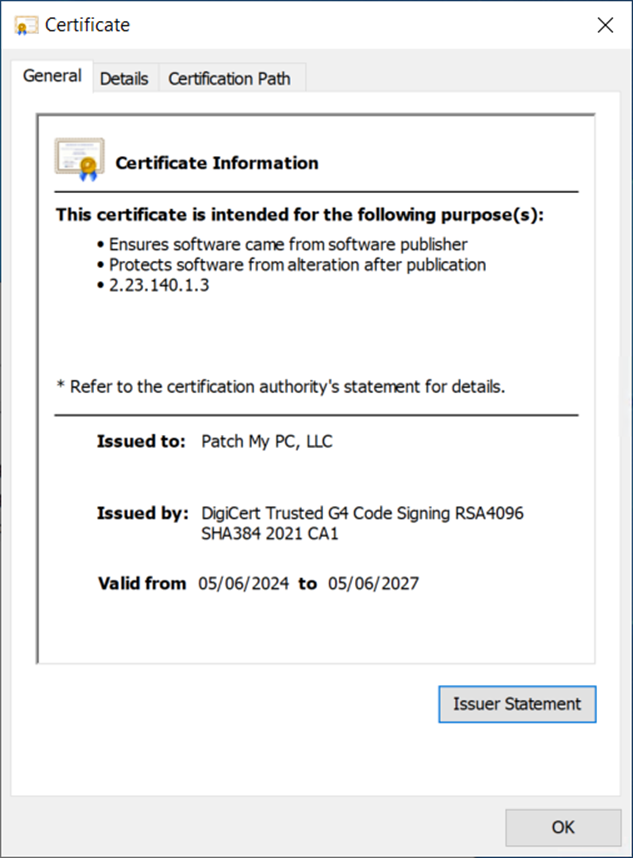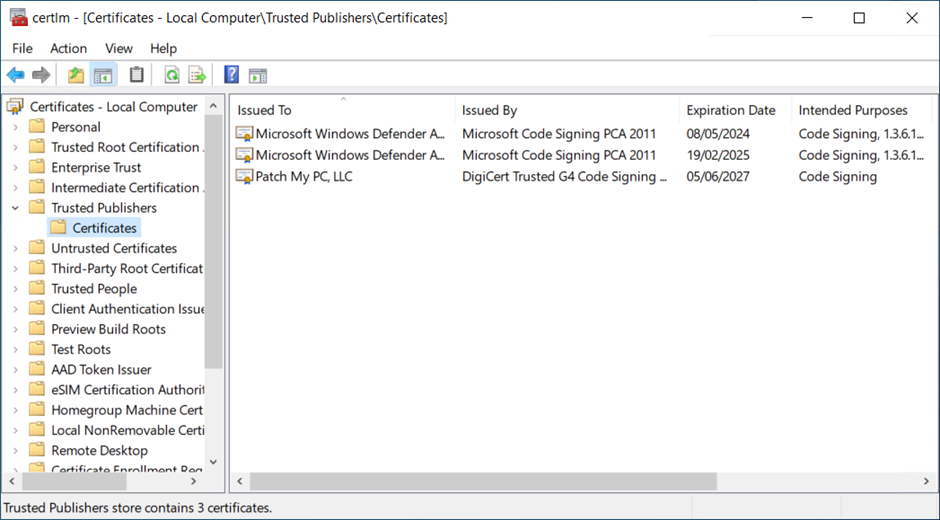
| Field | Value |
|---|---|
| Platform | Windows 10 and later |
| Profile type | Templates > Custom |
| Field | Value |
|---|---|
| Name | A descriptive name for the policy. E.g. “Patch My PC Cloud Trusted Publisher Certificate”` |
| Description | Enter an optional description for the policy |
| Field | Value |
|---|---|
| Name | Enter a descriptive name for the OMA-URI setting e.g. “Patch My PC Cloud Trusted Publisher Certificate” |
| Description | Enter an optional description for the policy |
| OMA-URI | ./Device/Vendor/MSFT/RootCATrustedCertificates/TrustedPublisher/E2806E45DDA692221BED082D072BAF5973FBC466/EncodedCertificate |
| Data type | String |
| Value | MIIHSTCCBTGgAwIBAgIQCCFR6ulgpnd5CTnQhq7j0TANBgkqhkiG9w0BAQsFADBpMQswCQYDVQQGEwJVUzEXMBUGA1UEChMORGlnaUNlcnQsIEluYy4xQTA/BgNVBAMTOERpZ2lDZXJ0IFRydXN0ZWQgRzQgQ29kZSBTaWduaW5nIFJTQTQwOTYgU0hBMzg0IDIwMjEgQ0ExMB4XDTI0MDYwNTAwMDAwMFoXDTI3MDYwNDIzNTk1OVowgdExEzARBgsrBgEEAYI3PAIBAxMCVVMxGTAXBgsrBgEEAYI3PAIBAhMIQ29sb3JhZG8xHTAbBgNVBA8MFFByaXZhdGUgT3JnYW5pemF0aW9uMRQwEgYDVQQFEwsyMDEzMTYzODMyNzELMAkGA1UEBhMCVVMxETAPBgNVBAgTCENvbG9yYWRvMRQwEgYDVQQHEwtDYXN0bGUgUm9jazEZMBcGA1UEChMQUGF0Y2ggTXkgUEMsIExMQzEZMBcGA1UEAxMQUGF0Y2ggTXkgUEMsIExMQzCCAaIwDQYJKoZIhvcNAQEBBQADggGPADCCAYoCggGBAI4L1foPMR+0UKjzSsQZzLOdoKNJXO9EVFR1j+iVYzQA7wrEe9pwfgns3Bs9NDf9VcIGAcPdApOB46weoZWNE1P8pPhL2V42dh96c/eHUadCCXrv6gPMguKKh0CiaHATdQjAG+GmPwAETrW0gwWRvhQbbLoLYiBnW6z72a0rZ2NUv1s9aXd5sq42PMIiflL/hqWEoXD9clvDERPfAStHbxZwEXJ3EpsI9Y9N7O5hd+PGnskLUTQfs5dt03HWhgCDI0mlXdi02LI2Zem4r5iRzt5NGY0b3sp5E10lC5v8KWgf5VfmjNdV875ILJ6sfEyfvIFwiVn/Q9/UWVklzwVRHPXK9NUO5YXWG792OhKK0KXlLXN1VzrppbAWUZMICEa8a8h6JM9/8071dlcwST2cY20plbXpS9tVxK/6E/YCN9Fopz2+F3dNeeW7okXd2q8Ez90uOKZuj4fZkozrmM+/hGzOVRFFV23XinJDvMI7/I52At48tLE1CLoL4zalnJUQWwIDAQABo4ICAjCCAf4wHwYDVR0jBBgwFoAUaDfg67Y7+F8Rhvv+YXsIiGX0TkIwHQYDVR0OBBYEFICQ/SZIAGMkmdGRtx9TQIMONAEmMD0GA1UdIAQ2MDQwMgYFZ4EMAQMwKTAnBggrBgEFBQcCARYbaHR0cDovL3d3dy5kaWdpY2VydC5jb20vQ1BTMA4GA1UdDwEB/wQEAwIHgDATBgNVHSUEDDAKBggrBgEFBQcDAzCBtQYDVR0fBIGtMIGqMFOgUaBPhk1odHRwOi8vY3JsMy5kaWdpY2VydC5jb20vRGlnaUNlcnRUcnVzdGVkRzRDb2RlU2lnbmluZ1JTQTQwOTZTSEEzODQyMDIxQ0ExLmNybDBToFGgT4ZNaHR0cDovL2NybDQuZGlnaWNlcnQuY29tL0RpZ2lDZXJ0VHJ1c3RlZEc0Q29kZVNpZ25pbmdSU0E0MDk2U0hBMzg0MjAyMUNBMS5jcmwwgZQGCCsGAQUFBwEBBIGHMIGEMCQGCCsGAQUFBzABhhhodHRwOi8vb2NzcC5kaWdpY2VydC5jb20wXAYIKwYBBQUHMAKGUGh0dHA6Ly9jYWNlcnRzLmRpZ2ljZXJ0LmNvbS9EaWdpQ2VydFRydXN0ZWRHNENvZGVTaWduaW5nUlNBNDA5NlNIQTM4NDIwMjFDQTEuY3J0MAkGA1UdEwQCMAAwDQYJKoZIhvcNAQELBQADggIBALlBqZymgkuENodf7tC1viaTZFFzAeuR9DO9u36GeFy4iZ3tKJ4IKznvVGRNYb2F5UTFHTDE0rgJPF+w0w8dnT6R2MB2aXzvyV4MBmezgPIhbx/y1h+M72wLkydNSLt0PJkw8R0BE4M794lZnh8Vmh3/bpfjIq8NYXYx/fNiIwiud8+kLcLsJ53qO2W0nytZh22HccJSXKOaxQxMdBSieV+ff150Q0AKvse87/ZscY3QnTKgPHqhDFGgeVQpCOXayaWWbluVYo5eeVsN+k36QkXDaGctpvEd4pbelMIN3DonD1NrL3Cp1YT5eMs7D9LUp+5SoOkVBj9+b6j5fNHVH+Fwx1F+ATejXO3BB+mt8WkFRQgREwp01UVD2gPtcj8KnY1IIgYGAogB7UraIXXTxJxhUXeSZNW1HpWaa/K7skUUlsYv/4PJTgAB5yvG5ZDJBi9M58MFAzmlH4qdrJRbxMuK9AxAqJKjGwm7B4AZeivSDnhC0UQ0g29tfOLzGXx0AfrdcAnn1U8bCzHg5Qc+Xy1Y6Ybx6MYLvFALS3Q++Rc05INimwTgM8F0PW9Ch7g88zXwad3p0CJrXdfU/b3SdLEcf2e62qM+//+15aVIuClYeam8oC58q+Rfefn5eG3hKpyHzmQdzlSpVbR/9eRRO2kXESPuAL7Xo0sZW8IVSRtM |
| Field | Value |
|---|---|
| Name | A descriptive name for the policy. E.g. “Patch My PC Apps Trusted Publisher Certificate”` |
| Description | Enter an optional description for the policy |
| Field | Value |
|---|---|
| Name | Enter a descriptive name for the OMA-URI setting e.g. “Patch My PC Apps Trusted Publisher Certificate” |
| Description | Enter an optional description for the policy |
| OMA-URI | ./Device/Vendor/MSFT/RootCATrustedCertificates/TrustedPublisher/1762FEC55A0324EA1B3345C01D3237EEAF098373/EncodedCertificate |
| Data type | String |
| Value | MIIHyTCCBbGgAwIBAgIQCUGFLDEub3esx3RE1rIuRjANBgkqhkiG9w0BAQsFADBpMQswCQYDVQQGEwJVUzEXMBUGA1UEChMORGlnaUNlcnQsIEluYy4xQTA/BgNVBAMTOERpZ2lDZXJ0IFRydXN0ZWQgRzQgQ29kZSBTaWduaW5nIFJTQTQwOTYgU0hBMzg0IDIwMjEgQ0ExMB4XDTI2MDMxMTAwMDAwMFoXDTI3MDQzMDIzNTk1OVowgdExEzARBgsrBgEEAYI3PAIBAxMCVVMxGTAXBgsrBgEEAYI3PAIBAhMIQ29sb3JhZG8xHTAbBgNVBA8MFFByaXZhdGUgT3JnYW5pemF0aW9uMRQwEgYDVQQFEwsyMDEzMTYzODMyNzELMAkGA1UEBhMCVVMxETAPBgNVBAgTCENvbG9yYWRvMRQwEgYDVQQHEwtDYXN0bGUgUm9jazEZMBcGA1UEChMQUGF0Y2ggTXkgUEMsIExMQzEZMBcGA1UEAxMQUGF0Y2ggTXkgUEMsIExMQzCCAiIwDQYJKoZIhvcNAQEBBQADggIPADCCAgoCggIBAKYWuaFOfSJ2iMnt3nVgLc4mOcOO1Z3+7WIa0qv7/rVcMNDS6+u3nLN3T75wfiEgVG8jleToh7oZa5H8MiI1mEweeZVTHUv/1eRQen8oDB3CR5i1OfoPKFypvGKV3jZCZJhoKhPPm2nP32JmpxqtBDxzzmP/o4y3fXaKLFkP84FwaiSmSWWeTK9CedeJvj6Fe0Ku3KiZFNTznsl+Q9kpR0cqTxYSU+L0+0geOhag1CRMgVR6o424AOBVxOFrtxAqAemFwqGplP4YcgI3IeIvt5wGs0aCjH1ml3ZduXzjla9etvIjCnFvBXryewtOXE0Dt9pcQN1Iy7i6rA0sTyFwRR8RO8BnQDXGqcWsREU91dDTF+Uq5lVIsNqTmZgqlvoKZxGUKsGPxJePs0zVA8RPExuxaSeeYXGFyP+YGQMhN0FekEmdIoHbEvDMLx5lOqVhDuAOqghwQAm/891IMhVFsIH1PzOIuYhgEAyMpjW08zIwj6Qbj6kKFp2wPrji0qXPNRfIe/C9sc67PCu/CrxSwysbbvBADq5bidmuBpiZVstNKKRiFNVzNXu3FO4ePw7pbYTzstUvpM+e0umRcLVPJEneOoFcMr4yPO9pCpw6APARM1NGQsE4yzLcHIKEIp9bpl7it2bOoErk4+KiEnctPsqnZbMmr0ZfjwLrK0D1bAYPAgMBAAGjggICMIIB/jAfBgNVHSMEGDAWgBRoN+Drtjv4XxGG+/5hewiIZfROQjAdBgNVHQ4EFgQUSwvURs71qBAFSCCp+wDYicgjpVAwPQYDVR0gBDYwNDAyBgVngQwBAzApMCcGCCsGAQUFBwIBFhtodHRwOi8vd3d3LmRpZ2ljZXJ0LmNvbS9DUFMwDgYDVR0PAQH/BAQDAgeAMBMGA1UdJQQMMAoGCCsGAQUFBwMDMIG1BgNVHR8Ega0wgaowU6BRoE+GTWh0dHA6Ly9jcmwzLmRpZ2ljZXJ0LmNvbS9EaWdpQ2VydFRydXN0ZWRHNENvZGVTaWduaW5nUlNBNDA5NlNIQTM4NDIwMjFDQTEuY3JsMFOgUaBPhk1odHRwOi8vY3JsNC5kaWdpY2VydC5jb20vRGlnaUNlcnRUcnVzdGVkRzRDb2RlU2lnbmluZ1JTQTQwOTZTSEEzODQyMDIxQ0ExLmNybDCBlAYIKwYBBQUHAQEEgYcwgYQwJAYIKwYBBQUHMAGGGGh0dHA6Ly9vY3NwLmRpZ2ljZXJ0LmNvbTBcBggrBgEFBQcwAoZQaHR0cDovL2NhY2VydHMuZGlnaWNlcnQuY29tL0RpZ2lDZXJ0VHJ1c3RlZEc0Q29kZVNpZ25pbmdSU0E0MDk2U0hBMzg0MjAyMUNBMS5jcnQwCQYDVR0TBAIwADANBgkqhkiG9w0BAQsFAAOCAgEAH5lNvUFVkHQWIby+gePVfooOQdPaJp7IG3NyU5gamREO5swPO2gSH+RKVhjhoez6Lsg4AvQktpYFo3F/j4E5TlNT/pMGwGqs3DeT+R5JZeGQobxMbqBs6TcWW8LVVqKj0zAvqQ4IhyeUhfD4MiCp7jEVt7dRhvp3wtBmqkcIH3zJPufM6CJop8TwHiV2oyv9k8wVnVFXWTdUbyWoilkXZnaFe97mBxEyf++iEL81Bi41Oyc7OK4UcD7Dh3QECF1E+6QUxG81ykpha1+/AVb0rPxiUl9cpWzs/TfgZjTwxY/z0ZI0vyM/Ut01xrFPVXBqjaR8OxOAzjgGjcTykbSd7UoJP2MEeaL9SKRlrNeSieD29+DsuZaqhfkF5JGWyaDhqWShmos9uwG5PEYf+4FOX6iZquQD4cVlhzOBVomrcYH+e97vPmgmRMp+hGZX66eDNswvjazFvUZclDIDe3rDwHDhvvrXzyprFmIrhnSZkCQzle3sjVSCVHojUQV3G+BliKhUEf/h4KjGLCAB3eenuyTY4c04ttjkst6mL9us+hnhmJbTJy4k/H3XMVJvJJgxtDWsd/XqUPYM/0N1r+g3rJ53zbmBhtqvTQ/NwOOqU9nOz4IiZiobTnmd9kPPCKn4G7T0BpPMexg168qQ1vbUjTBN1Zlq5F1VgdSPepuUCXA= |
| Field | Value |
|---|---|
| Name | A descriptive name for the policy. E.g. “PSAppDeployToolkit Module Trusted Publisher Certificate”` |
| Description | Enter an optional description for the policy |
| Field | Value |
|---|---|
| Name | Enter a descriptive name for the OMA-URI setting e.g. “PSAppDeployToolkit Module Trusted Publisher Certificate” |
| Description | Enter an optional description for the policy |
| OMA-URI | ./Device/Vendor/MSFT/RootCATrustedCertificates/TrustedPublisher/06A30284EAA7D941557778FDB215FB5010455C90/EncodedCertificate |
| Data type | String |
| Value | MIIHSTCCBTGgAwIBAgIQCvlbtr6iDIUOmMb7jqwI+TANBgkqhkiG9w0BAQsFADBpMQswCQYDVQQGEwJVUzEXMBUGA1UEChMORGlnaUNlcnQsIEluYy4xQTA/BgNVBAMTOERpZ2lDZXJ0IFRydXN0ZWQgRzQgQ29kZSBTaWduaW5nIFJTQTQwOTYgU0hBMzg0IDIwMjEgQ0ExMB4XDTI0MDkwNTAwMDAwMFoXDTI3MDkwNzIzNTk1OVowgdExEzARBgsrBgEEAYI3PAIBAxMCVVMxGTAXBgsrBgEEAYI3PAIBAhMIQ29sb3JhZG8xHTAbBgNVBA8MFFByaXZhdGUgT3JnYW5pemF0aW9uMRQwEgYDVQQFEwsyMDEzMTYzODMyNzELMAkGA1UEBhMCVVMxETAPBgNVBAgTCENvbG9yYWRvMRQwEgYDVQQHEwtDYXN0bGUgUm9jazEZMBcGA1UEChMQUGF0Y2ggTXkgUEMsIExMQzEZMBcGA1UEAxMQUGF0Y2ggTXkgUEMsIExMQzCCAaIwDQYJKoZIhvcNAQEBBQADggGPADCCAYoCggGBALsncZKNh65erADSVI33cqSj+tKgR+RJIX2kUAJ5/nt74NnlXG4hFiI5azGM7ytrIDjAW8Bnm6gFEZBZlAig3RsXMSnrl3Wlzx1jysHNlo2AhWo61+h6H4osDczgnS+lRODw0IT0Ue0iHTTRUq8eQuGQzdU+jh/snV+xEBfPjQVDR0WxFXZfofR+QHscet2n2vM7t4Pxl5bslym2/iR7YDSWlIBbhTkU8cNUzuqh/kuh66aX/UHABZruMRrZHNhUoYL9DYFjDRg2aia/6PbKidrXWmRw8q+h/D72PHoKFLIRe3HIBGLRBHQfUkUfJlUIpNcOaBk4w1ox4/vI4E6c5XrUcsKbZP5vD3oVQTfJ7aqEnbyy3LkFc5rjy8zf4rioebGXlr6jzjQKXBJ2XDjaV3m8olD5xHj6+a2QFO4TIzMNmT50JTHGxr7YD9qou5tn95lxWMVo5SgsWgKWB3qkhXlgvMzOzmC9h5WfhriuFxvIylROrFklvVpP3ZtLyW2rLwIDAQABo4ICAjCCAf4wHwYDVR0jBBgwFoAUaDfg67Y7+F8Rhvv+YXsIiGX0TkIwHQYDVR0OBBYEFORglN0hKniG4YWPXslNC3EyO+V/MD0GA1UdIAQ2MDQwMgYFZ4EMAQMwKTAnBggrBgEFBQcCARYbaHR0cDovL3d3dy5kaWdpY2VydC5jb20vQ1BTMA4GA1UdDwEB/wQEAwIHgDATBgNVHSUEDDAKBggrBgEFBQcDAzCBtQYDVR0fBIGtMIGqMFOgUaBPhk1odHRwOi8vY3JsMy5kaWdpY2VydC5jb20vRGlnaUNlcnRUcnVzdGVkRzRDb2RlU2lnbmluZ1JTQTQwOTZTSEEzODQyMDIxQ0ExLmNybDBToFGgT4ZNaHR0cDovL2NybDQuZGlnaWNlcnQuY29tL0RpZ2lDZXJ0VHJ1c3RlZEc0Q29kZVNpZ25pbmdSU0E0MDk2U0hBMzg0MjAyMUNBMS5jcmwwgZQGCCsGAQUFBwEBBIGHMIGEMCQGCCsGAQUFBzABhhhodHRwOi8vb2NzcC5kaWdpY2VydC5jb20wXAYIKwYBBQUHMAKGUGh0dHA6Ly9jYWNlcnRzLmRpZ2ljZXJ0LmNvbS9EaWdpQ2VydFRydXN0ZWRHNENvZGVTaWduaW5nUlNBNDA5NlNIQTM4NDIwMjFDQTEuY3J0MAkGA1UdEwQCMAAwDQYJKoZIhvcNAQELBQADggIBAKgNLm/4pTIHSLzIgXlgaIjMXuTiG5TmxiO5XpnD9lhKmhAEltdf8FcCVOt2cIbZEGjVOK143+n6suaTlM6UF4GI0mjuA/wDjCSh5cqcbJRamf3WKXLntsRNx+5ZjuCj3/FcV7hSFKoy3rVPpJIe6P0OdkWm1QLjqzxSpzm4sctRyMdP+Rfkbj/cYapg23zO5ec1AHLjggpGO27riJxLIqfQWV1IlW/CuWz0fUZOw6GreBUJje9sY2pHBGTjFP74NGYFWvJ8ZAV7VbI8W7K/mzg59HHXRytUB1opfz5qQDZMTex/LXQgGfG08yL77ncUi57e7LG20A5AMjcNG7Qx/jCr/5flXGMkB+dWecU/Q7xwphHe++G6GZD9hn0xb5+/4CEhI03TrlBrLXa4EsINcyT6oCu81sSuPMQu2sKWt4MDrPaZ8oqhxt68fOP0h1IgC9pZJY7A93qZkcbFnmYWTWPd8RKUB3vSwb6P7eFUY2c6lM/qXxDD6nl/4OfpqW+GqemZjSbgGCRZlNCyJAi0DfZil4tSJfVlOon5972LrRjEi/wXXlj/u3zOzGS4jvtQSLAXUpleqWVUty0QQMt8CJW1i+vZr8iwjyEO8+HbX7s8At+hPZNr4c3og0PpNXRSQ0ncUw3rbHJNBbg9aL4YrtnGi+AXRbAlrFzyzMr7ujpW |