> For the complete documentation index, see [llms.txt](https://docs.patchmypc.com/llms.txt). Markdown versions of documentation pages are available by appending `.md` to page URLs; this page is available as [Markdown](https://docs.patchmypc.com/patch-my-pc-cloud/migration/migrate-application/publish-migrated-app-catalog-app-1.md).
# Publish the App Migrated from ConfigMgr in Intune as a Patch My PC Custom App
*Applies to: Patch My PC Cloud*
Configuration Manager (ConfigMgr) applications that can be migrated to Patch My PC (PMPC) Cloud and deployed as one of our Custom Apps have a **Match Type** of **Custom App**.
Once you click **Migrate** to migrate a ConfigMgr application to a PMPC Custom App, the Custom Apps Deployment Wizard starts, and you can follow [Create a Custom App](/patch-my-pc-cloud/custom-apps/create-a-custom-app.md), but please note the following:
* As a double-check, verify that the information on each tab is correct before clicking **Next**.
* On the **General Information** tab, ensure the **Version** and **Apps & Features Name** fields are completed. These are required to complete the deployment wizard and are also important if you choose to switch from custom detection rules carried over from ConfigMgr to the PMPC detection rule on the **Detection Rules** tab.
* On the **Configurations** tab, under the **Install Parameters** tool/section, check that the **Additional Argument** field is correct and includes any required additional arguments/command line options. If the application's primary installer file is a .MSI, we automatically extract it and populate the **Conflicting processes** field on this tab.
* On the **Assignments** tab, you can click **ConfigMgr Assignment List** to see a list of the current assignments in ConfigMgr, so you can then review this and set these up in Intune accordingly.
{% hint style="success" %}
**Tip**
If you don’t want to deploy this app now, click **Install App** under **App Without Assignments** on the **Assignments** tab, then click **Migrate** to create the app in Intune only. When you are ready to assign the app, you can [edit the deployment](/patch-my-pc-cloud/deployments/manage-deployments/edit.md) and add the required assignment.
{% endhint %}
* On the **Detection Rules** tab, you can either continue with the **Use Custom** option, i.e. what we detected in ConfigMgr, or select the **Patch My PC Default (Recommended)** option instead.
When you click **Migrate**, the **Deployment Created, Migration Pending** notification is shown.
The **Status** field also updates to **In Progress** whilst the deployment is created, with any required content zipped (e.g., the primary installer file and any extra files) and sent to Azure Blob Storage.
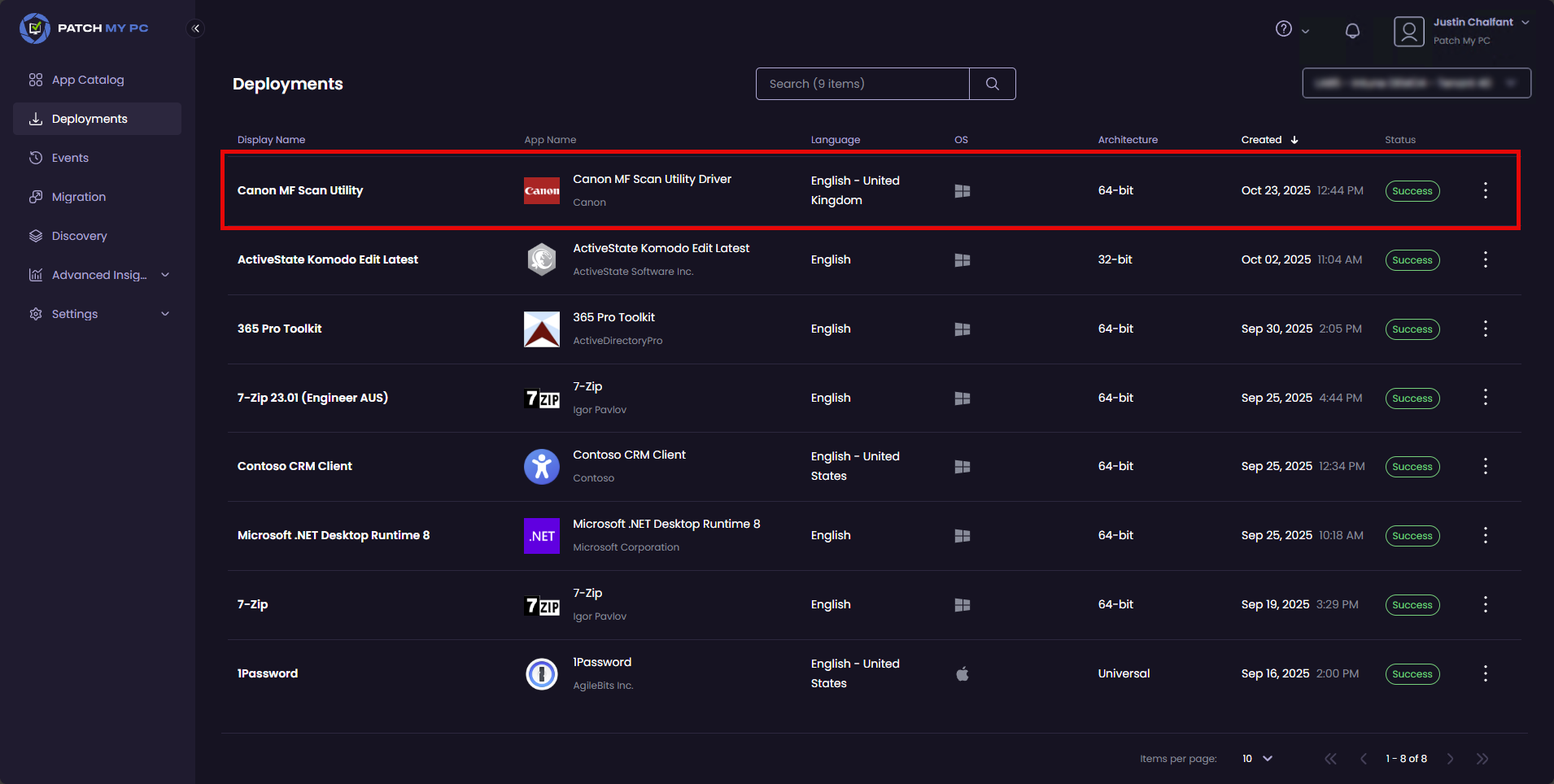
You can also monitor the deployment progress by clicking the **Deployments** node and watching for the deployment status to change to **Success**.
{% hint style="success" %}
**Tip**
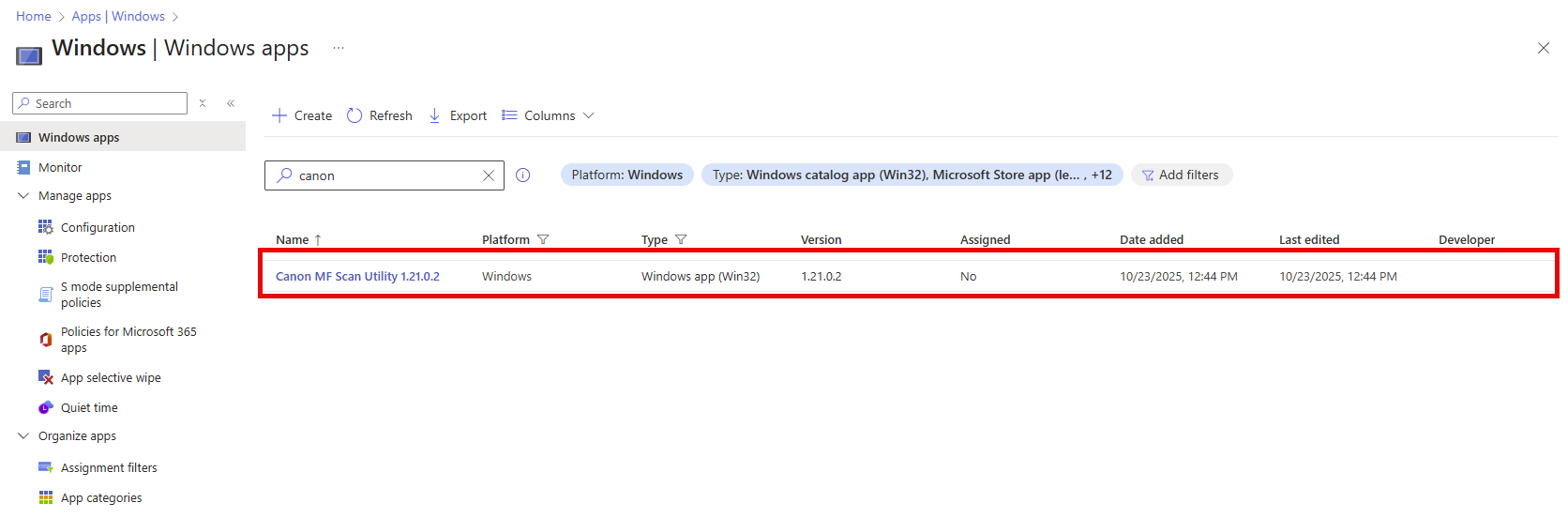
To see the migrated app in Intune, within the Microsoft Intune admin center navigate to:
**Home | Apps | Windows | Windows | Windows Apps | <*****app\_name*****>**
{% endhint %}
---
# Agent Instructions
This documentation is published with GitBook. GitBook is the documentation platform designed so that both humans and AI agents can read, navigate, and reason over technical content effectively. Learn more at gitbook.com.
## Querying This Documentation
If you need additional information that is not directly available in this page, you can query the documentation dynamically by asking a question.
Perform an HTTP GET request on the current page URL with the `ask` query parameter, and the optional `goal` query parameter:
```
GET https://docs.patchmypc.com/patch-my-pc-cloud/migration/migrate-application/publish-migrated-app-catalog-app-1.md?ask=&goal=
```
`ask` is the immediate question: it should be specific, self-contained, and written in natural language.
`goal` is optional and describes the broader end goal you are ultimately trying to accomplish on behalf of the user. GitBook uses it to tailor the answer towards what is most useful for that goal.
The response will contain a direct answer to the question and relevant excerpts and sources from the documentation.
Use this mechanism when the answer is not explicitly present in the current page, you need clarification or additional context, or you want to retrieve related documentation sections.