> For the complete documentation index, see [llms.txt](https://docs.patchmypc.com/llms.txt). Markdown versions of documentation pages are available by appending `.md` to page URLs; this page is available as [Markdown](https://docs.patchmypc.com/patch-my-pc-cloud/migration/migrate-application.md).
# Migrate an Application from ConfigMgr to Intune using Patch My PC Cloud App Migration
*Applies to: Patch My PC Cloud*
There are three different types of application migrations we currently support in Patch My PC (PMPC) Cloud, depending on the results of the Migration scan:
* [Publish the App in Intune as a Suggested PMPC Catalog App](/patch-my-pc-cloud/migration/migrate-application/publish-migrated-app-suggested-app.md)
* [Publish the App in Intune as a PMPC Catalog App](/patch-my-pc-cloud/migration/migrate-application/publish-migrated-app-catalog-app.md)
* [Publish the App in Intune as a PMPC Custom App](/patch-my-pc-cloud/migration/migrate-application/publish-migrated-app-as-custom-app.md)
{% hint style="danger" %}
**Important**
As detailed in [Migration Requirements](/patch-my-pc-cloud/migration/requirements.md), to use the **Migrate** button to perform the migration, your PMPC Cloud Company must be using an Enterprise Premium license.
{% endhint %}
The process for starting a migration is the same regardless of the type of target app that will be created in PMPC Cloud/Intune.
To perform a Migration:
1. Sign in to your PMPC Cloud Company.
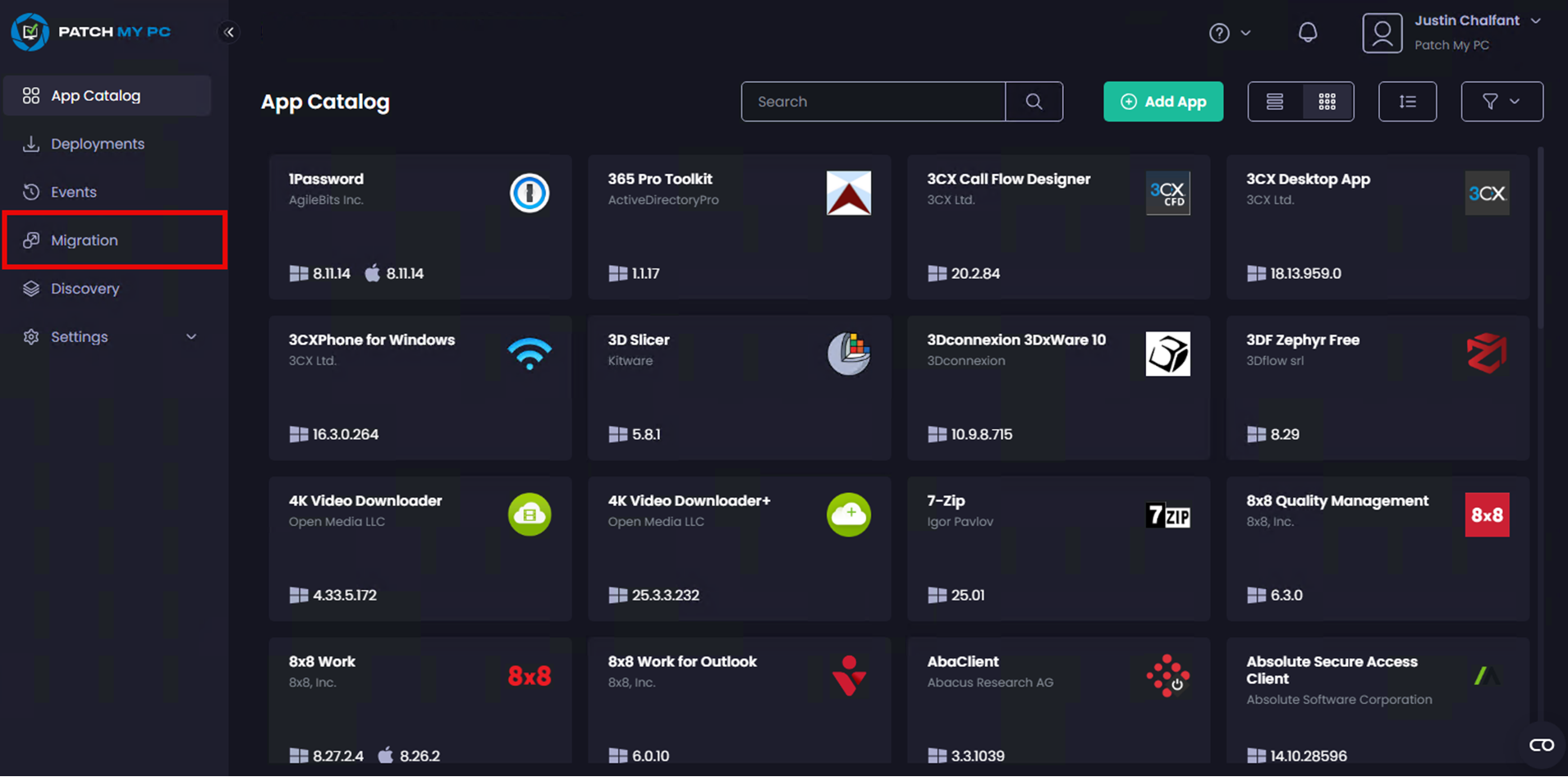
2. Navigate to **Migration**.
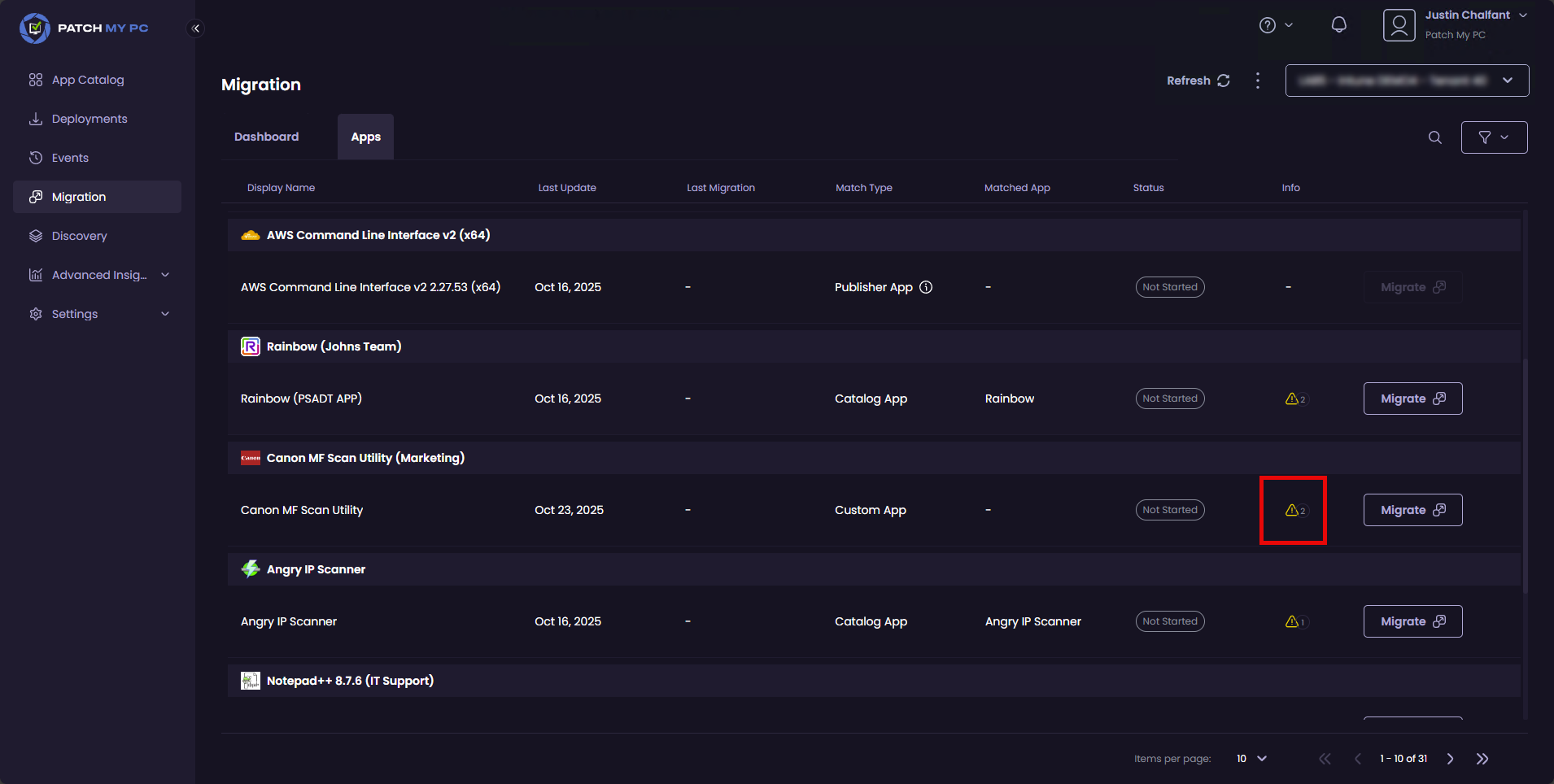
3. Find the application you want to migrate.
{% hint style="success" %}
**Tip**
You can use the **Search** box and start typing the name of the application to help you find it.
Alternatively, click the filter button and select the checkbox next to the **Match Type** of the application you wish to migrate (**PMPC App** or **Custom App**). Then, click **Apply All Filters** to view only the matching applications.
{% endhint %}
4. If a warning triangle is not present in the **Info** column for the application, go to step 11.
5. If a warning triangle is shown in the **Info** column, click it to open the application's properties.
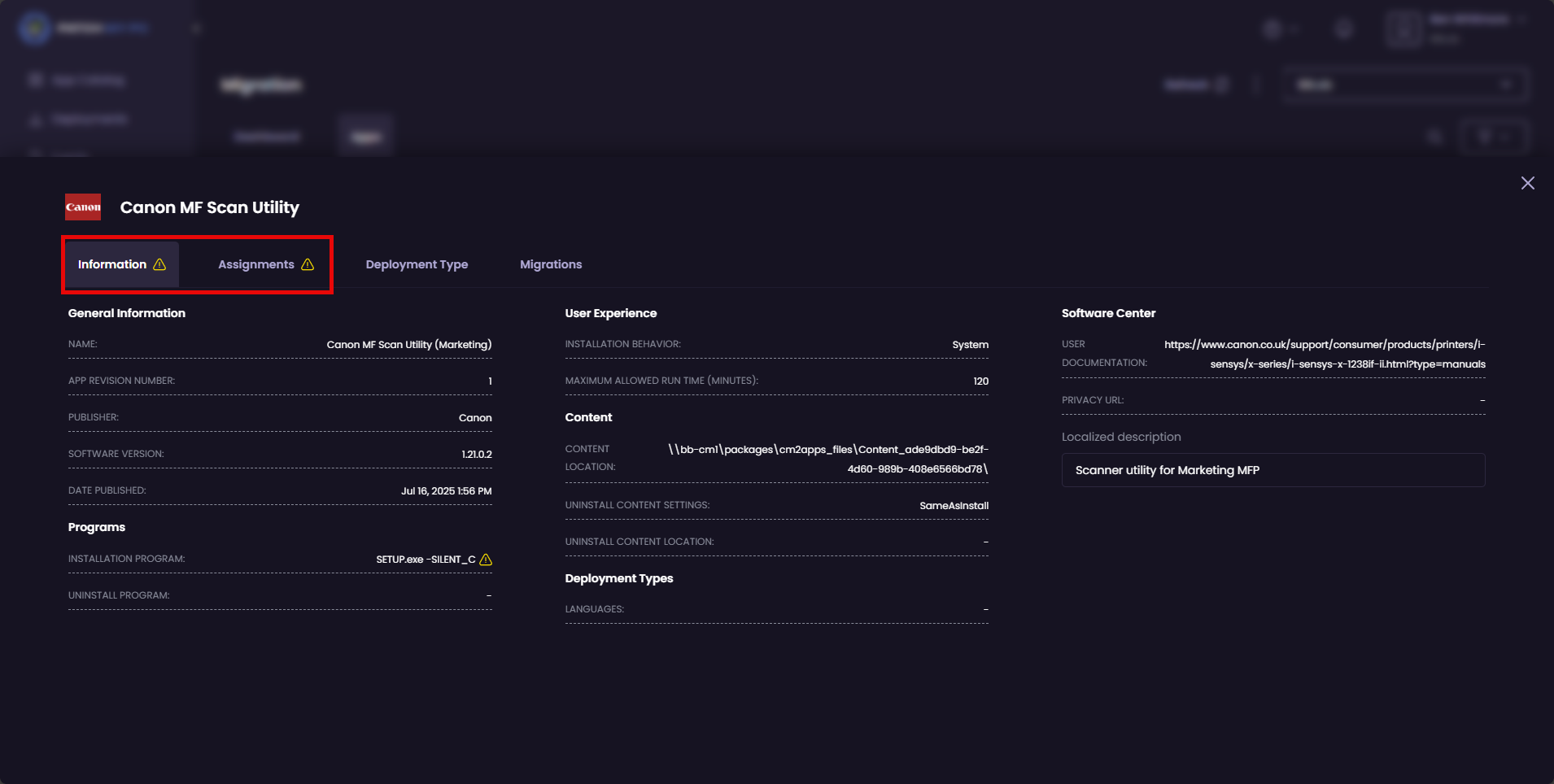
6. In the application's properties, locate the tab(s) with a warning triangle beside them.
7. Click the relevant tab and look for the items with the warning triangle beside them.
8. Review the warning and determine your course of action.
9. If you are happy to proceed with the migration, go to step 11.
10. If you cannot proceed with the migration, close the application's properties and click **Cancel** to close the **Migration Wizard**. You now need to assess how to address the warnings to determine your next course of action for this application.
11. The behavior of the **Migrate** button depends on both the application **Match Type** and the **Migrate button** state shown in the UI. The image below highlights two possible Migrate button states:
* **Button State 1 – Single Migrate button**\
Clicking **Migrate** immediately starts the migration wizard.
* **Button State 2 – Migrate button with dropdown**\
Clicking **Migrate** displays additional options, allowing you to choose how the application should be migrated.
Migrate Button State
Use the following sections to determine which action to take based on the application’s **Match Type** and the **Migrate** button state shown:
* [Match Type: Catalog App, Button State = 1](#match-type-catalog-app-button-state-1)
* [Match Type: Custom App, Button State = 1](#match-type-custom-app-button-state-1)
* [Match Type: Custom App, Button State = 2](#match-type-custom-app-button-state-2)
### **Match Type: Catalog App, Button State = 1**
If the application is identified as a **Catalog App**, click **Migrate** and follow the [Publish the App in Intune as a PMPC Catalog App](/patch-my-pc-cloud/migration/migrate-application/publish-migrated-app-catalog-app.md) process.
### **Match Type: Custom App, Button State = 1**
If the application is identified as a PMPC Custom App and no alternative catalog match is available, the migration will proceed directly as a custom app. Click **Migrate** and follow the [Publish the App in Intune as a PMPC Custom App](/patch-my-pc-cloud/migration/migrate-application/publish-migrated-app-as-custom-app.md) process.
### **Match Type: Custom App, Button State = 2**
If the application is identified as a **Custom App**, but a potential catalog match was identified based on application metadata instead of the file hash, the drop-down menu will present two options:
* **Match to Catalog App -** Select this to migrate the application using the suggested catalog match and follow the [Publish the App in Intune as a Suggested PMPC Catalog App](/patch-my-pc-cloud/migration/migrate-application/publish-migrated-app-suggested-app.md) process.
* **Create a Custom App -** Select this to migrate the application as a PMPC Custom App and follow the [Publish the App in Intune as a PMPC Custom App](/patch-my-pc-cloud/migration/migrate-application/publish-migrated-app-as-custom-app.md) process.
---
# Agent Instructions
This documentation is published with GitBook. GitBook is the documentation platform designed so that both humans and AI agents can read, navigate, and reason over technical content effectively. Learn more at gitbook.com.
## Querying This Documentation
If you need additional information that is not directly available in this page, you can query the documentation by asking a question.
Perform an HTTP GET request on the following URL with the `ask` and `goal` query parameters:
```
GET https://docs.patchmypc.com/patch-my-pc-cloud/migration/migrate-application.md?ask=&goal=
```
`ask` is the immediate question: it should be specific, self-contained, and written in natural language.
`goal` is what the user is ultimately trying to achieve, the reason they need the answer. Sharing it helps GitBook give you a better, more relevant answer. A goal is most helpful when it describes the outcome the user wants rather than restating the question. For example, with `ask=how do I create an API token`, a goal like `automate deployments from our CI pipeline` lets GitBook tailor the answer to that use case.
The response will contain a direct answer to the question and relevant excerpts and sources from the documentation.
Use this mechanism when the answer is not explicitly present in the current page, you need clarification or additional context, or you want to retrieve related documentation sections.