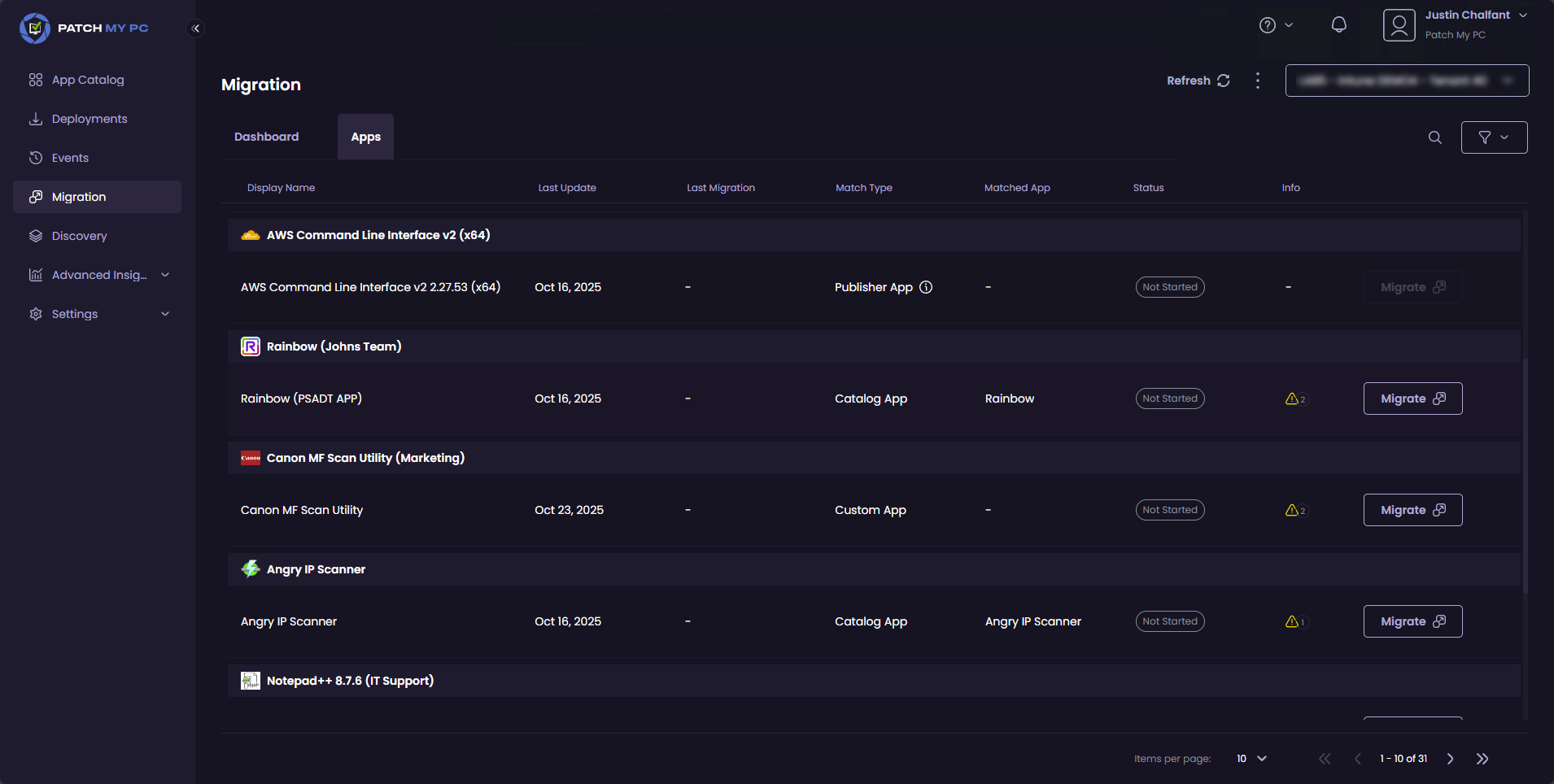
| Match Type | The result of our attempt to match the ConfigMgr application to an app in our App Catalog, which will be one of the following: - Catalog App – We have successfully matched the ConfigMgr application to a version in our catalog. These apps can be deployed into Intune as a PMPC App and kept up to date by us for you.
- Custom App – We have been unable to successfully match the ConfigMgr application to a version in our catalog, but we can still help you migrate it to Intune.
- Publisher App – We have identified that the application was created by Patch My PC Publisher. These apps are not supported for migration.
- Multiple Matches - We have found multiple matches in our catalog to the app that is to be migrated.
- Unsupported – We cannot migrate the ConfigMgr application. See
Migration Not Supported Reasons for more details.
TIP:
You can hover over the “(i)” for an unsupported match type to see why it is unsupported for migration.
|
| Matched App | The name of the app we have matched the ConfigMgr application to in our catalog. |
| Status | The migration status of the ConfigMgr application, which will be one of the following: - Not Started – The migration process has not been started.
- Pending – The migration process has been initiated.
- Importing - The app is currently being processed by the Publisher and is being imported to the PMPC Cloud Portal.
- In Progress – The migration is in progress.
- Migrated – The application has been successfully migrated to PMPC Cloud.
- Failed - The migration encountered an error.
|
| Info | If there are further information/warnings about this application that we want you to review (e.g. we’ve detected a setting in the ConfigMgr application we cannot migrate), a warning triangle is displayed in the Info column.
The triangle includes a number indicating the number of warnings. If you hover your mouse over the triangle, you will see a summary. If you click the triangle, it opens the properties of the application and displays the triangle beside the items we are warning you about.
Clicking the triangle shows more details you should review before continuing the application migration. |