> For the complete documentation index, see [llms.txt](https://docs.patchmypc.com/llms.txt). Markdown versions of documentation pages are available by appending `.md` to page URLs; this page is available as [Markdown](https://docs.patchmypc.com/patch-my-pc-cloud/managed-service-provider-feature/msp-app-sets/create-an-msp-app-set.md).
# Create an MSP App Set
*Applies to: Patch My PC Cloud*
Creating an App Set in Patch My PC (PMPC) Cloud is a two-stage process that involves:
* [Adding Apps to the App Set](#defining-which-apps-to-include-in-the-app-set)
* [Deploying the App Set](#defining-where-to-deploy-an-app-set)
{% hint style="info" %}
**Note**
We do not recommend creating a single App Set that you use to deploy all of the required apps to your customers. Instead, you should consider creating separate App Sets by app function, e.g., core apps (apps that should be installed or available everywhere), utilities that should only be deployed to certain groups or users, etc.
Adopting this approach reduces the impact of working with App Sets on your infrastructure and that of your child companies. Plus, if someone accidentally deletes the wrong App Set, the impact on the targeted users will be reduced, and the time taken to recreate and redeploy the App Set will be reduced.
{% endhint %}
## Adding Apps to the App Set
{% hint style="danger" %}
**Important**
We currently do not support adding script-based Custom Apps or Binary Free Apps to MSP App Sets.
{% endhint %}
To add apps to an App Set:
1. Sign in to the parent MSP Company at
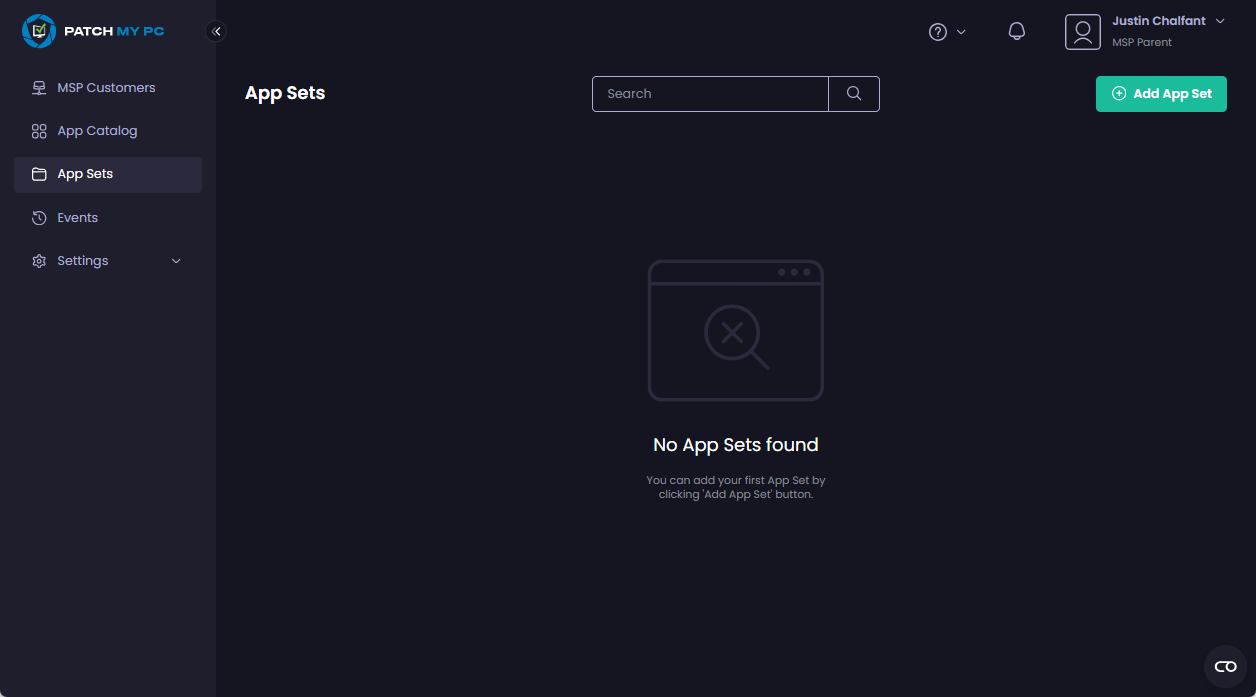
2. Navigate to **App Sets**
The **App Sets** page shows any existing App Sets.
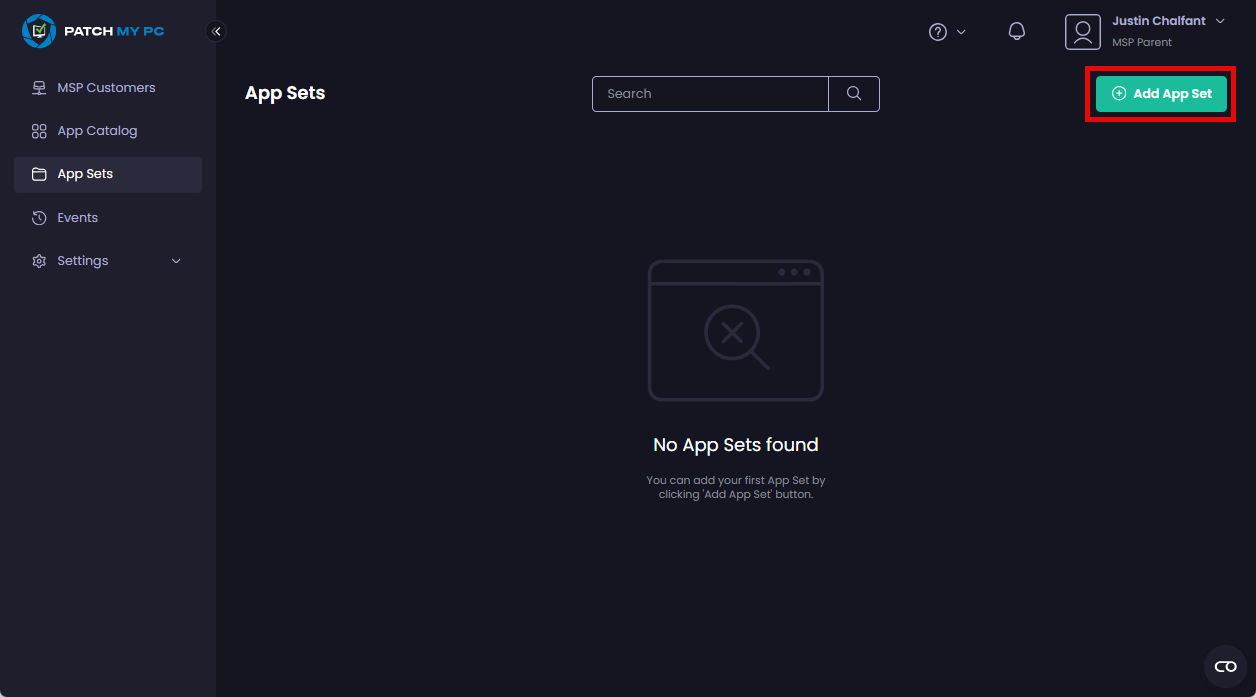
3. Click **Add App Set**
4. On the **Add App Set** screen, enter a unique name for the new App Set in the **App Set Name** field and click **Add**

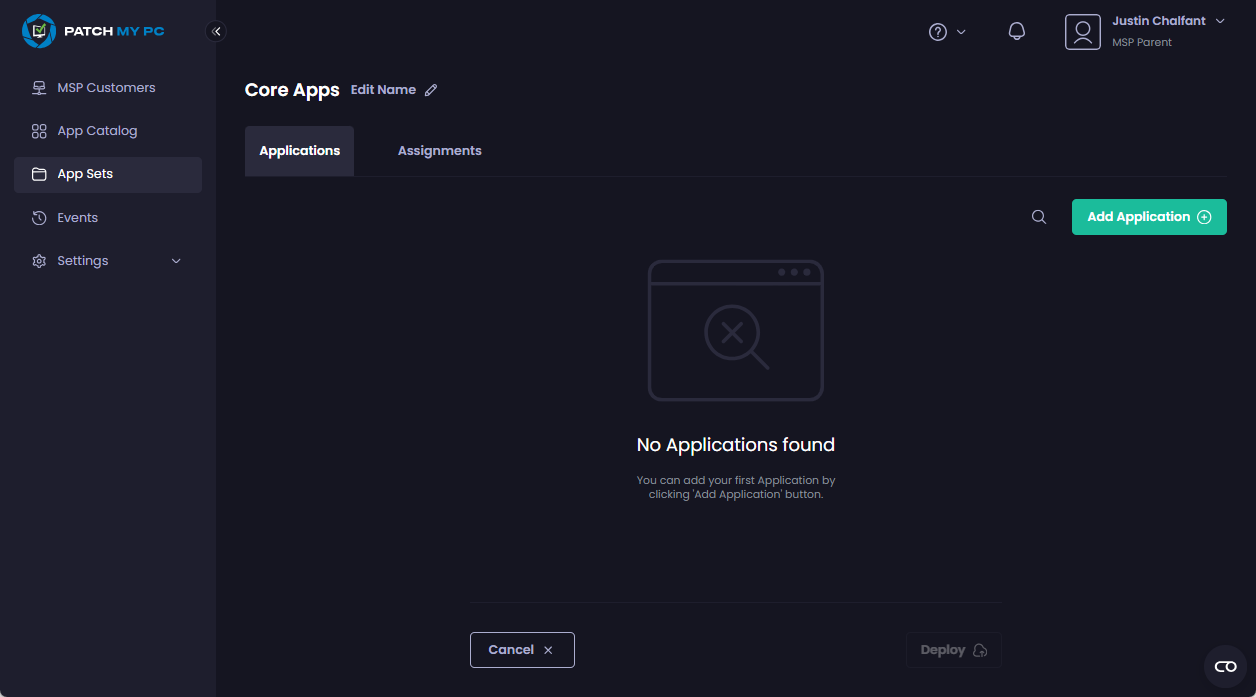
The App Set is created and the ***\*** screen opens (where ***\*** is the name of the App Set).
{% hint style="success" %}
**Tip**
You can click **Edit Name** beside the App Set name if you want to rename it.
{% endhint %}
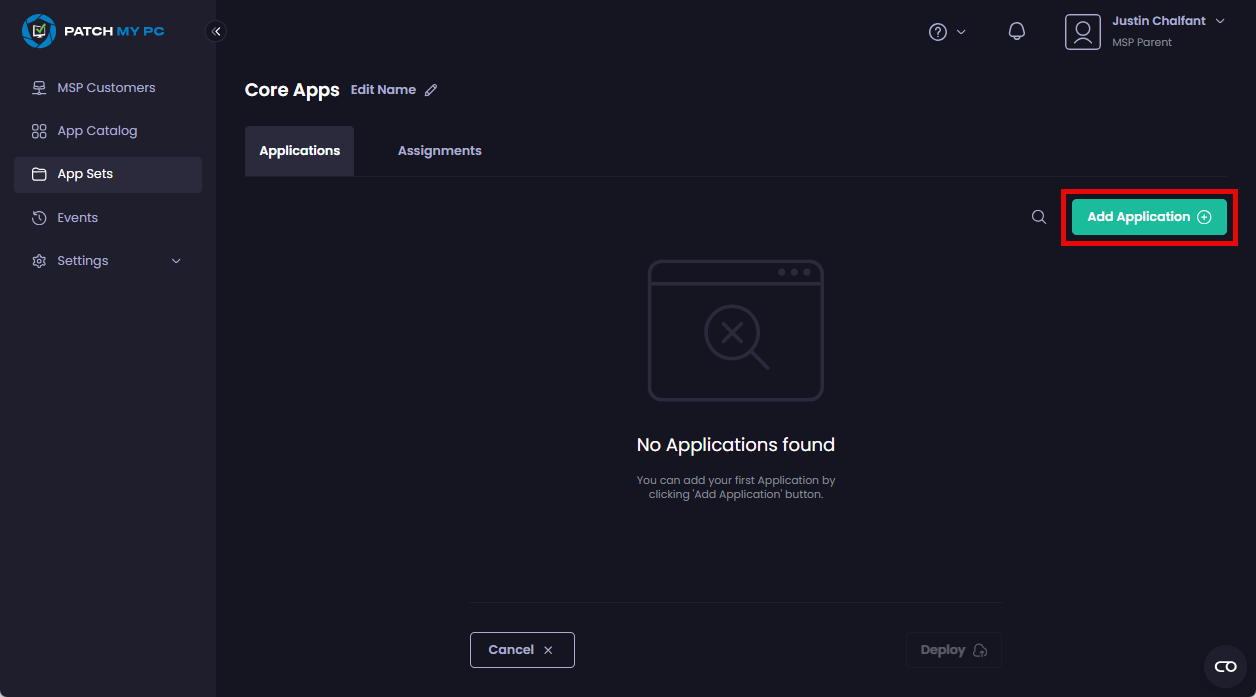
5. To add an application to this App Set, click **Add Application**
{% hint style="info" %}
**Note**
You can add up to 100 apps per App Set, but each app can only be added to an App Set once.
You can also add an [MSP Custom App](/patch-my-pc-cloud/managed-service-provider-feature/msp-custom-apps.md) to an App Set, provided that app has been created and assigned to all customers.
{% endhint %}
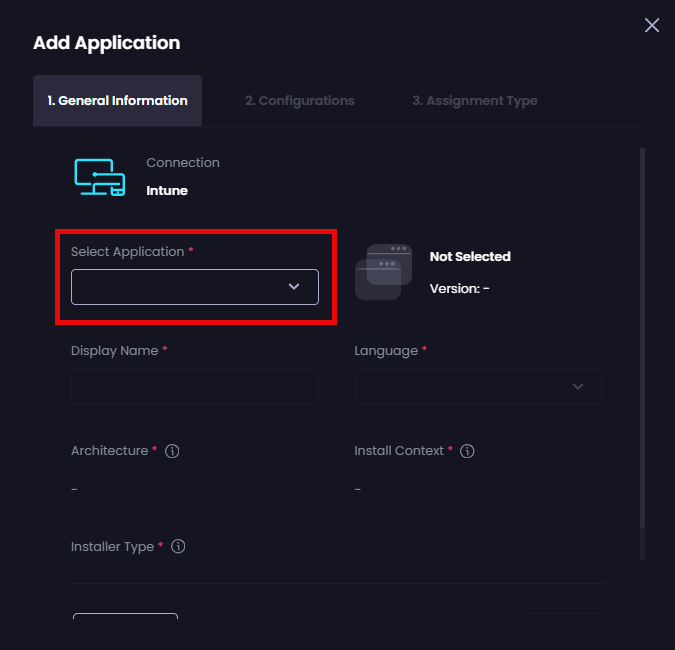
6. On the **General Information** page, select the relevant app you want to add from the **Select Application** dropdown or start typing its name.
{% hint style="info" %}
**Note**
Only apps that have been deployed successfully will appear in the **Select Application** dropdown.
An MSP Custom App will only appear in the **Select Application** dropdown if it has been added and assigned to all customers. If the Custom App has only been assigned to a specific customer or only to the MSP, it will not appear in the dropdown.
Also, if an app has multiple variants with different version numbers, you will see a yellow triangle with an exclamation mark next to the **Version** number. This is a warning to you to double-check that you are deploying the correct version.
{% endhint %}
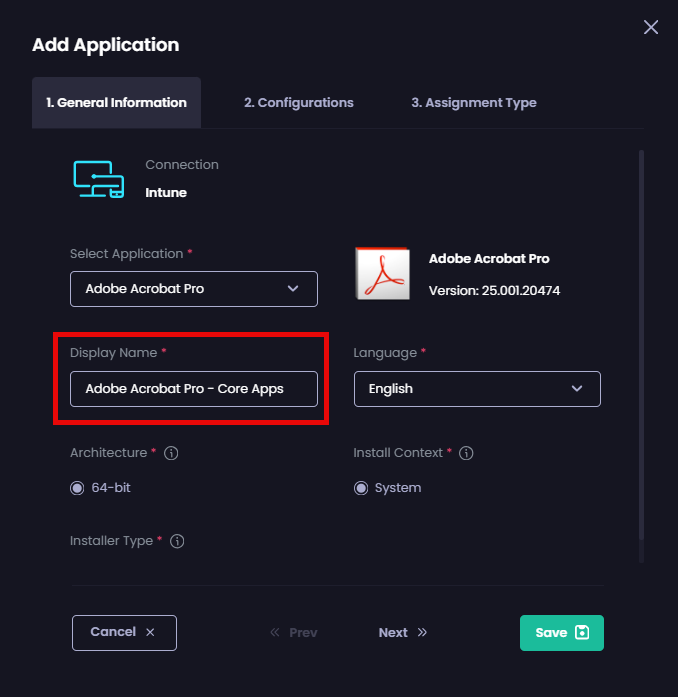
7. In the **Display Name** field, we suggest you add the name of the App Set as a suffix.
For example, if the App Set’s name is **Core Apps** and you are deploying Adobe Acrobat Pro, we recommend changing the **Display Name** from just **Adobe Acrobat Pro** to **Adobe Acrobat Pro – Core Apps**.
{% hint style="info" %}
**Note**
The reason for the above recommendations is that by default, when an app in an App Set is deployed, if the app has already been deployed in your company, we automatically add the **\_AppSet<*****number*****>** suffix (for example **\_AppSet7**) to the deployment’s name, where **<*****number*****>** is the next available sequential number. This is because all deployment names need to be unique.
So in our Acrobat example, the default deployment name would be something like:
**Adobe Acrobat Pro\_AppSet7**
This is potentially confusing as you won’t know which deployment belongs to which App Set. We are working on improving this.
{% endhint %}
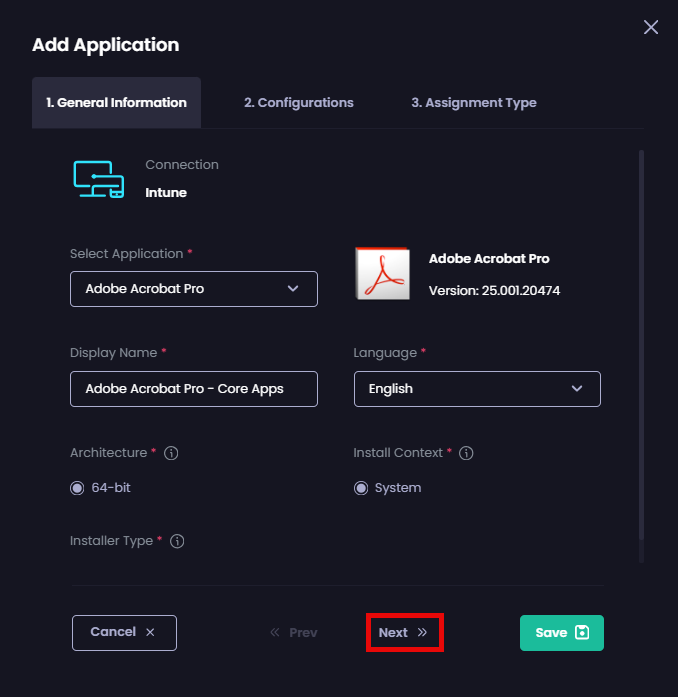
8. Modify any other settings on the **General Information** page as required, then click **Next**
{% hint style="info" %}
**Note**
In the current release, this page contains a subset of the options for creating a regular PMPC Cloud Deployment. See [General Information (Deployments)](/patch-my-pc-cloud/deployments/deploy-app/general-information-tab.md) for more details on each option.
{% endhint %}
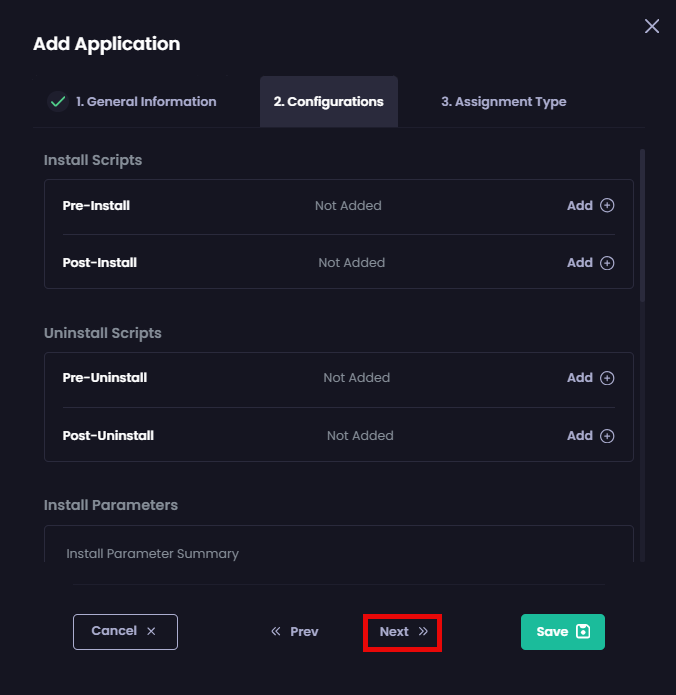
9. On the **Configurations** page, configure the required options, then click **Next**.
{% hint style="info" %}
**Note**
In the current release, this page contains a subset of the options for creating a regular PMPC Cloud Deployment. See [Configurations (Deployments)](/patch-my-pc-cloud/deployments/deploy-app/configurations-tab.md) for more details on each option.
{% endhint %}
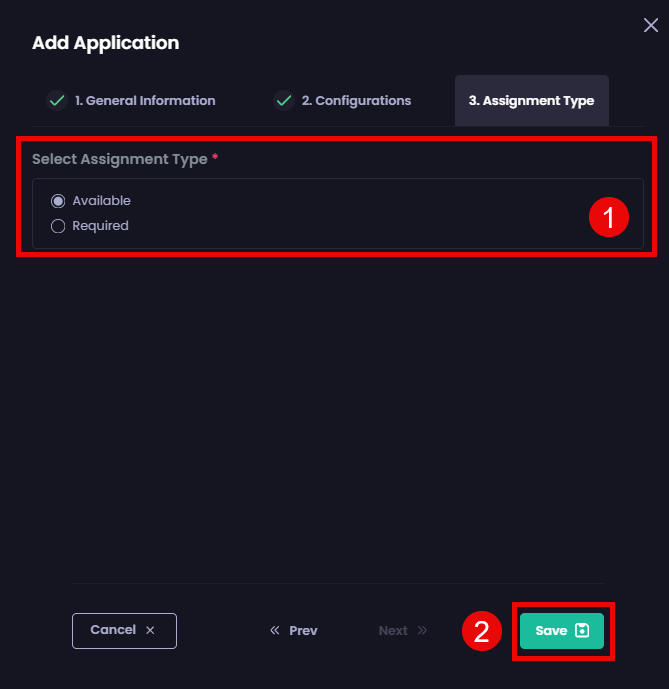
10. On the **Assignment Type** page, select which assignment type(s) you want to apply to this App Set, then click **Save** to save your changes.
{% hint style="info" %}
**Note**
As this is an App Set, only certain assignment types are supported compared to a regular PMPC Cloud Deployment. See [Assignments (Deployments)](/patch-my-pc-cloud/deployments/deploy-app/assignments-tab.md) for more details on each option.
Selecting the **Update Only** type (if available) will create an Update Only app in Intune alongside the Available or Required type selected.
{% endhint %}
11. Repeat steps 5 to 10 to add any additional apps to the App Set.
## Deploying the App Set
Once you have finished adding the required apps to an App Set, you can deploy it.
To define where to deploy an App Set:
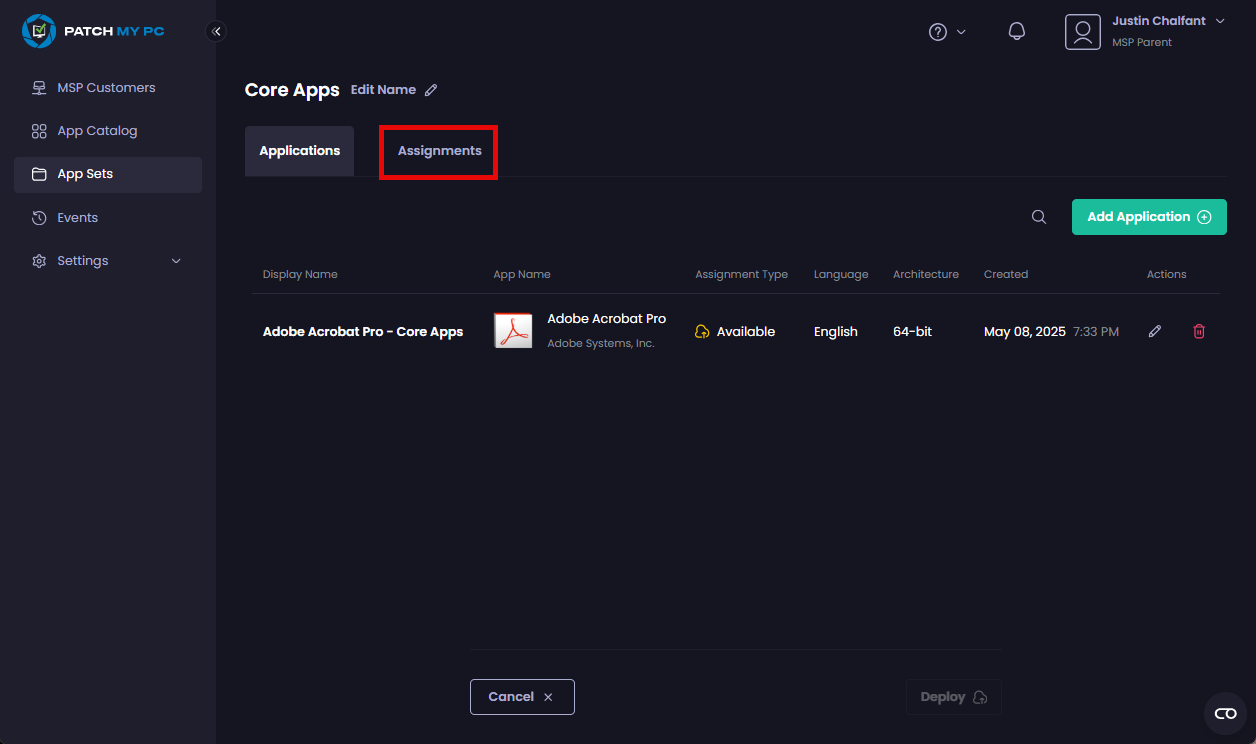
1. Click the **Assignments** tab.
2. If you don’t want to use Update Rings, go to step 4.
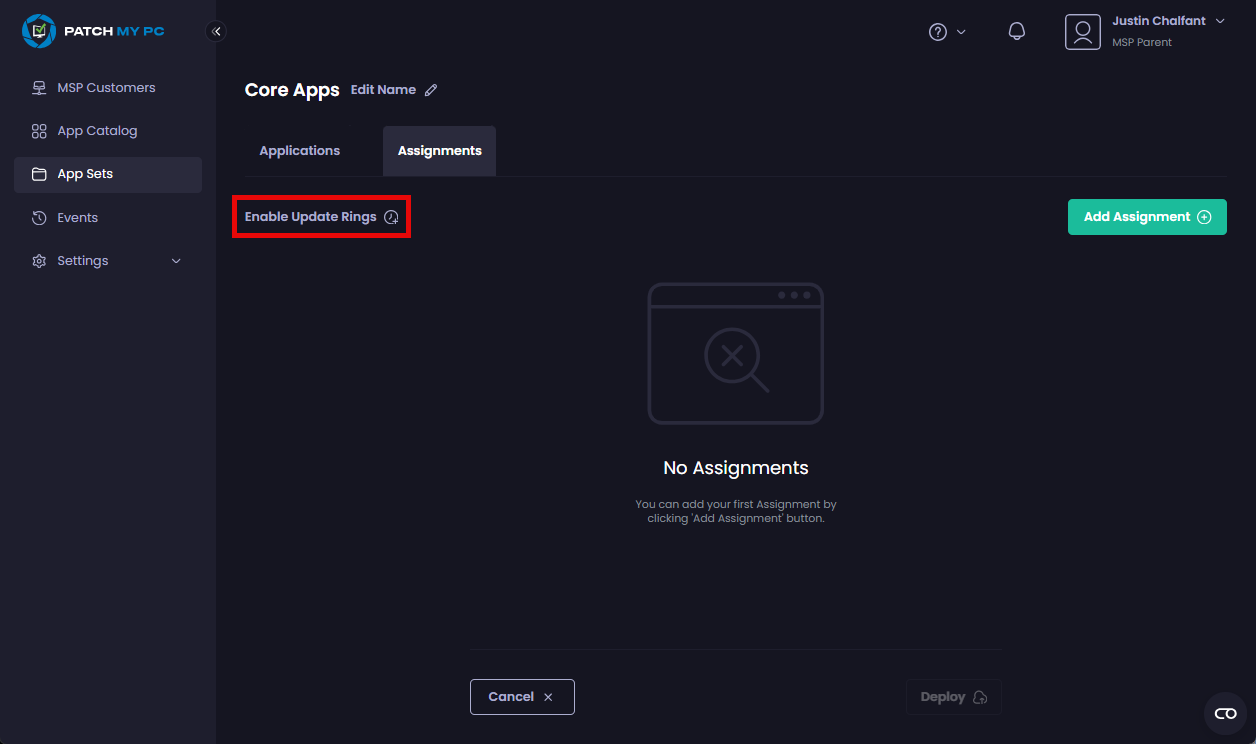
3. Click **Enable Update Rings** and [configure them](/patch-my-pc-cloud/deployments/update-rings/create.md) as required.
{% hint style="info" %}
**Note**
In App Sets, we only support [Immediate ](https://docs.patchmypc.com/installation-guides/patch-my-pc-cloud/deployments/update-rings/how-update-rings-are-created#immediate-update-rings)Update Rings.
You can add multiple companies to an App Set and to the same set of Update Rings.
A child customer also doesn’t need to be present in all rings. For example, if you create four Update Rings for an App Set, but a child customer only requires two rings, you only need to add that child customer to the two relevant rings. On the child customer side, only the rings they are part of will be created in the child company, not all four rings defined in the App Set.
{% endhint %}
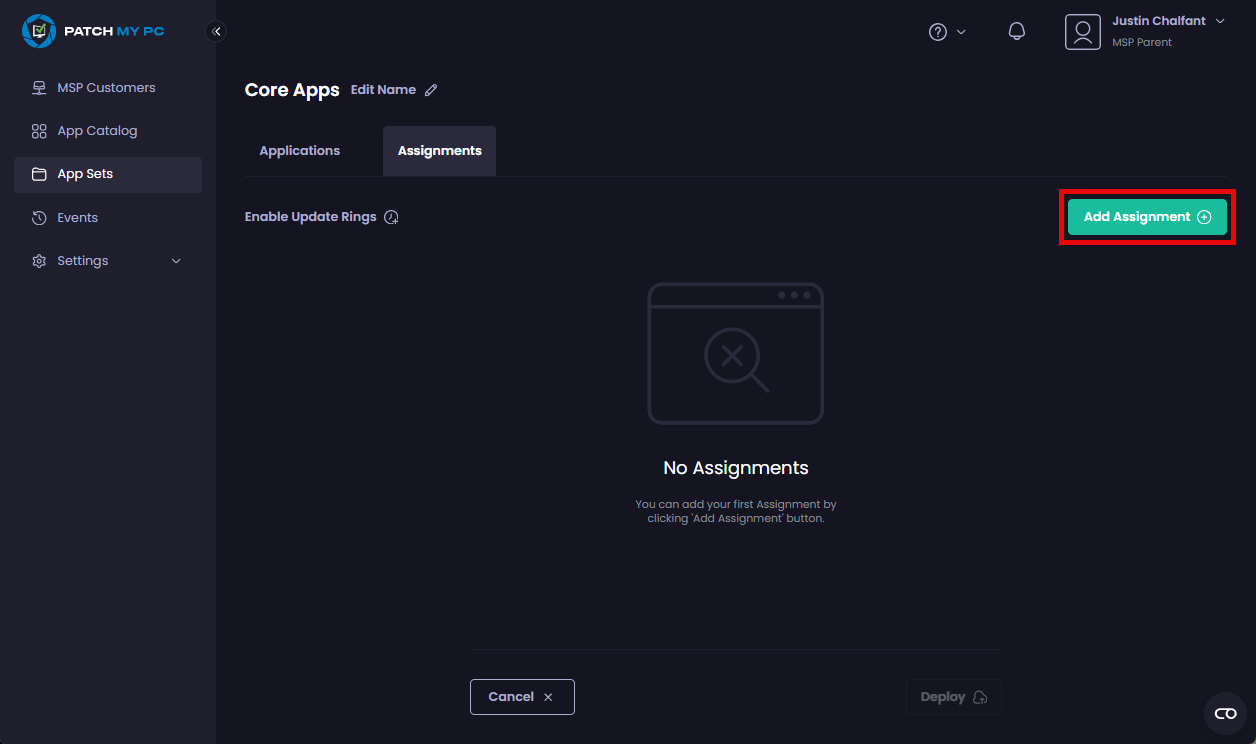
4. Click **Add Assignment**\
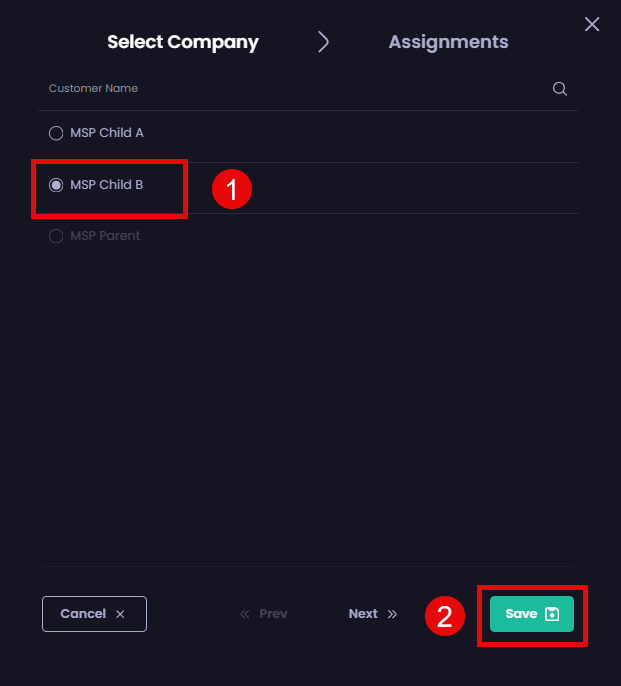
5. Select the relevant company that has an Intune connection that you want to assign this deployment to and click **Next**
{% hint style="info" %}
**Note**
You can only select a single company at a time (up to a maximum of 100), as every company’s Entra ID setup in terms of resources will be different.
{% endhint %}
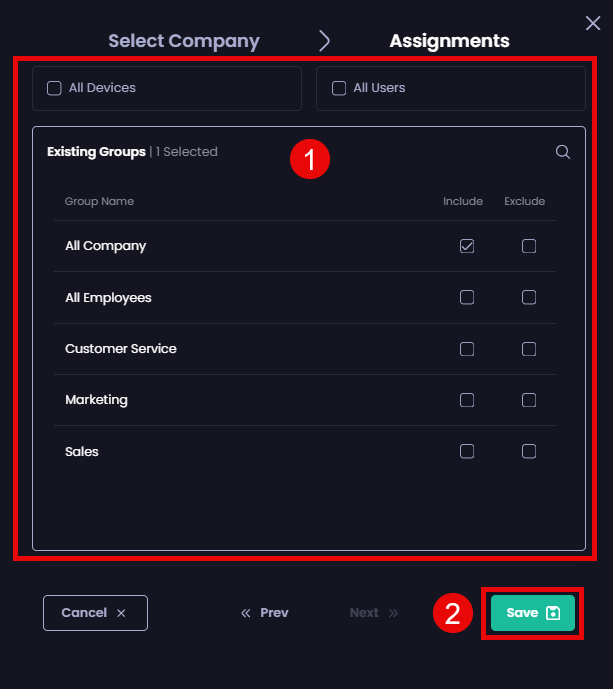
6. On the **Assignments** tab, select the relevant resources you want to deploy this app to and click **Save**.
7. Repeat steps 4 to 6 to add any additional companies you want to deploy this App Set to.
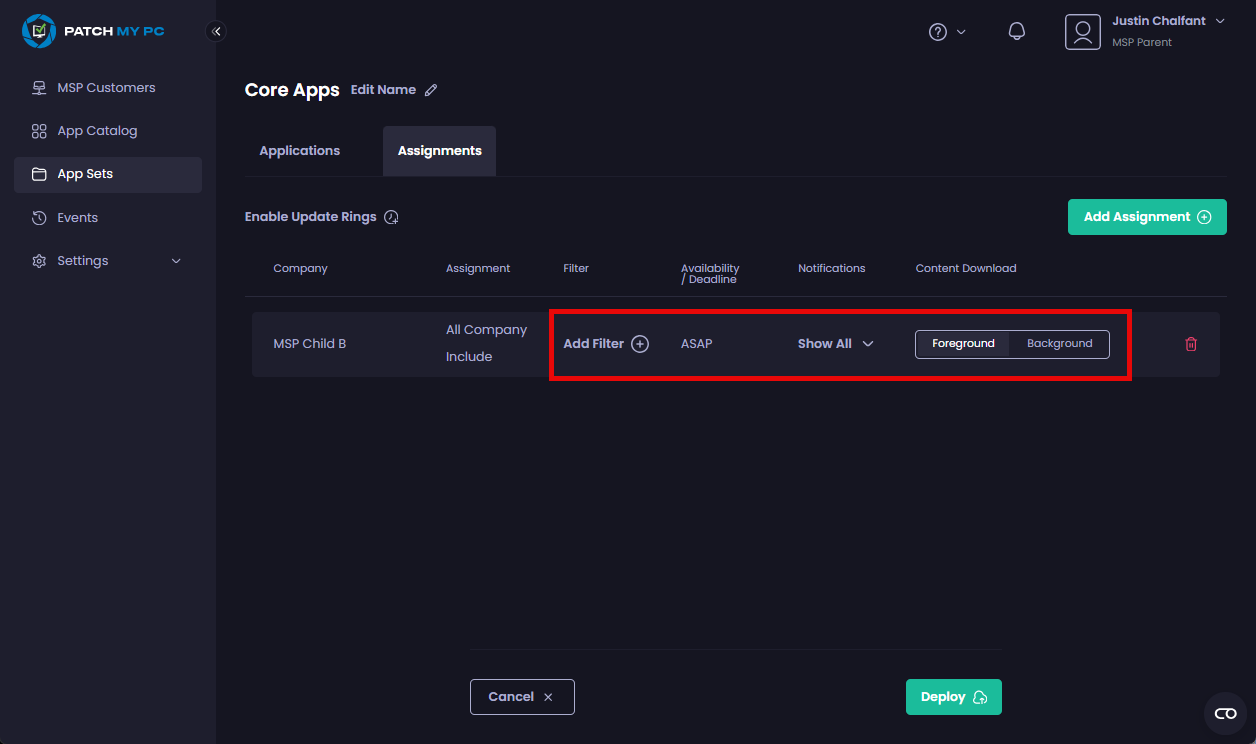
8. On the **App Set** page, configure any required settings for the assignments.
{% hint style="success" %}
**Tip**
If you are using Update Rings for this App Set, we recommend you create all of the assignments first, which adds all of them to the first Update Ring. Then drag and drop the assignments to the relevant rings.
{% endhint %}
9. Click **Deploy** to deploy this App Set.
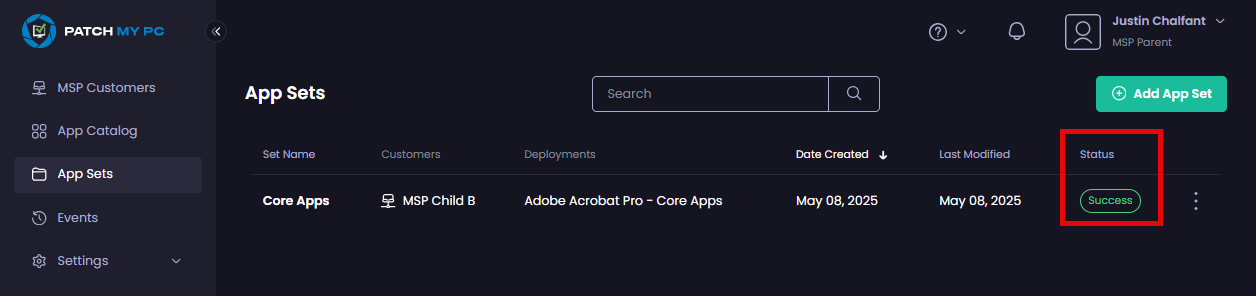
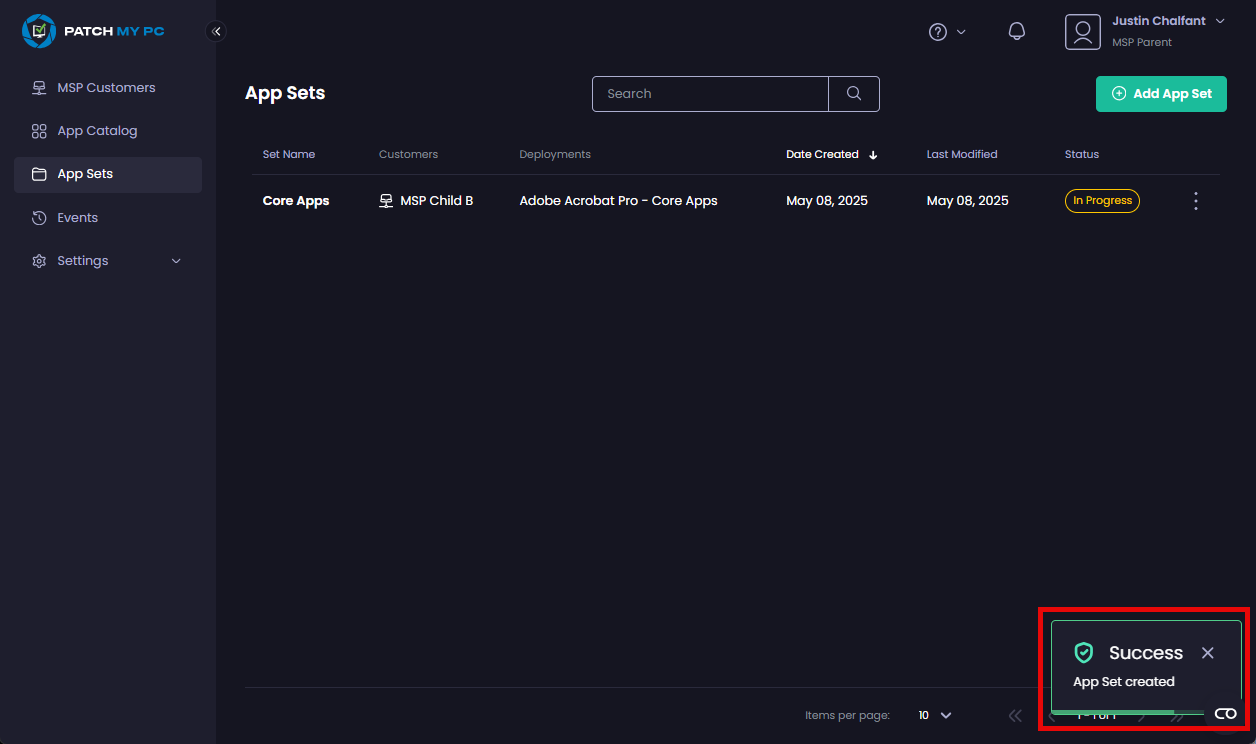
The **App Sets** page is redisplayed along with the **Success – App Set created** notification. The newly created App Set will show a Status of **In Progress**, followed by **Success** once all the deployments within the App Set have been completed successfully.
{% hint style="info" %}
**Note**
The **Status** will show as **Failed** if one or more of the deployments fails.
{% endhint %}
{% hint style="success" %}
**Tip**
You and the admins at the child company can monitor the status of each individual deployment from the **Deployments** node of the targeted company.
{% endhint %}
{% hint style="danger" %}
**Important**
You cannot **Edit** or **Delete** a deployment from the **Deployments** node if it belongs to an App Set (these options are unavailable when clicking on the ellipsis (**⋮**) beside the deployment). This is another reason for adding the App Set’s name as a suffix to the app’s **Display Name** so that when you are viewing all of your deployments, you and the admins at your child companies can easily identify which deployment belongs to an App Set.
{% endhint %}
Once the App Set has been deployed successfully, it will show a **Status** of **Success** on the **App Sets** page.
{% hint style="info" %}
**Note**
Once successfully created, any deployments created as part of an App Set will be updated based on the Sync Schedule configured at each child customer. So even if you have a single App Set with deployments to multiple child customers, you can end up with different versions of the same app at different child customers depending on when the [Sync Schedule](/patch-my-pc-cloud/manage/settings/sync-schedule.md) runs. See [Manage Updates](/patch-my-pc-cloud/deployments/manage-deployments/updates.md) for more information.
{% endhint %}
---
# Agent Instructions
This documentation is published with GitBook. GitBook is the documentation platform designed so that both humans and AI agents can read, navigate, and reason over technical content effectively. Learn more at gitbook.com.
## Querying This Documentation
If you need additional information that is not directly available in this page, you can query the documentation by asking a question.
Perform an HTTP GET request on the following URL with the `ask` and `goal` query parameters:
```
GET https://docs.patchmypc.com/patch-my-pc-cloud/managed-service-provider-feature/msp-app-sets/create-an-msp-app-set.md?ask=&goal=
```
`ask` is the immediate question: it should be specific, self-contained, and written in natural language.
`goal` is what the user is ultimately trying to achieve, the reason they need the answer. Sharing it helps GitBook give you a better, more relevant answer. A goal is most helpful when it describes the outcome the user wants rather than restating the question. For example, with `ask=how do I create an API token`, a goal like `automate deployments from our CI pipeline` lets GitBook tailor the answer to that use case.
The response will contain a direct answer to the question and relevant excerpts and sources from the documentation.
Use this mechanism when the answer is not explicitly present in the current page, you need clarification or additional context, or you want to retrieve related documentation sections.


 {% endhint %}
{% hint style="danger" %}
**Important**
You cannot **Edit** or **Delete** a deployment from the **Deployments** node if it belongs to an App Set (these options are unavailable when clicking on the ellipsis (**⋮**) beside the deployment). This is another reason for adding the App Set’s name as a suffix to the app’s **Display Name** so that when you are viewing all of your deployments, you and the admins at your child companies can easily identify which deployment belongs to an App Set.
{% endhint %}
Once the App Set has been deployed successfully, it will show a **Status** of **Success** on the **App Sets** page.
{% endhint %}
{% hint style="danger" %}
**Important**
You cannot **Edit** or **Delete** a deployment from the **Deployments** node if it belongs to an App Set (these options are unavailable when clicking on the ellipsis (**⋮**) beside the deployment). This is another reason for adding the App Set’s name as a suffix to the app’s **Display Name** so that when you are viewing all of your deployments, you and the admins at your child companies can easily identify which deployment belongs to an App Set.
{% endhint %}
Once the App Set has been deployed successfully, it will show a **Status** of **Success** on the **App Sets** page.