> For the complete documentation index, see [llms.txt](https://docs.patchmypc.com/llms.txt). Markdown versions of documentation pages are available by appending `.md` to page URLs; this page is available as [Markdown](https://docs.patchmypc.com/patch-my-pc-cloud/managed-service-provider-feature/managed-service-provider-administration/manage-msp-users/manage-msp-invitations.md).
# Manage MSP Invitations
*Applies to: Patch My PC Cloud*
By using the invite functionality of the *Managed Service Provider* feature of Patch My PC (PMPC) Cloud, the customer of the child company can allow the MSP to manage their PMPC Cloud company without granting them global admin rights.
{% hint style="info" %}
**Note**
Please note the following:
* **Users not using PMPC Cloud -** If the users you plan to invite to your MSP company are not already using PMPC Cloud, you should follow the [Add a Company to Manage (Cloud MSP)](/patch-my-pc-cloud/managed-service-provider-feature/managed-service-provider-administration/manage-msp-companies/add-a-company-to-manage-cloud-msp.md) process.\
\
Any users created in the MSP parent company will automatically be assigned the same role in any child company, as child companies inherit user roles from the parent company.\
\
For example, if a user is created in the parent company and assigned the **Full Admin with Access Management** role, they will have the same role permissions in any child companies.
* **MSP Companies in different regions -** We currently do not support an MSP Parent Company being in a different region than the Child customer they want to invite.
A workaround for now is for the Child customer to delete their PMPC Cloud Portal Company and for the MSP to recreate it in the same region as their Parent Company.
{% endhint %}
Once a user has been invited, they will have to:
* [Accept the invitation](#accept-the-invitation-to-an-msp-parent-company)
* [Decline the invitation](#decline-the-invitation-to-an-msp-parent-company)
## Inviting a User to an MSP Company
To invite a user to an existing MSP Company:
1. Sign in to the parent PMPC Cloud MSP Company.
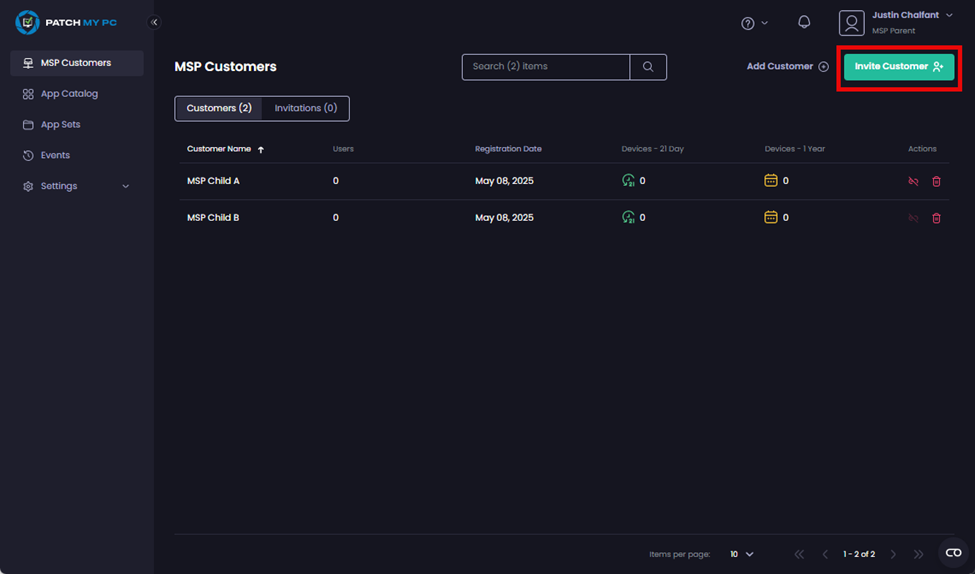
2. Navigate to **MSP Customers**
3. Click **Invite Customer**
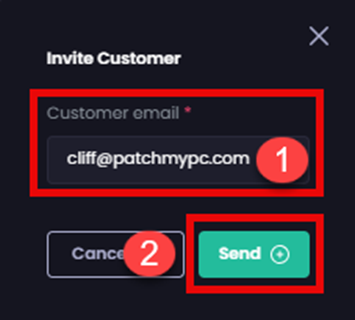
4. In the **Invite Customer** dialog box, enter the email address of the user within the child company you want to invite and click **Send**
The pending invitation appears under the **Invitations** tab of the **MSP Customers** screen, along with the **Success** message that the invitation has been sent.
An event stating the invitation has been sent to the user (including their email address) is also written to the **Events** node.
{% hint style="success" %}
**Tip**
You can also copy an invitation’s link and send it to the user for them to click or resend the invite to them (only after 6 hours).
{% endhint %}
5. The user then needs to decide whether to accept or decline the invitation by clicking the **Review Invitation** button in the email, and then, after signing in to their PMPC Cloud company, either:
1. [Accept the invitation](#accept-the-invitation-to-an-msp-parent-company)
2. [Decline the invitation](#decline-the-invitation-to-an-msp-parent-company)
## Accept the Invitation to an MSP Parent Company
To accept the invitation to allow the MSP Parent company to manage your PMPC Company:
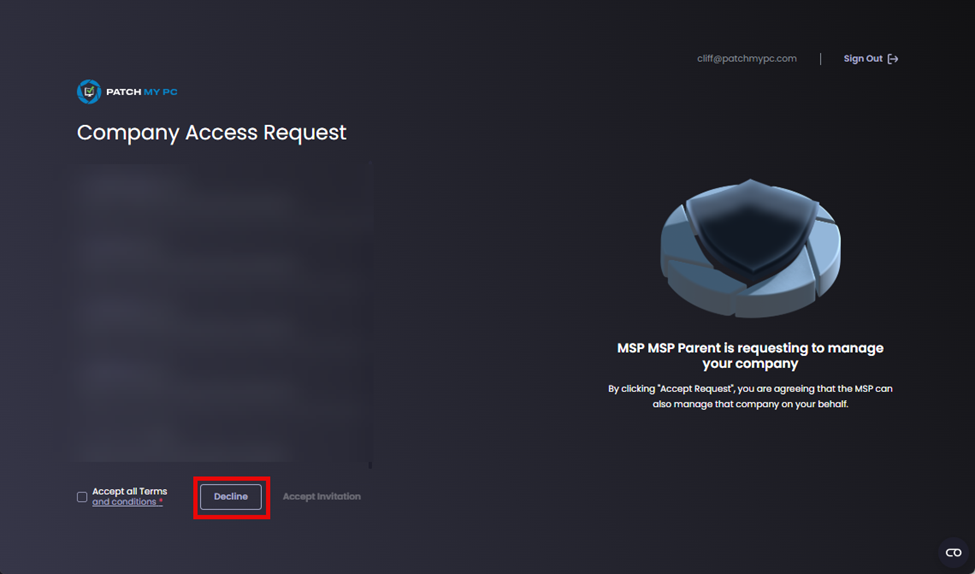
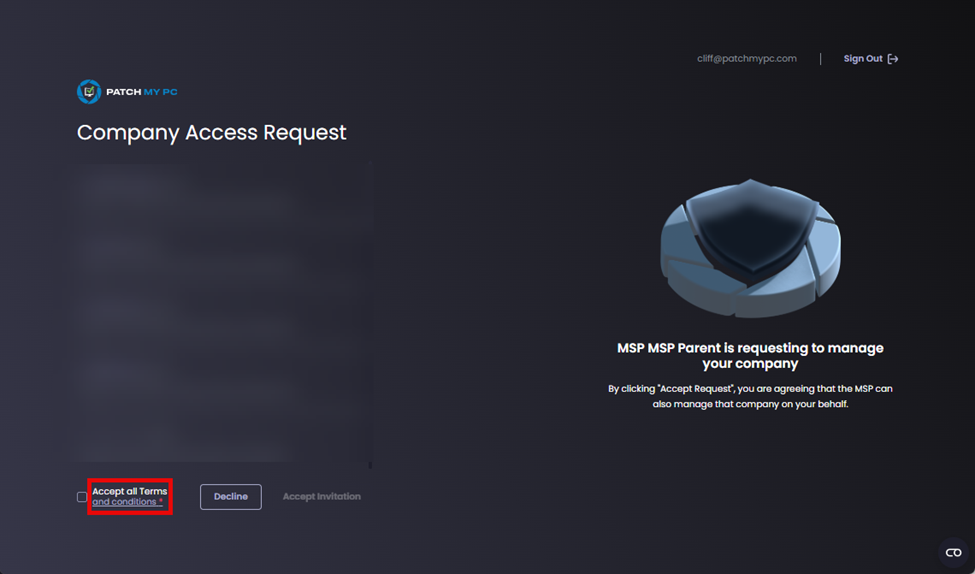
1. Click the **Terms and Conditions** link on the **Company Access Request** screen.
2. Review the Terms and Conditions, then click the **X** to close them.
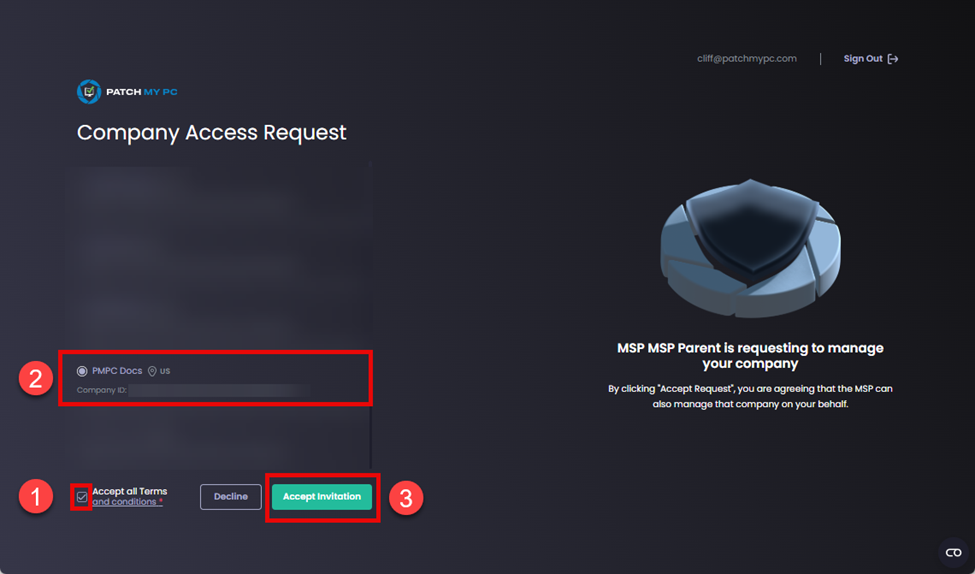
3. On the **Company Access Request** screen:
1. Check the **Accept all Terms and Conditions** checkbox
2. Select the relevant company you want to allow the MSP parent company to manage
3. Click **Accept Invitation**
{% hint style="info" %}
**Note**
If a company is greyed out on the **Company Access Request** screen, it’s either because it’s already being managed by an MSP or the user accepting the invitation does not have **Full Admin** rights in the company to be able to accept the invitation.
If no companies are available to select on the **Company Access Request** screen, the user has the option to click **Create new and Accept**, which will allow them to create a brand new company that can be managed by the MSP parent company.
{% endhint %}
The user is signed into their PMPC Cloud company, which now shows **Managed By *****\*** in the header.
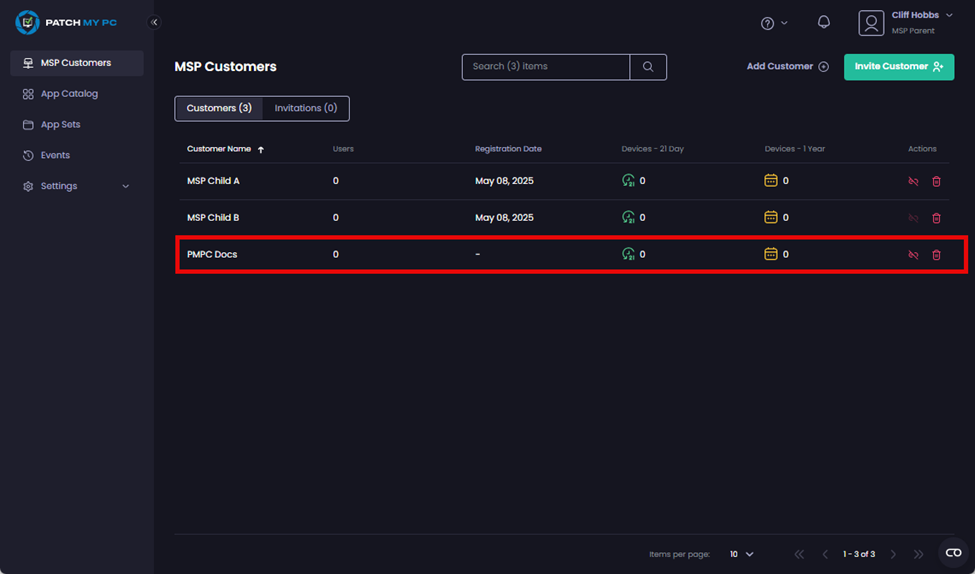
In the MSP Parent company, the company of the user who accepted the invitation is shown under the **Customers** tab of the **MSP Customers** screen.
An event indicating that the user has accepted the invitation (including their email address) is also written to the **Events** node.
## Decline the Invitation to an MSP Parent Company
To decline the invitation to allow the MSP Parent company to manage your PMPC Cloud company, you can either ignore the invitation (which will expire 15 days after it was sent) or click **Decline** on the **Company Access Request** screen.
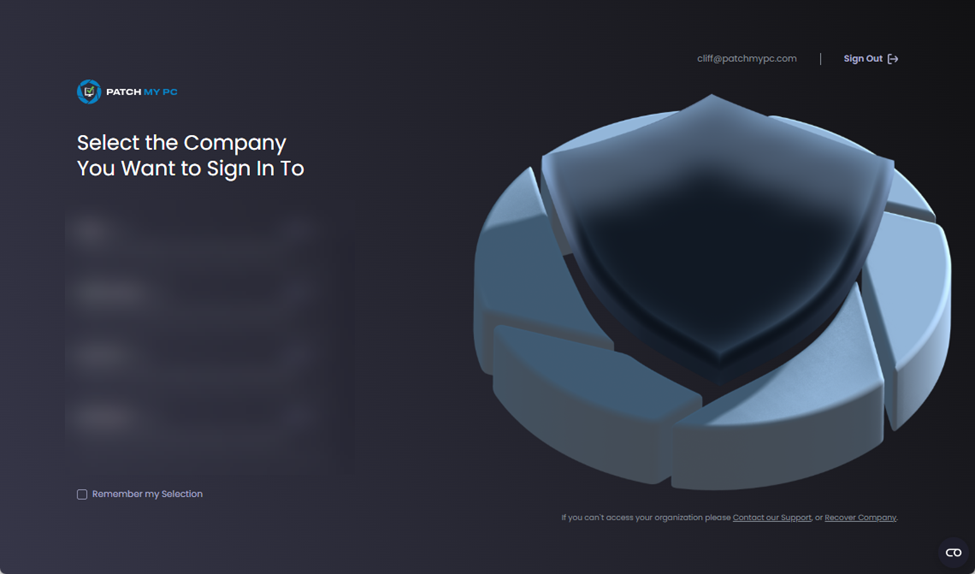
The **Select the Company You Want to Sign In To** screen is displayed.
In the MSP Parent company, the **Status** of the invitation changes to **Declined**
An event indicating that the user has declined the invitation (including their email address) is also written to the **Events** node.
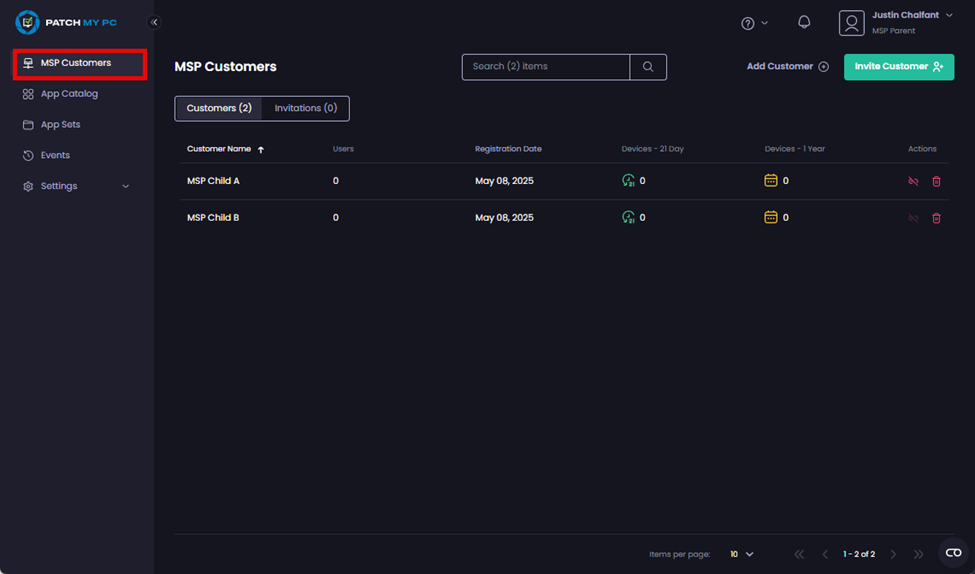
At this point, your only option is to either follow up with the relevant user to check why they declined the invitation or click the red trash can to delete the invitation.
---
# Agent Instructions
This documentation is published with GitBook. GitBook is the documentation platform designed so that both humans and AI agents can read, navigate, and reason over technical content effectively. Learn more at gitbook.com.
## Querying This Documentation
If you need additional information that is not directly available in this page, you can query the documentation dynamically by asking a question.
Perform an HTTP GET request on the current page URL with the `ask` query parameter, and the optional `goal` query parameter:
```
GET https://docs.patchmypc.com/patch-my-pc-cloud/managed-service-provider-feature/managed-service-provider-administration/manage-msp-users/manage-msp-invitations.md?ask=&goal=
```
`ask` is the immediate question: it should be specific, self-contained, and written in natural language.
`goal` is optional and describes the broader end goal you are ultimately trying to accomplish on behalf of the user. GitBook uses it to tailor the answer towards what is most useful for that goal.
The response will contain a direct answer to the question and relevant excerpts and sources from the documentation.
Use this mechanism when the answer is not explicitly present in the current page, you need clarification or additional context, or you want to retrieve related documentation sections.


 {% endhint %}
The user is signed into their PMPC Cloud company, which now shows **Managed By *****\
{% endhint %}
The user is signed into their PMPC Cloud company, which now shows **Managed By *****\