> For the complete documentation index, see [llms.txt](https://docs.patchmypc.com/llms.txt). Markdown versions of documentation pages are available by appending `.md` to page URLs; this page is available as [Markdown](https://docs.patchmypc.com/patch-my-pc-cloud/managed-service-provider-feature/managed-service-provider-administration/manage-msp-companies/remove-a-company-from-being-managed-cloud-msp.md).
# Remove a Company from being Managed (Cloud MSP)
*Applies to: Patch My PC Cloud*
If a parent Patch My PC (PMPC) Cloud Managed Service Provider (MSP) company no longer wants to manage a child company, they can remove the Intune connection and then delete the company.
Likewise, if a child company no longer wishes to be managed by an MSP, they can unlink themselves from the MSP using the [Unlink a Child Company](#unlink-a-child-company) process below.
{% hint style="info" %}
**Note**
To perform this process, you must be signed in as a user who is either a **Full Admin** or **Full Admin with Access Management**.
{% endhint %}
{% hint style="danger" %}
**Important**
Please note the following:
* You cannot delete a child company:
* If at least one user/group in that company is not assigned the **Full Admin with Access Management** user role.
* Without first removing the Intune connection. If you attempt to do this, you will see the [Intune connection with the same Id found in another environment!](/patch-my-pc-cloud/troubleshoot/environments/intune-connection-with-the-same-id-found-in-another-environment-error-in-cloud.md) error.
* An MSP admin cannot delete a child company from the Company node using the [Delete your Company](/patch-my-pc-cloud/manage/settings/company-settings/delete-company.md) process, as the option is unavailable.\
\

* Any Custom Apps for MSPs have been shared with and deployed from a child company, either unlinking or deleting a child company (either from the parent or child company), will:
* Delete the Custom App from the App Catalog of the child company.
* Delete any active deployments of the relevant Custom Apps.
* If you delete a child company that has App Sets deployed to it from the Parent Company, any deployments for apps that belong to those App Sets will be automatically deleted as part of the unlinking process.
* If an App Set is deployed to multiple companies, when the last company the App Set is deployed to is removed, the App Set itself will be automatically deleted.
{% endhint %}
### Remove the Intune connection for a Child Company
{% hint style="danger" %}
**Important**
If you remove the Intune connection for a Child Company that has App Sets deployed to it from the Parent Company, any deployments for apps that belong to those App Sets will be automatically deleted as part of the connection removal.
If an App Set is deployed to multiple companies, when the last Intune connection is deleted from the last company an App Set is deployed to, the App Set itself will be automatically deleted.
{% endhint %}
To remove the Intune connection for a Child Company:
1. On the parent company, sign in as a user who is either a **Full Admin** or **Full Admin with Access Management**.
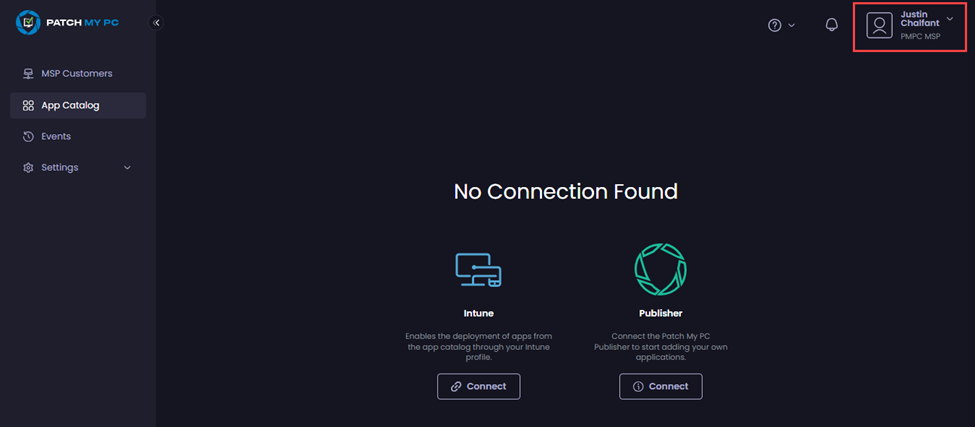
2. Navigate to the **MSP Customers** node.
3. Click your user name in the top right-hand corner.
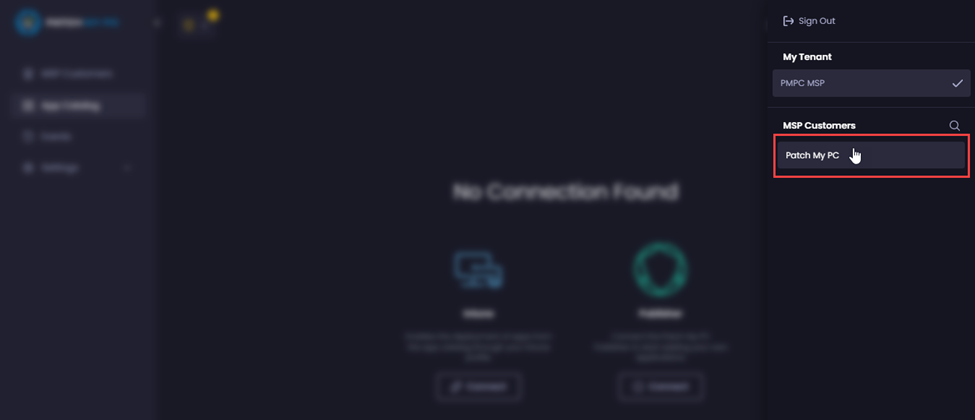
4. Select the child company to switch to.
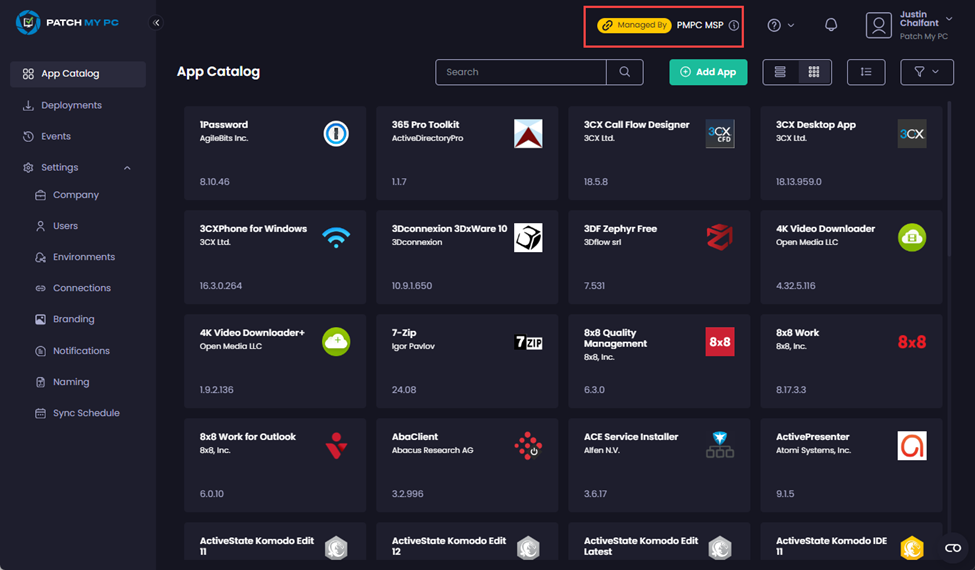
The portal refreshes to show the child company has been selected as the **Managed By <*****msp\_name*****>** indicator is shown in the header.
5. If the child company is no longer required and is going to be deleted, proceed to Step 6.\
\
If the child company is not going to be deleted, you should navigate to the **Users** node and follow the [Invitation from an Administrator](/patch-my-pc-cloud/manage/settings/users/add-user.md#invitation-from-an-administrator) process to add at least one user who is a member of the child company.\
\
This user should be assigned the **Full Admin with Access Management** role as they will be responsible for the ongoing management of the child company once the parent company no longer manages it.
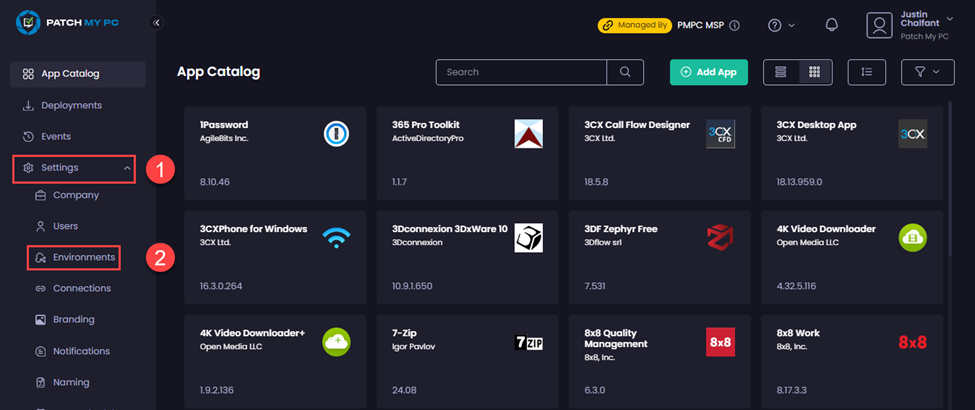
6. Navigate to **Settings | Environments**.
7. Click **Delete** beside Intune.
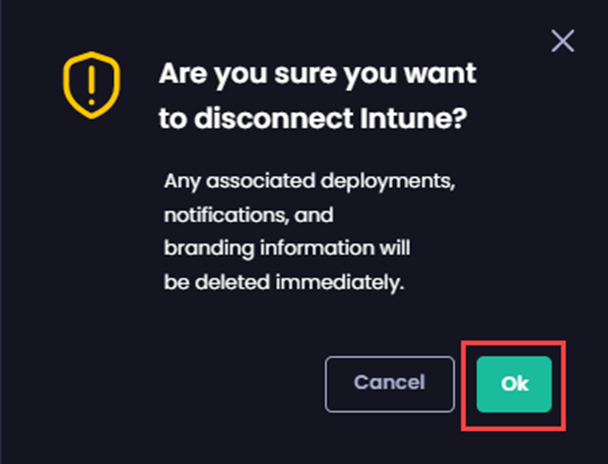
8. On the **Are you sure you want to disconnect Intune** popup, click **OK**.
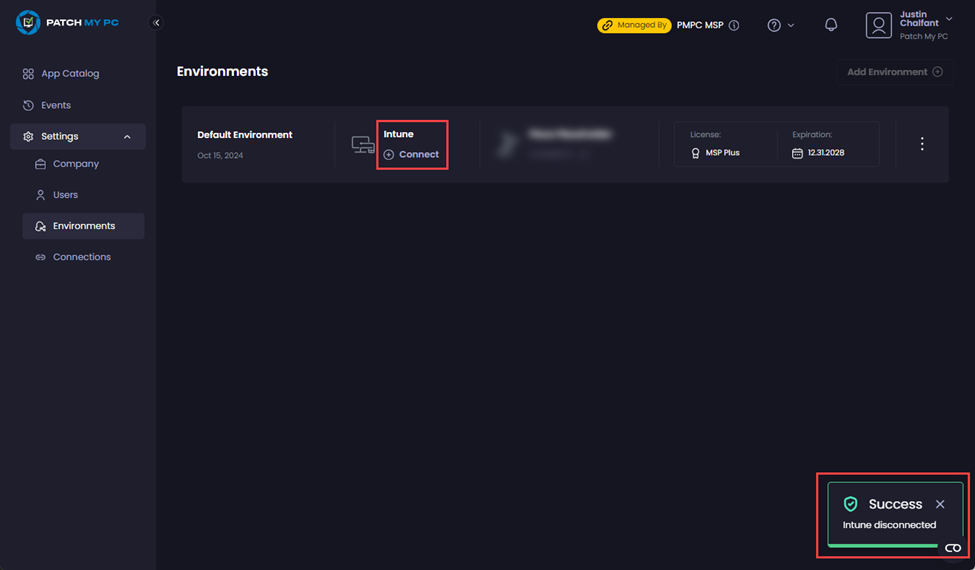
The portal refreshes to show that the Intune connection has been deleted and the **Success – Intune disconnected** notification is displayed.
You can now follow the [Delete a Child Company](#delete-a-child-company) process if you want to delete the child company.
### Delete a Child Company
Once the Intune connection for a Child Company has been removed, to delete a child company from a parent company:
1. On the parent company, sign in as a user who is either a **Full Admin** or **Full Admin with Access Management**.
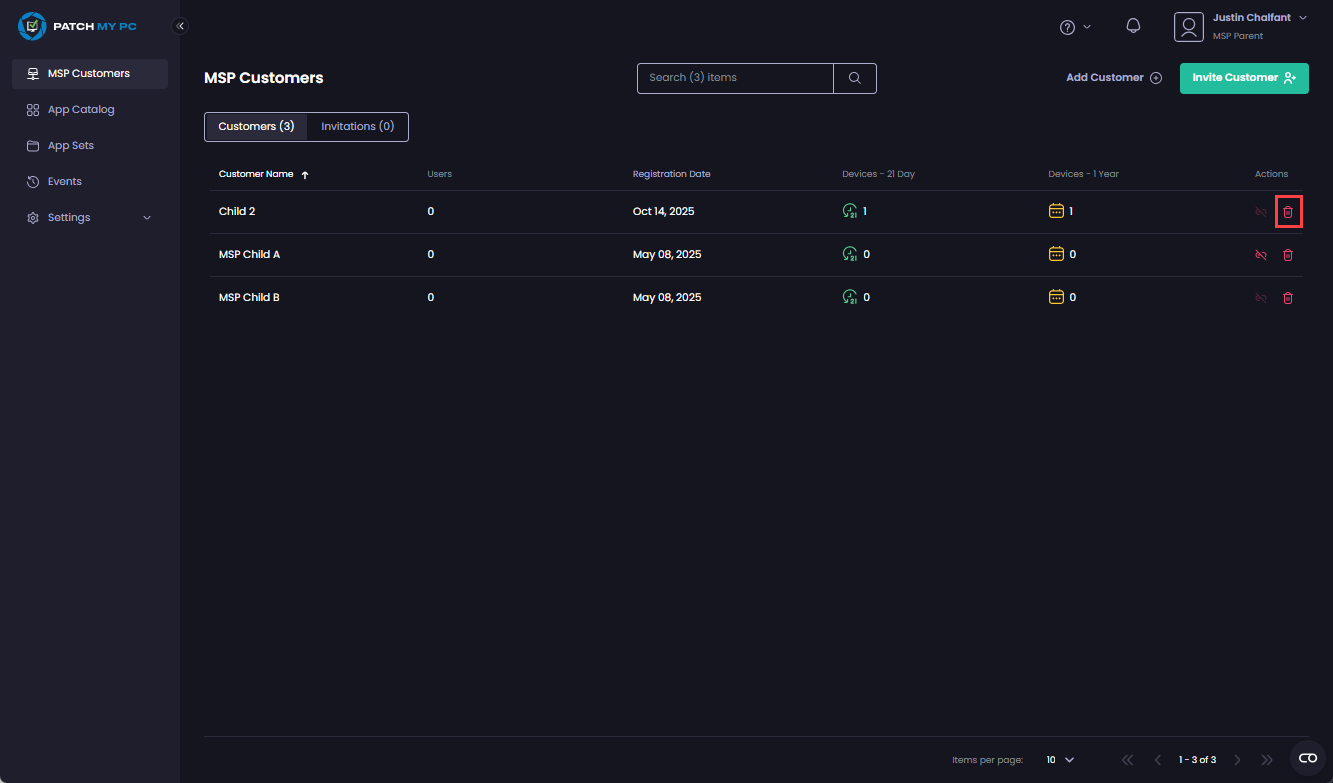
2. Navigate to the **MSP Customers** node.
3. Click the trashcan () beside the child company you want to remove.
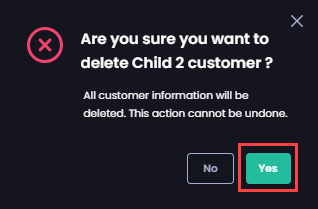
4. On the **Are you sure you want to delete <*****child\_company\_name*****> customer** dialog box, click **Yes**.
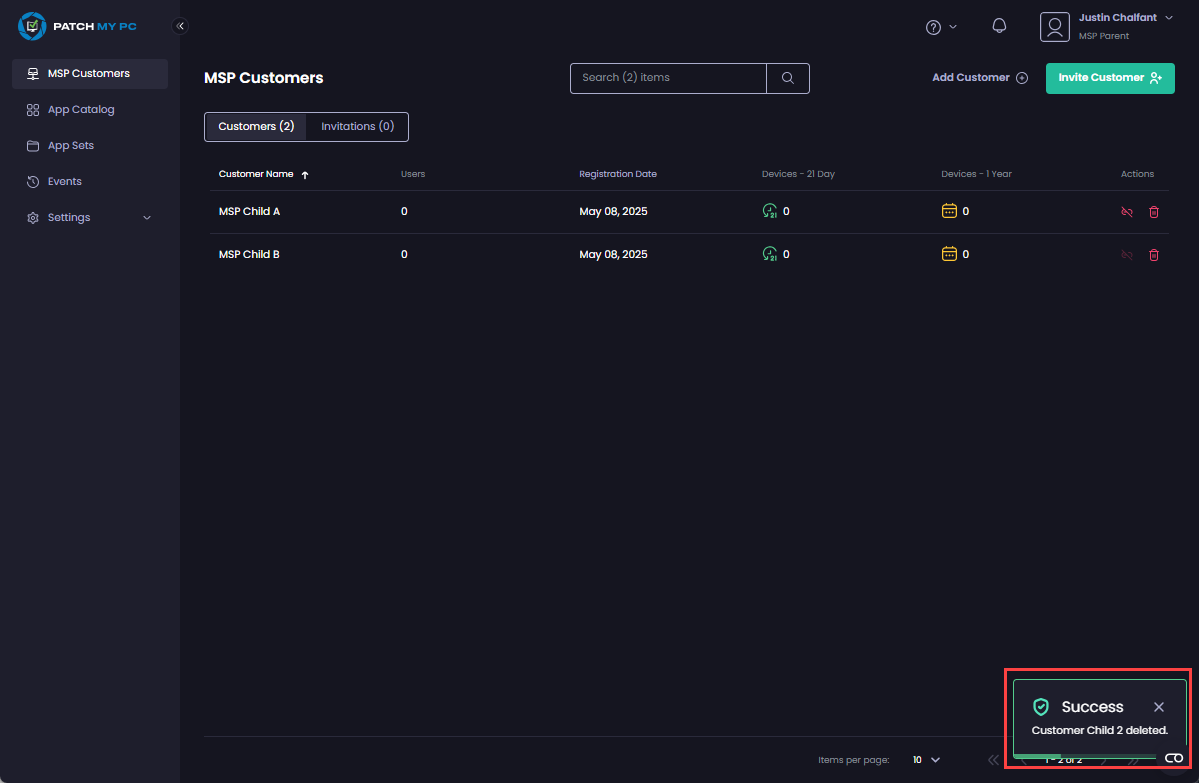
The portal refreshes to show the child company has been deleted and the **Success – Customer <*****child\_company\_name*****> deleted** notification is shown.
### Unlink a Child Company
If a child company no longer wishes to be managed by a parent MSP company, it can be unlinked from the parent MSP company.
{% hint style="info" %}
**Note**
To perform this process requires you sign in as a user that is either a **Full Admin** or **Full Admin with Access Management**.
{% endhint %}
To unlink a child company from a parent MSP company:
1. Verify the parent MSP company has created at least one user in the child company (by following the [Invitation from an Administrator](/patch-my-pc-cloud/manage/settings/users/add-user.md#invitation-from-an-administrator) process).\
\
This user should be assigned the **Full Admin with Access Management** role as they will be responsible for the ongoing management of the child company once the parent company no longer manages it.
2. Sign in to the child company using a user with either the **Full Admin** or **Full Admin with Access Management** role.
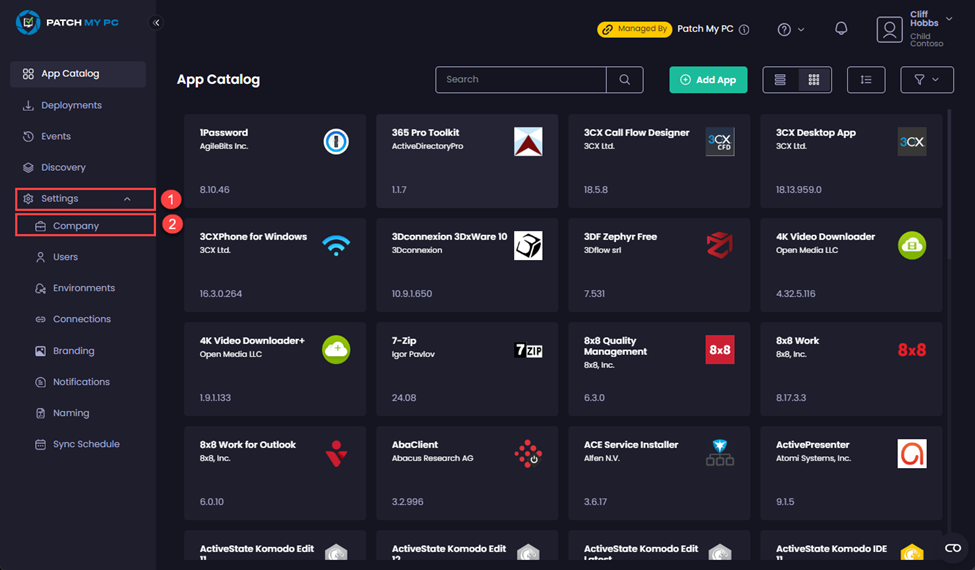
3. Navigate to **Settings | Company**.
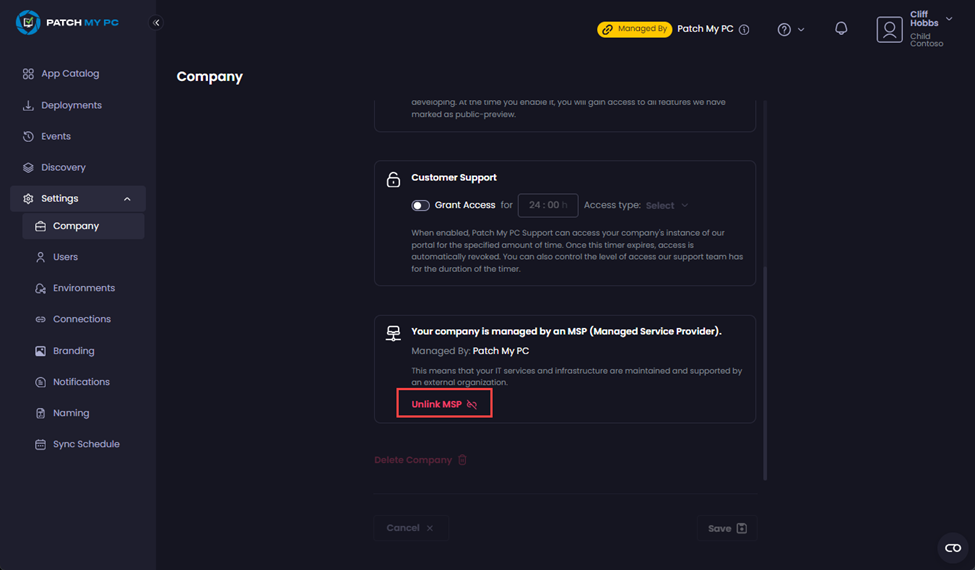
4. Scroll down to the **Your company is managed by an MSP (Managed Service Provider)** section, then click **Unlink MSP**
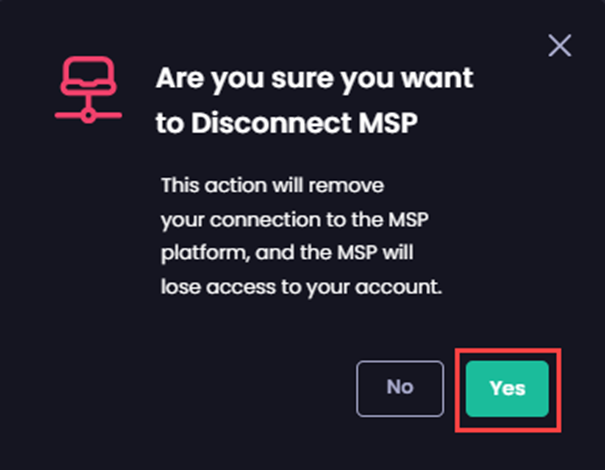
5. On the **Are you sure you want to Disconnect MSP** dialog box, click **Yes**.
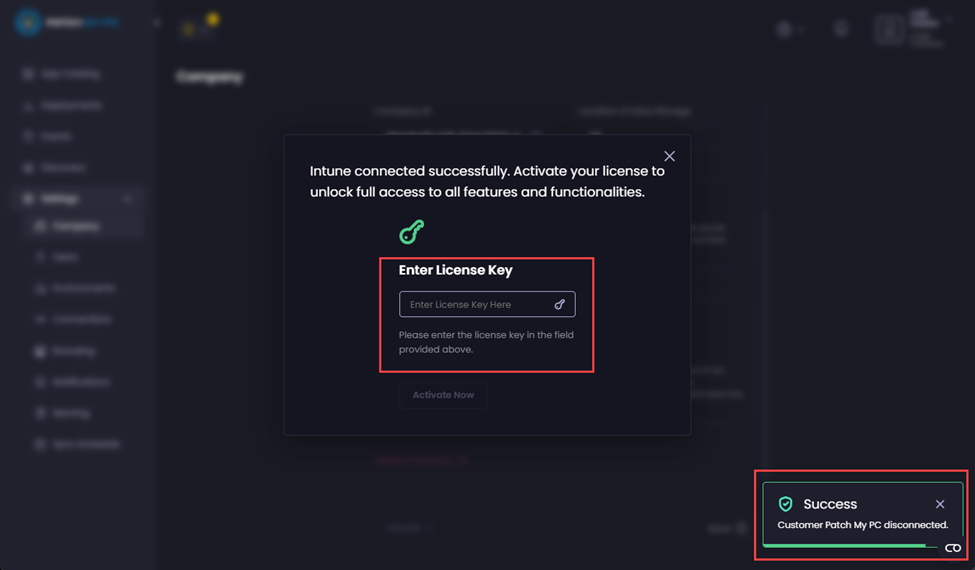
6. The **Customer <*****parent\_company\_name*****>** notification is displayed and you will prompted to enter a non-MSP+ license for the child company as it has been disconnected from the parent MSP company.
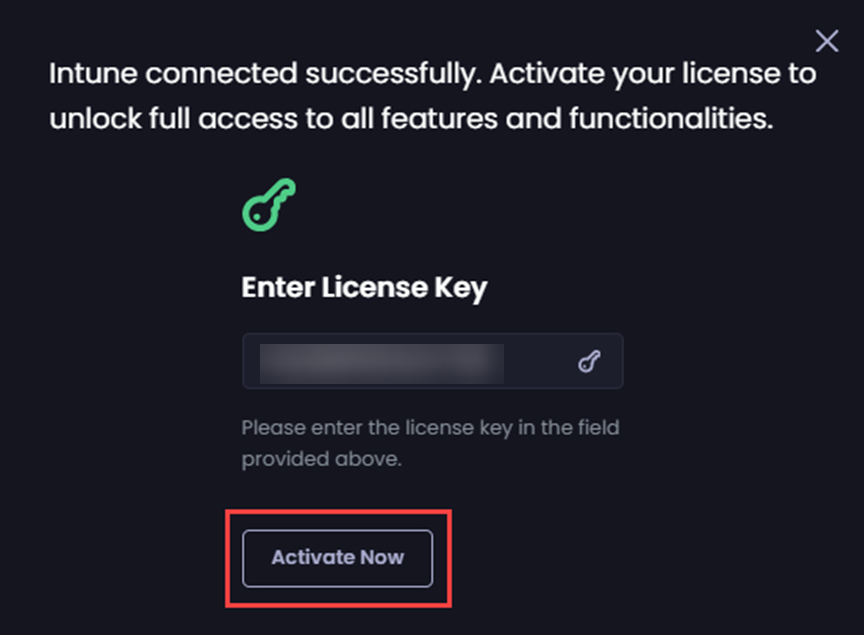
7. Enter the license key and click **Activate Now**.
{% hint style="info" %}
**Note**
You cannot use a trial license for a company that an MSP has previously managed.
{% endhint %}
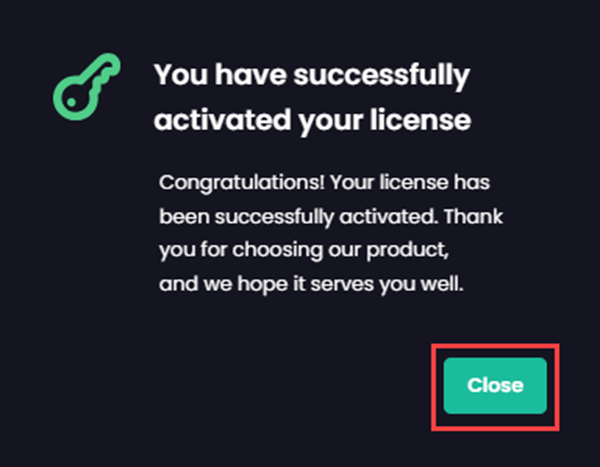
8. On the **You have successfully activated your license** popup, click **Close**.
The following event is created on the parent MSP company so they know a user at the child site has unlinked the child company from the parent company:
**Managed Company Relationship for <*****child\_company\_name*****> Removed by <*****user\_name*****>**
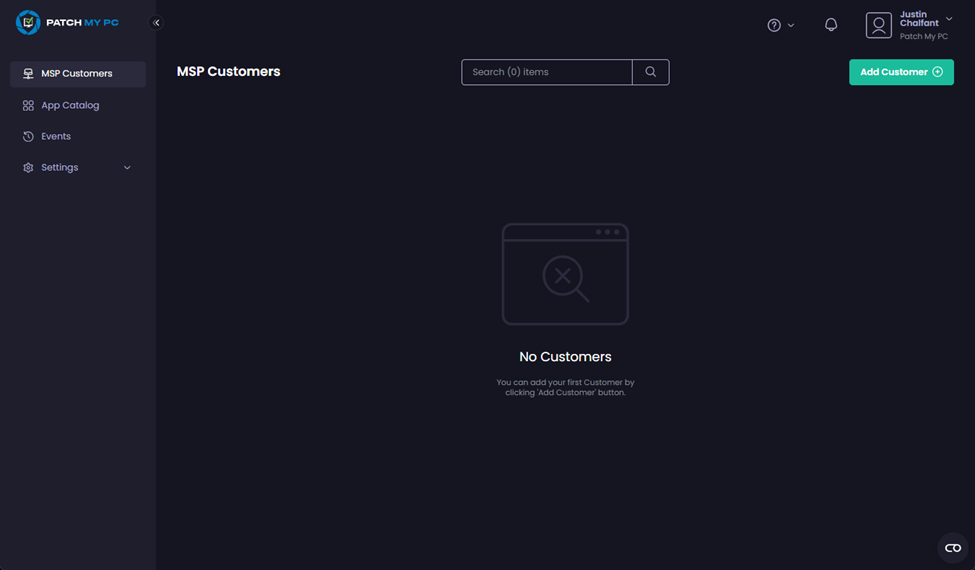
Also, the child company is automatically deleted from the parent company.
---
# Agent Instructions
This documentation is published with GitBook. GitBook is the documentation platform designed so that both humans and AI agents can read, navigate, and reason over technical content effectively. Learn more at gitbook.com.
## Querying This Documentation
If you need additional information that is not directly available in this page, you can query the documentation by asking a question.
Perform an HTTP GET request on the following URL with the `ask` and `goal` query parameters:
```
GET https://docs.patchmypc.com/patch-my-pc-cloud/managed-service-provider-feature/managed-service-provider-administration/manage-msp-companies/remove-a-company-from-being-managed-cloud-msp.md?ask=&goal=
```
`ask` is the immediate question: it should be specific, self-contained, and written in natural language.
`goal` is what the user is ultimately trying to achieve, the reason they need the answer. Sharing it helps GitBook give you a better, more relevant answer. A goal is most helpful when it describes the outcome the user wants rather than restating the question. For example, with `ask=how do I create an API token`, a goal like `automate deployments from our CI pipeline` lets GitBook tailor the answer to that use case.
The response will contain a direct answer to the question and relevant excerpts and sources from the documentation.
Use this mechanism when the answer is not explicitly present in the current page, you need clarification or additional context, or you want to retrieve related documentation sections.
.png?alt=media)