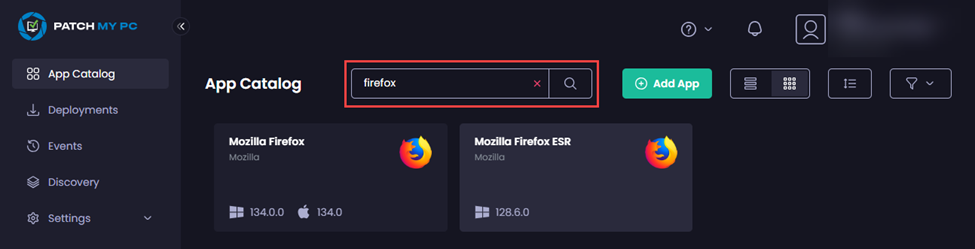
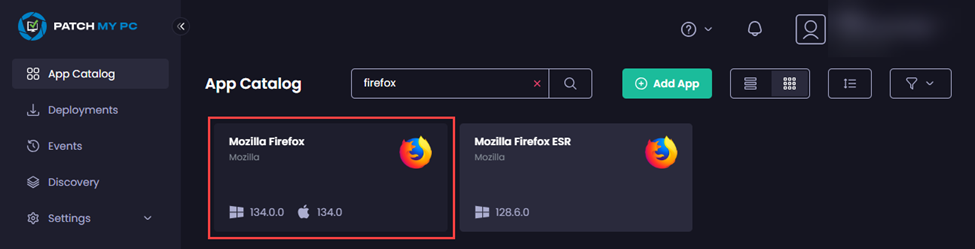
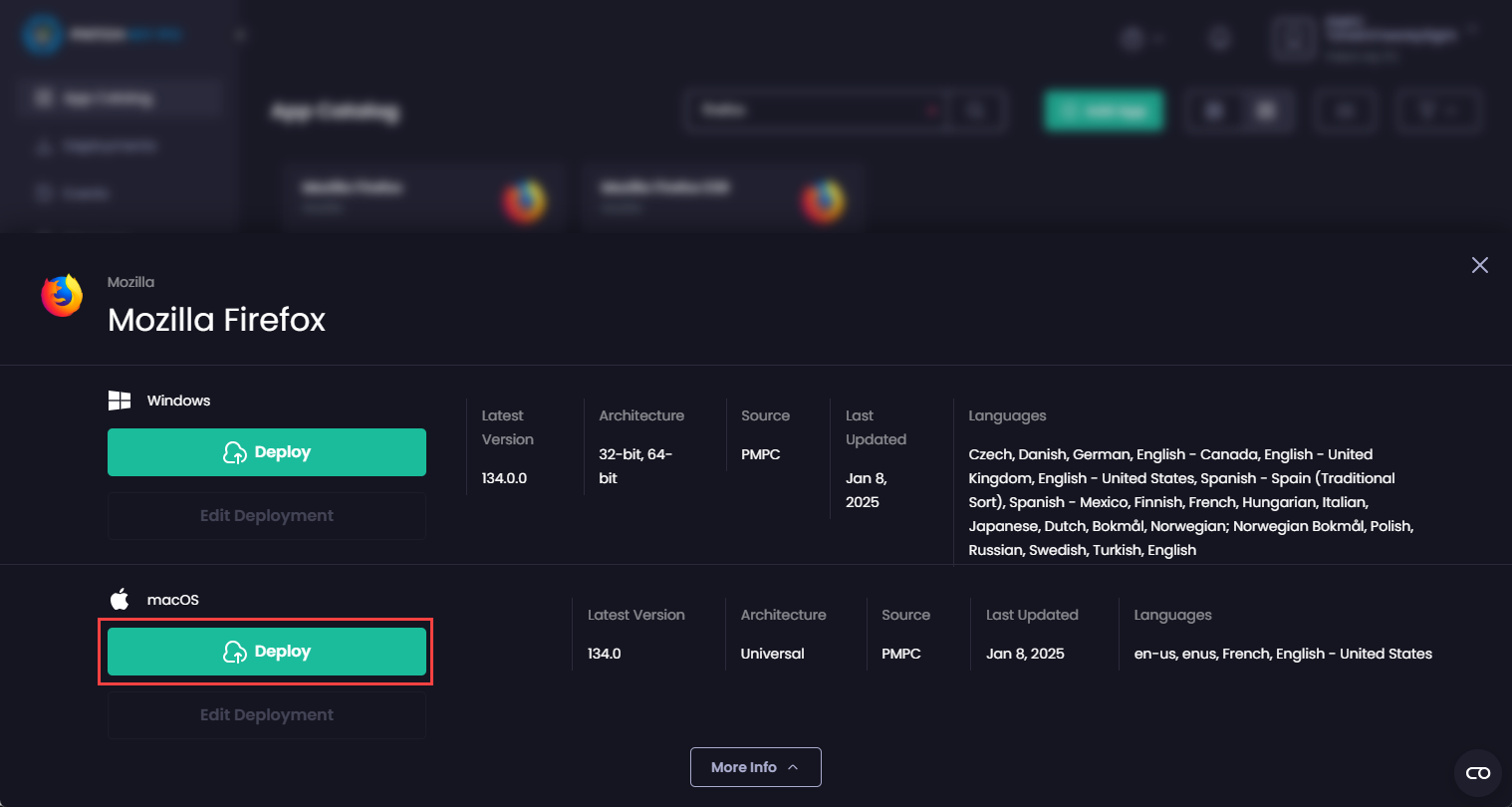
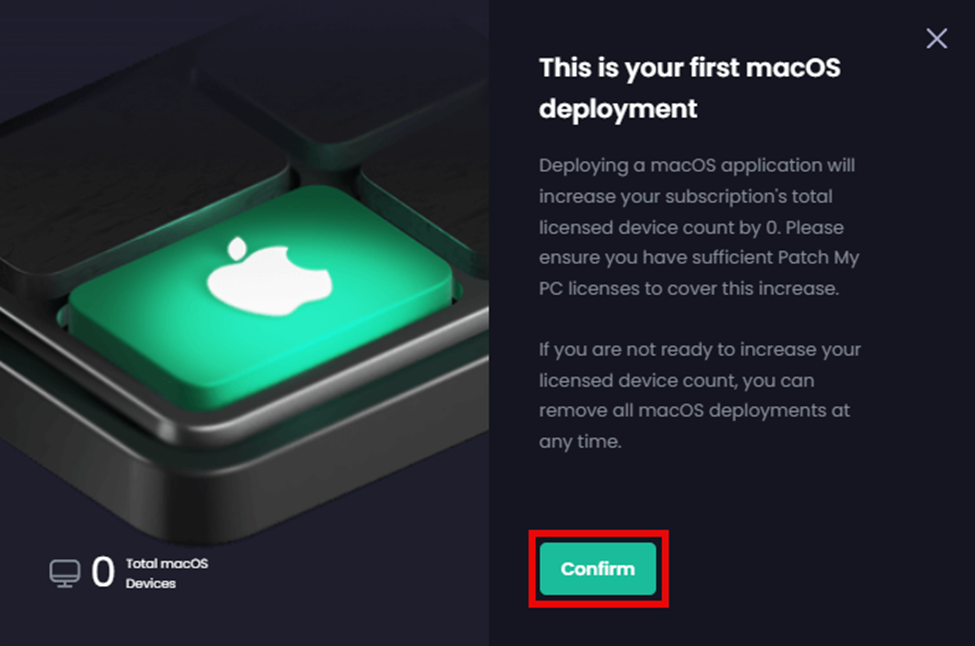
 {% endhint %}
## macOS Deployment Specifics
As Intune handles Windows and macOS apps differently, not all options are available for macOS apps. As Microsoft improves macOS support in Intune, we will endeavor to support any such improvements in PMPC Cloud.
But for now, the following key differences exist:
* **Installer Types (General tab) –** macOS only supports **.dmg**, **.pkg (LOB)**, and **.pkg** installers.
* **Architecture (General tab) –** macOS supports the **Universal** type, which runs on all macOS architectures.
* You cannot add an **Available** assignment and assign it to the built-in **All Devices** group, as Intune currently does not support deploying macOS apps to devices.
* We do not visually identify Line of Business (LOB) apps specifically in our App Catalog.
* Once you've added an Assignment, the following options are unavailable:
* Availability/Deadline
* Notifications
* Content Download.
{% hint style="info" %}
**Note**
See [How to add macOS line-of-business (LOB) apps to Microsoft Intune](https://learn.microsoft.com/en-us/mem/intune/apps/lob-apps-macos) for more details on deploying this type of app with Microsoft Intune.
{% endhint %}
## Create a macOS Deployment
When creating a deployment, the following settings are available for each **Installer Type**.
{% endhint %}
## macOS Deployment Specifics
As Intune handles Windows and macOS apps differently, not all options are available for macOS apps. As Microsoft improves macOS support in Intune, we will endeavor to support any such improvements in PMPC Cloud.
But for now, the following key differences exist:
* **Installer Types (General tab) –** macOS only supports **.dmg**, **.pkg (LOB)**, and **.pkg** installers.
* **Architecture (General tab) –** macOS supports the **Universal** type, which runs on all macOS architectures.
* You cannot add an **Available** assignment and assign it to the built-in **All Devices** group, as Intune currently does not support deploying macOS apps to devices.
* We do not visually identify Line of Business (LOB) apps specifically in our App Catalog.
* Once you've added an Assignment, the following options are unavailable:
* Availability/Deadline
* Notifications
* Content Download.
{% hint style="info" %}
**Note**
See [How to add macOS line-of-business (LOB) apps to Microsoft Intune](https://learn.microsoft.com/en-us/mem/intune/apps/lob-apps-macos) for more details on deploying this type of app with Microsoft Intune.
{% endhint %}
## Create a macOS Deployment
When creating a deployment, the following settings are available for each **Installer Type**.
| Setting | .dmg | .pkg | .pkg (LOB) Managed | .pkg (LOB) Unmanaged |
|---|---|---|---|---|
| Add Required assignment? | Yes | Yes | Yes | Yes |
| Add Available assignment? | Yes | Yes | Yes | Yes |
| Add an Add Uninstall assignment? | Yes | No | Yes* | Yes* |
| Add an Update Only assignment? | No | No | No | No |
| Supports Assignment Filters? | No | Yes | Yes | Yes |
| Add Scripts? | No | Yes | No | No |
| Supports managed device assignment filters? | N/A | No | Yes*** | No |
| Modify the Uninstall on Unenrollment setting? | No | No | Yes** | No |
| Modify the Install App as Managed setting? | N/A | No | Yes* | No |