> For the complete documentation index, see [llms.txt](https://docs.patchmypc.com/llms.txt). Markdown versions of documentation pages are available by appending `.md` to page URLs; this page is available as [Markdown](https://docs.patchmypc.com/patch-my-pc-cloud/deployments/update-rings/create.md).
# Create Update Rings in Patch My PC Cloud
*Applies to: Patch My PC Cloud*
To create Update Rings for a new Deployment in Patch My PC (PMPC) Cloud:
1. If you are unfamiliar with creating a deployment, follow the [Deploy an App](/patch-my-pc-cloud/deployments/deploy-app.md) process until Step 7.
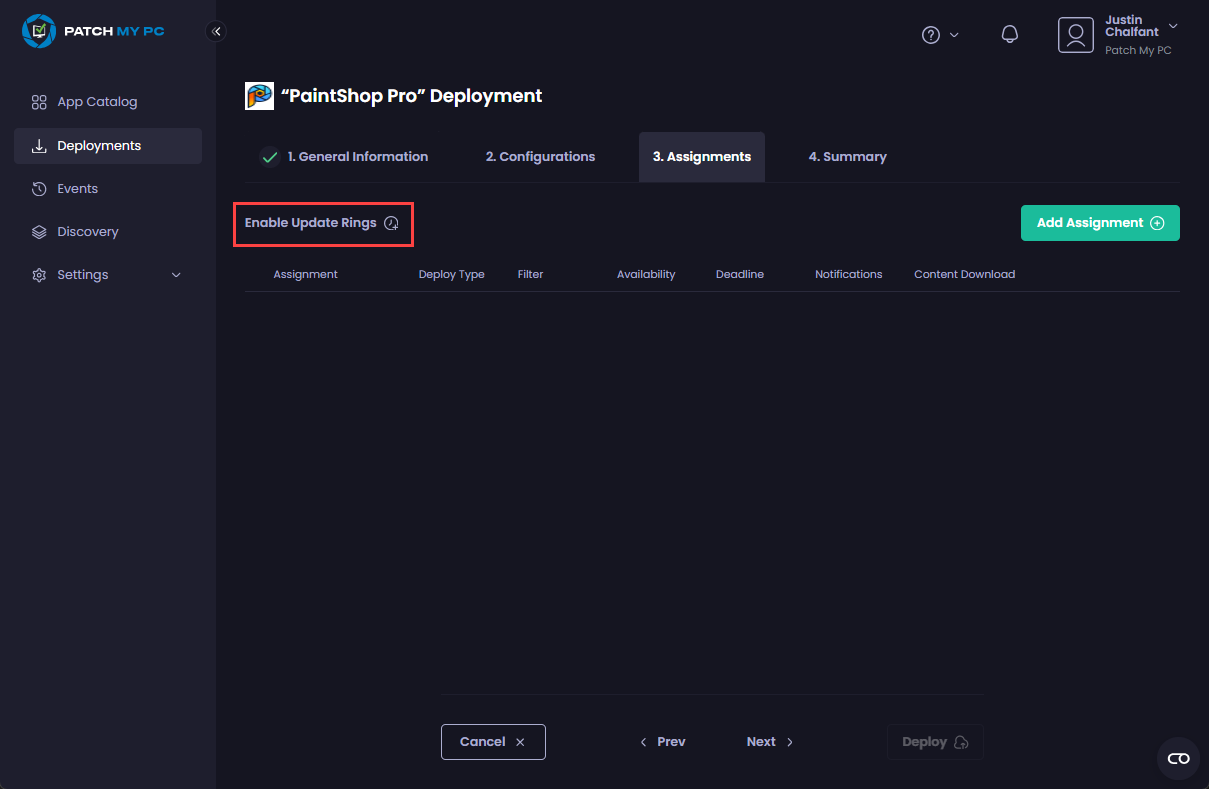
2. On the **Assignments** page, click **Enable Update Rings**.
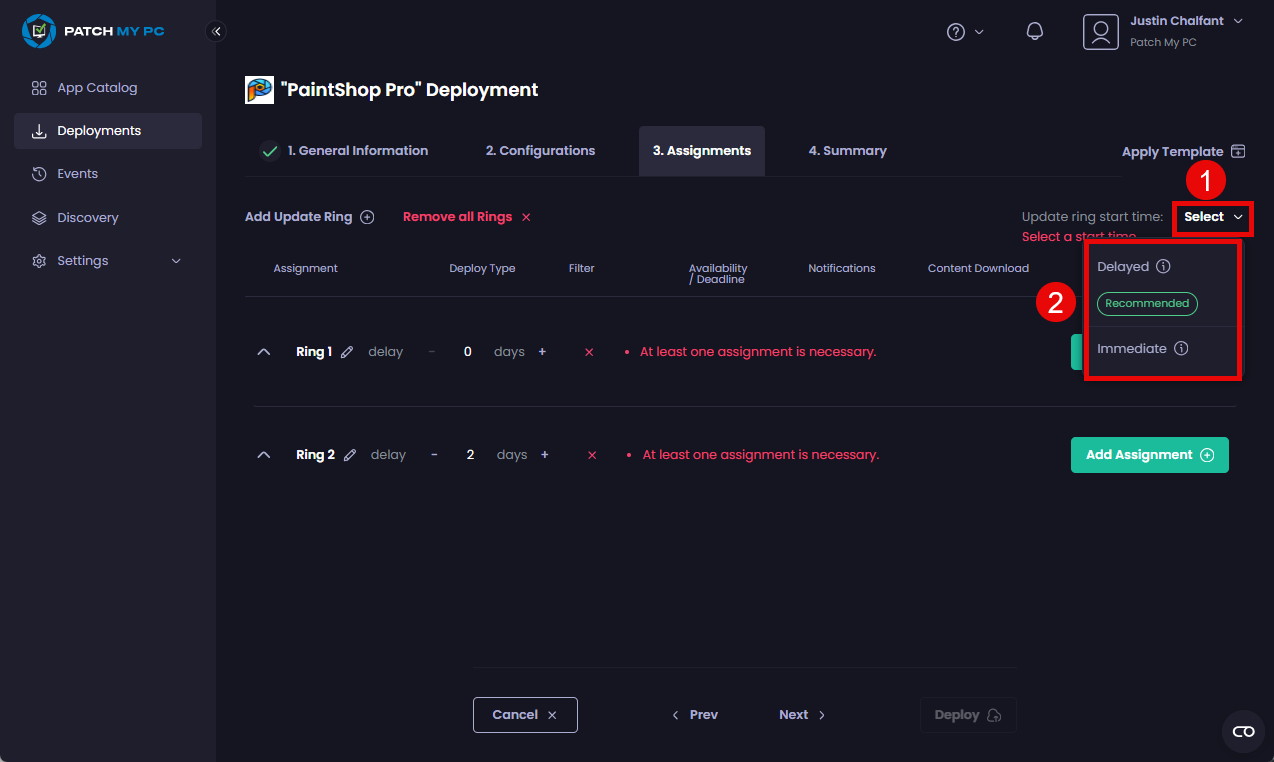
3. From the **Update ring start time** dropdown, choose how you want your Update Rings to handle the start times for their assignments:\
• [Delayed](/patch-my-pc-cloud/deployments/update-rings/update-ring-types.md#delayed)\
• [Immediate](/patch-my-pc-cloud/deployments/update-rings/update-ring-types.md#immediate)
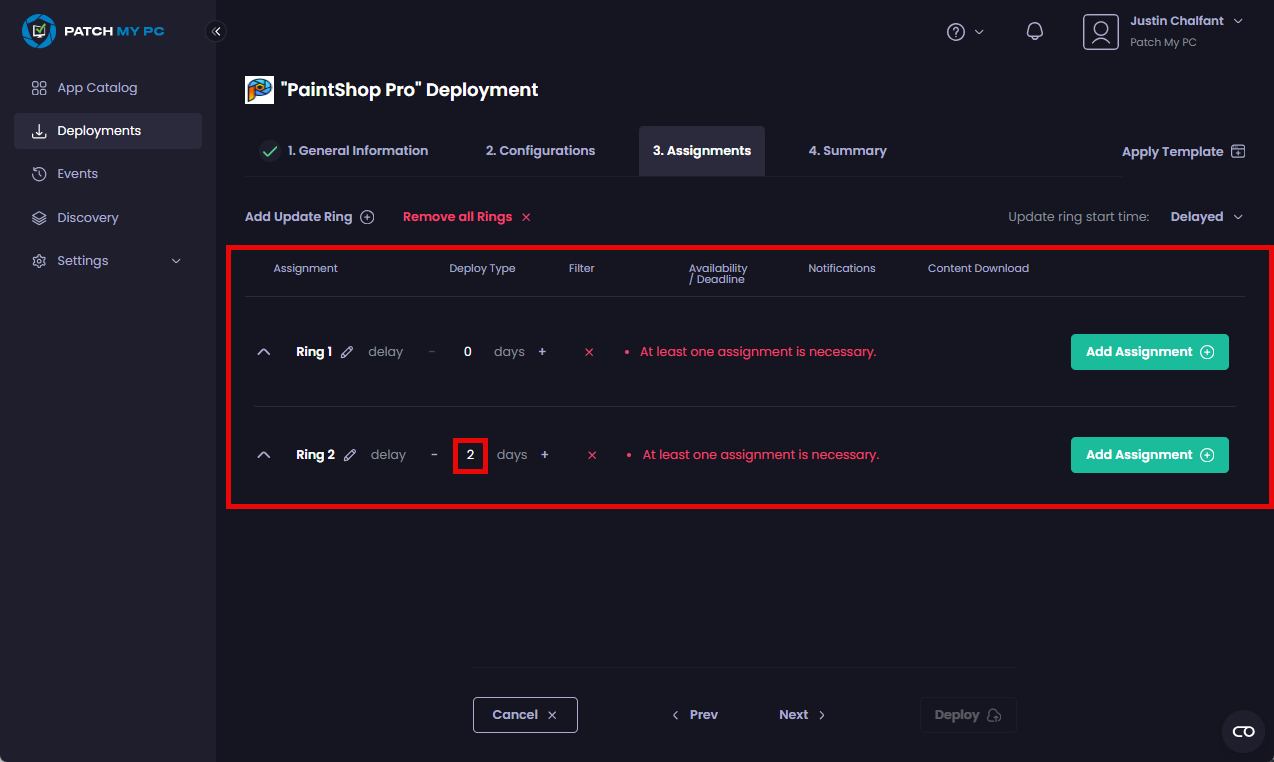
By default, two Update Rings are created with a two-day delay between them.
4. If you do not want to add additional Update Rings, go to step 7.\
\
To add an additional Update Ring, click **Add Update Ring**.
5. On the **Add Update Ring** dialog box, enter the name for the new ring in the **Name** field and click **Save**.
A new ring is added.
{% hint style="danger" %}
**Important**
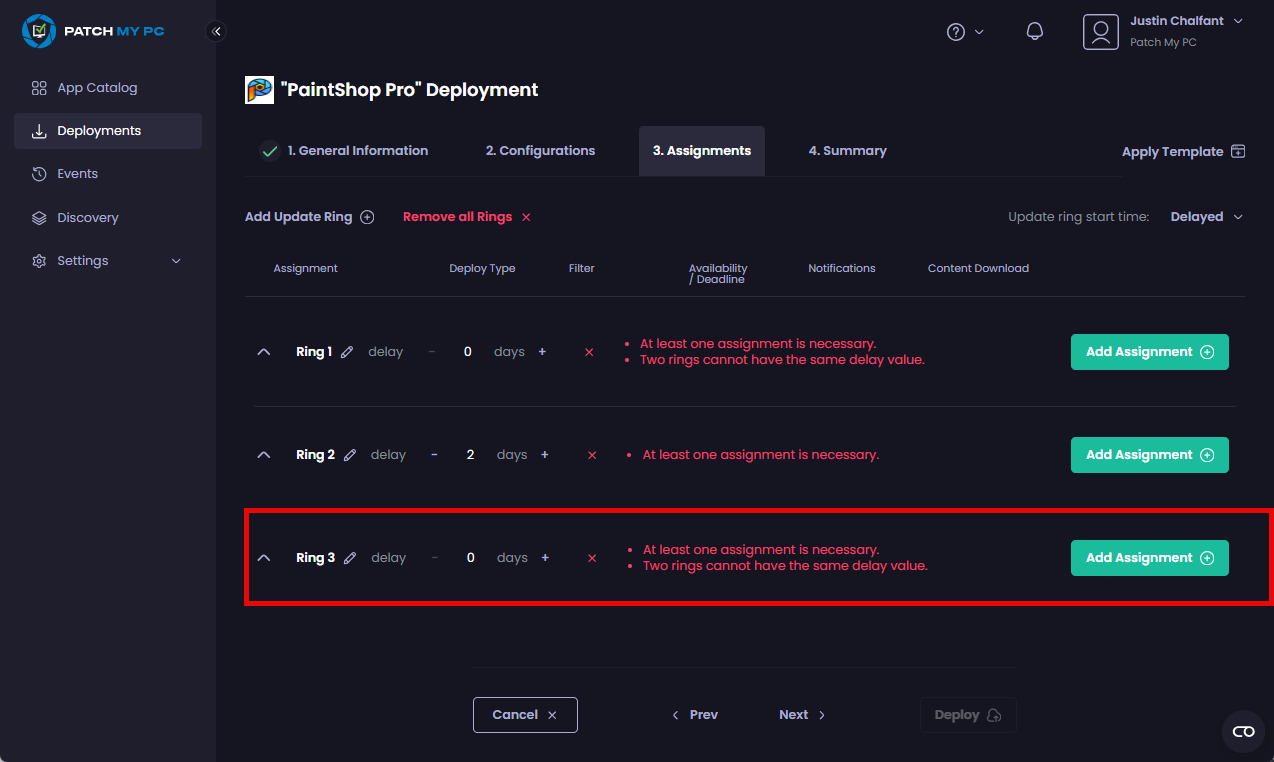
Whenever you add a new Update Ring, it is created with a default delay of **0** days, i.e. the deployment will be installed immediately on any targeted users/devices.
If you already have another ring with a default delay of 0 days, you will see the **Two rings cannot have the same delay value** message besides the second ring with the duplicate delay.
You should adjust the delays on your Update Rings to avoid duplicates.
Also, if your [Sync Schedule](/patch-my-pc-cloud/manage/settings/sync-schedule.md) is configured for anything other than **Daily**, this will affect the delay you can configure between rings. For example, assuming you have your Sync Schedule configured for **Monthly**, when you add a new ring you will not be able to configure a delay between rings of less than 30 days as shown below.
{% endhint %}
6. Repeat step 4 to add any additional Update Rings.
{% hint style="info" %}
**Note**
You can add up to a maximum of 10 Update Rings per deployment.
{% endhint %}
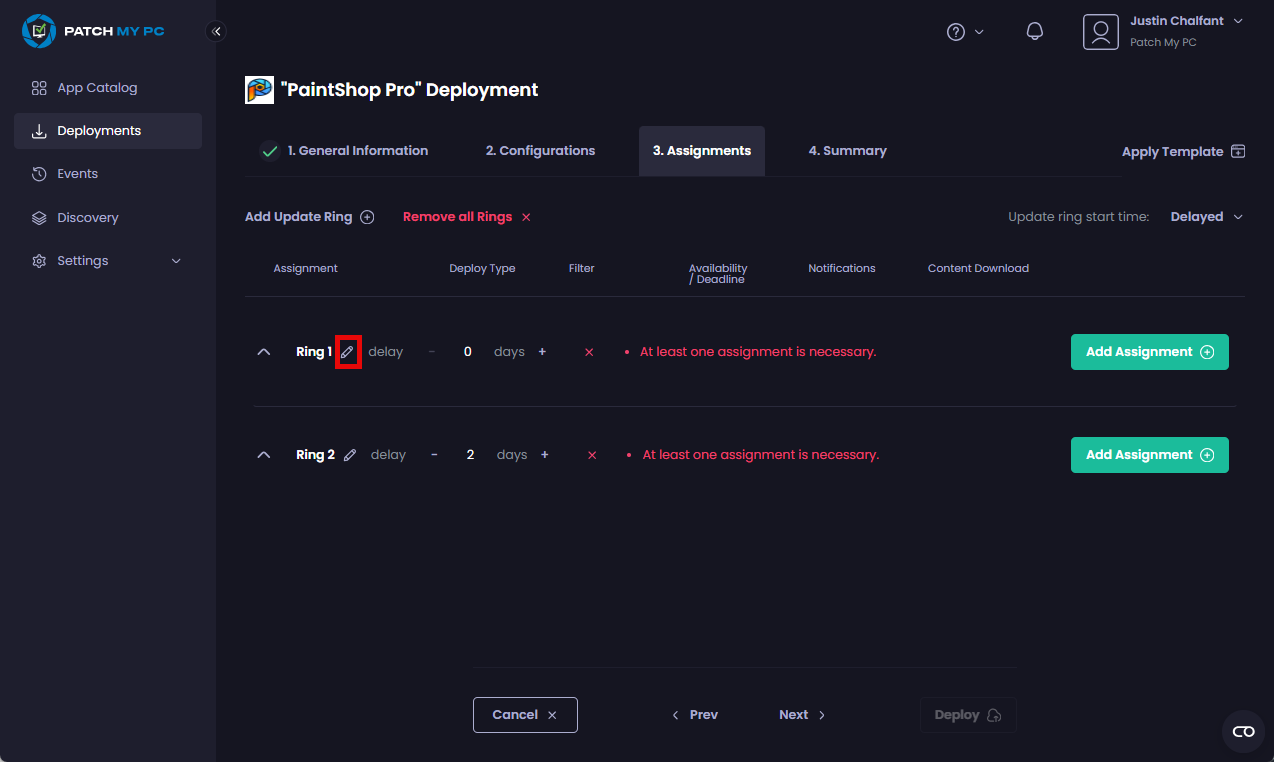
7. If you do not want to change the names of any of the rings, go to Step 10.\
\
If you want to change the name of any of the rings, click the pencil icon () beside the relevant ring.
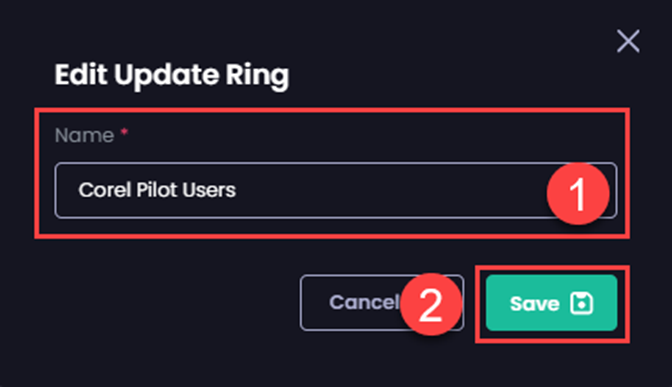
8. Enter the ring's name in the **Name** field of the **Edit Update Ring** dialog box, then click **Save**.
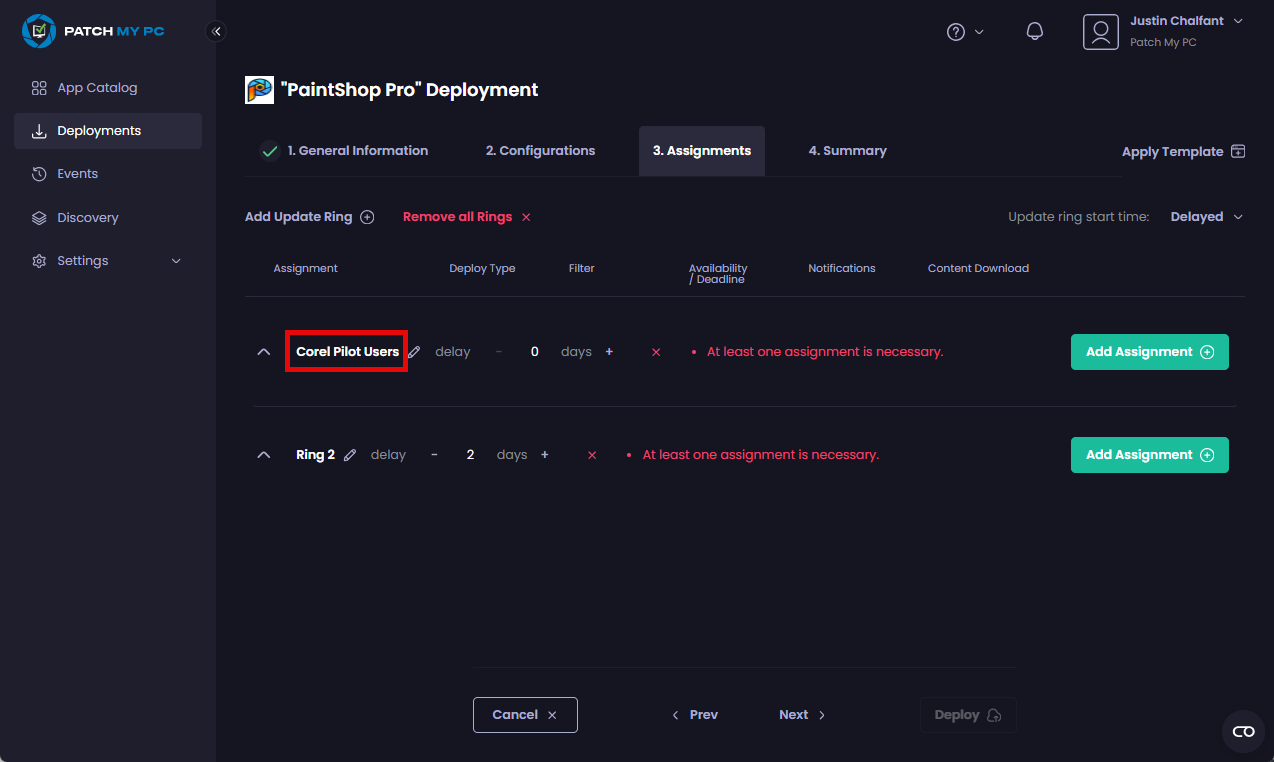
The updated name appears.
9. Change the name of any other rings.
10. If you do not want to change the delay for any of the rings, go to Step 11.\
\
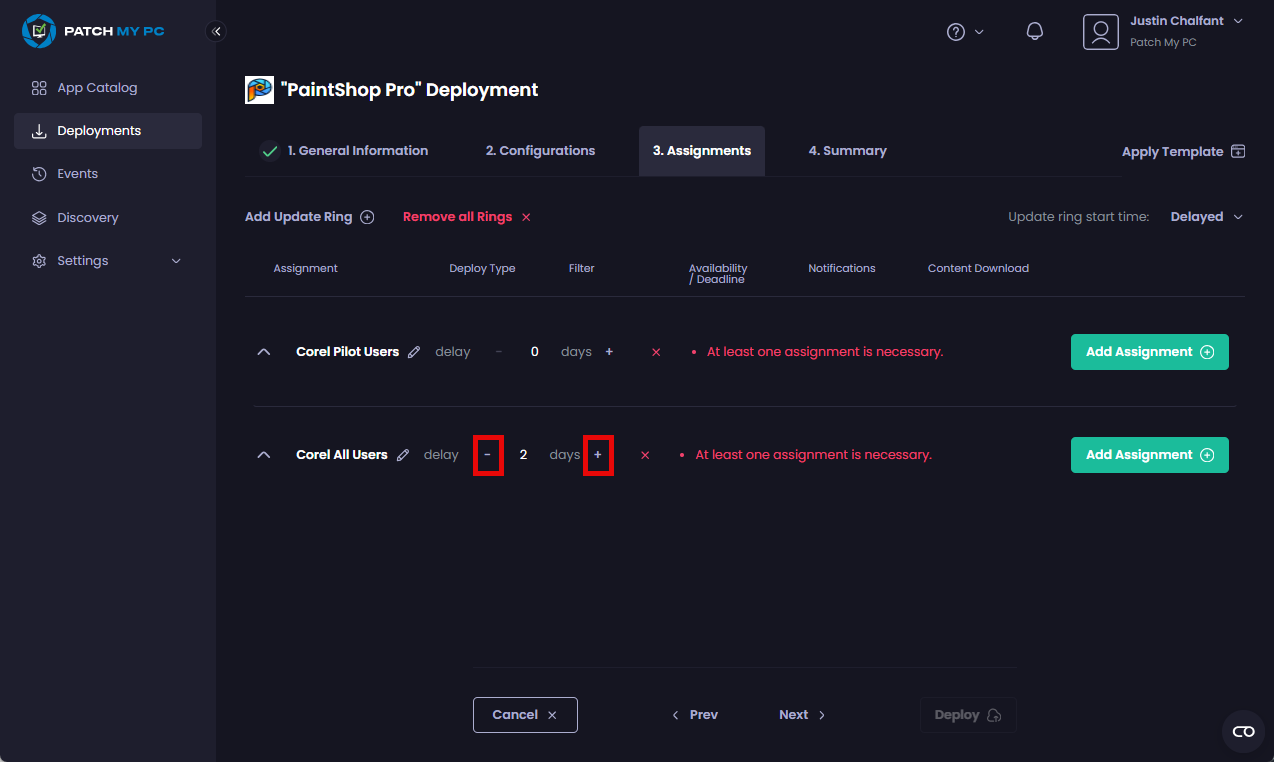
If you want to change the delay for a ring, click the plus (**+**) or minus (**-**) sign beside the relevant rings.
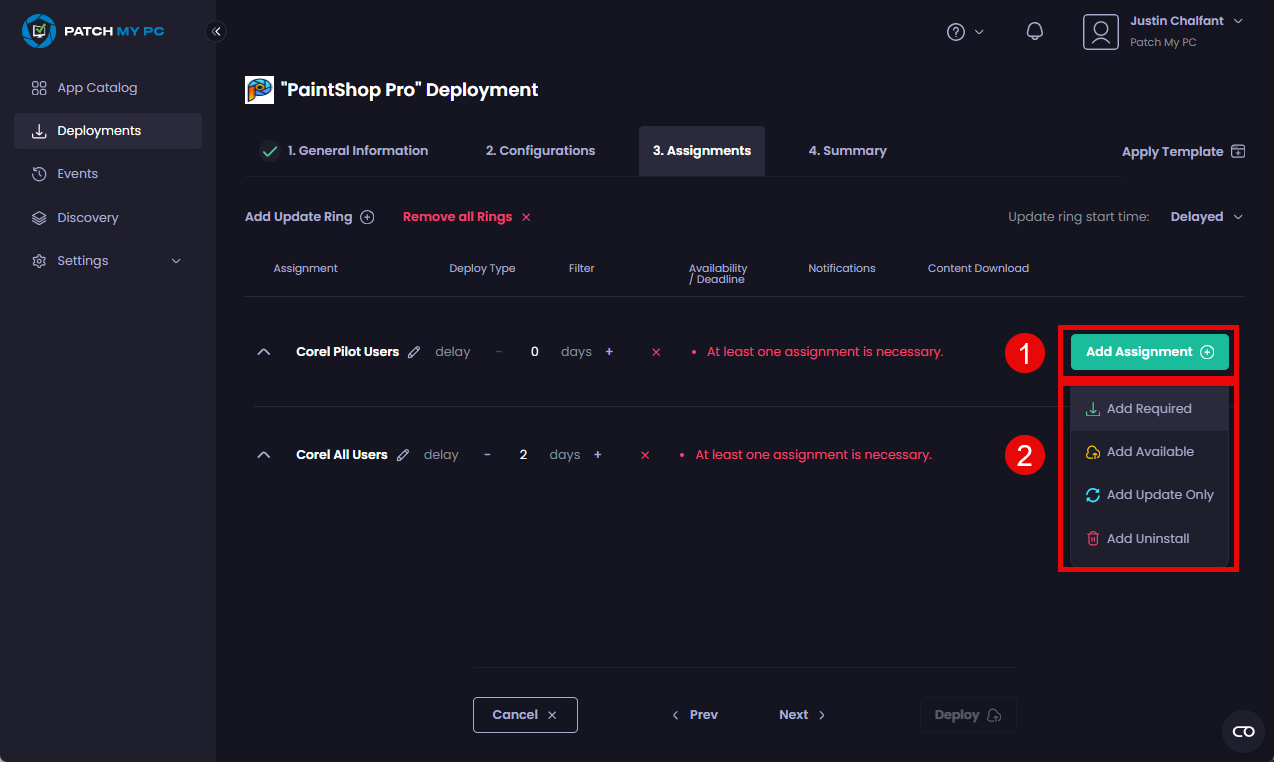
11. Click **Add Assignment** and add the relevant assignments for each ring, configuring the settings for each assignment as required.
{% hint style="info" %}
**Note**
See the [Assignments](/patch-my-pc-cloud/deployments/deploy-app/assignments-tab.md) section of the [Deploy an App](/patch-my-pc-cloud/deployments/deploy-app.md) process for more information.
{% endhint %}
{% hint style="success" %}
**Tip**
You can drag assignments between Update Rings by clicking the double ellipsis () beside the relevant assignment and dragging and dropping it to the relevant Update Ring.
{% endhint %}
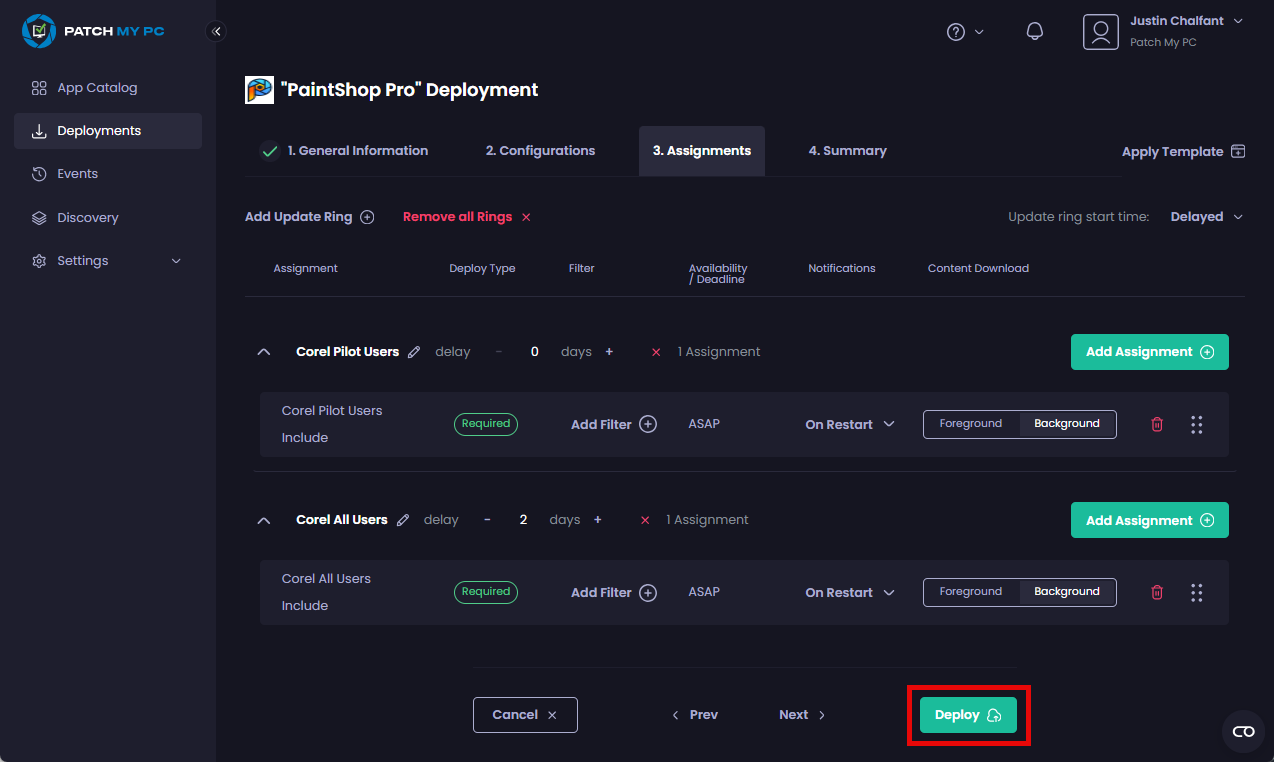
12. Click **Deploy**.
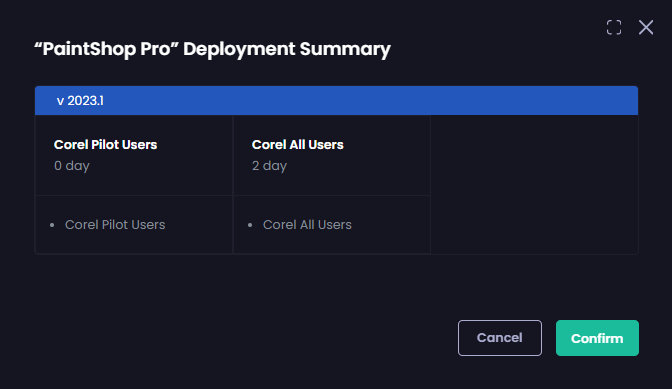
The **“<*****deployment\_name*****>” Deployment Summary** dialog box appears, summarizing what you are deploying, to which groups, and when.
{% hint style="info" %}
**Note**
If your [Sync Schedule](/patch-my-pc-cloud/manage/settings/sync-schedule.md) is set to anything other than **Daily**, the UI will warn you that some rings may not be evaluated as expected.
This is why we recommend you set your [Sync Schedule](/patch-my-pc-cloud/manage/settings/sync-schedule.md) to **Daily** if you plan to use Update Rings.
{% endhint %}
13. Either click :\
\
a. **Cancel** to return to the **Assignments** tab to make any changes (after which you need to click **Deploy**).\
\
b. Click **Confirm** to continue.
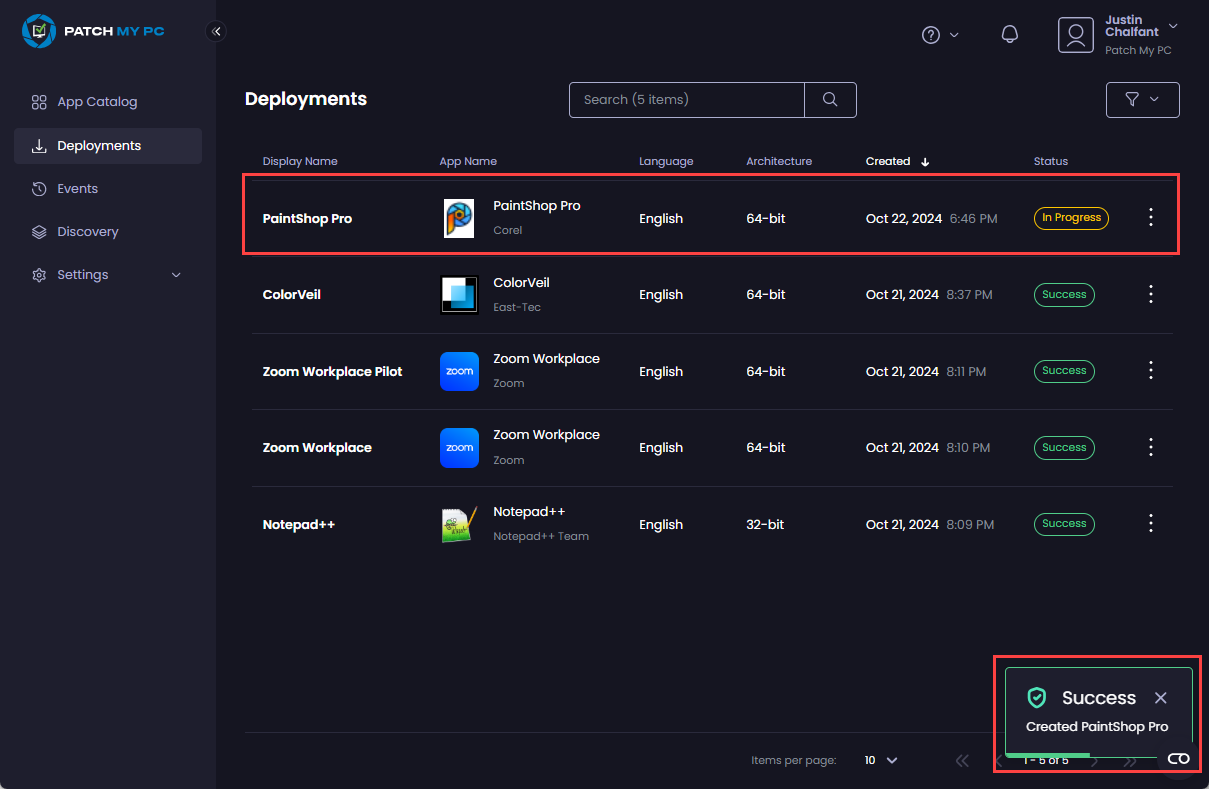
When you click **Confirm**, the **Deployments** node appears showing the deployment as **In Progress** and the **Success – Created <*****deployment\_name*****>** notification.
---
# Agent Instructions
This documentation is published with GitBook. GitBook is the documentation platform designed so that both humans and AI agents can read, navigate, and reason over technical content effectively. Learn more at gitbook.com.
## Querying This Documentation
If you need additional information that is not directly available in this page, you can query the documentation by asking a question.
Perform an HTTP GET request on the following URL with the `ask` and `goal` query parameters:
```
GET https://docs.patchmypc.com/patch-my-pc-cloud/deployments/update-rings/create.md?ask=&goal=
```
`ask` is the immediate question: it should be specific, self-contained, and written in natural language.
`goal` is what the user is ultimately trying to achieve, the reason they need the answer. Sharing it helps GitBook give you a better, more relevant answer. A goal is most helpful when it describes the outcome the user wants rather than restating the question. For example, with `ask=how do I create an API token`, a goal like `automate deployments from our CI pipeline` lets GitBook tailor the answer to that use case.
The response will contain a direct answer to the question and relevant excerpts and sources from the documentation.
Use this mechanism when the answer is not explicitly present in the current page, you need clarification or additional context, or you want to retrieve related documentation sections.


 ) beside the relevant assignment and dragging and dropping it to the relevant Update Ring.
{% endhint %}
) beside the relevant assignment and dragging and dropping it to the relevant Update Ring.
{% endhint %}
 This is why we recommend you set your [Sync Schedule](/patch-my-pc-cloud/manage/settings/sync-schedule.md) to **Daily** if you plan to use Update Rings.
{% endhint %}
13. Either click :\
\
a. **Cancel** to return to the **Assignments** tab to make any changes (after which you need to click **Deploy**).\
\
b. Click **Confirm** to continue.
This is why we recommend you set your [Sync Schedule](/patch-my-pc-cloud/manage/settings/sync-schedule.md) to **Daily** if you plan to use Update Rings.
{% endhint %}
13. Either click :\
\
a. **Cancel** to return to the **Assignments** tab to make any changes (after which you need to click **Deploy**).\
\
b. Click **Confirm** to continue.