> For the complete documentation index, see [llms.txt](https://docs.patchmypc.com/llms.txt). Markdown versions of documentation pages are available by appending `.md` to page URLs; this page is available as [Markdown](https://docs.patchmypc.com/patch-my-pc-cloud/deployments/technical-references/deployment-without-assignments.md).
# Create a Deployment without Assignments in Patch My PC Cloud
*Applies to: Patch My PC Cloud*
Some large organizations want to be able to create deployments in Intune Apps for Patch My PC (PMPC) Cloud without any assignments.
{% hint style="info" %}
**Note**
See [Understand Patch My PC Cloud Assignments](/patch-my-pc-cloud/deployments/technical-references/understand-assignments.md) for more details about assignments and how they work in PMPC Cloud.
{% endhint %}
Then, their local IT organization adds and manages the assignments to the relevant deployments to meet their needs by using Intune admin center.
To create a deployment with no assignments:
1. Follow the [Deploy an App](/patch-my-pc-cloud/deployments/deploy-app.md) process until you reach the[ Assignments](/patch-my-pc-cloud/deployments/deploy-app/assignments-tab.md) tab where you can add an assignment.\
\
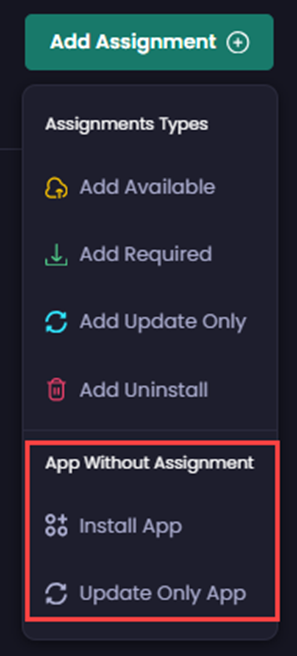
When you click **Add Assignment**, you will see the **App Without Assignment** sub-menu containing the following two items:
* **Install App -** Allows the Intune admin to add **Required**, **Available**, or **Uninstall** assignments from within the Intune admin center.
* **Update Only App -** Allows the Intune admin to add only an **Update Only** assignment from within the Intune admin center if the **Installer Type** is **.msp**.
{% hint style="info" %}
**Note**
If you are deploying a Microsoft patch file (**.msp**), only the **Update Only App** option is shown under the **App Without Assignment** section as **.msp** files cannot be used to install an app, only update it.
{% endhint %}
{% hint style="success" %}
**Tip**
You can also [Add a Template](/patch-my-pc-cloud/manage/settings/deployment-templates/add-template.md) with the **App Without Assignments** options configured. Then when you create the deployment, simply click **Apply Template** and select the relevant template to have its settings applied to this deployment.
{% endhint %}
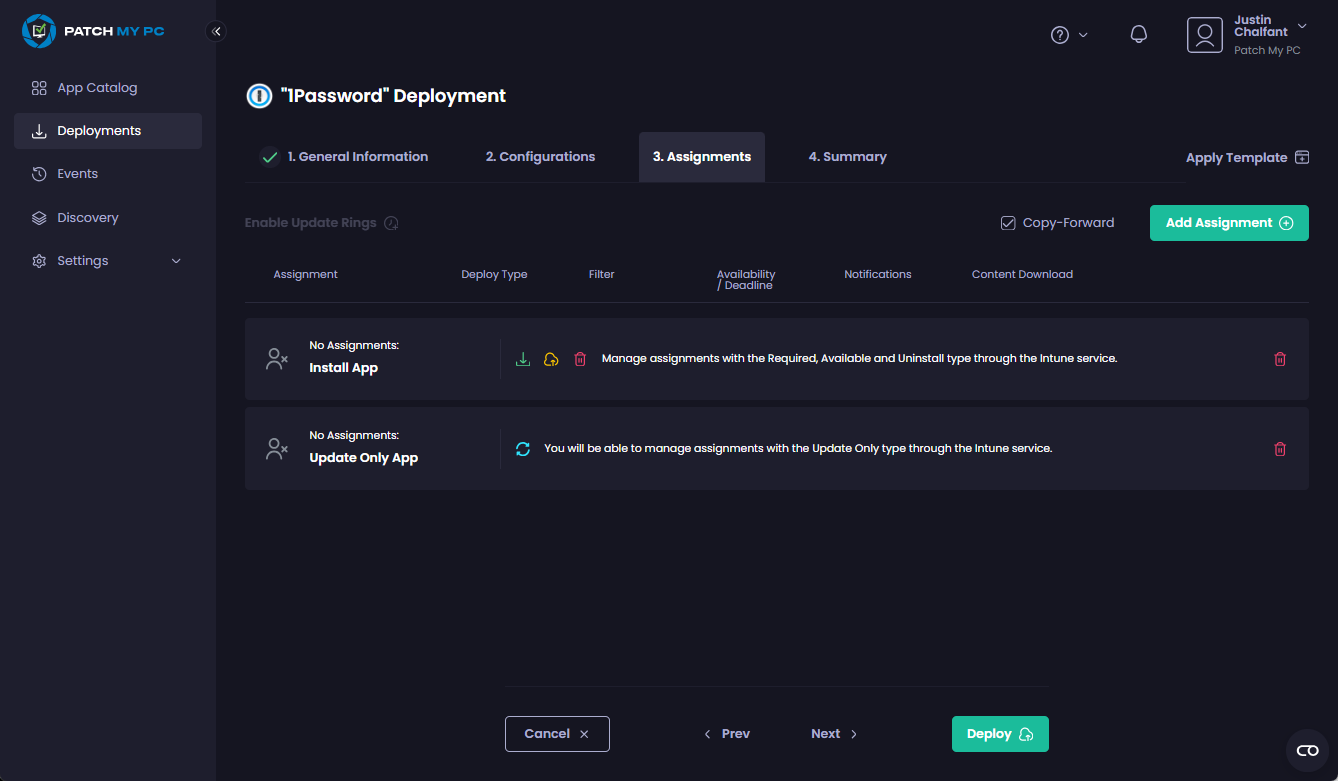
2. Select the relevant option.
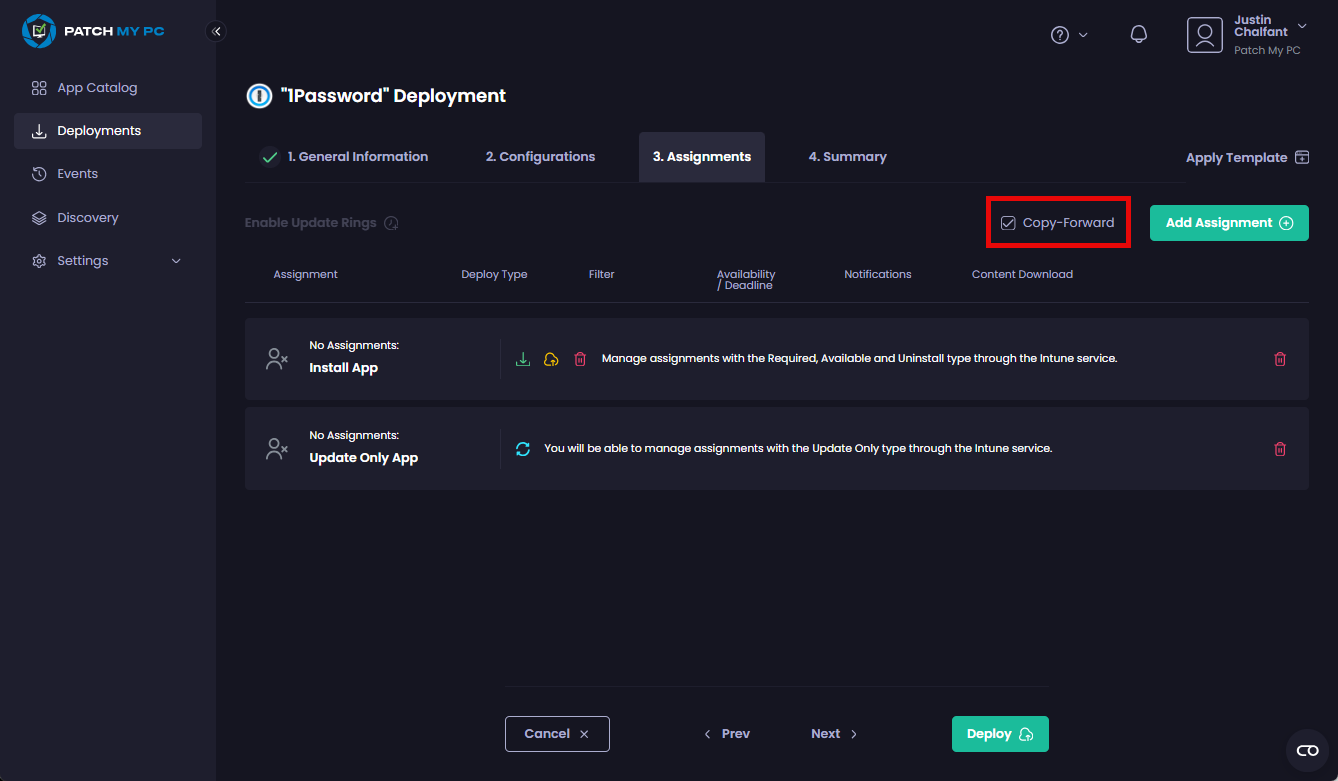
3. Uncheck the **Copy-Forward** checkbox if required.\
\
This checkbox is checked by default, which means that whenever we update the app, we remove all assignments from the previous version and add them to the new version.\
\
If the **Copy-Forward** checkbox is unchecked, we keep all assignments from the previous version.
{% hint style="info" %}
**Note**
The **Copy-Forward** checkbox also affects the behavior of assignments when you [recreate a deployment](/patch-my-pc-cloud/deployments/manage-deployments/recreate.md):
* If the **Copy-Forward** checkbox is checked, any existing assignments will be copied.
* If the **Copy-Forward** checkbox is unchecked, any existing assignments will be deleted.
{% endhint %}
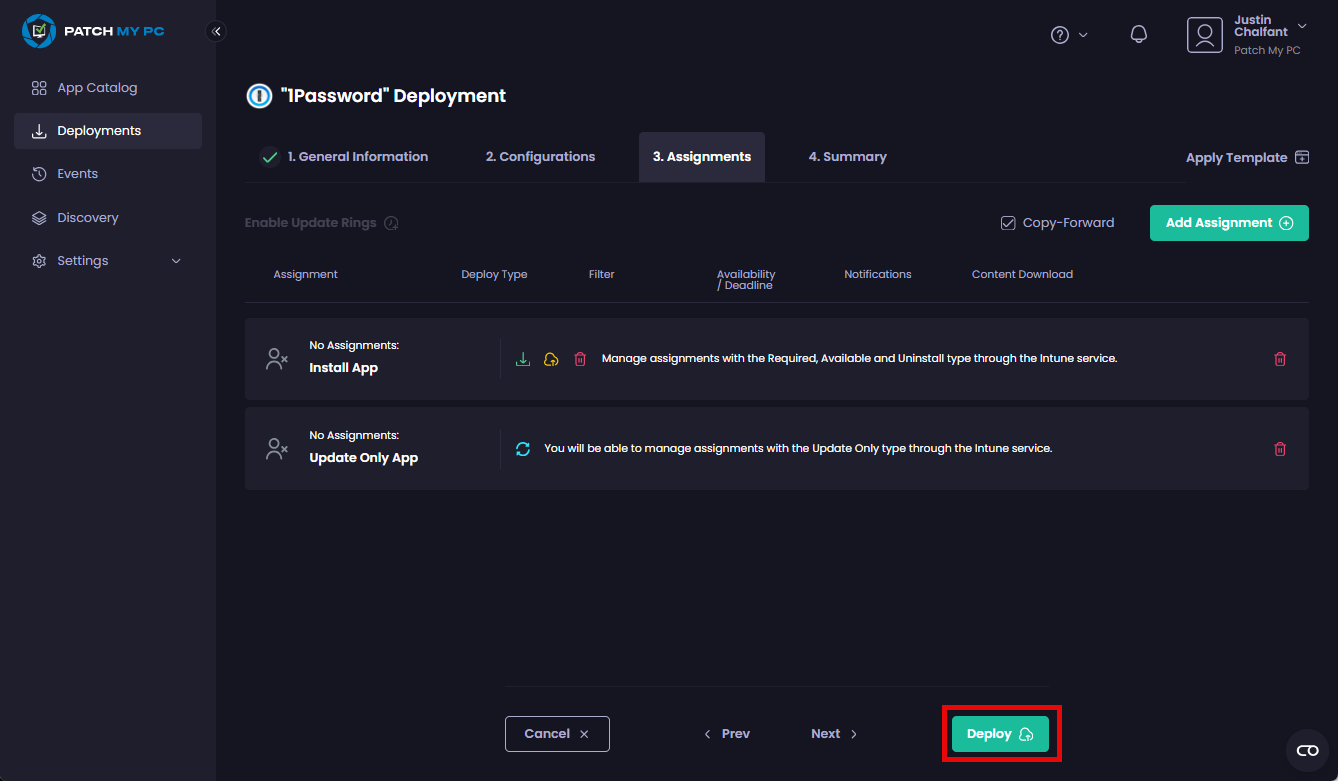
4. Click **Deploy** and wait for the deployment to complete successfully.
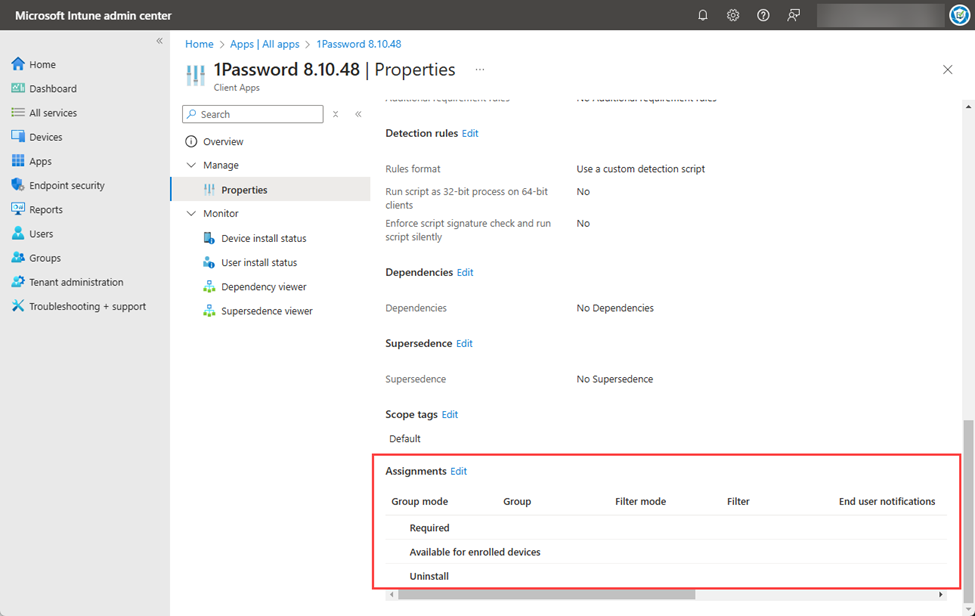
Once the deployment has successfully completed, if you look in the Intune admin center you will see that the app has been created without any assignments.
Your local IT teams can now follow the [Assign apps to groups with Microsoft Intune](https://learn.microsoft.com/en-us/mem/intune/apps/apps-deploy) process to add the relevant assignments for this app.
{% hint style="info" %}
**Note**
If you checked the **Copy-Forward** checkbox, the next time the Sync Schedule detects a new version, the assignments are copied forward to the new version. The old version of the app will be removed immediately once the new version has been created and the assignments moved over to it.
Also, a deployment without assignments can be edited and managed in the same way as a regular deployment. See the [Manage Updates](/patch-my-pc-cloud/deployments/manage-deployments/updates.md) and [Manage Deployments](/patch-my-pc-cloud/deployments/manage-deployments.md) sections for more details.
{% endhint %}
{% hint style="danger" %}
**Important**
The current release of this feature has the following restrictions:
* A deployment cannot contain both regular assignment types and no assignment types.
* If you edit a deployment with no assignments, you cannot add a regular assignment type.
* If you have a regular deployment with update rings enabled, you cannot edit that deployment, disable update rings, remove all the assignments and then add a new no assignment type.
{% endhint %}
---
# Agent Instructions
This documentation is published with GitBook. GitBook is the documentation platform designed so that both humans and AI agents can read, navigate, and reason over technical content effectively. Learn more at gitbook.com.
## Querying This Documentation
If you need additional information that is not directly available in this page, you can query the documentation by asking a question.
Perform an HTTP GET request on the following URL with the `ask` and `goal` query parameters:
```
GET https://docs.patchmypc.com/patch-my-pc-cloud/deployments/technical-references/deployment-without-assignments.md?ask=&goal=
```
`ask` is the immediate question: it should be specific, self-contained, and written in natural language.
`goal` is what the user is ultimately trying to achieve, the reason they need the answer. Sharing it helps GitBook give you a better, more relevant answer. A goal is most helpful when it describes the outcome the user wants rather than restating the question. For example, with `ask=how do I create an API token`, a goal like `automate deployments from our CI pipeline` lets GitBook tailor the answer to that use case.
The response will contain a direct answer to the question and relevant excerpts and sources from the documentation.
Use this mechanism when the answer is not explicitly present in the current page, you need clarification or additional context, or you want to retrieve related documentation sections.