> For the complete documentation index, see [llms.txt](https://docs.patchmypc.com/llms.txt). Markdown versions of documentation pages are available by appending `.md` to page URLs; this page is available as [Markdown](https://docs.patchmypc.com/patch-my-pc-cloud/deployments/technical-references/deploy-same-app.md).
# Deploy the same App with multiple configurations using Patch My PC Cloud
*Applies to: Patch My PC Cloud*
You can deploy the same app with different configurations using Patch My PC (PMPC) Cloud.
{% hint style="danger" %}
**Important**
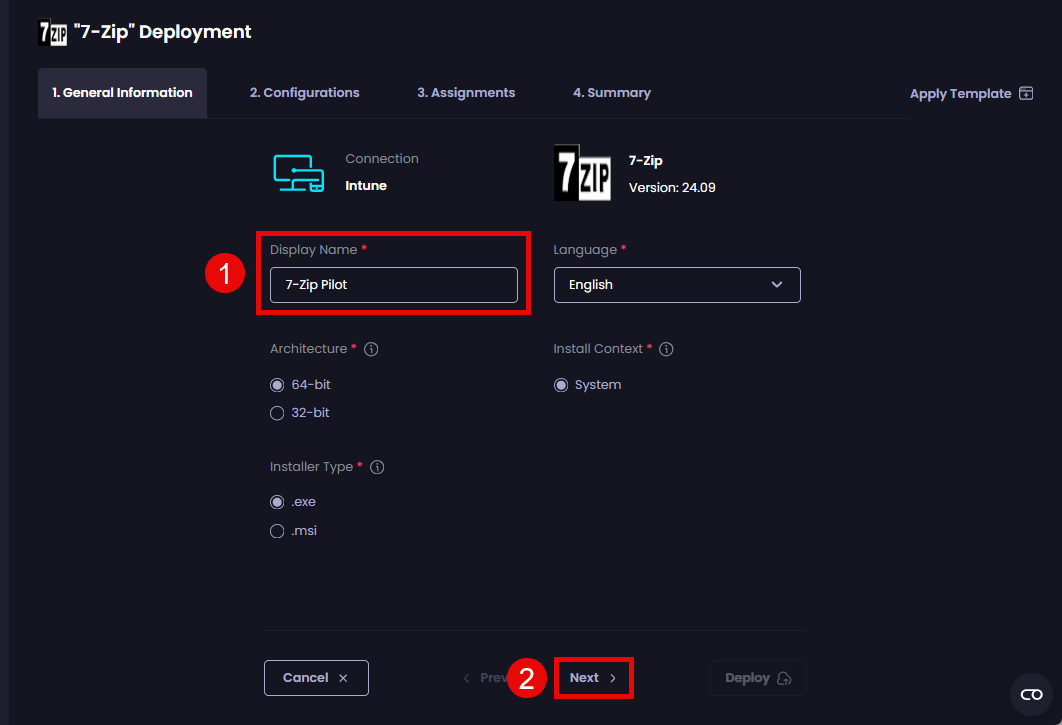
For this to work, you must use a different **Display Name** for the deployment. If you don't, you will receive the [deployment with the same name already exists](/patch-my-pc-cloud/troubleshoot/deployments/a-deployment-with-the-same-name-less-than-deployment_name-greater-than-already-exists-error-when-dep.md) error.
{% endhint %}
To deploy the same app with a different configuration:
1. Sign in to the portal at .
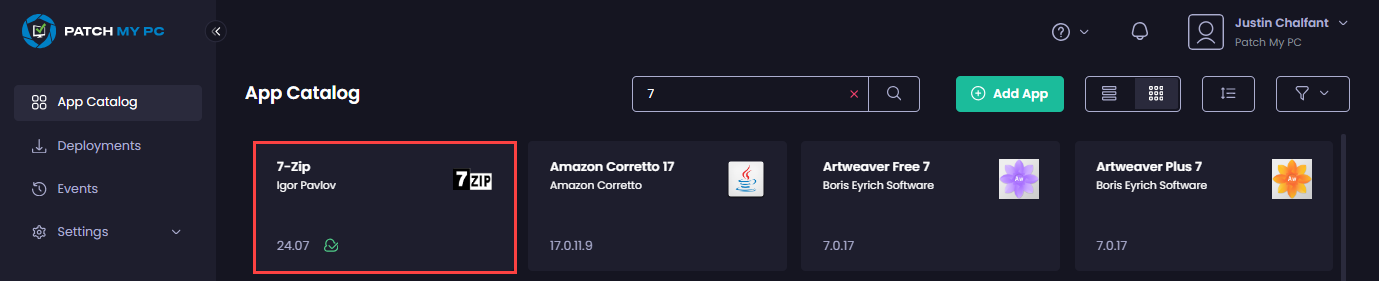
2. Locate the required app on the **App Catalog** page.
{% hint style="success" %}
**Tip**
Use the **Search** field to help you locate the app.
{% endhint %}
{% hint style="info" %}
**Note**
The green cloud icon beside the version number tells you this software has already been deployed using PMPC Cloud.
{% endhint %}
3. Click the app to open its properties, then click **Deploy** to start the Deployment Wizard.
{% hint style="info" %}
**Note**
See the [Deploy an App](/patch-my-pc-cloud/deployments/deploy-app.md) for more details. You can also apply a deployment template to this deployment by clicking **Apply Template** and following the [Use a Template in Deployments](/patch-my-pc-cloud/deployments/use-template.md) process.
{% endhint %}
4. On the G**eneral Information** tab, in the **Display Name** field, enter a unique name for this deployment, then click **Next**.
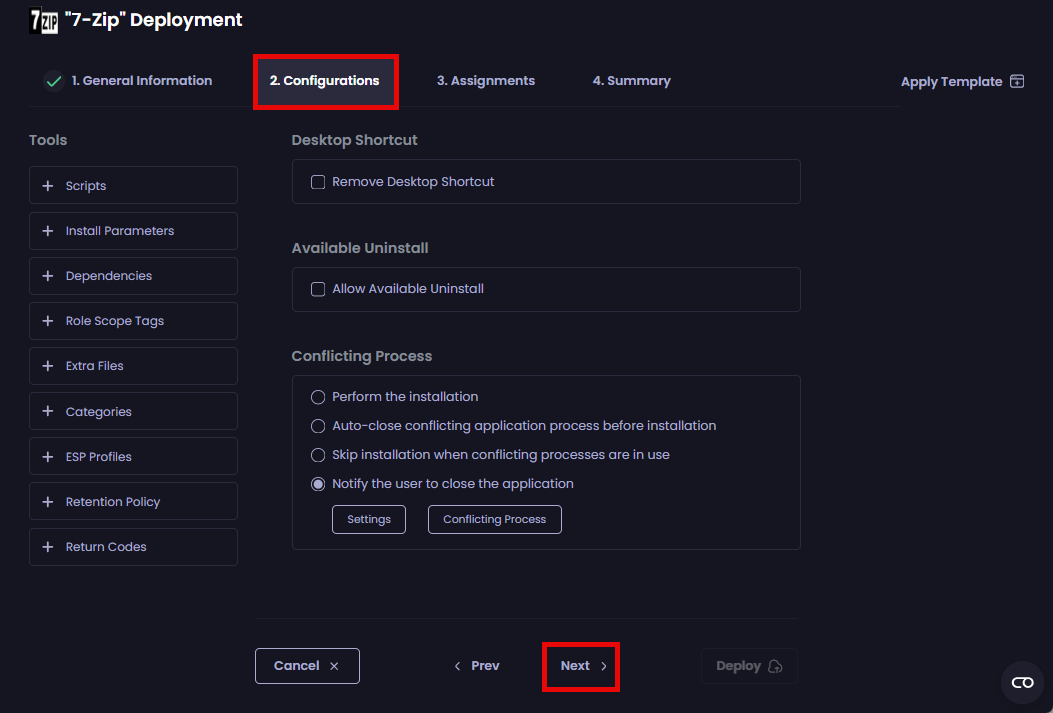
5. On the **Configurations** tab, configure the settings to add any required scripts or additional installation parameters, then click **Next**.
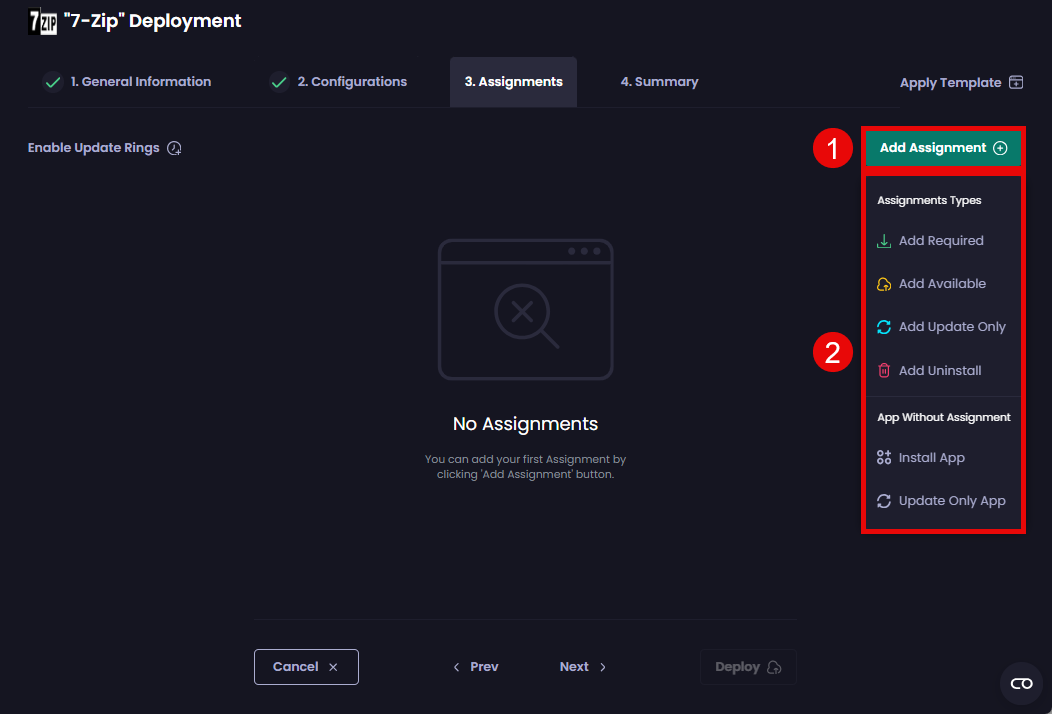
6. On the **Assignments** tab, click **Add Assignment**, then select the assignment type you want to add for this deployment.
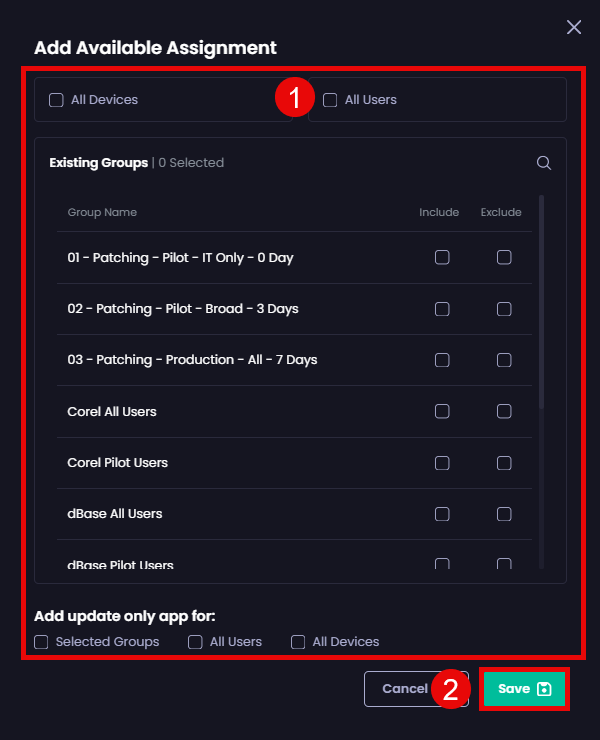
7. On the **Add <*****assignment\_type*****> Assignment** page, select the relevant options, then click **Save**.
{% hint style="info" %}
**Note**
If you add an available assignment, as shown below, we recommend selecting the same options in the **Add update only app for** section. Doing this will automatically make the current version of the app and any updates (current or future) available.
{% endhint %}
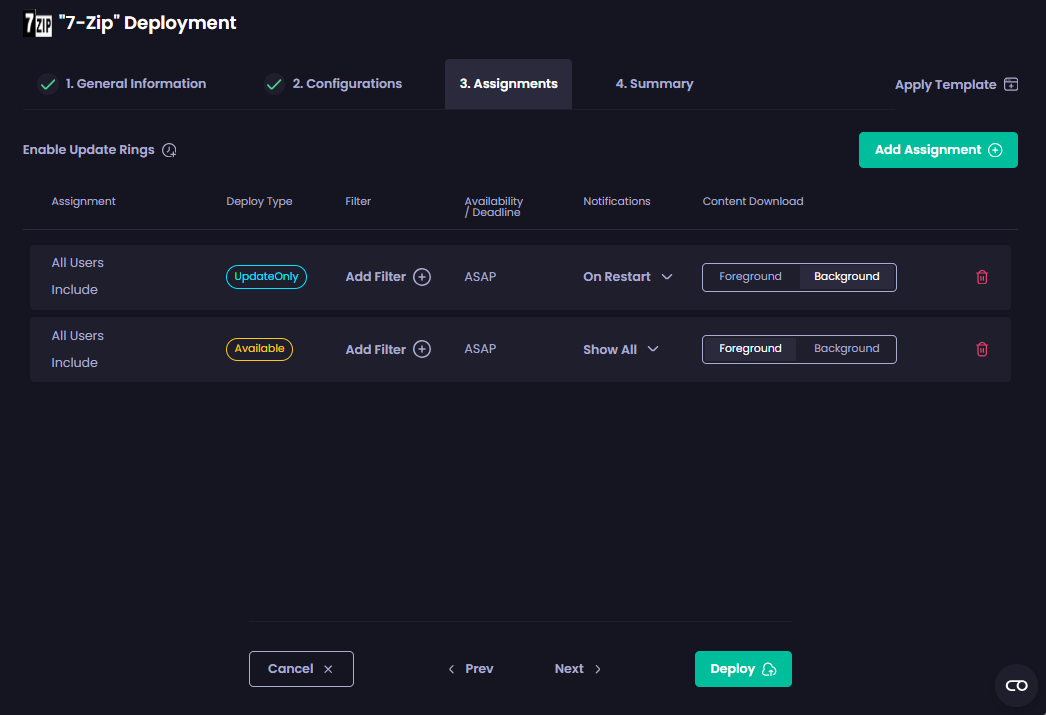
The **Assignments** page updates to show the newly created deployment.
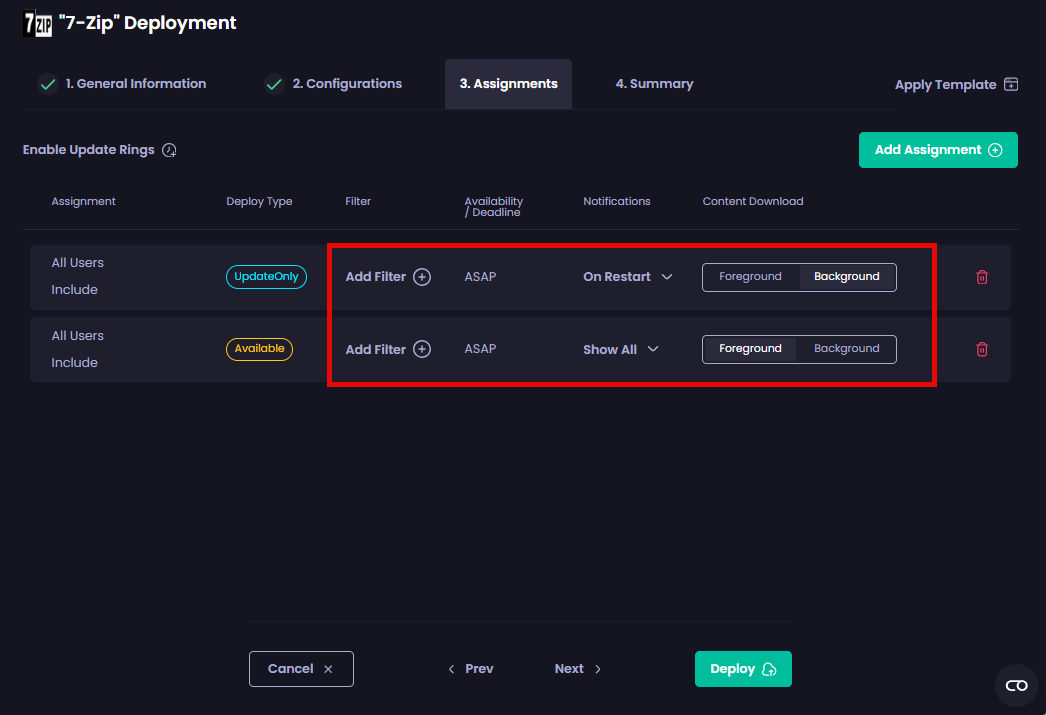
8. Configure the settings for deployment, if required.
{% hint style="info" %}
**Note**
We automatically configure these settings based on our experience and best practices, but you can modify certain settings if necessary.
{% endhint %}
{% hint style="success" %}
**Tip**
You can click **Deploy** on this page if you don’t want to add additional assignments or see the **Overview** page, which allows you to double-check the settings you’ve configured for this deployment.
{% endhint %}
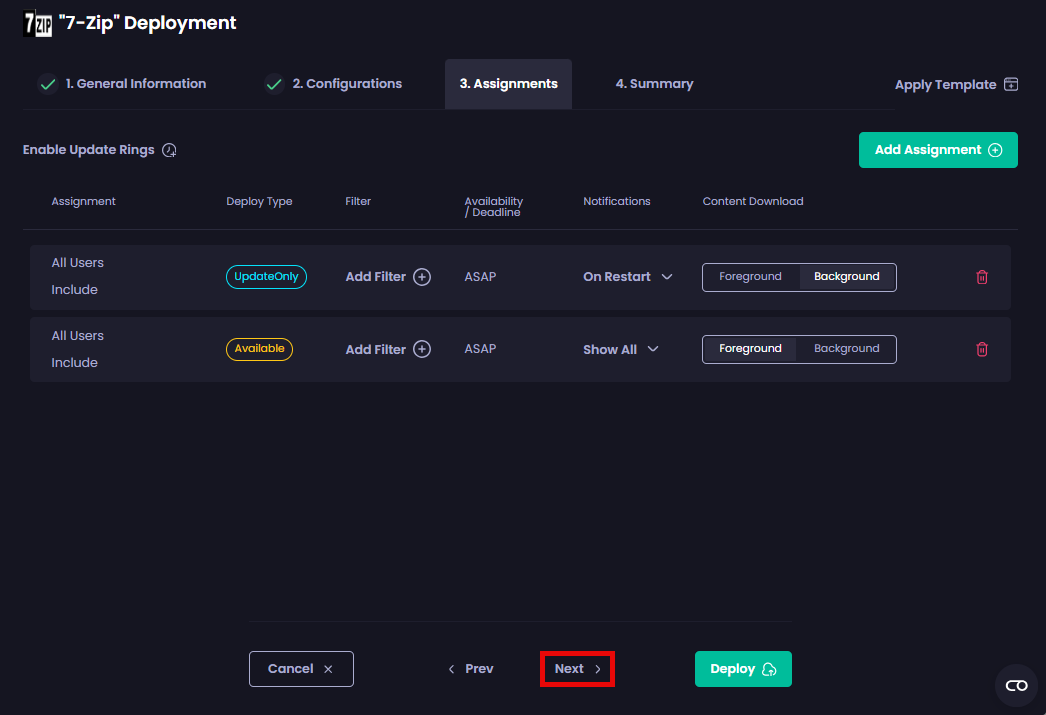
9. Add any additional assignments for this deployment by clicking **Add Assignment** and repeating Steps 6 to 8, then click **Next**.
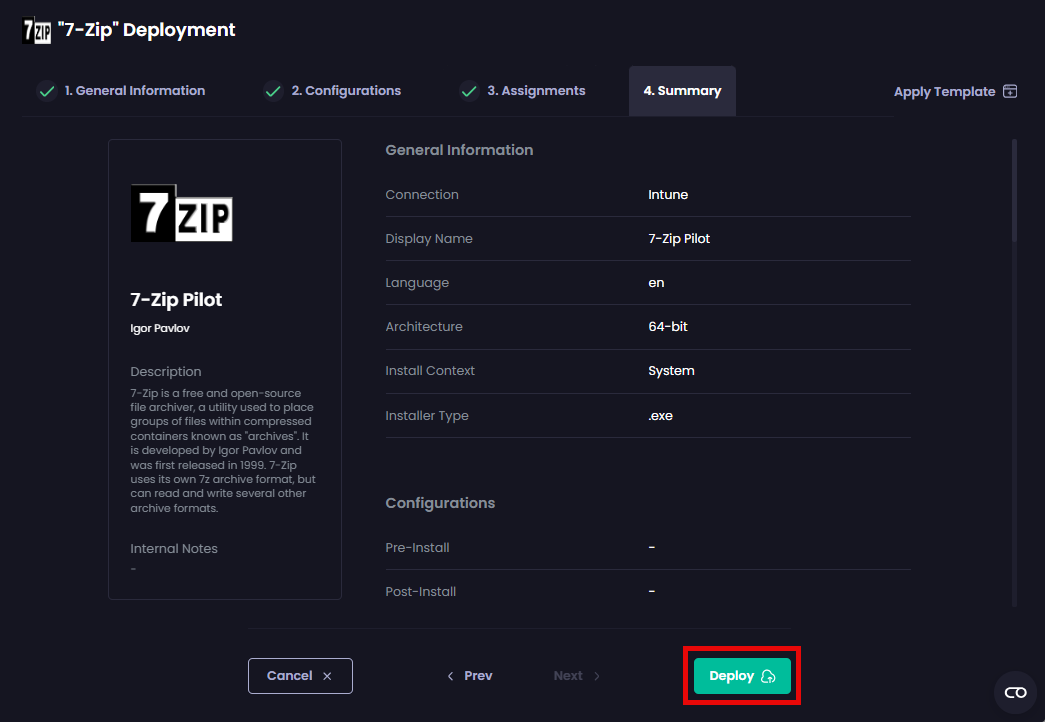
10. Review the deployment summary shown on the **Summary** page.\
\
If you are happy, click **Deploy**.
If you need to change something, click **< Prev** to backtrack through the Deployment Wizard to the relevant setting. Make the change, then step back through the wizard to this page. If everything is now correct, click **Deploy**.
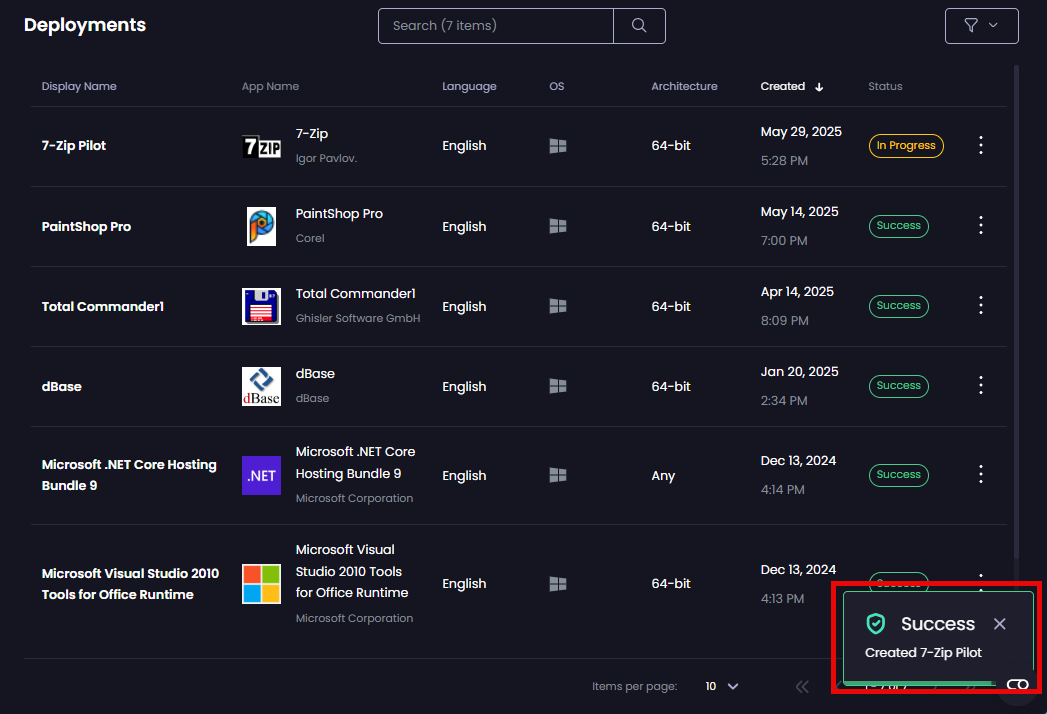
The **Deployments** page is displayed along with the **Success - Created *****\*** notification.
{% hint style="info" %}
**Note**
By default, the installation logs for an app will be created in the following folder regardless of the installer file type:
`%ProgramData%\PatchMyPCInstallLogs`
The only exception is for EXE files, where the specified value for the **loggingSwitch** variable will be used if it is not null or empty.
{% endhint %}
---
# Agent Instructions
This documentation is published with GitBook. GitBook is the documentation platform designed so that both humans and AI agents can read, navigate, and reason over technical content effectively. Learn more at gitbook.com.
## Querying This Documentation
If you need additional information that is not directly available in this page, you can query the documentation by asking a question.
Perform an HTTP GET request on the following URL with the `ask` and `goal` query parameters:
```
GET https://docs.patchmypc.com/patch-my-pc-cloud/deployments/technical-references/deploy-same-app.md?ask=&goal=
```
`ask` is the immediate question: it should be specific, self-contained, and written in natural language.
`goal` is what the user is ultimately trying to achieve, the reason they need the answer. Sharing it helps GitBook give you a better, more relevant answer. A goal is most helpful when it describes the outcome the user wants rather than restating the question. For example, with `ask=how do I create an API token`, a goal like `automate deployments from our CI pipeline` lets GitBook tailor the answer to that use case.
The response will contain a direct answer to the question and relevant excerpts and sources from the documentation.
Use this mechanism when the answer is not explicitly present in the current page, you need clarification or additional context, or you want to retrieve related documentation sections.