> For the complete documentation index, see [llms.txt](https://docs.patchmypc.com/llms.txt). Markdown versions of documentation pages are available by appending `.md` to page URLs; this page is available as [Markdown](https://docs.patchmypc.com/patch-my-pc-cloud/deployments/manage-deployments/bulk-actions.md).
# Bulk Actions for Patch My PC Cloud Deployments
*Applies to: Patch My PC (PMPC) Cloud*
{% hint style="danger" %}
**Public Preview**
This documentation is for a pre-release feature still under development and therefore incomplete. As a result, both functionality and documentation are subject to change.
Once this feature is released, it will be announced, and this banner will be removed.
{% endhint %}
The *Bulk Actions* functionality of Patch My PC (PMPC) Cloud allows you to select multiple deployments to perform a management action on, versus having to repeat the same action on each deployment individually.
To use *Bulk Actions*:
{% stepper %}
{% step %}
### **Navigate to Deployments**
Navigate to the **Deployments** node of the Cloud Portal.
{% endstep %}
{% step %}
### Either select all or a subset
Either select all or [select a subset](#select-a-subset)
Click the select all checkbox in the top-left corner to select all of the deployments on the current page.
All deployments on the current page are now selected (unchecking the select all checkbox unchecks all deployments on the current page).
{% hint style="danger" %}
**Important**
The select all option does not work with deployments with a **Status** of **In Progress.** You also cannot manually select a deployment that is **In Progress**.
{% endhint %}
{% hint style="success" %}
**Tip**
If your list of deployments spans multiple pages, you can navigate to the next page and click the select all checkbox to select all deployments on that page as well. You can repeat this process to select all of your deployments.
{% endhint %}
{% endstep %}
{% step %}
### Select a subset
To select a subset of deployments, click the checkbox beside all of the deployments you wish to perform an action on.
{% endstep %}
{% step %}
### Perform the required bulk action
Notice that regardless of which option you use, the number of selected deployments appears beside the **Search** box, along with the bulk actions toolbar of actions you can perform on the selected deployments.
At this point, you can perform the following actions on all of the selected deployments:
* [Resume paused deployments](#resume-paused-deployments)
* [Pause deployments from updating](#pause-deployments-from-updating)
* [Recreate selected deployments](#recreate-selected-deployments)
* [Sync selected deployments now](#sync-selected-deployments-now)
* [Delete the selected deployments](#delete-selected-deployments)
{% endstep %}
{% endstepper %}
## Resume paused deployments
If the *Pause Updates* feature of PMPC Cloud has been configured for an app that has since been updated, and you want to bring the app up to date to the latest version, you need to disable pause updates by resuming updates to the deployment.
{% hint style="info" %}
**Note**
You can only resume updates for deployments that have already been paused.
{% endhint %}
When you click the Resume Updates button (), the **Resume Updates Deployments** dialog appears, warning you that you are about to resume updates for the number of deployments you selected, and that new versions of the apps within these deployments will be deployed according to the configuration of each individual deployment.
{% hint style="info" %}
**Note**
If you select a deployment that has not already been paused along with a deployment(s) that has, only the paused deployment is resumed.
{% endhint %}
Click **Confirm** to continue.
The **Resume Updates in Progress** dialog is shown for each deployment as it is resumed.
Once all of the deployments have been resumed, the **Resume Updates Completed** dialog is shown, which you can close by clicking **Close**.
The **Deployments** home page updates to show that the deployment(s) is no longer paused (the **UPDATES PAUSED** text has been removed for the selected deployments).
{% hint style="info" %}
**Note**
See [Resume Updates](/patch-my-pc-cloud/deployments/manage-deployments/updates/resume-updates.md) for more information on resuming updates to a paused deployment.
{% endhint %}
## Pause deployments from updating
The *Pause Updates* feature (disabled by default) of PMPC Cloud allows you to prevent an app that’s previously been successfully deployed from being updated whenever a new version is released.
When you click the Pause Updates button (), the **Pause Deployments** dialog appears, warning you that you are pausing updates for the number of deployments you selected, and that the apps deployed using these deployments will no longer receive automatic updates.
Click **Confirm** to continue.
The **Pause in Progress** dialog is shown for each deployment as it is paused.
Once all of the deployments have been paused, the **Pause Completed** dialog is shown, which you can close by clicking **Close**.
The **Deployments** home page updates to show **UPDATES PAUSED** for the selected deployments.
{% hint style="info" %}
**Note**
See [Pause Updates](/patch-my-pc-cloud/deployments/manage-deployments/updates/pause.md) for more information on pausing updates to a deployment.
{% endhint %}
## Recreate selected deployments
Recreating a deployment in PMPC Cloud deletes the software from Intune and recreates it, which retriggers the deployment on the targeted resources.
When you click the Recreate button (), the **Recreate Deployments** dialog appears, warning you that you are about to recreate the selected deployments using their selected configuration, which will replace the existing deployments whilst maintaining their settings and assignments.
Click **Confirm** to continue.
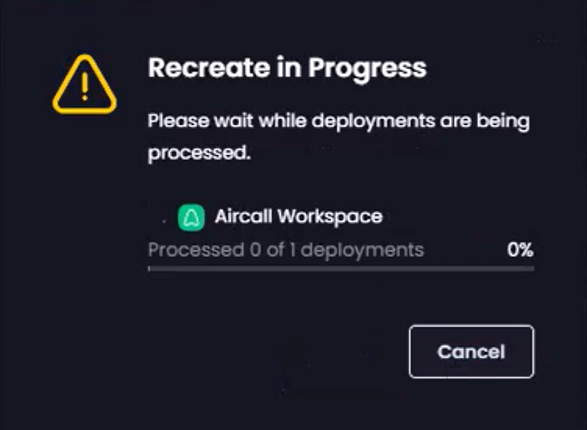
The **Recreate in Progress** dialog is shown for each deployment as it is recreated.
Once all of the deployments have been recreated, the **Recreate Completed** dialog is shown, which you can close by clicking **Close**.
The **Deployments** home page updates to show first the deployment with an **In Progress** status whilst it is being recreated,followed by a **Success** status once it has been recreated successfully.
{% hint style="info" %}
**Note**
See [Recreate a Deployment](/patch-my-pc-cloud/deployments/manage-deployments/recreate.md) for more information on recreating a deployment.
{% endhint %}
{% hint style="danger" %}
**Important**
Since you can only recreate 20 deployments at a time, selecting more than 20 causes the **Recreate** button to become unavailable, as the tooltip explains.
{% endhint %}
## Sync selected deployments now
The *Sync Now* feature of PMPC Cloud forces an immediate update of an app rather than waiting for the next occurrence of your Sync Schedule (this is typically used after updates to a deployment have been resumed).
When you click the Sync Now button (), the **Update Deployments** dialog appears, warning you that you are about to update the version for the selected deployments, which will be updated to the latest version.
Click **Confirm** to continue.
The **Update in Progress** dialog is shown for each deployment as it is updated.
Once all of the deployments have been updated, the **Update Completed** dialog is shown, which you can close by clicking **Close**.
The **Deployments** home page is redisplayed.
{% hint style="info" %}
**Note**
See [Sync Now](/patch-my-pc-cloud/deployments/manage-deployments/updates/sync-now.md) for more information on syncing deployments.
{% endhint %}
## Delete selected deployments
Deleting a deployment from PMPC Cloud deletes the packaged win32 app from Intune.
{% hint style="danger" %}
**Important**
Deleting a deployment does not trigger the uninstall of the software on the targeted resources. If you want to uninstall the software that the deleted deployment deployed, you will need to create a new deployment with the relevant uninstall assignments to do this.
Also, since you can only delete 20 deployments at a time, selecting more than 20 causes the **Delete** button to become unavailable, as the tooltip explains.
{% endhint %}
Select the deployment(s) you want to delete and click the **Delete** button.
The **Delete Deployments** dialog appears, warning you that you are going to permanently delete the selected deployments.
Click **Confirm** to continue.
The **Delete in Progress** dialog is shown for each deployment as it is deleted.
Once all of the deployments have been deleted, the **Delete Completed** dialog is shown, which you can close by clicking **Close**.
The **Deployments** home page updates to show the deployments have been deleted
{% hint style="info" %}
**Note**
See [Delete a Deployment](/patch-my-pc-cloud/deployments/manage-deployments/delete.md) for more information on deleting a deployment.
{% endhint %}
---
# Agent Instructions
This documentation is published with GitBook. GitBook is the documentation platform designed so that both humans and AI agents can read, navigate, and reason over technical content effectively. Learn more at gitbook.com.
## Querying This Documentation
If you need additional information that is not directly available in this page, you can query the documentation by asking a question.
Perform an HTTP GET request on the following URL with the `ask` and `goal` query parameters:
```
GET https://docs.patchmypc.com/patch-my-pc-cloud/deployments/manage-deployments/bulk-actions.md?ask=&goal=
```
`ask` is the immediate question: it should be specific, self-contained, and written in natural language.
`goal` is what the user is ultimately trying to achieve, the reason they need the answer. Sharing it helps GitBook give you a better, more relevant answer. A goal is most helpful when it describes the outcome the user wants rather than restating the question. For example, with `ask=how do I create an API token`, a goal like `automate deployments from our CI pipeline` lets GitBook tailor the answer to that use case.
The response will contain a direct answer to the question and relevant excerpts and sources from the documentation.
Use this mechanism when the answer is not explicitly present in the current page, you need clarification or additional context, or you want to retrieve related documentation sections.