> For the complete documentation index, see [llms.txt](https://docs.patchmypc.com/llms.txt). Markdown versions of documentation pages are available by appending `.md` to page URLs; this page is available as [Markdown](https://docs.patchmypc.com/patch-my-pc-cloud/deployments/deploy-app/configurations-tab/standard-tools/conflicting-process.md).
# Configure Conflicting Process in a Patch My PC Cloud Deployment
*Applies to: Patch My PC Cloud*
The installation of some apps cannot be completed if the app:
* is currently running
* uses a shared process that needs to be closed, but in doing so, could impact that process and other apps using it.
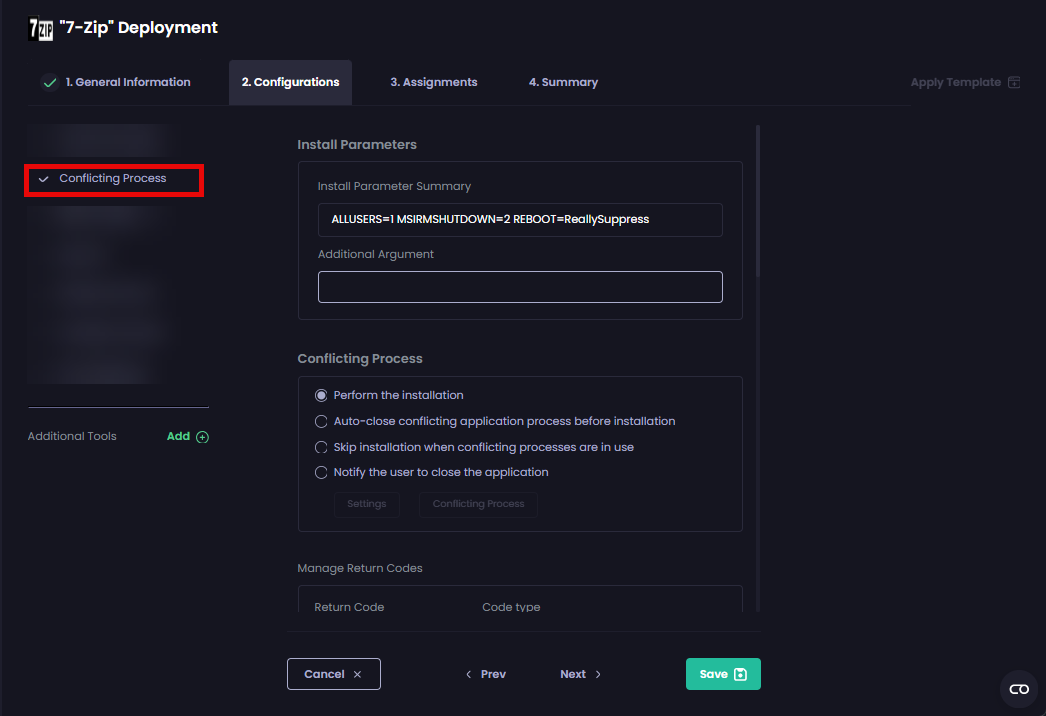
The **Conflicting Process** tool of the Patch My PC (PMPC) Cloud deployment wizard allows you to manage those conflicting processes (also known as "*Conflicting Process*"), and control what happens in such scenarios using one of the following options.
To manage the conflicting process for a Deployment:
1. Click the **Conflicting Process** tool.
2. Configure the required settings as detailed below.
### Perform the installation
This is the default option for software that can install, update, or uninstall, even when conflicting processes are running.
### Auto-close conflicting application process before installation
Automatically closes the app/process causing the conflict to allow this app to be installed.
{% hint style="danger" %}
**Important**
This can result in data loss, so use it with care.
{% endhint %}
### Skip installation when conflicting processes are in use
The installation is skipped until the conflicting process is no longer in use. This will generate a 1602 error in the **PatchMyPC-ScriptRunner.log** and **AppWorkload.log** on the client side. In Intune, the status will shows as follows when you look under the Device/User Install Status blade of the package:
`The user cancelled the app installation. (0x80070642)`
{% hint style="info" %}
**Note**
If the user snoozes/defers the update, Intune reports the installation as a failure and retries 24 hours later.
See [Win32app Retry Interval – Demystified](https://patchtuesday.com/blog/tech-blog/win32app-retry-interval/) for more information about the retry behavior of Win32 packages in Intune.
{% endhint %}
This option can be configured with either of the following options:
* **Don't notify users -** The user is not notified that the installation has been skipped because the app is open.
* **Notify user to close the app after trying silently for *****x***** days -** The user will be notified to close the app after the app install is tried silently for the configured number of days (***x***), which can be from 1 to 100 days.
### Notify the user to close the application
This is the default option for software that cannot successfully install, update, or uninstall when conflicting processes are running. The user sees a notification requesting they close the app, which is preventing this install. These apps will leverage your [Branding](/patch-my-pc-cloud/manage/settings/branding.md).
{% hint style="info" %}
**Note**
If the user snoozes/defers the update, Intune reports the installation as a failure and retries 24 hours later.
{% endhint %}
{% hint style="success" %}
**Tip**\
See [Manage Conflicting Processes when Updating Third-Party Applications - Patch My PC](https://patchmypc.com/manage-conflicting-processes-when-updating-third-party-applications#topic4) for a list of products we know will generally fail to update if they are in use.
{% endhint %}
## Conflicting Process - Settings
Clicking the **Settings** button allows you to configure the following **Advanced Settings** for Conflicting Processes.
### **Notify Timeout Configuration**
How long in minutes (5 by default and up to a maximum of 1,380 minutes with a 60-minute buffer) before the notification times out.
### **Notification Policy**
#### Notification behavior if the application running and focus assist is enabled
How the notification behaves if the app is currently running and Focus Assist is enabled:
* Discard the Notification (default)
* Always show the notification
* Show the notification if the deferred policy is reached
#### Do not allow user deferral
The user cannot defer the installation. The app will close and update when the timeout expires.
#### Allow the user to defer the installation
When an installation is postponed, Intune interprets the installation as a failure and automatically retries it 24 hours later.
Using this option, the user can defer the installation:
* **Indefinitely –** If selected, Intune will retry the installation forever, giving the user the option to postpone it every 24 hours.
* **Up to X times -** The user can postpone the installation for the configured number of times with a 24-hour gap between retries. Intune will retry the installation every 24 hours until the user has no more deferrals. At this point, the notification will appear, but without the option to Defer / Snooze.
* **First notification displayed –** If a conflicting process is detected, the notification is shown immediately. The user can defer the installation or update up to the maximum number of days set in this option. During that period, Intune retries the installation about every 24 hours. If a conflicting process is still detected at a retry, the notification is shown again. Once the maximum deferral period is reached, the user can no longer postpone, and the installation will proceed.
#### If the timeout expired and no action is taken
Two options exist for this setting:
* Defer the installation on behalf of the user (default)
{% hint style="info" %}
**Note**
When selected, the notification closes after the timeout expires, and the deferral is automatically applied on the user's behalf. This counts toward either the configured deferral count or deferral time window. If a deferral limit is reached (such as 5 missed notifications when the deferral count is set to 5), the application will be closed, and the update will proceed automatically.
{% endhint %}
* Close the application and perform the update
{% hint style="info" %}
**Note**
When selected, the notification closes after the timeout expires and the installation begins immediately.
This setting is incompatible with **Modern (PSADT) branding**. When **Modern (PSADT) branding** is used, this option behaves the same as **Defer the installation on behalf of the user**. If the timeout expires and the user takes no action, the installation is deferred on the user's behalf. Once all allowed deferrals have been exhausted, the application is closed and the installation proceeds automatically.
{% endhint %}
#### Prevent the application from being opened while it is updating
Prevents the app from opening whilst it is being updated.
{% hint style="info" %}
**Note**
See the [Update in progress](https://patchmypc.com/kb/manage-conflicting-processes-when-updating/#h-update-in-progress) section of [Manage Conflicting Processes when Updating Third-Party Applications](https://patchmypc.com/kb/manage-conflicting-processes-when-updating/) for more information about this option.
{% endhint %}
### Conflicting Process - Conflicting Process
Clicking the **Conflicting Process** button lets you see any conflicting processes we have identified that will prevent an app from updating.
You can also add or remove entries to suit your environment.
## Next Steps
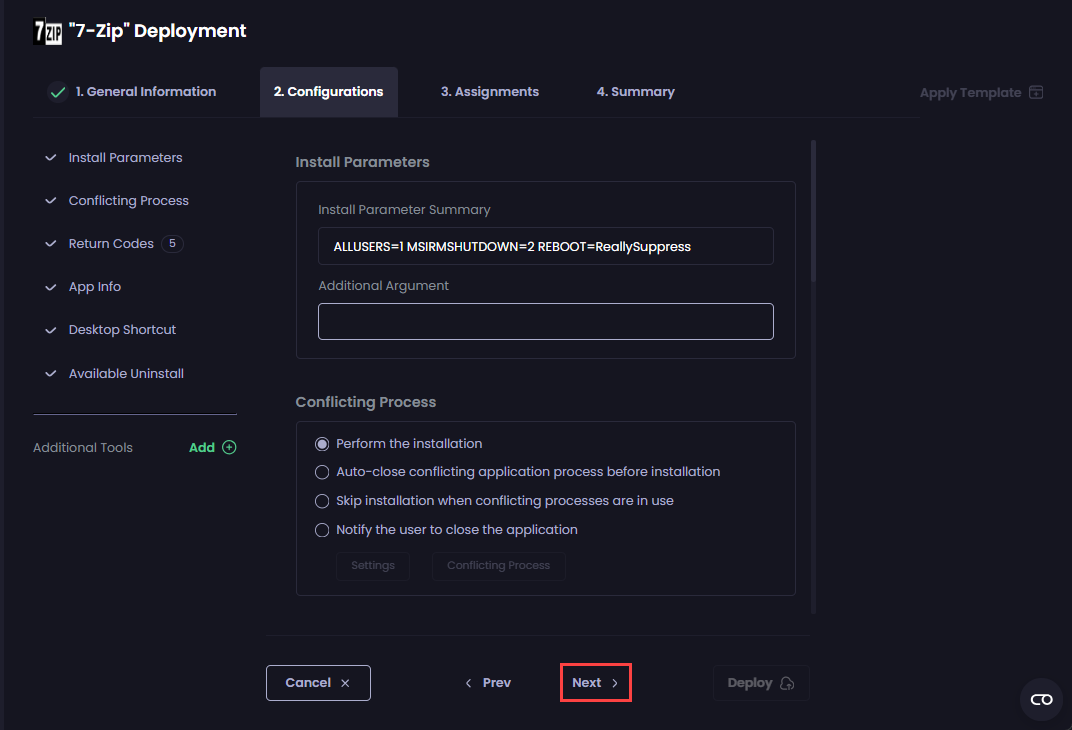
If you do not want to configure any additional settings, click **Next** to move to the [Assignments](/patch-my-pc-cloud/deployments/deploy-app/assignments-tab.md) tab.
Otherwise, navigate to the relevant tool to configure the required settings, which are explained in the relevant section.
---
# Agent Instructions
This documentation is published with GitBook. GitBook is the documentation platform designed so that both humans and AI agents can read, navigate, and reason over technical content effectively. Learn more at gitbook.com.
## Querying This Documentation
If you need additional information that is not directly available in this page, you can query the documentation by asking a question.
Perform an HTTP GET request on the following URL with the `ask` and `goal` query parameters:
```
GET https://docs.patchmypc.com/patch-my-pc-cloud/deployments/deploy-app/configurations-tab/standard-tools/conflicting-process.md?ask=&goal=
```
`ask` is the immediate question: it should be specific, self-contained, and written in natural language.
`goal` is what the user is ultimately trying to achieve, the reason they need the answer. Sharing it helps GitBook give you a better, more relevant answer. A goal is most helpful when it describes the outcome the user wants rather than restating the question. For example, with `ask=how do I create an API token`, a goal like `automate deployments from our CI pipeline` lets GitBook tailor the answer to that use case.
The response will contain a direct answer to the question and relevant excerpts and sources from the documentation.
Use this mechanism when the answer is not explicitly present in the current page, you need clarification or additional context, or you want to retrieve related documentation sections.