> For the complete documentation index, see [llms.txt](https://docs.patchmypc.com/llms.txt). Markdown versions of documentation pages are available by appending `.md` to page URLs; this page is available as [Markdown](https://docs.patchmypc.com/patch-my-pc-cloud/deployments/deploy-app/configurations-tab/additional-tools/extra-files.md).
# Configure Extra Files in a Patch My PC Cloud Deployment
*Applies to: Patch My PC Cloud*
{% hint style="info" %}
**Note**
Using the **Extra Files** tool is optional.
{% endhint %}
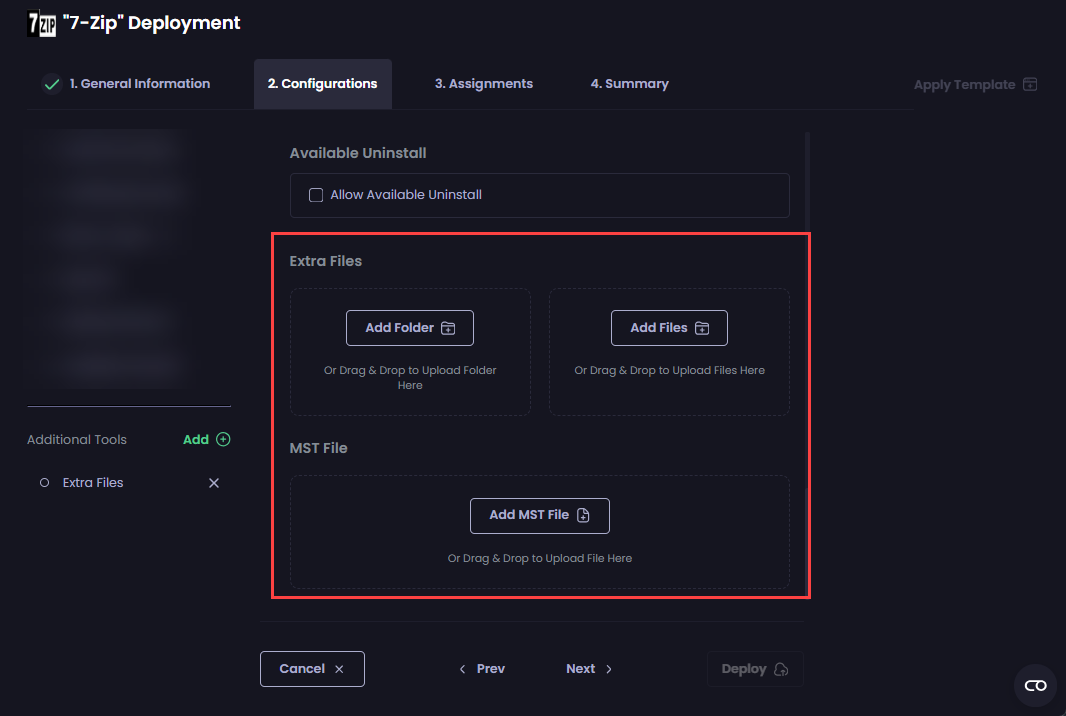
The **Extra Files** tool of the Patch My PC (PMPC) Cloud deployment wizard allows you to upload additional configuration files for a deployment.
To add extra folders and/or files:
1. Add the [**Extra Files** tool](/patch-my-pc-cloud/deployments/deploy-app/configurations-tab.md#adding-additional-tools).
2. Click the **Extra Files** tool.
3. Either:
1. Drag and drop the relevant folders or files to the relevant area.
2. Click the relevant button to browse to and select the relevant folders or files.
{% hint style="info" %}
**Note**
See [Unsupported File Names and Extensions for Extra Files](/patch-my-pc-cloud/technical-references/unsupported-file-names-and-extensions-in-cloud.md) for a list of filenames and extensions we do not support for upload.
Also, adding a folder will add any files and folders (including their files) within the selected folder.
We support uploading files with the same name, provided they are in different folders. We also support uploading folders with the same name, provided the selected paths are unique.
{% endhint %}
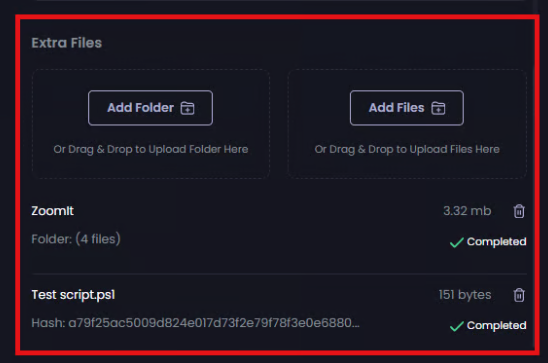
4. Click **Upload** when your browser prompts you to upload the content.\
\
The hash will be calculated for any folders/files you upload, which will appear at the bottom of the **Extra Files** section.
{% hint style="info" %}
**Note**
The total number of extra folders/files is not limited, but their total size must not exceed the storage limits for your license type. See [Product Limitations](/patch-my-pc-cloud/product-limits.md) for more details.
Also, if the **Installer Type** on the **General Information** page is set to **`.msi`**, the **MST File** section will be shown, allowing you to upload a single MST file. This file must have the **`.mst`** extension.
\*\*
Uploading a **`.mst`** file automatically adds the following to the **Additional Argument** field of the **Install Parameters** section:
**`TRANSFORMS=[<`*****`mstfile>`*****`].mst`**
where **`<`*****`mstfile>`*** is the name of the uploaded MST file.
{% endhint %}
5. Repeat the above steps to add any additional folders/files as required.
{% hint style="info" %}
**Note**
Once a deployment has been successfully created, you can add or remove any additional folders or files as required.
{% endhint %}
## Next Steps
If you do not want to configure any additional settings, click **Next** to move to the [Assignments](/patch-my-pc-cloud/deployments/deploy-app/assignments-tab.md) tab.
Otherwise, navigate to the relevant tool to configure the required settings, which are explained in the relevant section.
{% hint style="info" %}
**Note**
If you upload [Extra Files](/patch-my-pc-cloud/deployments/deploy-app/configurations-tab/additional-tools/extra-files.md) as part of your Patch My PC (PMPC) Cloud Deployment, you can reference those files in any of the [Scripts](/patch-my-pc-cloud/deployments/deploy-app/configurations-tab/additional-tools/scripts.md) in the same deployment by building a path relative to the script's current location. See [Referencing Extra Files in Scripts](/patch-my-pc-cloud/deployments/technical-references/reference-external-scripts.md) for more information.
{% endhint %}
---
# Agent Instructions
This documentation is published with GitBook. GitBook is the documentation platform designed so that both humans and AI agents can read, navigate, and reason over technical content effectively. Learn more at gitbook.com.
## Querying This Documentation
If you need additional information that is not directly available in this page, you can query the documentation by asking a question.
Perform an HTTP GET request on the following URL with the `ask` and `goal` query parameters:
```
GET https://docs.patchmypc.com/patch-my-pc-cloud/deployments/deploy-app/configurations-tab/additional-tools/extra-files.md?ask=&goal=
```
`ask` is the immediate question: it should be specific, self-contained, and written in natural language.
`goal` is what the user is ultimately trying to achieve, the reason they need the answer. Sharing it helps GitBook give you a better, more relevant answer. A goal is most helpful when it describes the outcome the user wants rather than restating the question. For example, with `ask=how do I create an API token`, a goal like `automate deployments from our CI pipeline` lets GitBook tailor the answer to that use case.
The response will contain a direct answer to the question and relevant excerpts and sources from the documentation.
Use this mechanism when the answer is not explicitly present in the current page, you need clarification or additional context, or you want to retrieve related documentation sections.


 \*\*
Uploading a **`.mst`** file automatically adds the following to the **Additional Argument** field of the **Install Parameters** section:
**`TRANSFORMS=[<`*****`mstfile>`*****`].mst`**
where **`<`*****`mstfile>`*** is the name of the uploaded MST file.
{% endhint %}
5. Repeat the above steps to add any additional folders/files as required.
{% hint style="info" %}
**Note**
Once a deployment has been successfully created, you can add or remove any additional folders or files as required.
{% endhint %}
## Next Steps
If you do not want to configure any additional settings, click **Next** to move to the [Assignments](/patch-my-pc-cloud/deployments/deploy-app/assignments-tab.md) tab.
Otherwise, navigate to the relevant tool to configure the required settings, which are explained in the relevant section.
{% hint style="info" %}
**Note**
If you upload [Extra Files](/patch-my-pc-cloud/deployments/deploy-app/configurations-tab/additional-tools/extra-files.md) as part of your Patch My PC (PMPC) Cloud Deployment, you can reference those files in any of the [Scripts](/patch-my-pc-cloud/deployments/deploy-app/configurations-tab/additional-tools/scripts.md) in the same deployment by building a path relative to the script's current location. See [Referencing Extra Files in Scripts](/patch-my-pc-cloud/deployments/technical-references/reference-external-scripts.md) for more information.
{% endhint %}
---
# Agent Instructions
This documentation is published with GitBook. GitBook is the documentation platform designed so that both humans and AI agents can read, navigate, and reason over technical content effectively. Learn more at gitbook.com.
## Querying This Documentation
If you need additional information that is not directly available in this page, you can query the documentation by asking a question.
Perform an HTTP GET request on the following URL with the `ask` and `goal` query parameters:
```
GET https://docs.patchmypc.com/patch-my-pc-cloud/deployments/deploy-app/configurations-tab/additional-tools/extra-files.md?ask=
\*\*
Uploading a **`.mst`** file automatically adds the following to the **Additional Argument** field of the **Install Parameters** section:
**`TRANSFORMS=[<`*****`mstfile>`*****`].mst`**
where **`<`*****`mstfile>`*** is the name of the uploaded MST file.
{% endhint %}
5. Repeat the above steps to add any additional folders/files as required.
{% hint style="info" %}
**Note**
Once a deployment has been successfully created, you can add or remove any additional folders or files as required.
{% endhint %}
## Next Steps
If you do not want to configure any additional settings, click **Next** to move to the [Assignments](/patch-my-pc-cloud/deployments/deploy-app/assignments-tab.md) tab.
Otherwise, navigate to the relevant tool to configure the required settings, which are explained in the relevant section.
{% hint style="info" %}
**Note**
If you upload [Extra Files](/patch-my-pc-cloud/deployments/deploy-app/configurations-tab/additional-tools/extra-files.md) as part of your Patch My PC (PMPC) Cloud Deployment, you can reference those files in any of the [Scripts](/patch-my-pc-cloud/deployments/deploy-app/configurations-tab/additional-tools/scripts.md) in the same deployment by building a path relative to the script's current location. See [Referencing Extra Files in Scripts](/patch-my-pc-cloud/deployments/technical-references/reference-external-scripts.md) for more information.
{% endhint %}
---
# Agent Instructions
This documentation is published with GitBook. GitBook is the documentation platform designed so that both humans and AI agents can read, navigate, and reason over technical content effectively. Learn more at gitbook.com.
## Querying This Documentation
If you need additional information that is not directly available in this page, you can query the documentation by asking a question.
Perform an HTTP GET request on the following URL with the `ask` and `goal` query parameters:
```
GET https://docs.patchmypc.com/patch-my-pc-cloud/deployments/deploy-app/configurations-tab/additional-tools/extra-files.md?ask=