> For the complete documentation index, see [llms.txt](https://docs.patchmypc.com/llms.txt). Markdown versions of documentation pages are available by appending `.md` to page URLs; this page is available as [Markdown](https://docs.patchmypc.com/patch-my-pc-cloud/deployments/deploy-app/configurations-tab/additional-tools/dependencies.md).
# Configure Dependencies in a Patch My PC Cloud Deployment
*Applies to: Patch My PC Cloud*
{% hint style="info" %}
**Note**
Using the **Dependencies** tool is optional.
{% endhint %}
The **Dependencies** tool of the Patch My PC (PMPC) Cloud deployment wizard allows you to create dependencies within a deployment, whereby the app being deployed requires one or more other apps to have already been installed on the targeted resource before it can be deployed.
If the required app(s) (known as the *parent*) have not already been installed on the device, they will automatically be installed before the app that is being deployed (known as the *child app*) is installed.
{% hint style="danger" %}
**Important**
Before you can create an App Dependency in a PMPC Cloud deployment, the deployment for the parent app(s) must:
* exist already
* have been deployed successfully
The parent app can be packaged without assignments and used in a Dependency chain rule, provided the parent app is deployed first.
Also, apps that have not been successfully deployed (such as those with a status of **Failed**, **Retrying**, **Processing**, etc.) cannot be used to create an app dependency, nor can apps with **Uninstall** or **Update Only** assignments.
{% endhint %}
{% hint style="info" %}
**Note**
Like Intune, we do not support circular dependencies (i.e. App A has a dependency on App B, and App B has a dependency on App A).
As per Intune, you can create a maximum of 100 dependencies, which includes the dependencies of any included dependencies, as well as the app itself. See [Step 5: Dependencies](https://learn.microsoft.com/en-us/mem/intune/apps/apps-win32-add#step-5-dependencies) of [Add, assign, and monitor a Win32 app in Microsoft Intune](https://learn.microsoft.com/en-us/mem/intune/apps/apps-win32-add) for more information.
Also, the parent app must have been deployed successfully before you can create a dependency between apps.
{% endhint %}
To add a dependency:
1. Add the [**Dependencies** tool](/patch-my-pc-cloud/deployments/deploy-app/configurations-tab.md#adding-additional-tools).
{% hint style="info" %}
**Note**
If we are aware that an app requires a dependency, we automatically add the **Dependencies** tool with a yellow dot after the tool name. If you click the **Dependencies** tool, we show you the name of the app we recommend you add as a dependency for this deployment.
{% endhint %}
2. Click the **Dependencies** tool.
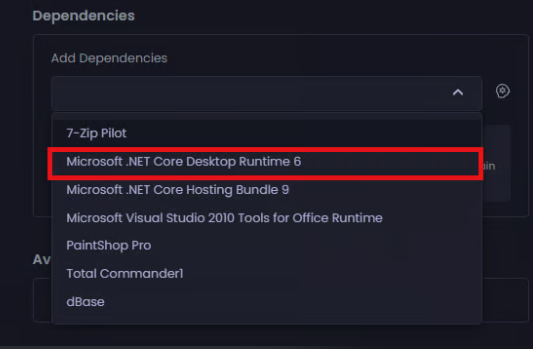
3. From the **Add Dependencies** field, either:
1. Start typing the name of the relevant app that this app depends on already being successfully installed on the target device.
2. Click the dropdown and select the relevant app that this app depends on already being successfully installed on the target device.
The selected app appears under the **Parent Deployment** section.
{% hint style="info" %}
**Note**
Click the trashcan beside the relevant app under the **Parent Deployment** section to delete a dependency.
{% endhint %}
4. Repeat Step 3. to add any additional dependencies.
{% hint style="success" %}
**Tip**
Once a dependency has been configured, you can view it as part of the app’s properties in the Microsoft Intune admin center.
For more information, see [Step 5: Dependencies](https://learn.microsoft.com/en-us/mem/intune/apps/apps-win32-add#step-5-dependencies) of [Add, assign, and monitor a Win32 app in Microsoft Intune](https://learn.microsoft.com/en-us/mem/intune/apps/apps-win32-add).
{% endhint %}
{% hint style="info" %}
**Note**
If a dependency is set up in the Intune admin center between an app managed by PMPC Cloud and an app managed directly in Intune, we will always copy-forward any dependencies from the PMPC Cloud app whenever we update the PMPC Cloud app.
{% endhint %}
{% hint style="danger" %}
**Warnings**
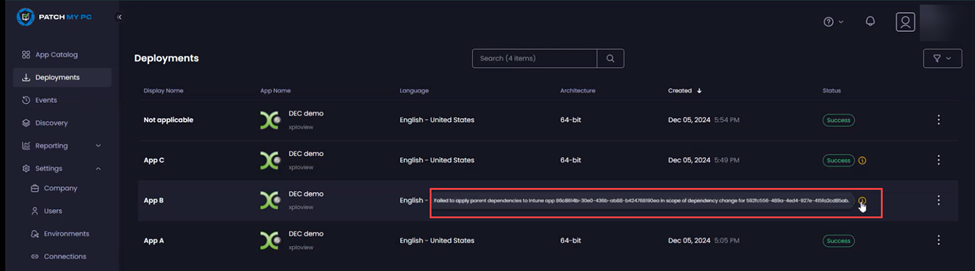
If we encounter any problems with app dependencies, we display a yellow exclamation mark (“**!**”) warning. Hovering over this will display more information.
We typically generate warnings in the following scenarios:
* If a dependency fails to be created. In this case, a warning is shown on the impacted child app(s) at the deployment level.
* If a dependency fails to be carried forward. In this case, a warning is shown on the impacted child app(s) at the deployment level.
* When multiple parent dependencies exist, any warnings will specify which particular dependency failed to be created to help you troubleshoot the issue.
If an entire deployment fails before the dependencies stage is reached, no warnings are shown, as we only show warnings for successful deployments.
{% endhint %}
## Next Steps
If you do not want to configure any additional settings, click **Next** to move to the [Assignments](/patch-my-pc-cloud/deployments/deploy-app/assignments-tab.md) tab.
Otherwise, navigate to the relevant tool to configure the required settings, which are explained in the relevant section.
---
# Agent Instructions
This documentation is published with GitBook. GitBook is the documentation platform designed so that both humans and AI agents can read, navigate, and reason over technical content effectively. Learn more at gitbook.com.
## Querying This Documentation
If you need additional information that is not directly available in this page, you can query the documentation by asking a question.
Perform an HTTP GET request on the following URL with the `ask` and `goal` query parameters:
```
GET https://docs.patchmypc.com/patch-my-pc-cloud/deployments/deploy-app/configurations-tab/additional-tools/dependencies.md?ask=&goal=
```
`ask` is the immediate question: it should be specific, self-contained, and written in natural language.
`goal` is what the user is ultimately trying to achieve, the reason they need the answer. Sharing it helps GitBook give you a better, more relevant answer. A goal is most helpful when it describes the outcome the user wants rather than restating the question. For example, with `ask=how do I create an API token`, a goal like `automate deployments from our CI pipeline` lets GitBook tailor the answer to that use case.
The response will contain a direct answer to the question and relevant excerpts and sources from the documentation.
Use this mechanism when the answer is not explicitly present in the current page, you need clarification or additional context, or you want to retrieve related documentation sections.

 {% endhint %}
2. Click the **Dependencies** tool.
{% endhint %}
2. Click the **Dependencies** tool.

 For more information, see [Step 5: Dependencies](https://learn.microsoft.com/en-us/mem/intune/apps/apps-win32-add#step-5-dependencies) of [Add, assign, and monitor a Win32 app in Microsoft Intune](https://learn.microsoft.com/en-us/mem/intune/apps/apps-win32-add).
{% endhint %}
{% hint style="info" %}
**Note**
If a dependency is set up in the Intune admin center between an app managed by PMPC Cloud and an app managed directly in Intune, we will always copy-forward any dependencies from the PMPC Cloud app whenever we update the PMPC Cloud app.
{% endhint %}
{% hint style="danger" %}
**Warnings**
If we encounter any problems with app dependencies, we display a yellow exclamation mark (“**!**”) warning. Hovering over this will display more information.
For more information, see [Step 5: Dependencies](https://learn.microsoft.com/en-us/mem/intune/apps/apps-win32-add#step-5-dependencies) of [Add, assign, and monitor a Win32 app in Microsoft Intune](https://learn.microsoft.com/en-us/mem/intune/apps/apps-win32-add).
{% endhint %}
{% hint style="info" %}
**Note**
If a dependency is set up in the Intune admin center between an app managed by PMPC Cloud and an app managed directly in Intune, we will always copy-forward any dependencies from the PMPC Cloud app whenever we update the PMPC Cloud app.
{% endhint %}
{% hint style="danger" %}
**Warnings**
If we encounter any problems with app dependencies, we display a yellow exclamation mark (“**!**”) warning. Hovering over this will display more information.
 We typically generate warnings in the following scenarios:
* If a dependency fails to be created. In this case, a warning is shown on the impacted child app(s) at the deployment level.
* If a dependency fails to be carried forward. In this case, a warning is shown on the impacted child app(s) at the deployment level.
* When multiple parent dependencies exist, any warnings will specify which particular dependency failed to be created to help you troubleshoot the issue.
If an entire deployment fails before the dependencies stage is reached, no warnings are shown, as we only show warnings for successful deployments.
{% endhint %}
## Next Steps
If you do not want to configure any additional settings, click **Next** to move to the [Assignments](/patch-my-pc-cloud/deployments/deploy-app/assignments-tab.md) tab.
Otherwise, navigate to the relevant tool to configure the required settings, which are explained in the relevant section.
---
# Agent Instructions
This documentation is published with GitBook. GitBook is the documentation platform designed so that both humans and AI agents can read, navigate, and reason over technical content effectively. Learn more at gitbook.com.
## Querying This Documentation
If you need additional information that is not directly available in this page, you can query the documentation by asking a question.
Perform an HTTP GET request on the following URL with the `ask` and `goal` query parameters:
```
GET https://docs.patchmypc.com/patch-my-pc-cloud/deployments/deploy-app/configurations-tab/additional-tools/dependencies.md?ask=
We typically generate warnings in the following scenarios:
* If a dependency fails to be created. In this case, a warning is shown on the impacted child app(s) at the deployment level.
* If a dependency fails to be carried forward. In this case, a warning is shown on the impacted child app(s) at the deployment level.
* When multiple parent dependencies exist, any warnings will specify which particular dependency failed to be created to help you troubleshoot the issue.
If an entire deployment fails before the dependencies stage is reached, no warnings are shown, as we only show warnings for successful deployments.
{% endhint %}
## Next Steps
If you do not want to configure any additional settings, click **Next** to move to the [Assignments](/patch-my-pc-cloud/deployments/deploy-app/assignments-tab.md) tab.
Otherwise, navigate to the relevant tool to configure the required settings, which are explained in the relevant section.
---
# Agent Instructions
This documentation is published with GitBook. GitBook is the documentation platform designed so that both humans and AI agents can read, navigate, and reason over technical content effectively. Learn more at gitbook.com.
## Querying This Documentation
If you need additional information that is not directly available in this page, you can query the documentation by asking a question.
Perform an HTTP GET request on the following URL with the `ask` and `goal` query parameters:
```
GET https://docs.patchmypc.com/patch-my-pc-cloud/deployments/deploy-app/configurations-tab/additional-tools/dependencies.md?ask=