> For the complete documentation index, see [llms.txt](https://docs.patchmypc.com/llms.txt). Markdown versions of documentation pages are available by appending `.md` to page URLs; this page is available as [Markdown](https://docs.patchmypc.com/patch-my-pc-cloud/deployments/deploy-app/assignments-tab.md).
# About the "Assignments" tab of a Patch My PC Cloud Deployment
*Applies to: Patch My PC Cloud*
The **Assignments** tab of the Patch My PC (PMPC) Cloud deployment wizard allows you to configure various assignments (explained below) for how you want the app to be deployed.
{% hint style="info" %}
**Note**
See [Understand Patch My PC Cloud Assignments](/patch-my-pc-cloud/deployments/technical-references/understand-assignments.md) for more details about assignments and how they work in PMPC Cloud.
You can deploy an app without assignments as detailed in [Create a Deployment Without Assignments](/patch-my-pc-cloud/deployments/technical-references/deployment-without-assignments.md).
{% endhint %}
From the **Assignments** page you can also:
* Apply a [Template](/patch-my-pc-cloud/deployments/use-template.md) of pre-configured settings to this deployment.
* [Enable Update Rings](/patch-my-pc-cloud/deployments/update-rings/create.md) for this deployment.
To add an Assignment to a deployment:
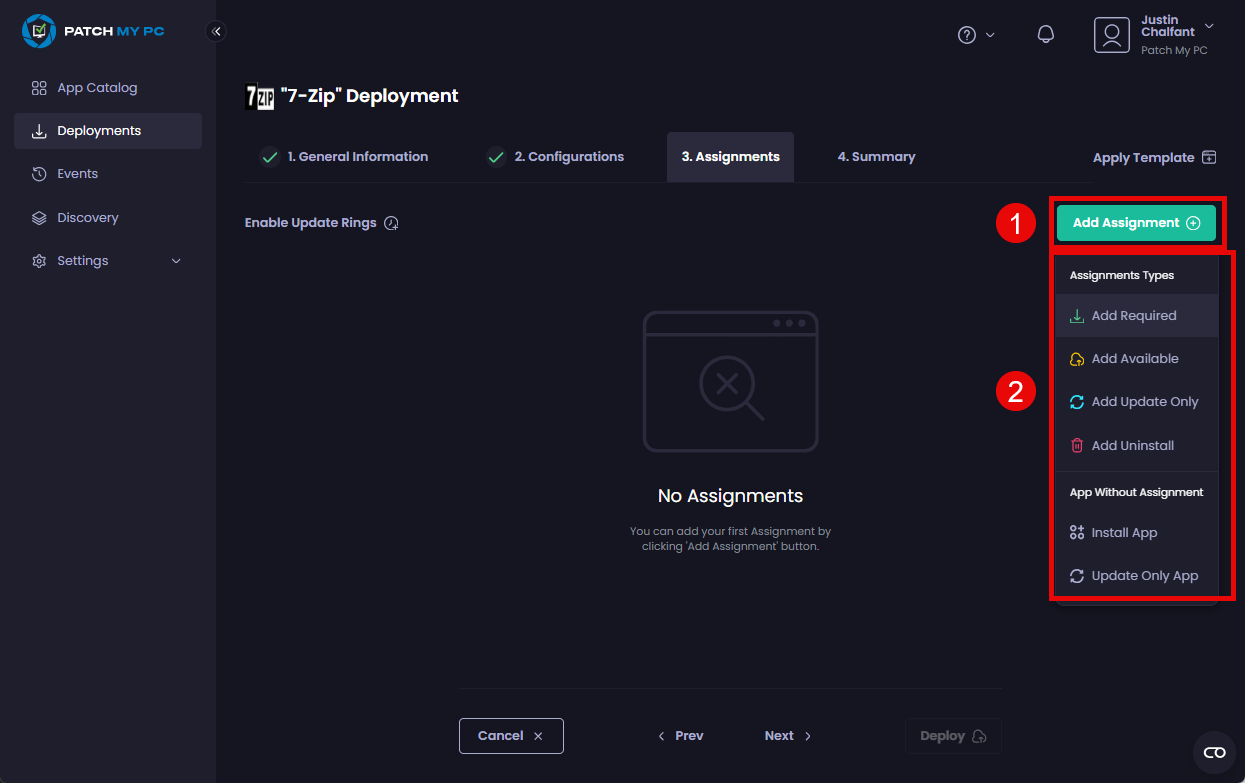
1. Click **Add Assignment** and then choose the assignment type you want to add for this deployment:
1. **Add Required –** A mandatory application that will be installed automatically for all users or devices it is assigned to.
2. **Add Available –** An optional application that will be available to install via the Company Portal for the primary user of the device.
3. **Add Update Only –** Creates a separate Win32 package in Intune that exclusively updates existing installations. It will not install the software on devices where it isn't already present, and only applies if the installed variant matches the one configured in the deployment.
{% hint style="info" %}
**Note**
Assignments configured in the portal are the *source of truth* for deployments with assignments. If you manually add any assignments outside the portal, these will not be retained when a new version is created. To ensure your assignments persist, configure them directly in the portal.
Also:
* If your deployment uses a [Retention Policy](/patch-my-pc-cloud/deployments/deploy-app/configurations-tab/additional-tools/retention-policy.md), using the **Update Only** assignment type will also retain the relevant number of versions of the app in addition to the regular deployment types in Intune.
* Intune does not support using the **Update Only** assignment type with a deployment that is also configured to use [ESP Profiles](/patch-my-pc-cloud/deployments/deploy-app/configurations-tab/additional-tools/esp-profiles.md). If you try to use this configuration, the **Deploy** button will be greyed out and the **Configurations** tab will show a red "**X**".\
\
In this scenario, you either need to:
* Remove the **Update Only** assignment type
* Or remove all ESP Profiles.
{% endhint %}
d. **Add Uninstall –** A mandatory uninstall that will remove the application from any users or devices it is assigned to, using the apps uninstaller.
{% hint style="info" %}
**Note**
We do not support the **Uninstall** assignment type for pkg installers.
See [Uninstall a Custom App](/patch-my-pc-cloud/custom-apps/uninstall-a-custom-app.md) for more details on how the Custom Apps uninstall feature works and its limitations.
{% endhint %}
e. **Install App -** Allows the Intune admin to add **Required**, **Available**, or **Uninstall** assignments from within the Intune admin center.
f. **Update Only App -** Allows the Intune admin to add an **Update Only** assignment from within the Intune admin center.
{% hint style="info" %}
**Note**
See [Create a Deployment Without Assignments](/patch-my-pc-cloud/deployments/technical-references/deployment-without-assignments.md) for more details on deploying apps without assignments.
Also, if the **Installed Apps Name** field on the **Configuration** tab of a Custom App is not completed, then the **Add Update Only** and **Update Only App** assignment types are unavailable, as per the tooltip you will see if you hover your mouse over either of these assignment types.
{% endhint %}
{% hint style="info" %}
**Note**
Adding an **Available** assignment allows you to add an **Update Only** application. This ensures that any applications assigned as **Available** are updated automatically when installed via Microsoft’s Company Portal.
{% endhint %}
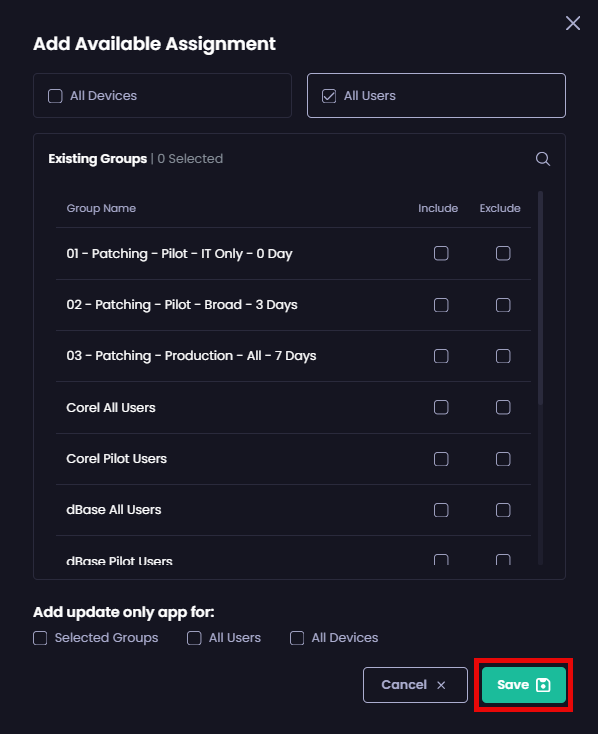
2. On the **Add <*****assignment\_type*****> Assignment** screen, choose the relevant Entra ID security groups to target for this assignment, then click **Save**.
| Option | Description |
| ------- | --------------------------------------------------------------------------------------------------------------------------------------------------------------------------------------------------------------------------------------------------------------------------------------------------------------------------------------------------------------------------------------------------------------------------------------------------------------------------------------------------------------------------------------------------------------------------------------------------------------------- |
| Include | If checked, all of the items in this group will receive the assigned app. |
| Exclude |
If checked, all of the items in this group will not receive the assigned app.
Can be used in conjunction with Include to exclude a subset of devices when you have an Include of a superset of devices.
For example, you want to target all of your computers except for your test devices. To achieve this, you'd configure your Entra ID groups as follows:
o Check Include for your All Company Devices Entra ID group. o Check Exclude for your Test Devices Entra ID group.
|
{% hint style="info" %}
**Note**
You will be unable to select any options under the **Add update only app for** section for an Available Assignment until you select at least option.
Also, as our portal uses application permissions to read Entra ID groups, all groups will be visible whenever you manage assignments.
{% endhint %}
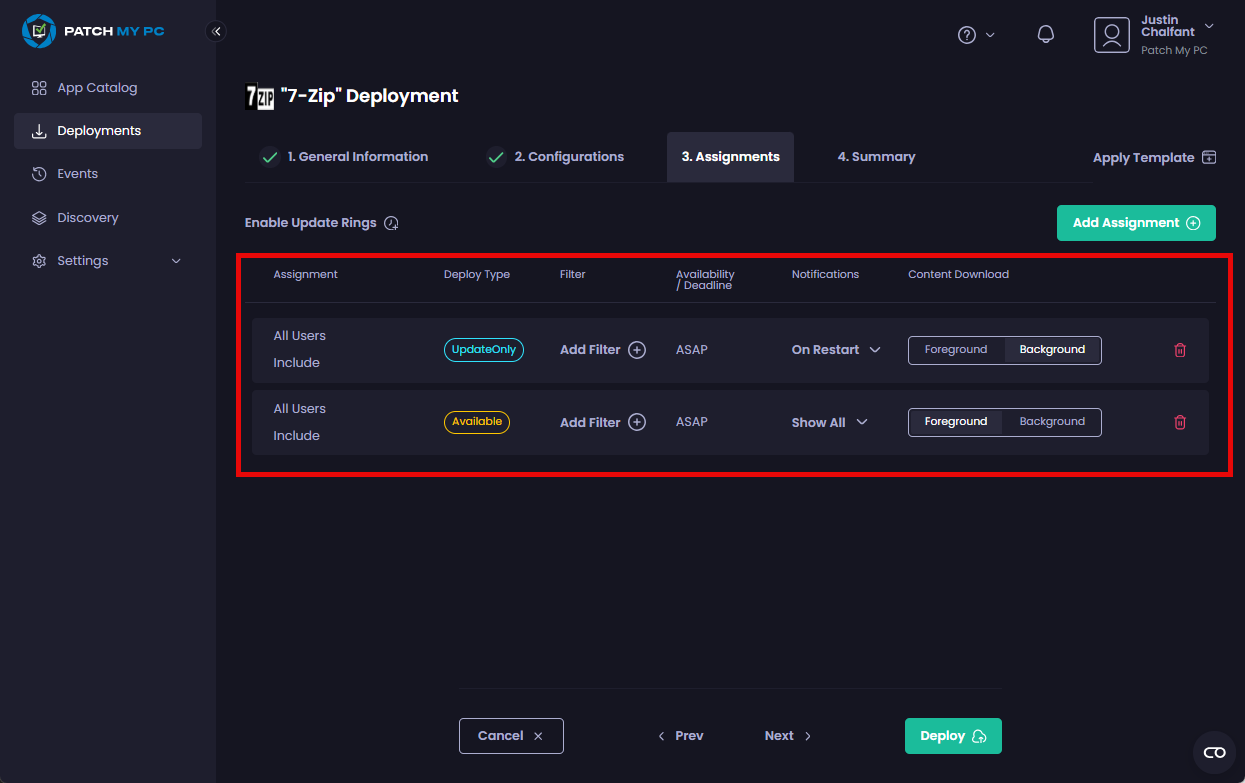
The **Assignments** page updates to show the newly added assignments, including their configuration.
3. Make any of the following optional modifications to the assignment(s).
| Option | Description |
| ---------------- | ------------------------------------------------------------------------------------------------------------------------------------------------------------------------------------------------------------------------------------------------------------------------------------------------------------------------------------------------------------------------------------------------------------------------------------------------------------------------------------------------------------------------------------------------------------------------------------------------------------------ |
| Add Filter |
The ability to add Assignment Filters you have already created in Intune to target specific managed devices for the deployment.
TIP: You can click the red X beside a filter to remove it.
|
| Notifications | When to display notifications related to this deployment. |
| Content Download |
How to download the content for the deployment:
o Foreground - The default for initial installs. o Background - The default for updates.
|
{% hint style="info" %}
**Note**
We automatically configure these settings based on our experience and best practices, but you can modify certain settings if necessary.
{% endhint %}
{% hint style="success" %}
**Tip**
You can click **Deploy** on this page if you don’t want to add additional assignments or see the **Summary** page, which allows you to double-check the settings you’ve configured for this deployment.
{% endhint %}
4. Add any additional assignments for this deployment by clicking **Add Assignment** and repeating the steps in this section.
5. If you are happy you have entered all of the details for the deployment correctly, click **Deploy** to deploy the app. However, we recommend you click **Next** to move to the [**Summary** ](/patch-my-pc-cloud/deployments/deploy-app/summary-tab.md)tab, where you can verify the settings for this deployment before you deploy this app.
---
# Agent Instructions
This documentation is published with GitBook. GitBook is the documentation platform designed so that both humans and AI agents can read, navigate, and reason over technical content effectively. Learn more at gitbook.com.
## Querying This Documentation
If you need additional information that is not directly available in this page, you can query the documentation by asking a question.
Perform an HTTP GET request on the following URL with the `ask` and `goal` query parameters:
```
GET https://docs.patchmypc.com/patch-my-pc-cloud/deployments/deploy-app/assignments-tab.md?ask=&goal=
```
`ask` is the immediate question: it should be specific, self-contained, and written in natural language.
`goal` is what the user is ultimately trying to achieve, the reason they need the answer. Sharing it helps GitBook give you a better, more relevant answer. A goal is most helpful when it describes the outcome the user wants rather than restating the question. For example, with `ask=how do I create an API token`, a goal like `automate deployments from our CI pipeline` lets GitBook tailor the answer to that use case.
The response will contain a direct answer to the question and relevant excerpts and sources from the documentation.
Use this mechanism when the answer is not explicitly present in the current page, you need clarification or additional context, or you want to retrieve related documentation sections.