> For the complete documentation index, see [llms.txt](https://docs.patchmypc.com/llms.txt). Markdown versions of documentation pages are available by appending `.md` to page URLs; this page is available as [Markdown](https://docs.patchmypc.com/patch-my-pc-client/manage/uninstall.md).
# Uninstall the Patch My PC Client
*Applies to: Patch My PC Client*
You can use the following methods to uninstall the Patch My PC (PMPC) Client:
* [Select specific Entra ID groups to uninstall the PMPC client from](#select-specific-entra-id-groups-to-uninstall-the-pmpc-client-from)
* [Create an Uninstall Deployment from the Intune admin center](#create-an-uninstall-deployment-from-the-intune-admin-center)
## Select specific Entra ID groups to uninstall the PMPC client from
To uninstall the Patch My PC (PMPC) Client you can select specific Entra ID groups to uninstall the client from.
{% hint style="danger" %}
**Important**
Deleting a device from Intune that has the PMPC Client installed will **NOT** uninstall the PMPC Client, meaning the device will still show in PMPC Reporting. The only way to uninstall the PMPC Client is to use one of the above methods.
Also, if your trial license has expired and you have installed the PMPC Client during your trial, please see the [If your Trial License has Expired](#if-your-trial-license-has-expired) section below.
{% endhint %}
To uninstall the PMPC Client from specific Entra ID groups:
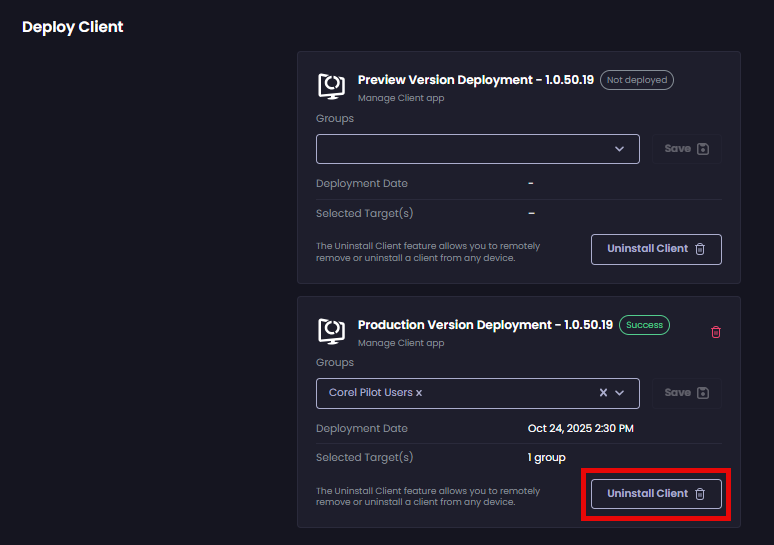
1. Navigate to **Settings | Deploy Client**
2. Click the relevant **Uninstall Client** button.
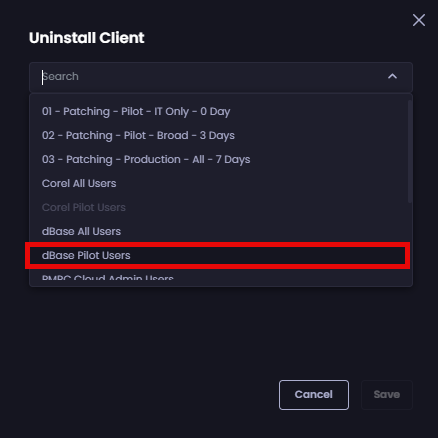
3. Select the relevant group.
{% hint style="info" %}
**Note**
If a group is greyed out, it means the current Client deployment is targeted to that group, and must be cleared first from the (Install) deployment before it can be selected for Uninstall.
{% endhint %}
4. Add any additional Groups as required.
5. Click **Save**.
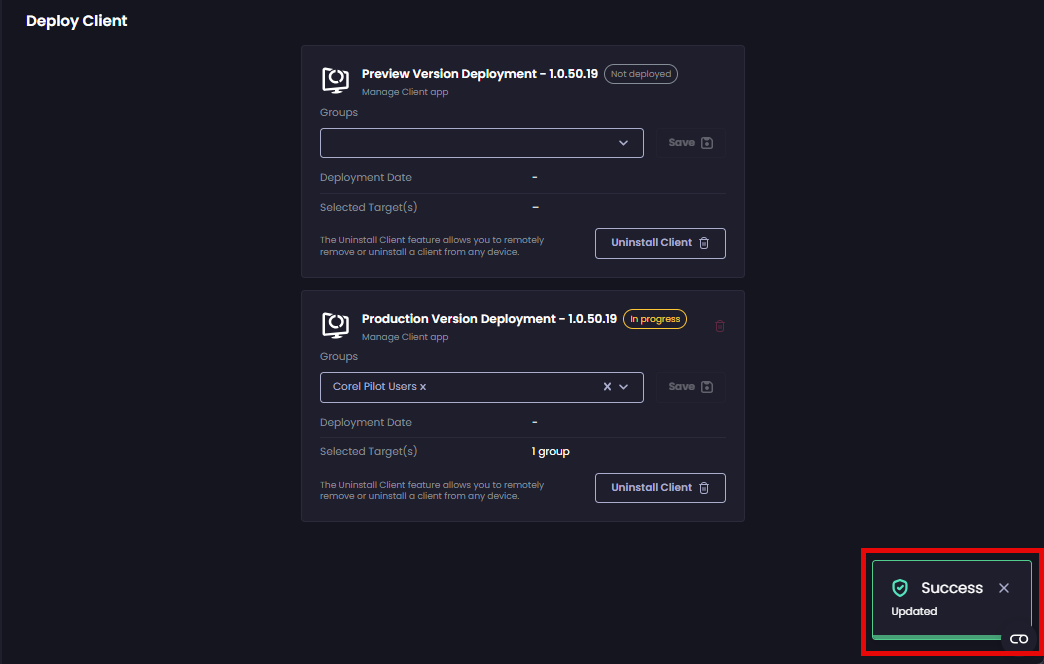
The **Deploy Client** page is displayed along with the **Success – Updated** notification.
The Client will then be uninstalled from all the devices within the selected Entra ID Group(s).
## Create an Uninstall Deployment from the Intune admin center
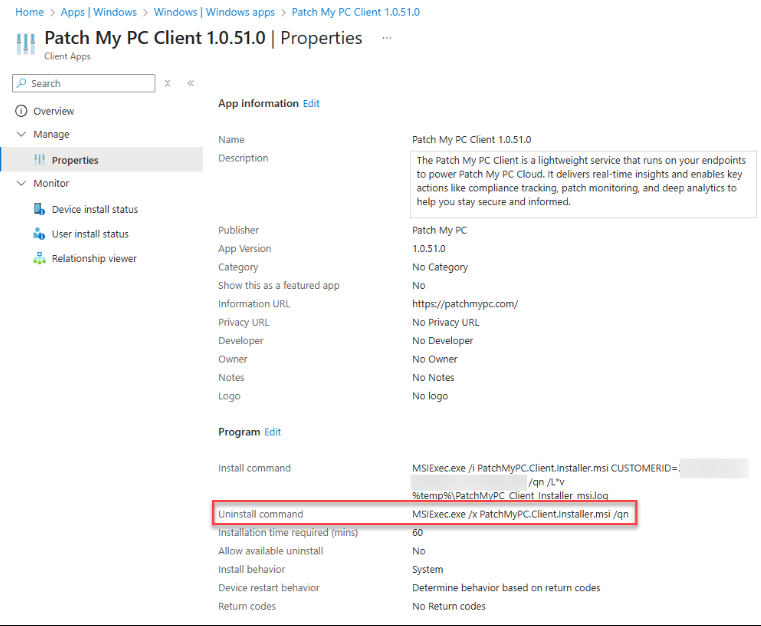
You can create an uninstall deployment in the Intune admin center that has the command for uninstalling the PMPC Client configured in the **Uninstall Command** field:
```
MSIExec.exe /x PatchMyPC.ClientInstaller.msi /qn
```
## If Your Trial License has Expired
If your PMPC Cloud Trial License has expired, the **Your license has expired...** banner appears at the top of the Cloud Portal, and when you navigate to **Deploy Client** both the **Delete** and **Save** buttons are disabled.
If you have deployed the PMPC Client during your trial, you should click **Uninstall Client** beside the relevant Client deployment channel used to install the Client.
On the **Confirm Uninstall Action** dialog box, click **Uninstall**.
A new app is created in Intune for the relevant Entra ID groups with an **Uninstall** assignment to uninstall our Client.
---
# Agent Instructions
This documentation is published with GitBook. GitBook is the documentation platform designed so that both humans and AI agents can read, navigate, and reason over technical content effectively. Learn more at gitbook.com.
## Querying This Documentation
If you need additional information that is not directly available in this page, you can query the documentation dynamically by asking a question.
Perform an HTTP GET request on the current page URL with the `ask` query parameter, and the optional `goal` query parameter:
```
GET https://docs.patchmypc.com/patch-my-pc-client/manage/uninstall.md?ask=&goal=
```
`ask` is the immediate question: it should be specific, self-contained, and written in natural language.
`goal` is optional and describes the broader end goal you are ultimately trying to accomplish on behalf of the user. GitBook uses it to tailor the answer towards what is most useful for that goal.
The response will contain a direct answer to the question and relevant excerpts and sources from the documentation.
Use this mechanism when the answer is not explicitly present in the current page, you need clarification or additional context, or you want to retrieve related documentation sections.
.png?alt=media)